
Connect Google Sheets Without Creating an API Key
Connect WordPress to Google Sheets without manually creating a Google Cloud project, configuring OAuth credentials, or copying API keys.
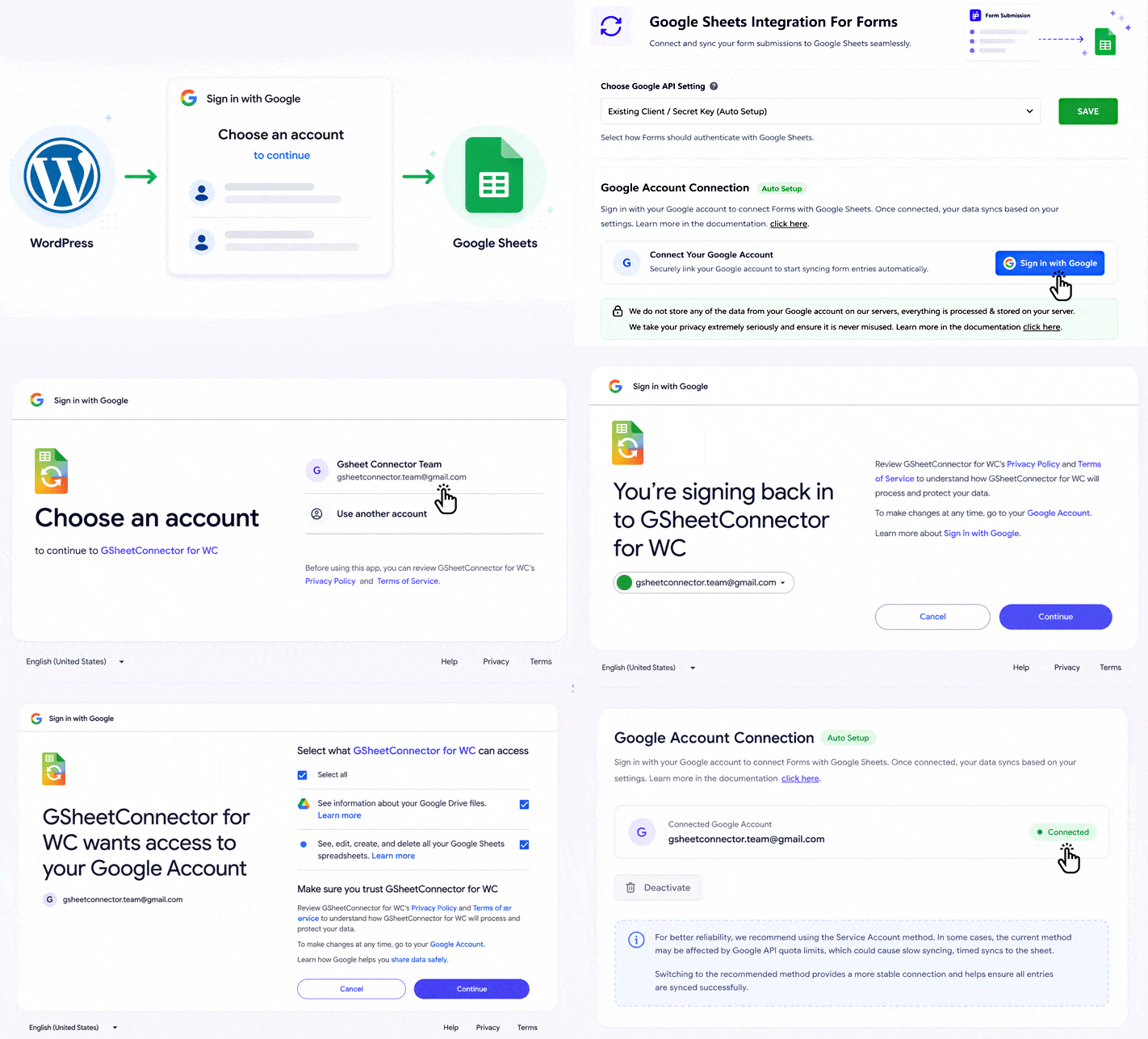
With GSheetConnector’s One-Click Authentication, you can sign in with your Google account, approve the required permissions, and connect your spreadsheet directly from WordPress.

- No API Key
- No Google Cloud Setup
- One-Click Authentication
 No Google Cloud Project
 No API Key to Copy
 No OAuth Credentials to Create
 Uses Google Authorization
Do You Need an API Key to Connect Google Sheets?
No. You do not need to manually create an API key to connect WordPress to Google Sheets with GSheetConnector.
In fact, an API key alone is generally not what authorizes access to a private Google Sheet. Private spreadsheet access typically uses OAuth 2.0 or a service account to authorize access.
What WordPress users often want to avoid is the technical setup that can come with building a Google Sheets integration yourself: creating a Google Cloud project, enabling APIs, configuring OAuth credentials, adding redirect URLs, and managing those credentials inside WordPress.
GSheetConnector simplifies this process with One-Click Authentication, allowing you to connect your Google account without manually creating and configuring your own Google API or OAuth credentials.
API Key vs OAuth vs Service Account: What’s the Difference?
These terms are often used interchangeably, but they serve different purposes when connecting an application such as WordPress to Google Sheets.
For most WordPress users, OAuth provides a more convenient approach:
you can authorize the Google account you already use instead of building and maintaining your own authentication workflow.
Why Connecting Google Sheets Manually Can Be Complicated
If you build your own Google Sheets integration, there are several configuration steps to complete before your WordPress site can securely access a private spreadsheet.
Depending on the authentication method and integration, the setup may involve working directly with Google Cloud, APIs, OAuth credentials, and authorization settings.
- Create a Google Cloud project
- Enable the required Google APIs
- Configure the OAuth consent screen
- Create OAuth client credentials
- Add authorized redirect URLs
- Copy and configure credentials in your application
- Complete the Google authorization flow
- Maintain the integration as requirements change
For developers building custom applications, this level of control can be useful. But for a WordPress site owner who simply wants to send form submissions, orders, leads, or other supported data to Google Sheets, it can add unnecessary technical overhead.
Connect Google Sheets Without Manual API or OAuth Credential Setup
GSheetConnector removes the need for WordPress users to manually create and configure their own Google API or OAuth credentials.
Instead of setting up a Google Cloud project yourself, you can use One-Click Authentication from your WordPress dashboard to authorize your Google account and connect Google Sheets.


How to Connect WordPress to Google Sheets Without an API Key
You don't need to build a custom Google Sheets API integration just to send WordPress data to a spreadsheet. With GSheetConnector, the basic process is to install the appropriate connector, authorize your Google account, select your spreadsheet, and configure the data you want to send.
1
Install GSheetConnector
Install the GSheetConnector plugin designed for the WordPress form, page builder, or eCommerce plugin you use.
2
Open the Google Sheets Settings
Open the GSheetConnector settings in your WordPress dashboard and locate the Google account authentication option.
3
Connect Your Google Account
Choose One-Click Authentication, sign in with the Google account you want to use, review the requested permissions, and approve access.
4
Choose Your Spreadsheet
Select the Google Spreadsheet and worksheet where you want the supported WordPress data to appear.
5
Configure Your Data
Configure the form fields, order information, or other supported data that should be sent from WordPress to your Google Sheet.
6
Test the Connection
Send a test submission or supported data from WordPress and confirm that the information appears in the correct Google Sheet.
That's it. Your WordPress site can now send supported data to Google Sheets without you having to manually create and configure
your own Google API or OAuth credentials.
Connect Your Favorite WordPress Plugins to Google Sheets
GSheetConnector provides dedicated Google Sheets integrations for popular WordPress form plugins, page builders, and eCommerce solutions. Choose the connector that matches the plugin you already use and connect your Google account without manually configuring your own Google API credentials.

Contact Form 7
Send Contact Form 7 submissions directly to Google Sheets.

WPForms
Connect WPForms entries with Google Sheets for easier data management.

Elementor Forms
Send Elementor form submissions from WordPress to Google Sheets.

Gravity Forms
Connect Gravity Forms with Google Sheets and organize form data in spreadsheets.

Ninja Forms
Send supported Ninja Forms submission data to Google Sheets.

Forminator
Connect Forminator forms with Google Sheets from your WordPress dashboard.

Fluent Forms
Send Fluent Forms submissions to Google Sheets without building a custom integration.

WooCommerce
Connect supported WooCommerce store data with Google Sheets for easier workflows and reporting.
Connect Your Favorite WordPress Themes to Google Sheets
GSheetConnector provides dedicated Google Sheets integrations for popular WordPress form themes solutions. Choose the connector that matches the plugin you already use and connect your Google account without manually configuring your own Google API credentials.

Avada
Connect Avada Forms entries with Google Sheets for easier data management.

Divi
Send Divi form submissions from WordPress to Google Sheets.
Using a different supported WordPress plugin? Explore the complete GSheetConnector integration library to find the connector for your workflow.
What One-Click Google Authentication Looks Like
Instead of manually creating a Google Cloud project and copying API or OAuth credentials into WordPress, GSheetConnector provides a simpler authentication flow from your WordPress dashboard.
When you start the connection, you are taken through Google's authentication process. You choose the Google account you want to connect, review the permissions being requested, and approve access.
After authorization, you return to WordPress and continue configuring your Google Sheets integration.
- Start the connection from GSheetConnector
- Choose your Google account
- Review Google's requested permissions
- Approve the connection
- Return to WordPress and configure your spreadsheet
You don't need to enter your Google account password into GSheetConnector. Google handles the account sign-in and authorization process.

Is It Safe to Connect Google Sheets This Way?
GSheetConnector uses Google's authorization process to connect your Google account rather than asking you to provide your Google account password directly to the plugin.
During authorization, Google displays the permissions being requested so you can review them before deciding whether to approve access.
Google Handles the Sign-In
When connecting your account, the Google sign-in and authorization process is handled through Google. Your Google password is not entered into GSheetConnector.
Review Permissions Before Approving
Google shows the permissions requested by the integration before you approve the connection. This gives you an opportunity to review the requested access before continuing.
You Stay in Control
Google provides controls for reviewing and revoking third-party account access later if you no longer want an application connected to your Google account.

Important: GSheetConnector does not remove Google's authentication requirements. One-Click Authentication simplifies the process so WordPress users don't have to manually create and configure their own Google Cloud OAuth credentials.
GSheetConnector vs Manual Google Sheets API Setup
Both approaches can connect an application to Google Sheets, but the amount of setup required is very different. GSheetConnector is designed for WordPress users who want to avoid manually building and maintaining their own Google Sheets authentication and integration workflow.
| Requirement | GSheetConnector | Manual / Custom Integration |
|---|---|---|
| Create your own Google Cloud project | No manual setup with One-Click Authentication | Typically required |
| Enable required Google APIs | No manual configuration by the WordPress user | Typically configured by the developer |
| Create OAuth Client ID | No manual credential creation | Required for an OAuth-based custom setup |
| Manage Client Secret | No manual Client Secret management | Developer manages credentials securely |
| Configure redirect URI | No manual redirect URI configuration | Required for applicable OAuth flows |
| Write integration code | No custom integration code required for supported workflows | Usually required |
| Connect Google account | One-Click Authentication | Custom authorization flow |
| WordPress integration | Built for supported WordPress plugins | Build and maintain yourself |
| Ongoing integration maintenance | Handled through the GSheetConnector plugin and updates | Developer maintains the custom integration |
| Best suited for | WordPress site owners, marketers, agencies, and stores | Developers building custom applications |
Important distinction: GSheetConnector does not eliminate Google's underlying authentication requirements. It simplifies the setup so WordPress users do not have to manually create and manage their own Google Cloud OAuth credentials for supported integrations.
Who Should Use a No-Code Google Sheets Connection?
A simplified Google Sheets connection is useful when you need WordPress data in a spreadsheet but don't want to build and maintain a custom Google API integration.




Frequently Asked Questions
Common questions about connecting WordPress to Google Sheets without manually creating API keys or configuring your own Google Cloud credentials.
Do I need an API key to connect Google Sheets?
No. You do not need to manually create an API key when using GSheetConnector's One-Click Authentication. An API key alone does not authorize access to private Google Sheets. Private spreadsheet access requires an authorization method such as OAuth 2.0 or a Service Account.
GSheetConnector simplifies the setup, so WordPress users do not have to manually create and configure Google API or OAuth credentials for supported integrations.
Can I connect WordPress to Google Sheets without Google Cloud Console?
Yes. With GSheetConnector's One-Click Authentication, you can connect your Google account without creating your own Google Cloud project, enabling APIs, generating OAuth credentials, or configuring redirect URLs.
You simply authorize access through Google's secure authentication process while GSheetConnector handles the connection workflow.
Is an API key the same as OAuth?
No. An API key identifies the application or Google Cloud project making API requests, while OAuth authorizes an application to access a user's private Google resources after receiving permission.
Access to private Google Sheets requires authorization, not just an API key.
Can I use the Google Sheets API without credentials?
It depends on the data you are accessing. Public data may require fewer restrictions, but accessing private Google Sheets requires authorization.
With GSheetConnector's One-Click Authentication, you do not need to manually create or manage your own OAuth Client ID, Client Secret, or other Google Cloud credentials.
Can WordPress send form submissions to Google Sheets without an API key?
Yes. GSheetConnector integrates with popular WordPress form plugins such as Contact Form 7, WPForms, Elementor Forms, Gravity Forms, Ninja Forms, Forminator, Fluent Forms, and other supported plugins.
You can connect your Google account and automatically send form submissions to Google Sheets without manually creating API credentials.
Can WooCommerce send orders to Google Sheets without an API key?
Yes. GSheetConnector for WooCommerce allows you to sync WooCommerce orders with Google Sheets without manually creating Google API or OAuth credentials.
Available synchronization features depend on the GSheetConnector for WooCommerce version and license you are using.
Do I need coding knowledge to connect WordPress to Google Sheets?
No. GSheetConnector is designed for users without programming experience. Installation, Google account authentication, spreadsheet selection, and integration settings are all managed from your WordPress dashboard.
Custom coding is only required if you want to build your own Google Sheets integration from scratch.
Does GSheetConnector store my Google password?
No. GSheetConnector never asks for or stores your Google password.
Google manages the entire sign-in and authorization process, and you review the requested permissions before granting access.
Can I disconnect or revoke Google access later?
Yes. You can revoke GSheetConnector's access at any time from your Google Account security settings.
Depending on the GSheetConnector integration you are using, you may also have options within your WordPress dashboard to disconnect or reconnect your Google account.
What is the easiest way to connect WordPress to Google Sheets?
One of the easiest methods is to use GSheetConnector instead of building a custom integration.
Simply install the appropriate GSheetConnector plugin, authenticate your Google account using One-Click Authentication, select or create your Google Sheet, configure the field mapping, and start syncing WordPress data automatically.
Explore WordPress & Google Sheets Integrations
Looking for instructions for a specific WordPress plugin? Explore our Google Sheets integration guides and solutions for popular form builders, page builders, and eCommerce plugins.

WooCommerce Google Sheet Connector
Automatically syncs WooCommerce orders, customers, and product data to Google Sheets, making order tracking and reporting easier than ever.

CF7 Google Sheet Connector
Save every CF7 submission directly to Google Sheets and keep all your form responses organized in one place.

WPForms Google Sheet Connector
Automatically sends WPForms entries to Google Sheets so you can access your form data anytime without manual exports.

Gravity Forms Google Sheet Connector
Instantly sync Gravity Forms submissions to Google Sheets and simplify data collection and reporting.

Ninja Forms Google Sheet Connector
Automatically transfers Ninja Forms entries to Google Sheets and keep your records accurate and up to date.

Elementor Forms Google Sheet Connector
Connect Elementor form submissions to Google Sheets for instant data access.

Avada Forms Google Sheet Connector
Connect Avada Forms to Google Sheets and automatically organize every submission in a structured spreadsheet.

Divi Forms Google Sheet Connector
Automatically store Divi form submissions in Google Sheets and manage all your form data from one location.

Formidable Forms Google Sheet Connector
Sync Formidable entries and maintain clean, searchable records.

Forminator Google Sheet Connector
Connect Forminator submissions and keep all form data organized.
Fluent Forms Google Sheet Connector
Send Fluent Forms entries directly to Google Sheets in real time and eliminate manual data handling.

Easy Digital Downloads Google Sheet Connector
Track EDD orders, customers, and sales data in Google Sheets for better visibility and reporting.
WordPress Core Google Sheet Connector
Automatically syncs WordPress users, posts, comments, and other site data with Google Sheets.
JetFormBuilder Google Sheet Connector
Automatically sends JetFormBuilder submissions to Google Sheets and keeps your form data organized in real time.
Need another WordPress integration? Visit our Google Sheets Integration Hub to explore all supported GSheetConnector solutions.
 No Custom Coding
 CF7 Google Sheet Connector
 WPForms Google Sheet Connector
 Ninja Forms Google Sheet Connector
 Gravity Forms Google Sheet Connector
 Formidable Forms Google Sheet Connector
 Forminator Forms Google Sheet Connector
 Fluent Forms Google Sheet Connector
 JetFormBuilder Google Sheet Connector
 Elementor Forms Google Sheet Connector
 Avada Forms Google Sheet Connector
 Divi Forms Google Sheet Connector
 WooCommerce Google Sheet Connector
 Easy Digital Downloads Google Sheet Connector
 WordPress Core Google Sheet Connector


