
Fluent Forms Google Sheet Connector PRO
Fluent Forms Google Sheet Connector is a powerful and flexible connector bridge between WordPress based Fluent Forms and Google Sheet without the high costs. Get rid of searching up of your clients and boost up your business process. Google sheet plugin is designed to keep your process flowing in an organized manner.
- Create New Sheets Option from the Plugin Settings
- Automate columns within Google Sheets.
- Automate Adding and managing fields with Toggle options to manage.
- Fetch Sheets automatically and select the sheet using a simple drop-down.
- Supported Fluent Forms Submission Info to use in Google Spreadsheet
- Edit Headers with the desired column name and also rearrange
- Multi Sheets while creating multiple feeds
- Image / PDF Attachment Link
- Conditional Options
- Freeze Header and its background-color
- Row Background Color Management for Odd/Even rows
- Secure and latest google library.
- 14-Day Refund Policy
- 24×7 Priority Support
- No Third-Party Servers
- Secure OAuth Authentication
- GDPR friendly
- Your Data Never Stored By Us

(All GSheetConnector Add-ons)
GSheetConnector for Fluent Forms
Everything You Need to Set Up
Fluent Forms with Google Sheets
Get everything you need to connect Fluent Forms with Google Sheets, from Google authentication and
feed setup to field mapping, spreadsheet configuration, and submission synchronization.
Documentation
Follow step-by-step guides for installing Fluent Forms Google Sheet Connector, connecting your Google account, configuring feeds, selecting form fields, and syncing submissions with Google Sheets.
Changelog
Stay up to date with Fluent Forms Google Sheet Connector releases, including new features, compatibility improvements, bug fixes, and updates to Google Sheets integration.
Free vs Pro
Compare the Free and Pro versions of Fluent Forms GSheetConnector and see which features are available for your setup, including advanced feeds, field controls, Conditional Feeds, Google Sheet configuration, and synchronization tools.
Why our plugin is the right fit
for your team
Easily connect Fluent Forms to Google Sheets and automatically save every form submission. Choose your preferred
authentication method, organize your data, and manage your spreadsheets with flexible configuration options.
Choose the Best Google Authentication Method for Fluent Forms
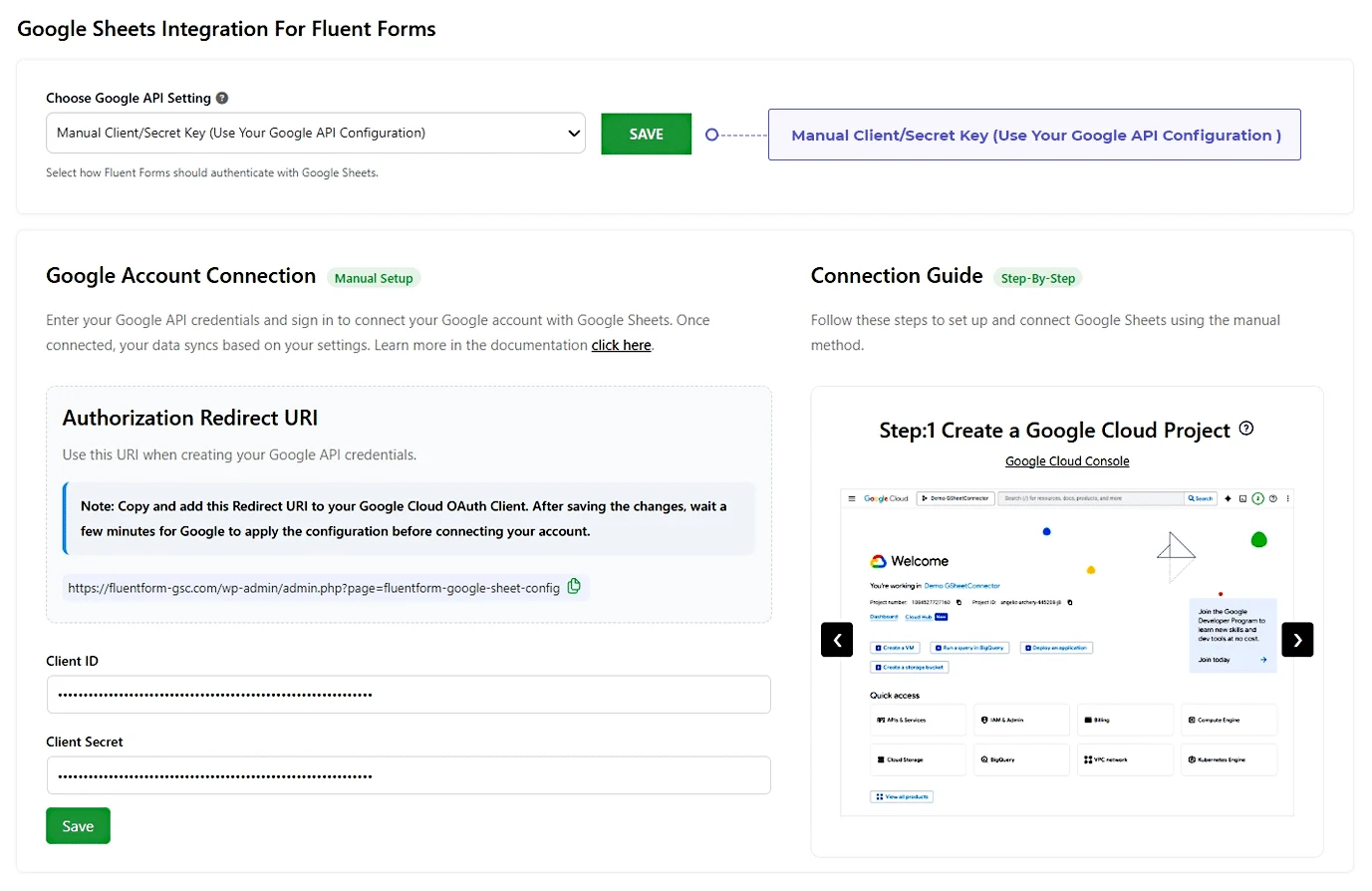
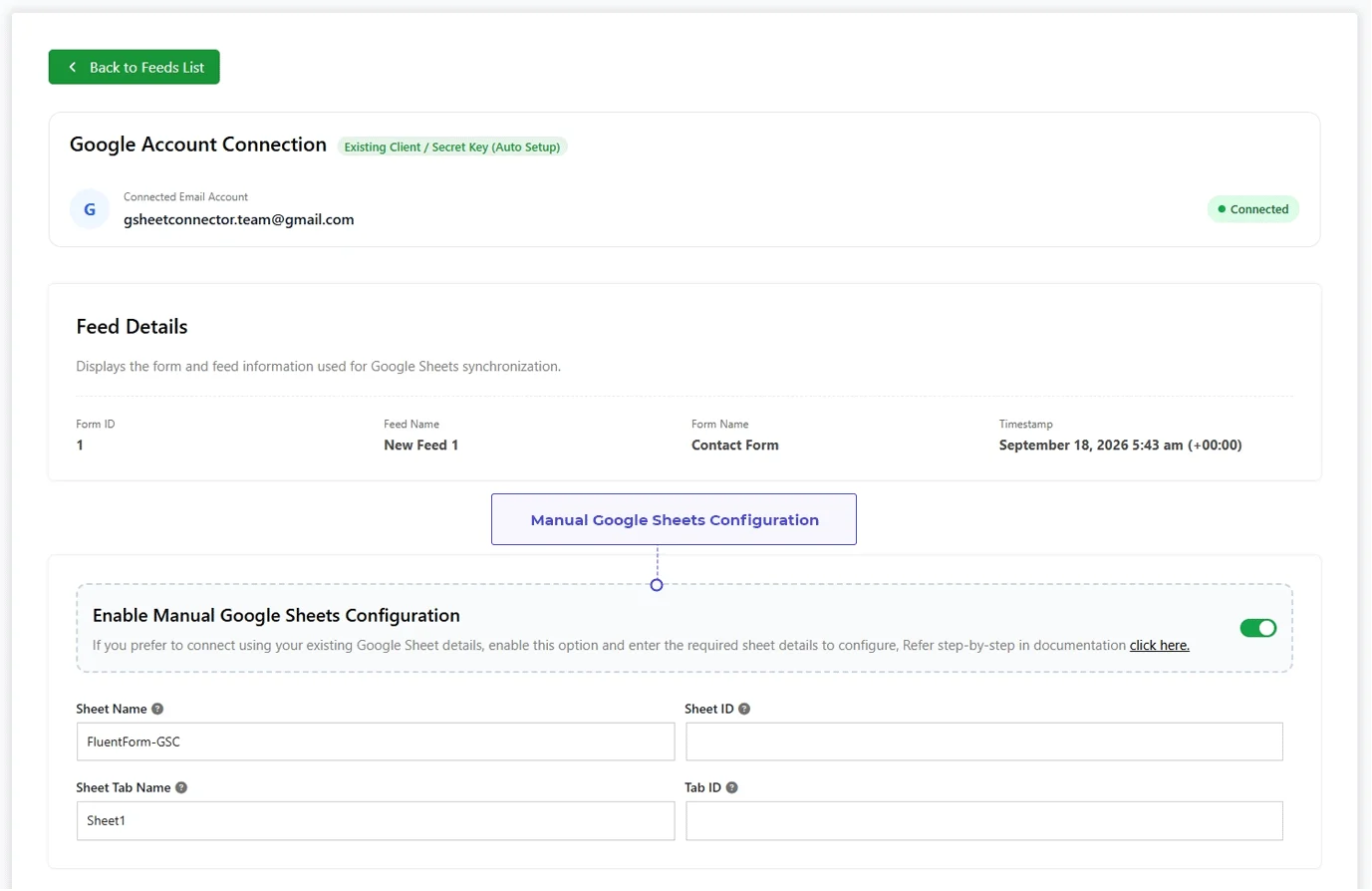
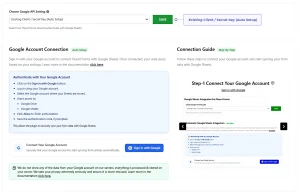
Connect Fluent Forms to Google Sheets using the authentication method that best fits your website. Choose from Existing Google Authentication, Manual Google API Configuration, or Service Account Authentication to securely synchronize form submissions with Google Sheets in real time.
- Existing Google Account Authentication
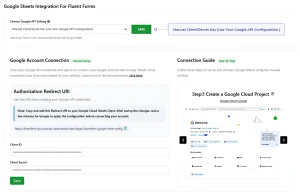
- Manual Google API Configuration
- Service Account Authentication
- Secure Google Drive & Google Sheets Access


Build Flexible Feed Workflows for Fluent Forms
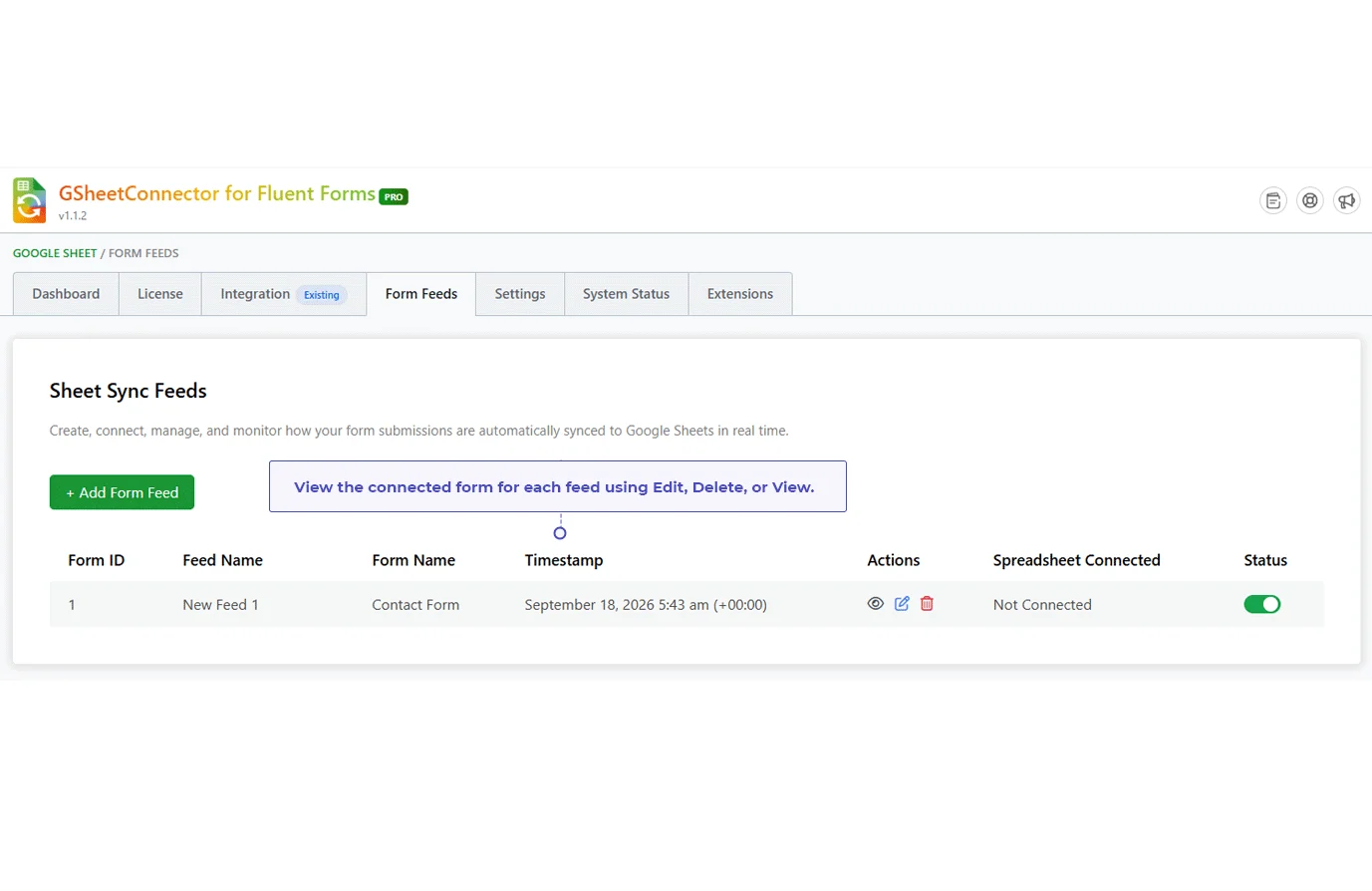
Configure dedicated Google Sheets feeds for every Fluent Forms and decide exactly where each submission should be stored. Organize field mapping, automate spreadsheet updates, and control data synchronization with flexible feed settings designed for different workflows.
Customize Your Google Sheets with Fluent Forms Data
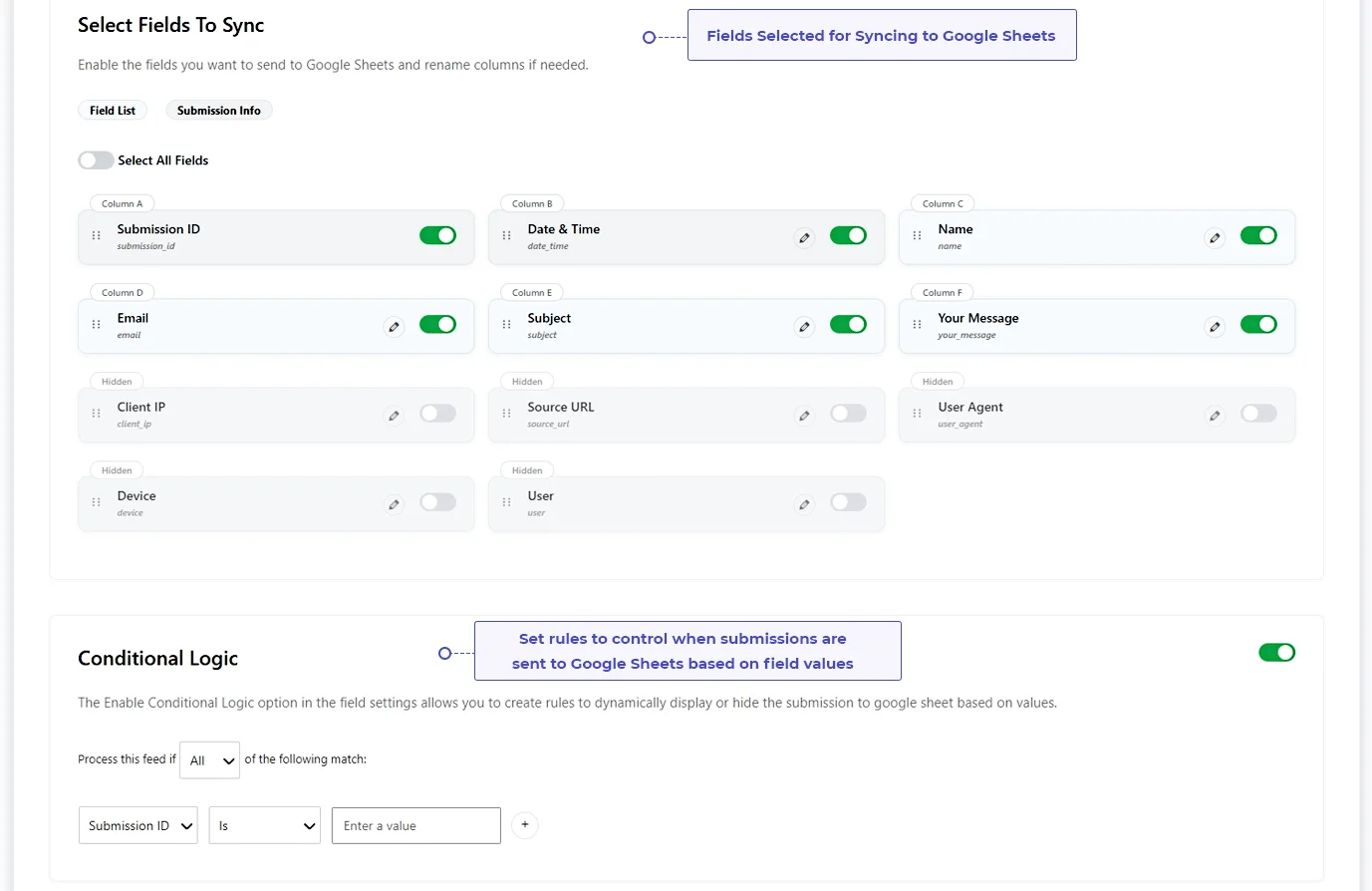
Create a spreadsheet that matches your workflow. Map Fluent Forms fields, include useful submission details like IP Address, Browser, Device, Source URL, User Name, and Status, and customize headers and rows for better organization.
- Field Mapping
- Submission Info
- Header & Row Styling
- Sheet Sorting
Real-Time Data Sync
Automatically send every Fluent Forms submission to Google Sheets as soon as a form is submitted. Keep your spreadsheet updated with the latest entries.
Flexible Google Authentication
Connect your Google account using Existing Google Authentication, Manual Google API, or Service Account Authentication for secure and reliable data synchronization.
Multiple Feed Connections
Create multiple feeds for a single Fluent Forms and send submissions to different Google Sheets or worksheet tabs.
Advanced Field Mapping
Match Fluent Forms fields with the correct Google Sheets columns and organize your spreadsheet exactly the way you want.
Submission Info Support
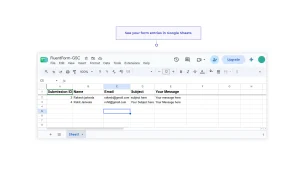
Store useful submission information such as Submission ID, User Name, IP Address, Source URL, Browser, Device, Status, and Created Date along with your form entries.
Spreadsheet Header Customization
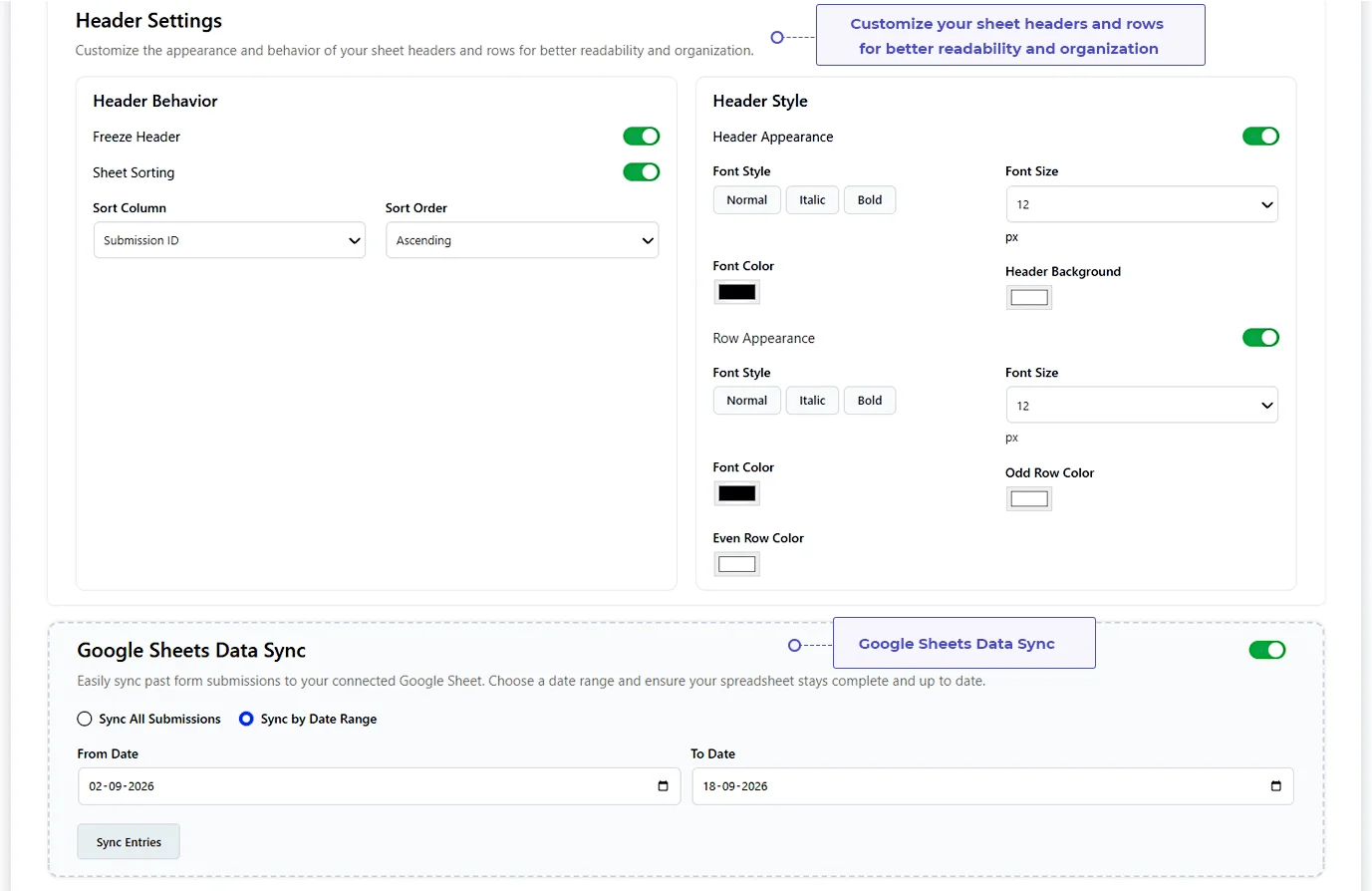
Rename column headers, customize header and row styles, reorder columns, and keep your Google Sheets organized for easier reporting.
Conditional Feed Logic
Control when form entries are sent to Google Sheets by creating conditions based on Fluent Forms field values.
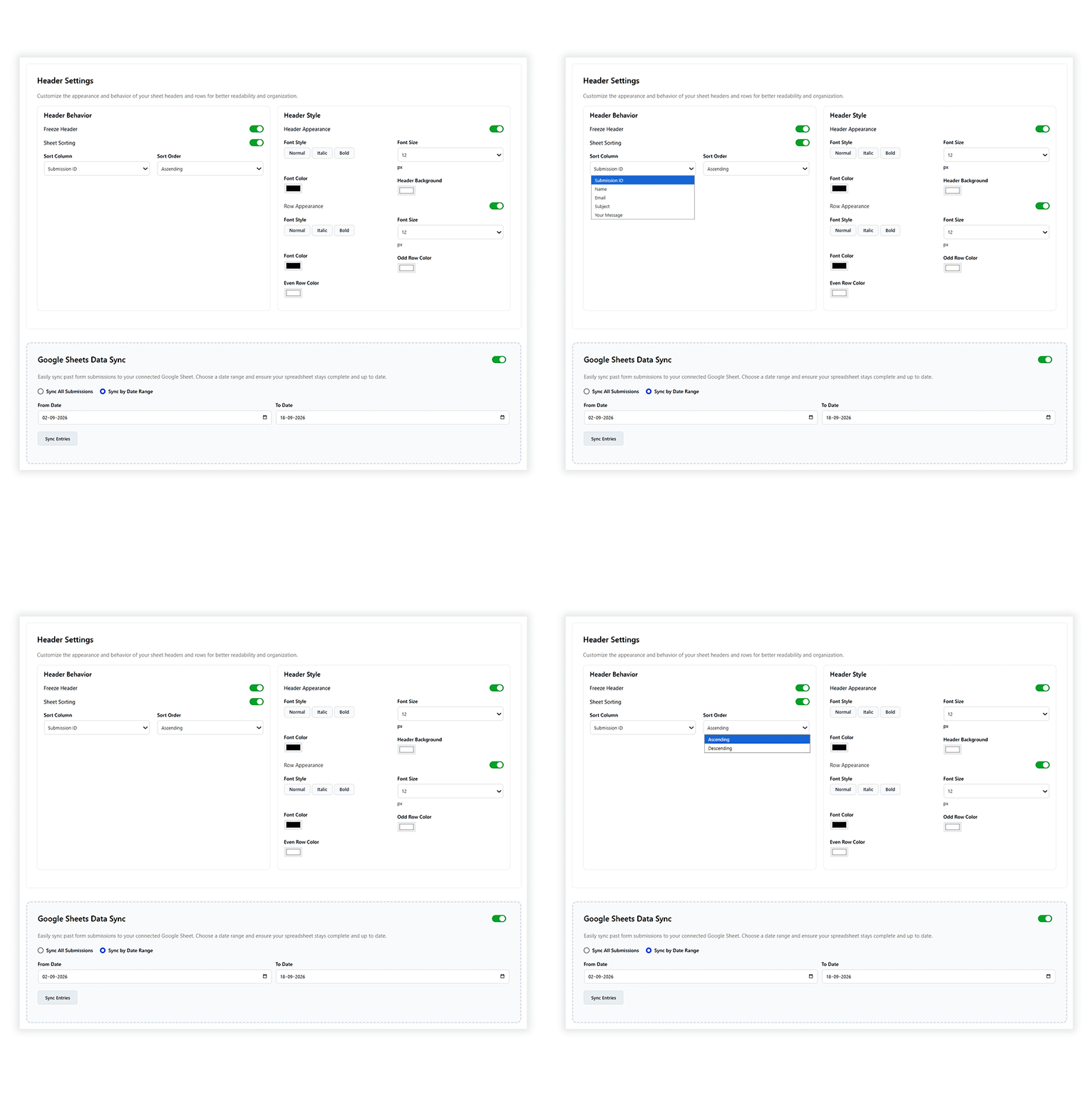
Sheet Sorting
Automatically sort Google Sheets entries in ascending or descending order based on your selected column. Keep your latest submissions organized and easy to find without manual sorting.
Google Sheets Fluent Forms Data Sync
Sync previous or missed Fluent Forms entries to Google Sheets with just a few clicks. Select a From Date and To Date, then import existing submissions into your spreadsheet without creating duplicate records.
Freeze Headers & Row Styling
Keep your header row visible while scrolling and customize header, odd-row, and even-row colors. Create well-organized Google Sheets that are easier to read and manage.
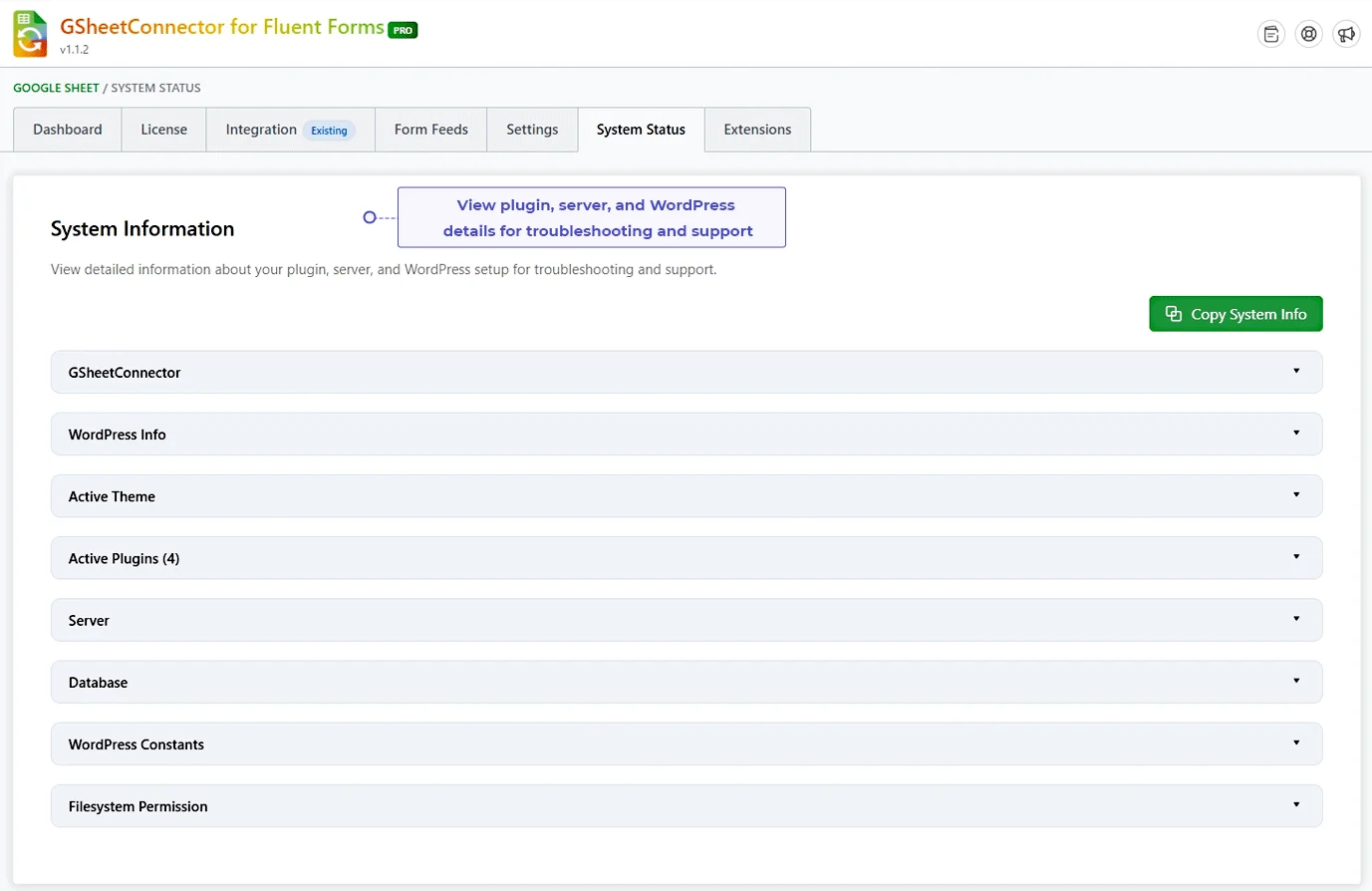
Debug Log & System Status
Monitor your Google Sheets connection, view system information, and troubleshoot synchronization issues more easily.
Download Excel & CSV
Export Fluent Forms entries as Excel or CSV files whenever you need offline access or data sharing.
Fluent Form GSheetConnector PRO New 2026










| Feature Comparison | Free | Pro |
|---|---|---|
| Latest Google Sheets API Integration | ✓ | ✓ |
| One-Click Google Account Authentication | ✓ | ✓ |
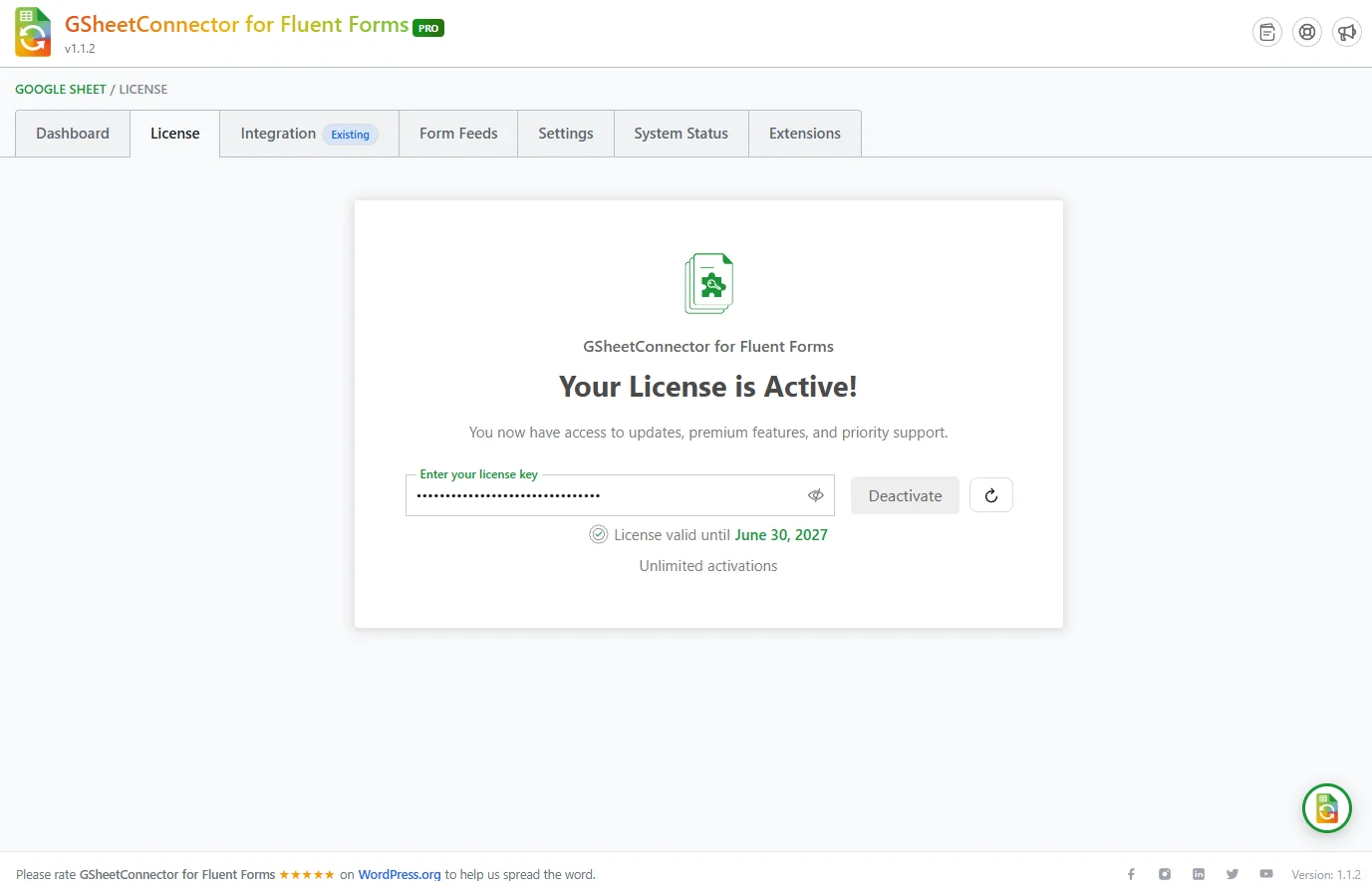
| Existing Google Account Authentication Method | ✓ | ✓ |
| Real-Time Form Submission Sync | ✓ | ✓ |
| Manual Google API Configuration Method | — | ✓ |
| Service Account Authentication Method | — | ✓ |
| Manual Google Sheets Configuration | ✓ | ✓ |
| Automatic Google Sheets Configuration | — | ✓ |
| Fetch Sheets & Auto-Detect Tabs | — | ✓ |
| Create New Google Spreadsheet Option | — | ✓ |
| Connect Multiple Forms to One Spreadsheet | — | ✓ |
| Reorder Spreadsheet Columns | — | ✓ |
| Rename Spreadsheet Columns | — | ✓ |
| Submission Info Support | — | ✓ |
| Advanced Conditional Feed Logic | — | ✓ |
| Enable/Disable Sheet Headers | — | ✓ |
| Download Excel & CSV | — | ✓ |
| Freeze Header & Row Styling | — | ✓ |
| Sheet Sorting | — | ✓ |
| Automatic Field Mapping | — | ✓ |
| Google Sheets Fluent Forms Data Sync | — | ✓ |
| Priority Customer Support | — | ✓ |







Jon


Built for Reliable Google Sheets Integration
Built for Fluent Forms Google Sheet Connector with secure Google authentication, flexible feed settings,
reliable submission synchronization, and tools to keep your Google Sheets data organized.
Simple, Honest Pricing
14-day money-back guarantee. $20 off all PRO licences, applied at checkout.
- Unlimited site activations
- Yearly license renewal
- Plugin updates and support during the active license period
- Latest WordPress & PHP Compatibility
- Multi-language and multisite compatible
- 1 site License
- Paid once - no renewal lincense
- Lifetime updates
- Lifetime priority support
- Latest WordPress & PHP Compatibility
- Multi-language and multisite compatible
- Select License: 1, 3, or 10 Sites
- Yearly license renewal
- Annual plugin updates
- Annual support
- Latest WordPress & PHP Compatibility
- Multi-language and multisite compatible
The full feature list is in the Free vs PRO table above the cards only show what differs between plans.

Frequently Asked Questions
How do I connect Fluent Forms to Google Sheets?
Fluent Forms Google Sheet Connector creates a direct connection between your Fluent Forms and Google Sheets. First, install and activate the Fluent Forms Google Sheet Connector, then open the Google Sheet Connector integration settings and connect your Google account using the authentication method available for your setup. After the account is connected, create or edit a feed, choose the Google Spreadsheet and worksheet, select the Fluent Forms fields you want to sync, and save the feed. Once the setup is complete, new Fluent Forms submissions can be sent to the connected Google Sheet automatically.Popular Documentation Guides
What Google authentication methods are available for Fluent Forms GSheetConnector?
The connector provides multiple Google authentication options. The documented methods include Existing Client/Secret Key, Manual Client/Secret Key, and Service Account authentication. Choose the method that matches your Google Cloud setup and the way you want to authorize the connection.
Related Resources:
Can I create a new Google Spreadsheet directly from Fluent Forms Google Sheet Connector?
Yes. In the Google Sheet configuration for a feed, choose Create New and enter the name of the spreadsheet you want to create. GSheetConnector can create the new Google Spreadsheet in your authorized Google account and use it as the destination for your Fluent Forms Google Sheet Connector feed. This is useful when you do not already have a spreadsheet ready to connect.
Can I connect an existing Google Sheet manually?
Yes. If you already have the spreadsheet you want to use, enable the manual Google Sheets configuration and enter the Sheet Name, Sheet ID, Tab Name, and Tab ID. After saving the feed, Fluent Forms Google Sheet Connector submissions can be sent to the selected spreadsheet.
How do I automatically fetch and select my Google spreadsheet?
After your Google account is connected, the feed settings provide an automatic way to select your spreadsheet and tab. The connector can fetch your available Google Sheets and display them in the selection fields. Choose the required spreadsheet, then save the feed.
How do I create and manage multiple Fluent Forms Google Sheet feeds?
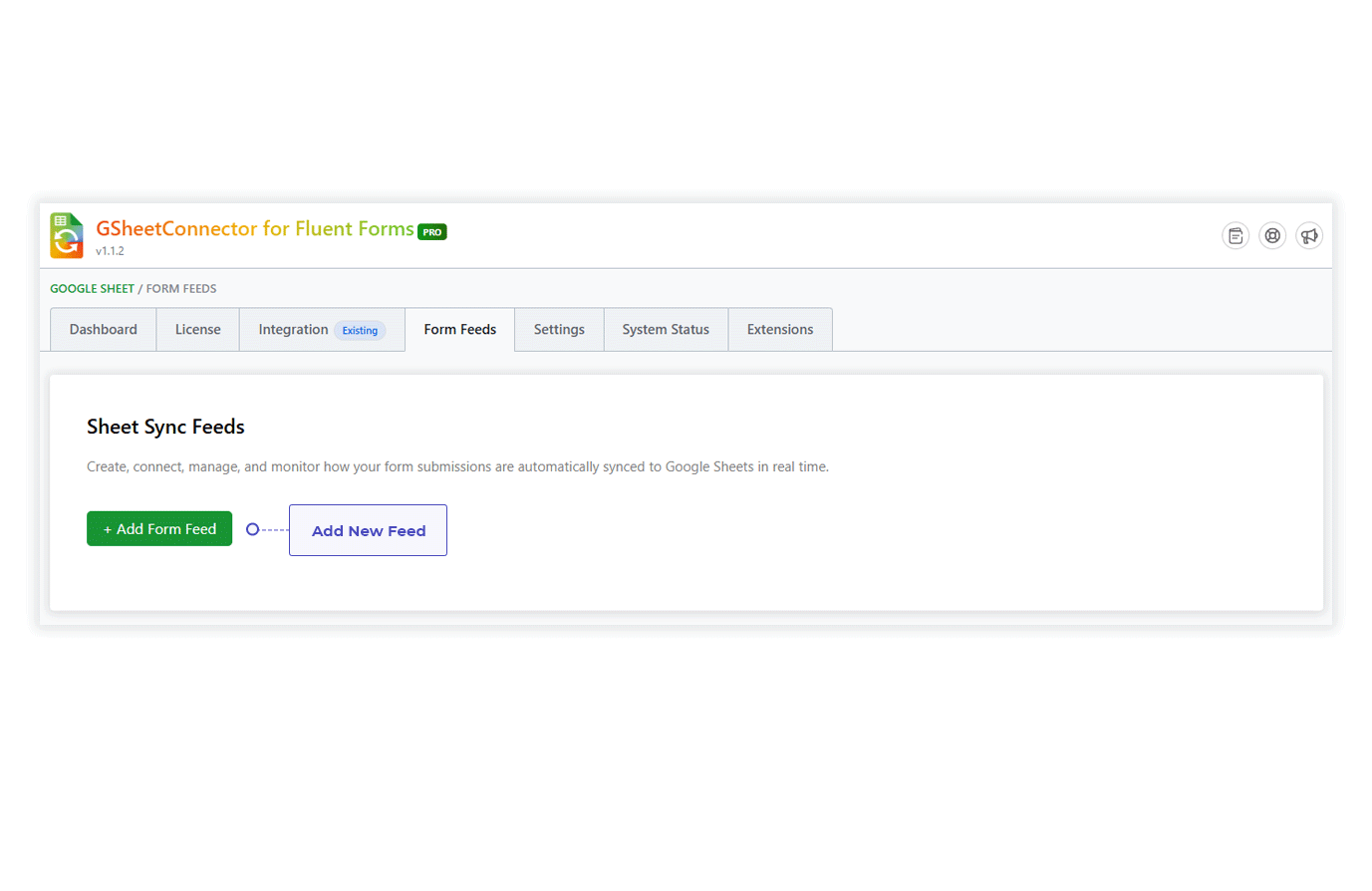
The Pro version supports multiple feed configurations. Open the Fluent Forms Google Sheet Connector feed settings, add a Feed Name and choose the form, then configure the fields for that feed.
Related Resources:
Can I choose which Fluent Forms fields are sent to Google Sheets?
Yes. The feed settings include a data-field selection area where you can enable the Fluent Forms fields you want to send to Google Sheets. You can use the selection controls to include only the information your spreadsheet needs. Pro settings also provide additional options for field and column management.
Can I edit the field names and Google Sheet column order?
Yes. With the Pro feed settings, you can control how the synchronized data is organized in your Google Sheet. You can rename spreadsheet headers, choose the fields you want to keep, and arrange the field order so your spreadsheet follows the structure you need.
Related Resources:
Does Fluent Forms Google Sheet Connector support Conditional Feeds?
Yes. The Pro version includes Conditional Feeds. You can define conditions for a feed so that submission data is sent to Google Sheets only when the configured rules are satisfied.
Can I add submission date, time, IP address, and other submission information to Google Sheets?
Yes. The connector supports available Fluent Forms submission information such as Submission ID, date and time, client IP, source URL, user agent, and other supported values. These fields can be included from the feed data-field settings so that your spreadsheet contains both the form responses and useful submission details.
Can Fluent Forms file uploads be sent to Google Sheets?
Yes. For supported Fluent Forms file upload fields, the connector can include file attachment links in the connected Google Sheet. This lets you keep a reference to uploaded images, PDFs, and other supported files with the related form submission instead of handling those file references separately.
Can I sync old or missed Fluent Forms Google Sheet Connector entries to Google Sheets?
Yes. The Pro feed settings include Google Sheet Sync controls that let you select a From Date and To Date, then synchronize past Fluent Forms submissions with the connected spreadsheet. This is useful when older or missed entries need to be added to Google Sheets after the initial setup.
Related Resource:
Can I freeze the Google Sheet header and customize row colors?
Yes. The Pro feed settings include spreadsheet styling controls. You can freeze the header row, customize header font settings, and set background colors for the header, odd rows, and even rows. Row font settings can also be adjusted to make large sets of synchronized data easier to read.
Related Resource:
Can I sort Fluent Forms entries automatically in Google Sheets?
Yes. The Pro feed settings provide sheet sorting controls. You can select a column, such as Submission ID, and choose ascending or descending order so the synchronized entries follow the order you prefer.
Can I download my connected Google Spreadsheet from the feed settings?
Yes. The Pro feed settings include a spreadsheet download option. This lets you download the connected Google Spreadsheet from the feed settings when you need a local copy of the synchronized data.
Why are my Fluent Forms entries not appearing in Google Sheets?
If a submission does not appear in your spreadsheet, check the Google account connection and confirm that the required Google Drive and Google Sheets permissions were approved. Then verify that the feed is configured for the correct Fluent Forms, the correct spreadsheet is selected, and the required fields are enabled. If the issue continues, review the System Status and error information for configuration or synchronization details.
Related Resources:
What should I check if Google authorization gives a permission or access error?
A Google authorization error usually means the connection was not fully authorized or the required Google permissions were not granted. Reconnect the Google account and make sure all requested permissions are approved. If you use the Manual Google API method, also confirm that the Google Cloud credentials and redirect details match the values required by the plugin.
Related Resources:
Is Fluent Forms Google Sheet Connector compatible with current WordPress and PHP versions?
The Fluent Forms documentation includes current requirements and compatibility information for the plugin. Because WordPress, PHP, and Fluent Forms, review the latest Requirements and Documentation pages before updating or installing the plugin on a production site.
Related Resources:
Where can I find the complete Fluent Forms Google Sheet Connector documentation?
The Fluent Forms documentation covers installation, requirements, Google authentication, manual and automatic sheet setup, Free settings, Pro feed settings, Service Account configuration, plugin settings, and System Status. Use the documentation hub to follow the setup that matches your version and connection method.
Documentation Hub:
What is the refund policy for Fluent Forms Google Sheet Connector Pro?
New Pro purchases are covered by a 14-day money-back guarantee. If the plugin does not work as described or an issue cannot be resolved by the support team, you can request a refund within 14 days of purchase.
Can I use my Pro license while developing on a staging website?
Yes. A Pro license can be used during development and testing before the site is moved to production. When the site environment changes, manage the activation according to the site's license limit and the license settings available in your account.
Related Resource:
What happens if I do not renew my Pro license?
The plugin can continue working after a Pro license expires, but the expired license will no longer provide future plugin updates, new feature releases, compatibility updates, or premium support until the license is renewed.
Can I upgrade from Fluent Forms Google Sheet Connector Free to Pro without losing my existing connection?
Yes. You can upgrade from the Free version to Pro while keeping your existing Google Sheets connection and configuration. After activating Pro, you can use additional features such as automatic sheet fetching, creating a new spreadsheet, multiple feeds, Conditional Feeds, advanced field ordering, header controls, past-entry synchronization, and other Pro feed options.
 CF7 Google Sheet Connector
 WPForms Google Sheet Connector
 Ninja Forms Google Sheet Connector
 Gravity Forms Google Sheet Connector
 Formidable Forms Google Sheet Connector
 Forminator Forms Google Sheet Connector
 Fluent Forms Google Sheet Connector
 JetFormBuilder Google Sheet Connector
 Elementor Forms Google Sheet Connector
 Avada Forms Google Sheet Connector
 Divi Forms Google Sheet Connector
 WooCommerce Google Sheet Connector
 Easy Digital Downloads Google Sheet Connector
 WordPress Core Google Sheet Connector


