Enable email notifications in Google Sheets to track changes and receive alerts instantly when your data updates. Google Sheets is a powerful tool that allows users to track data and collaborate in real time. One useful feature is the ability to enable notifications, so you can be alerted when changes are made to your spreadsheet. This can be particularly helpful for monitoring email submissions or form responses. In this guide, we'll show you how to enable email notifications in Google Sheets in just a few simple steps.

What Are Google Sheets Notifications?
Google Sheets allows you to receive notifications whenever changes are made to your document. You can receive these notifications instantly or on a daily basis, making it easier to monitor form submissions or any changes in your data.
There are two options to enable notifications in Google Sheets:
- From Google Sheets, go to Extensions > Apps Script.
- From Google Sheets, go to Tools > Notification Rules.
1. Enable Notifications in Google Sheets – App Script
Open your Google Sheet.
Go to Extensions > Apps Script.

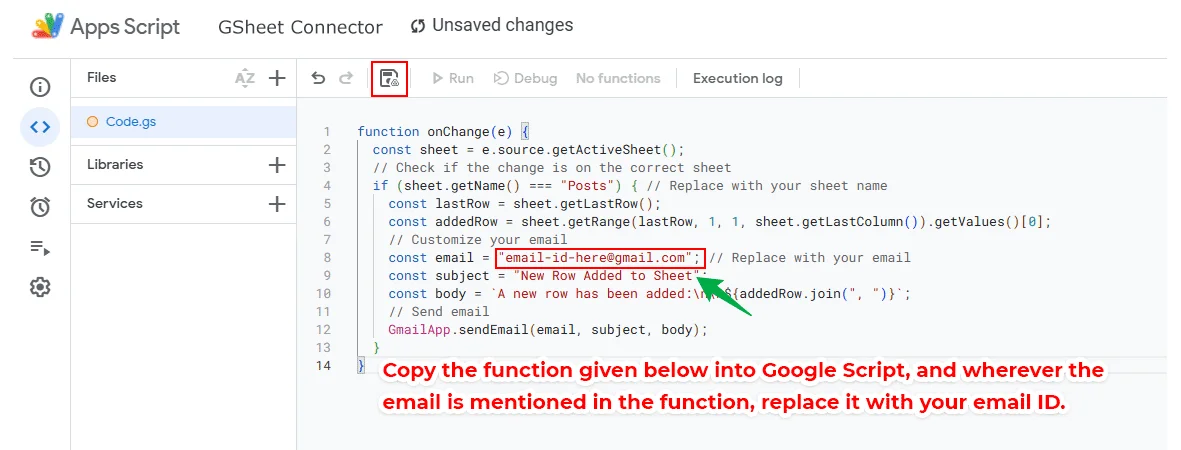
The script with the following code:
For Single Sheet
function onChange(e) {
const sheet = e.source.getActiveSheet();  // Check if the change is on the correct sheet
if (sheet.getName() === "Posts") { // Replace with your sheet name
const lastRow = sheet.getLastRow();
const addedRow = sheet.getRange(lastRow, 1, 1, sheet.getLastColumn()).getValues()[0];    // Customize your email
const email = "your-email-id-here@gmail.com"; // Replace with your email
const subject = "New Row Added to Sheet";
const body = `A new row has been added:\n\n${addedRow.join(", ")}`;    // Send email
GmailApp.sendEmail(email, subject, body);
}
}
For Multiple Sheet
function onChange(e) {
  const sheet = e.source.getActiveSheet();
  const validSheets = ["Posts", "Sheet2", "Sheet3"]; // Add your sheet names here
  // Check if the change is on any of the valid sheets
  if (validSheets.includes(sheet.getName())) {
    const lastRow = sheet.getLastRow();
    const addedRow = sheet.getRange(lastRow, 1, 1, sheet.getLastColumn()).getValues()[0];
    // Customize your email
    const recipients = "ahmed.westerndeal@gmail.com, example2@gmail.com, example3@gmail.com"; // Add comma-separated email addresses
    const subject = `New Row Added to Sheet: ${sheet.getName()}`; // Include the sheet name in the subject
    const body = `A new row has been added in the sheet "${sheet.getName()}":\n\n${addedRow.join(", ")}`;
    // Send email
    GmailApp.sendEmail(recipients, subject, body);
  }
}
function onChange(e) {
const sheet = e.source.getActiveSheet();
const validSheets = ["Posts", "Sheet2", "Sheet3"]; // Add your sheet names here
// Check if the change is on any of the valid sheets
if (validSheets.includes(sheet.getName())) {
const lastRow = sheet.getLastRow();
const addedRow = sheet.getRange(lastRow, 1, 1, sheet.getLastColumn()).getValues()[0];
// Customize your email
const recipients = "ahmed.westerndeal@gmail.com, example2@gmail.com, example3@gmail.com"; // Add comma-separated email addresses
const subject = `New Row Added to Sheet: ${sheet.getName()}`; // Include the sheet name in the subject
const body = `A new row has been added in the sheet "${sheet.getName()}":\n\n${addedRow.join(", ")}`;
// Send email
GmailApp.sendEmail(recipients, subject, body);
}
}
Save the script.

Click + Add Trigger.

Configure the trigger:
- Choose function to run:
onChange
- Select event source:
From spreadsheet
- Select event type:
On change
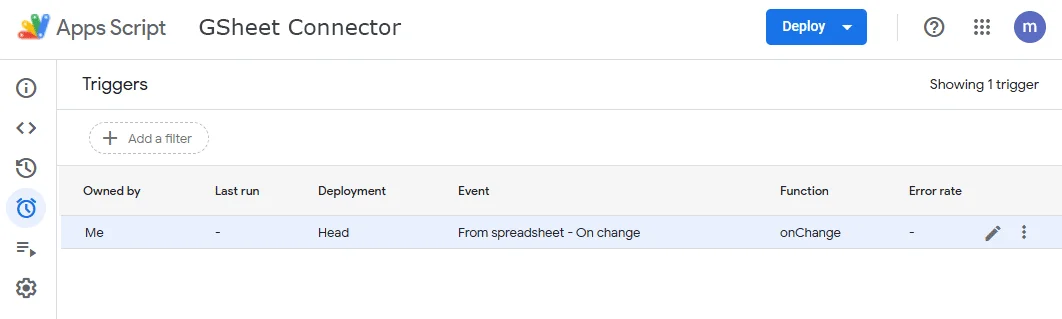
Save the trigger.
onChangeFrom spreadsheetOn change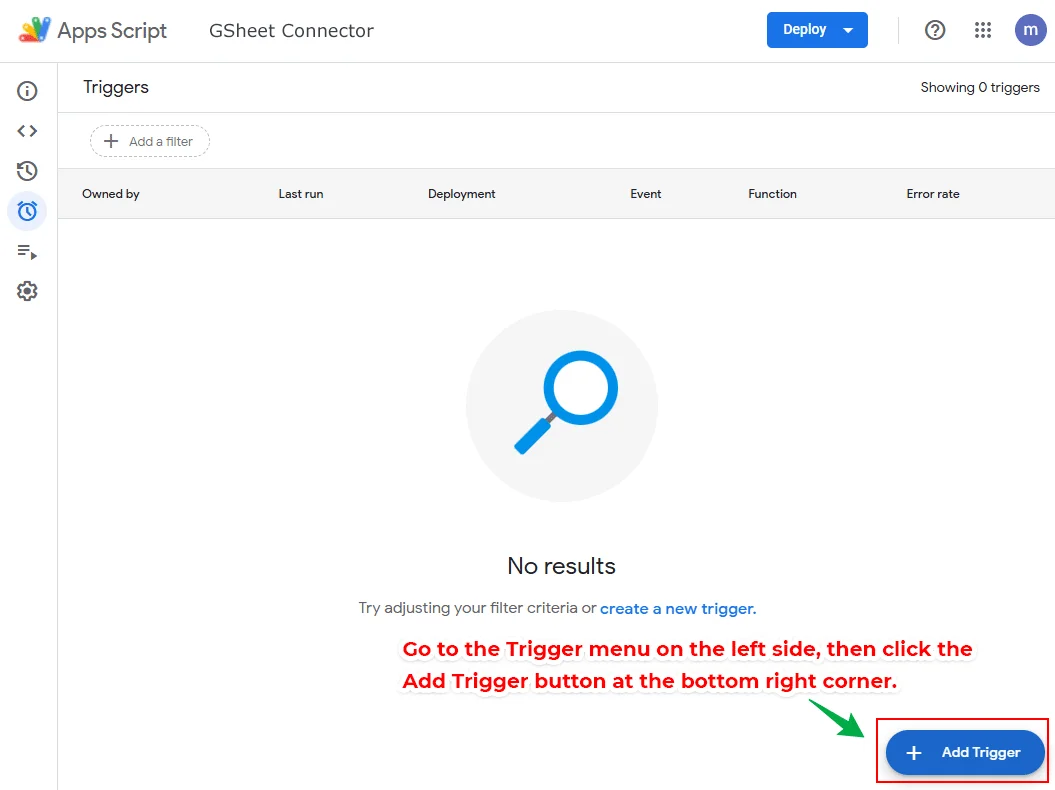


Any changes or rows added to the Google Sheet will trigger an email notification to your email ID as shown in the screenshot below.

How It Works
- The
onChange trigger listens for any changes to the spreadsheet, whether manual or programmatic.
- When a new row is added (via WPForms and GSheetConnector), the script checks the last row, retrieves its data, and sends an email notification.
Debugging Tips
- Check Execution Logs: If emails aren’t sent, go to Apps Script > Executions to view errors.
- Ensure Correct Sheet Name: Update
if (sheet.getName() === "Sheet1") to match your actual sheet name.
- Test with WPForms Submission: Submit a form and verify if the email is sent.
onChange trigger listens for any changes to the spreadsheet, whether manual or programmatic.- Check Execution Logs: If emails aren’t sent, go to Apps Script > Executions to view errors.
- Ensure Correct Sheet Name: Update
if (sheet.getName() === "Sheet1")to match your actual sheet name. - Test with WPForms Submission: Submit a form and verify if the email is sent.
2. Enable Notifications in Google Sheets – Notification Rules
You can only set up notifications for yourself. You won’t get notifications when you make changes on your spreadsheet, but you’ll get notifications when others make changes.
- On your computer, open a spreadsheet in Google Sheets.
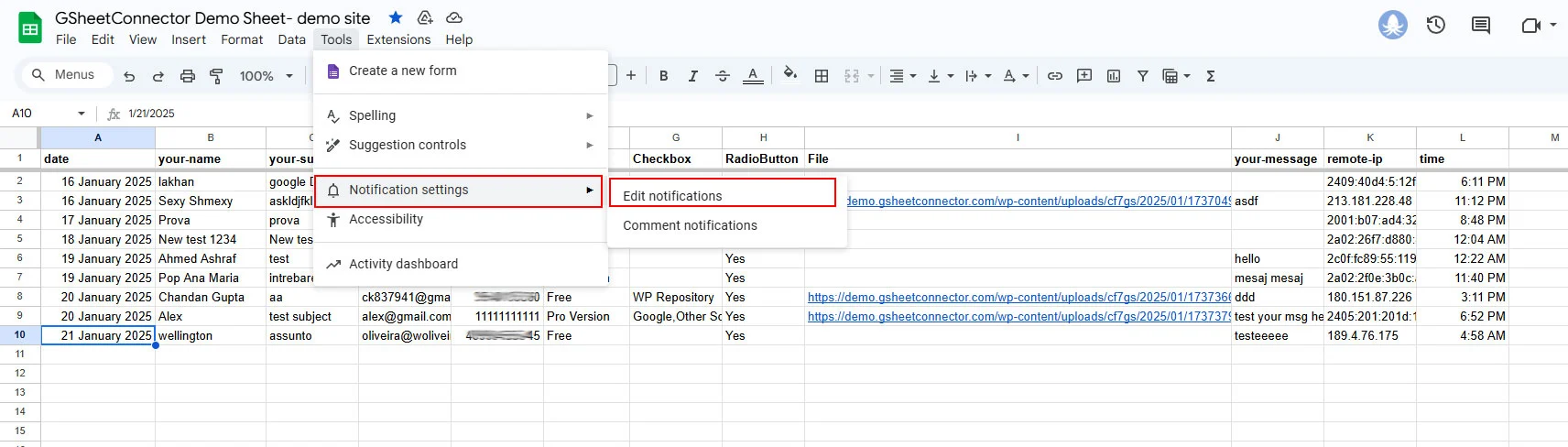
- At the top, click Tools > Notification settings > Edit notifications.

- In the window that appears, select “when” you want to receive notifications. Notify you when:

- Any changes are made: Set notifications when someone makes a change to a spreadsheet.
- A user submits a form: Set notifications when someone fills out a form.
- In the window that appears, select “how often” you want to receive notifications. Notify you with:
- Email – daily digest: Send a daily summary of all changes.
- Email – right away: Send an email for every change.
- Click Save.


Who Can Use Google Sheet Email Notifications?
If you are using any of the following addon plugins, you can configure them to set email alerts:
- WooCommerce Google Sheet Connector
- CF7 Google Sheet Connector
- WPForms Google Sheet Connector
- Gravity Forms Google Sheet Connector
- Ninja Forms Google Sheet Connector
- Elementor Forms Google Sheet Connector
- Avada Forms Google Sheet Connector
- Divi Forms Google Sheet Connector
- Formidable Forms Google Sheet Connector
- Forminator Forms Google Sheet Connector
- Easy Digital Downloads Google Sheet Connector
Why Choose GSheetConnector?
GSheetConnector is the most powerful, secure, and reliable addon plugin for WordPress to integrate with Google Sheets. It supports multiple form plugins and allows seamless data synchronization between your WordPress site and Google Sheets.
About the Author: Abdullah Kaludi