Table of Contents
- Google Sheets Hacks – Use Data Validation to Prevent Costly Entry Errors
- Hack #1: Use Data Validation to Prevent Costly Entry Errors
- Hack #2: Use Conditional Formatting for Instant Visual Insights
- Hack #3: Automate Calculations with Array Formulas
- Hack #4: Use Named Ranges for Clear, Human-Readable Formulas
- Hack #5: Automatically Send Website Data to Google Sheets
- Conclusion: Make Google Sheets Work for You in 2025
5 Powerful Google Sheets Hacks for Small Businesses in 2025


Google Sheets hacks for small businesses can dramatically improve productivity, reduce errors, and save hours every week when used the right way.
Running a small business in 2025 often feels like juggling too many things at once. One moment you’re tracking orders, the next you’re updating customer data, and before you know it, you’re managing expenses and reports.
Many business owners think of Google Sheets as “just another spreadsheet.” In reality, it’s a powerful productivity and automation tool that can save you hours every week when used correctly.
Recent workflow automation research shows that manual data entry and repetitive spreadsheet work cost businesses thousands of dollars every year in lost productivity. The frustrating part is that most of this loss is completely avoidable.
The good news is that Google Sheets includes several built-in features that many small and medium-sized business owners never discover. These tools require no coding skills and can be set up in minutes.
In this guide, you’ll learn five practical Google Sheets hacks for small businesses that can transform how you work. Whether you run an eCommerce store, manage a digital agency, or operate a service-based business, these tips will help you work smarter—not harder.
If you’re new to Google Sheets automation, you may also find this step-by-step guide on connecting Google APIs helpful.
Google Sheets Hacks – Use Data Validation to Prevent Costly Entry Errors
Hack #1: Use Data Validation to Prevent Costly Entry Errors
What Is Data Validation?
Data validation is a Google Sheets feature that controls what users can enter into specific cells. Instead of allowing free-text input, you can define clear rules that keep your data consistent and accurate.
Why This Matters for Small Businesses
Imagine your sales team entering order statuses. One person types “NY,” another writes “New York,” and someone else uses “new york.” These small differences quickly break reports and filters.
Poor data quality doesn’t just slow you down—it directly affects decision-making and revenue.
How to Set It Up
- Select the cells where you want to apply validation
- Go to Data → Data validation
- Choose your criteria (dropdown, number range, date, etc.)
- Add allowed values (Pending, Processing, Shipped, Delivered)
- Enable “Show dropdown list in cell”
- Click Save
Real-World Example
A Los Angeles–based eCommerce store struggled with order tracking because their sheet contained over a dozen variations of the word “shipped.” After adding a dropdown using data validation, their order accuracy improved by more than 95%.
For common issues related to missing or inconsistent data, this guide on fixing missing entries caused by Google quota limits can also help.
Pro tip: Use data validation for product names, shipping methods, customer types, and payment statuses to keep your data clean and easy to analyze.
Hack #2: Use Conditional Formatting for Instant Visual Insights
What Is Conditional Formatting?
Conditional formatting automatically changes the appearance of cells based on their values. It transforms plain numbers into visual signals that highlight what matters most.
Why Business Owners Love This Hack
Instead of scanning hundreds of rows looking for overdue invoices or low stock, your spreadsheet highlights issues automatically. It’s like having a built-in alert system.
How to Apply Conditional Formatting
- Select your data range
- Go to Format → Conditional formatting
- Set your rule (for example, “Date is before today”)
- Choose colors or styles
- Click Done
Practical Business Use Cases
- Inventory: Highlight low stock levels automatically
- Sales: Show when revenue hits or misses targets
- Payments: Flag overdue invoices instantly
- Projects: Highlight approaching or missed deadlines
This simple trick turns raw data into actionable insights with zero manual effort. Faster insights also depend on overall site performance—this guide on speeding up your WordPress website is worth reviewing.
Hack #3: Automate Calculations with Array Formulas
What Are Array Formulas?
Array formulas allow you to apply a single formula across an entire column. Instead of copying formulas row by row, you write it once and it updates automatically.
Why This Is a Game-Changer
Automation doesn’t always require expensive tools. Smarter formulas save time, reduce errors, and scale effortlessly as your data grows. The same principle applies when automating form submissions to Google Sheets from your website.
Example for ECommerce Businesses
Instead of copying formulas down hundreds of rows, use:
=ARRAYFORMULA(IF(B2:B="",,B2:B*C2:C))
New rows are calculated automatically. No copying. No mistakes.
Hack #4: Use Named Ranges for Clear, Human-Readable Formulas
What Are Named Ranges?
Named ranges let you replace confusing cell references like “B2:B500” with readable names like “Monthly_Revenue.”
Why This Improves Productivity
When you revisit a spreadsheet months later—or share it with your team—clear formulas reduce confusion and errors instantly.
How to Create Named Ranges
- Select your data range
- Go to Data → Named ranges
- Enter a descriptive name
- Click Done

This small habit makes your spreadsheets self-explanatory and easier to maintain. The same clarity is essential when resolving OAuth authentication errors during Google integrations.
Hack #5: Automatically Send Website Data to Google Sheets
These Google Sheets hacks for small businesses can completely change how you manage your daily operations.
The Ultimate Productivity Upgrade
If you’re still copying form submissions or orders from your website into spreadsheets, you’re wasting valuable time and money.
The Cost of Manual Data Entry
- 30 minutes per day
- 182 hours per year
- Over $9,000 in lost productivity
The Smarter Solution
Modern businesses automate data flow so website submissions land directly in Google Sheets in real time. This eliminates manual work and prevents missed leads.
If you’ve ever encountered security warnings during setup, this guide explains how to fix the Google hasn’t verified this app error safely.
Want to automate your workflow even further?
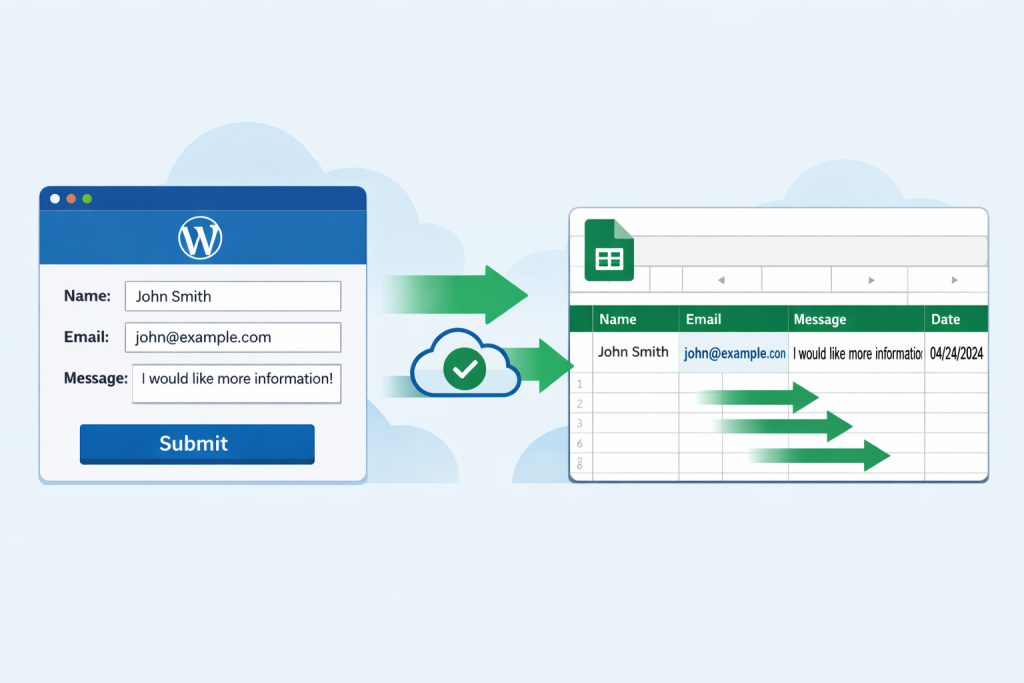
Automate WordPress forms to Google Sheets
Try GSheetConnector to integrate
WordPress contact forms and WooCommerce with Google Sheets – no coding needed.
View All GSheetConnector Plugins →
Supported Plugins
- CF7 Google Sheet Connector PRO
- WPForms Google Sheet Connector PRO
- Gravity Forms Google Sheet Connector PRO
- Ninja Forms Google Sheet Connector PRO
Conclusion: Make Google Sheets Work for You in 2025
These five Google Sheets hacks can completely change how you manage your business. From eliminating errors to removing manual data entry, the productivity gains are real.
Business owners who apply these techniques often save 5 to 15 hours every week, time that can be reinvested into growth instead of spreadsheets.
Start with one hack today. Master it. Then move to the next. In 2025, success comes from working smarter, not harder.

 CF7 Google Sheet Connector
 WPForms Google Sheet Connector
 Ninja Forms Google Sheet Connector
 Gravity Forms Google Sheet Connector
 Formidable Forms Google Sheet Connector
 Forminator Forms Google Sheet Connector
 Fluent Forms Google Sheet Connector
 JetFormBuilder Google Sheet Connector
 Elementor Forms Google Sheet Connector
 Avada Forms Google Sheet Connector
 Divi Forms Google Sheet Connector
 WooCommerce Google Sheet Connector
 Easy Digital Downloads Google Sheet Connector
 WordPress Core Google Sheet Connector