- Why Contact Form 7 Does Not Keep Your Entries
- How CF7 Google Sheets Connector Saves Entries
- How to Save Contact Form 7 Entries to the WordPress Database (Step by Step)
- Manage and Filter Your Entries
- Free vs PRO: Saving Contact Form 7 Entries
- PRO Features for Managing Entries
- Uploaded Files and Privacy
- For Developers: Filters and Actions
- Troubleshooting: Entries Not Showing in the Database
- Best Practices
- Conclusion
- FAQs
How to Save Contact Form 7 Entries to the WordPress Database

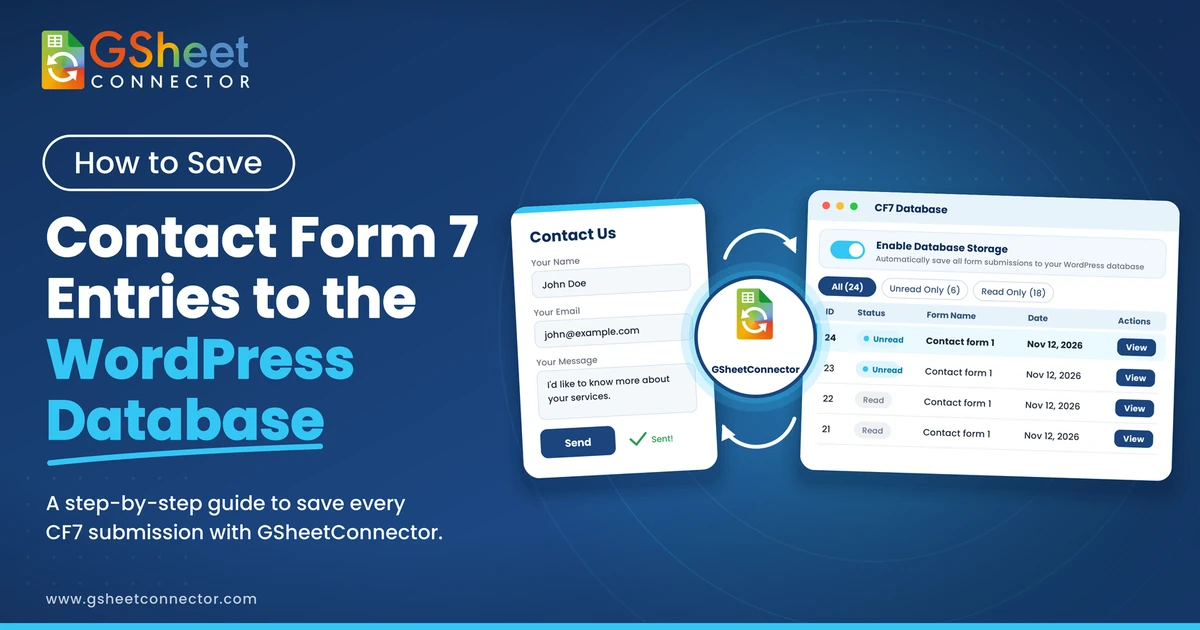
Want to keep a copy of every contact form message inside WordPress? You can save Contact Form 7 entries to the WordPress database with CF7 Google Sheets Connector. Install the plugin, and each form submission is stored in your database. You then read, filter and manage the entries from your WordPress dashboard.
This guide uses the real screens and settings from the free and PRO plugins. You will see how saving works, how to view and manage entries, what PRO adds, and how to fix common problems.
Quick answer: Install and activate CF7 Google Sheets Connector. Go to Contact → Google Sheets → CF7 Database and check that Enable Database Storage is on. Submit your form once. The entry shows in the list below, ready to view. No Google account is needed.
Why Contact Form 7 Does Not Keep Your Entries
Contact Form 7 is built to send an email. After a visitor submits the form, it sends the message and shows a thank-you note. It does not keep a list of submissions.
That can cause real problems:
- Lost emails: mail can land in spam or fail to send, and the lead is gone.
- No history: you cannot look back at who contacted you last month.
- No status: you cannot tell which messages you have already handled.
- No reports: you cannot see how many entries each form gets.
Saving each entry to the database fixes all four. The data stays on your own site, so you keep control of it.
How CF7 Google Sheets Connector Saves Entries
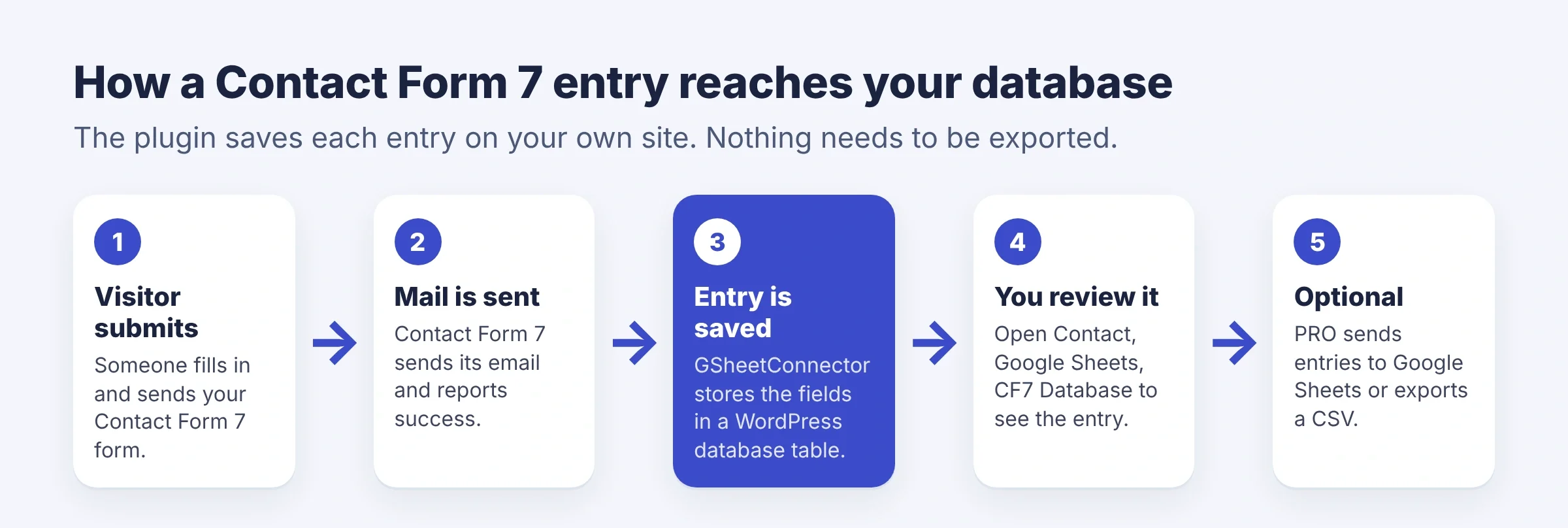
The plugin hooks into Contact Form 7 and stores the submission once the form email is sent. Here is the path:
- A visitor fills in and submits your Contact Form 7 form.
- Contact Form 7 sends its email and reports success.
- The plugin reads the posted fields and the special mail tags.
- It saves them as one row in the
cf7db_gsheet_formstable, marked as Unread. - You open the entry in the CF7 Database tab. Opening it marks it as Read.
What Is Stored in the Database
| Part of the entry | What it holds |
|---|---|
| id | A unique number for the entry. |
| form_id | The Contact Form 7 form the entry came from. |
| value | All submitted fields, the Read or Unread status and the special mail tags. |
| date | When the entry was saved. |

Two details are worth knowing. First, the entry is saved only when the email is reported as sent. Second, saving does not depend on Google. It works even if you never connect a Google account.
How to Save Contact Form 7 Entries to the WordPress Database (Step by Step)
Step 1: Install Contact Form 7 and the Plugin
Install and activate Contact Form 7 first. Then install CF7 Google Sheets Connector from Plugins → Add New. For PRO, upload the plugin zip and activate your license on the License tab. You can follow the CF7 GSheetConnector documentation for details.
Step 2: Open the CF7 Database Tab
Go to Contact → Google Sheets. The plugin has these tabs: Dashboard, Integration, Settings, CF7 Database, System Status, GDPR & Privacy Policy and Extensions. PRO also shows a License tab. Click CF7 Database.
Step 3: Check That Database Storage Is On
At the top you see the CF7 Database Manager. The Enable Database Storage switch is on by default. Click Save Settings after any change. Below it, the Data Management Guidelines remind you how to handle stored data.

Step 4: Submit a Test Entry
Open the page that has your form and submit it as a visitor would. Use a real-looking name and email, and make sure the email can be sent. The plugin saves the entry after the mail is sent.
Step 5: View Your Entries
Return to the CF7 Database tab. The entry list shows these columns: ID, Status, Form Name, Date and Actions. New entries show as Unread. Use the pagination setting to show 10, 20, 50 or 100 entries per page.

Step 6: Open an Entry
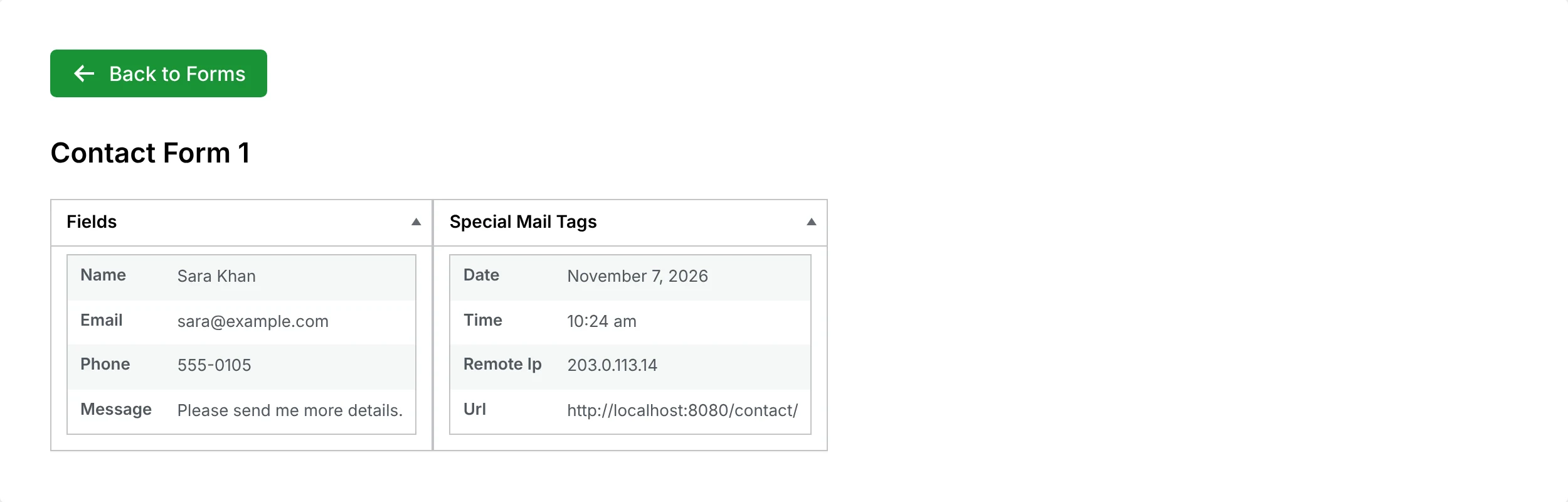
Click View in the Actions column. The entry opens with two boxes. The Fields box shows what the visitor typed. The Special Mail Tags box shows details such as date, time, serial number, remote IP, user agent and page URL. Opening an entry marks it as Read.
Manage and Filter Your Entries
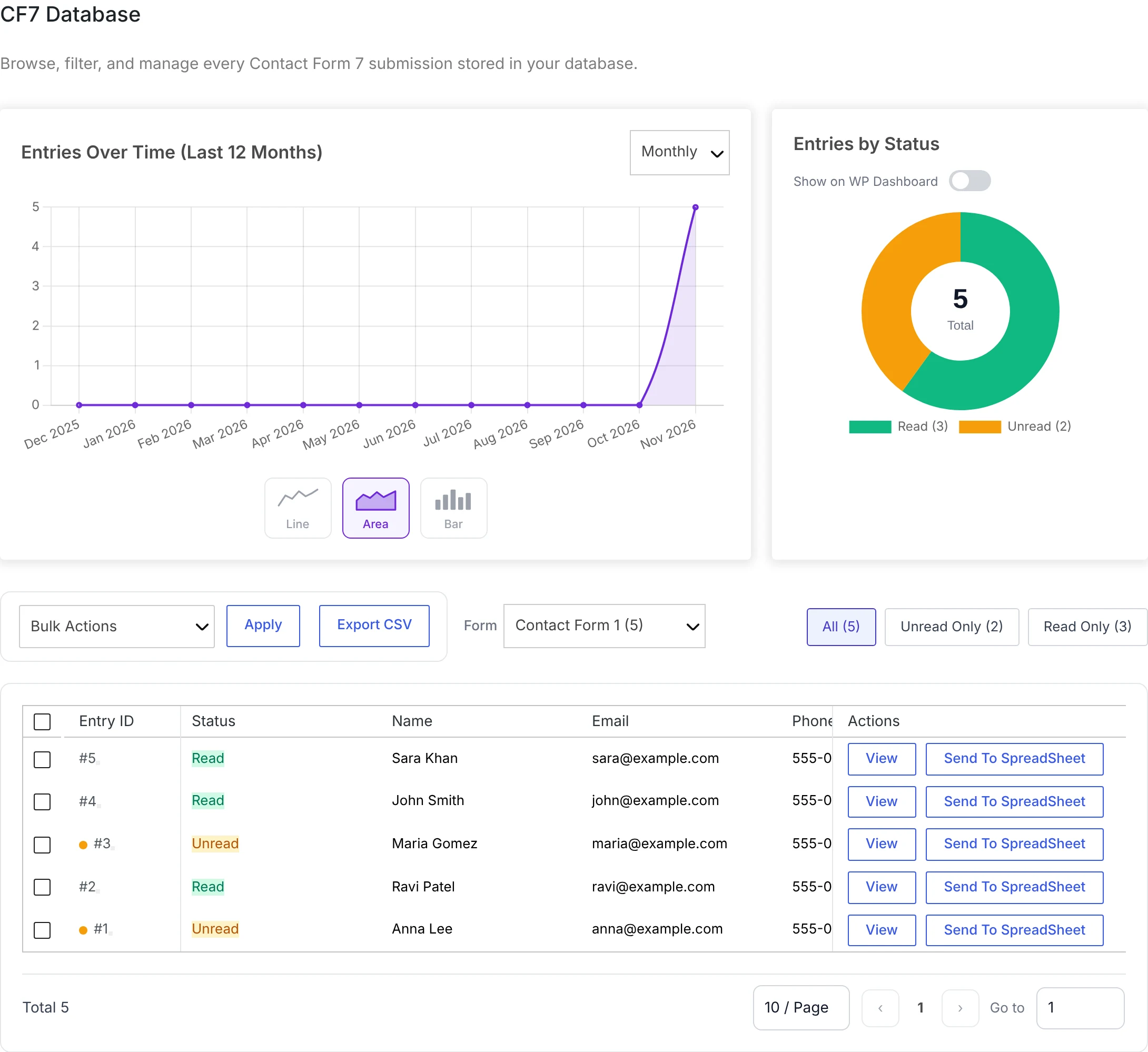
The CF7 Database tab gives you tools to work through entries quickly.
- Form filter: show entries from one form only.
- All, Unread Only, Read Only: focus on what you have not handled yet.
- Entries Over Time: a chart of entries for the last 30 days in the free plugin.
- Entries by Status: a donut chart of Read and Unread entries.
- Bulk Actions: pick entries with the checkboxes, choose an action and click Apply.
- Send To SpreadSheet: an action on each row to send an entry to Google Sheets.
Want the entries in a spreadsheet as well? Read our full guide on connecting Contact Form 7 to Google Sheets.
Free vs PRO: Saving Contact Form 7 Entries
| Feature | Free | PRO |
|---|---|---|
| Save entries to the WordPress database | Yes | Yes |
| Works without a Google connection | Yes | Yes |
| Read and Unread status | Yes | Yes |
| Filters by form and status | Yes | Yes |
| Entry view with Fields and Special Mail Tags | Yes | Yes |
| Entries Over Time chart | Last 30 days | Last 12 months, with period options and Line, Area or Bar chart |
| Show status chart on the WP Dashboard | No | Yes |
| Bulk actions | Available (bulk send to Google Sheets is PRO) | Read, Unread and Delete |
| Field columns for each form (Name, Email, Phone and more) | No | Yes |
| Export CSV | Locked | Yes, all fields or a feed |
| Bulk send entries to Google Sheets | No | Yes, with a results summary |
See every PRO feature on the CF7 Google Sheet Connector PRO page.
PRO Features for Managing Entries
Charts With Period and Type Options
PRO shows Entries Over Time for the last 12 months. A dropdown lets you pick Today, Weekly, Monthly, Last Month, Yearly or Date Wise. You can switch the chart between Line, Area and Bar. The status donut has a Show on WP Dashboard switch, so you see Read and Unread counts when you log in.
Bulk Actions and Field Columns
Select entries and use Bulk Actions to mark them Read or Unread, or delete them. PRO also shows the real fields of each form as columns, such as Name, Email and Phone, so you can scan entries without opening each one.
Export CSV and Bulk Send to Google Sheets
The Export CSV button downloads your entries. If a form has feeds, a Select feed to export list lets you choose All Fields or one feed. The button asks for a connected Google account first. You can also select entries and send them together to Google Sheets. A results summary shows Total Entries, Synced, Already Exists (Updated), Skipped and Failed.
Uploaded Files and Privacy
If your form has a file field, the plugin copies the uploaded files into wp-content/uploads/cf7gs/, in year and month folders. It adds a .htaccess file with Options -Indexes, so visitors cannot browse the folder.
Entries often hold personal data. Keep these habits:
- Delete entries you no longer need.
- Give dashboard access only to people who need it.
- Read the GDPR & Privacy Policy tab in the plugin and update your site’s privacy policy.
- Back up your database on a schedule.
For Developers: Filters and Actions
The plugin gives developers hooks to change what is saved. These come from the plugin code:
gscf7_cf7db_store_submission(free): returnfalseto skip saving a submission.cfdb7_not_allowed_tagsandcfdb7_allowed_tags: control which form tags are left out or kept.cfdb7_before_save_data: change the data before it is saved.cfdb7_before_saveandcfdb7_after_save_data: actions that run around saving.
Troubleshooting: Entries Not Showing in the Database
| What you see | What to check |
|---|---|
| No entries appear | Contact Form 7 must report that the mail was sent. Fix your email setup, then submit again. |
| Entries stopped saving in PRO | Open the CF7 Database tab and check that Enable Database Storage is on. Click Save Settings. |
| The list looks empty | Check the Form filter and the All, Unread Only and Read Only filter. |
| A file upload is missing | Check the uploads/cf7gs folder and its write permission. |
| Export CSV is locked | Export CSV is a PRO feature. |
| You are not sure why it failed | Open System Status in the plugin. |
Still stuck? Contact GSheetConnector support.
Best Practices
- Test every form: submit it once after setup and look for the entry.
- Work from Unread: use the Unread Only filter as your inbox.
- Clean up: delete old entries you no longer need.
- Back up: include the database in your backups.
- Protect data: limit who can open the CF7 Database tab.
Conclusion
You can save Contact Form 7 entries to the WordPress database in a few clicks: install the plugin, check Enable Database Storage, submit your form and open the CF7 Database tab. The free plugin stores and shows every entry. PRO adds charts, bulk actions, field columns, CSV export and bulk send to Google Sheets.
Ready to start? Get CF7 Google Sheets Connector free, or see CF7 Google Sheet Connector PRO. To send entries to a spreadsheet too, read our guide on Contact Form 7 to Google Sheets.
FAQs
1. How do I save Contact Form 7 entries to the WordPress database?
Contact Form 7 does not store submissions by itself. Install CF7 Google Sheets Connector and activate it. It saves each submission to a table in your WordPress database. Open Contact → Google Sheets → CF7 Database to see the entries. You do not need a Google account for this.
2. Does Contact Form 7 save form submissions by default?
No. Contact Form 7 sends an email and shows a message, but it keeps no list of entries. If the email fails or is lost, so is the data. A plugin that stores entries gives you a backup inside WordPress.
3. Do I need to connect Google Sheets to store entries in the database?
No. Saving entries to the WordPress database works on its own. Google Sheets is an extra step if you also want your entries in a spreadsheet.
4. Where does the plugin store Contact Form 7 entries?
In a table named cf7db_gsheet_forms, with your WordPress table prefix in front, such as wp_cf7db_gsheet_forms. Each row has an ID, the form ID, the entry data and the date.
5. When is a Contact Form 7 entry saved?
The entry is saved when Contact Form 7 reports that the email was sent. If a form fails validation or the mail is not sent, no entry is stored.
6. Can I see which entries I have not read yet?
Yes. Each entry has a Read or Unread status. In the CF7 Database tab you can filter by All, Unread Only or Read Only. An entry becomes Read after you open it.
7. What information is saved with each entry?
All the fields a visitor submitted, plus the special mail tags the plugin collects, such as date, time, remote IP, user agent, page URL and site or user details. The reCAPTCHA response is not saved.
8. Are uploaded files saved too?
Yes. Files from a Contact Form 7 file field are copied to a cf7gs folder inside your WordPress uploads folder, sorted by year and month. The plugin adds a file that turns off directory listing.
9. Can I export Contact Form 7 entries to CSV?
Yes, with PRO. The Export CSV button is locked in the free plugin and shows an upgrade message. In PRO you can export all fields or the fields of a feed.
10. What is the difference between the free and PRO plugin for saving entries?
Both save entries to the database and show them in the CF7 Database tab. PRO adds Read, Unread and Delete bulk actions, field columns for each form, a 12-month chart with chart type and period options, CSV export and bulk send to Google Sheets. See the CF7 Google Sheet Connector PRO page.
11. How do I stop saving entries for a form?
In PRO, turn off Enable Database Storage on the CF7 Database tab. In the free plugin, developers can return false from the gscf7_cf7db_store_submission filter to skip saving.