
WooCommerce Google Sheet Connector PRO
WooCommerce Google Sheet Connector is the easiest way to set up a Google Sheets WooCommerce integration on your WordPress store. It's a powerful, flexible connector plugin that acts as a bridge between WooCommerce and Google Sheet. GSheetConnector For the WooCommerce plugin syncs your WooCommerce Orders, Products, Customers, and Coupons to a single Google Spreadsheet.
- WooCoomerce Orders within one single Google Sheet
- Auto Order ID / Edit Orders - Order wise data
- Enable / Disable Sheet Headers, Edit Sheet Headers - Freeze Headers
- Manage all orders in a single sheet with all 7 order status
- Each status will create separate sheets and automatically orders based on the order ID
- Sync Orders, Background Row Color, Download & Sync Spreadsheet
You have to install and activate the WooCommerce plugin before using GSheetConnector For WooCommerce!
If You haven’t installed WooCommerce, please navigate to WooCommerce Installation Documentation.
- 14-Day Refund Policy
- 24×7 Priority Support
- No Third-Party Servers
- Secure OAuth Authentication
- GDPR friendly
- Your Data Never Stored By Us

(All GSheetConnector Add-ons)
GSheetConnector for WooCommerce
Everything You Need to Set Up
WooCommerce with Google Sheets
Find setup guides, step-by-step tutorials, changelog updates, and feature comparisons to start syncing
your WooCommerce orders, products, and customers to Google Sheets with confidence.
Documentation
Follow simple, step-by-step guides to connect WooCommerce with Google Sheets, choose your spreadsheet, set up order tabs, and configure 2-way sync.
Changelog
Stay up to date with every plugin release, including new sync options, performance improvements, bug fixes, and WooCommerce compatibility updates.
Video Tutorials
Watch easy video guides covering Google account setup, order and product syncing, category filters, and 2-way sync configuration.
Free vs Pro
Compare Free and Pro features side by side to find the right WooCommerce Google Sheets plan for your store.
Why our plugin is the right fit
for your team
Connect your WooCommerce store to Google Sheets in a few clicks, then control exactly what syncs,
how it’s organized, and when it updates all from one settings screen.
Connect WooCommerce to Google Sheets your way
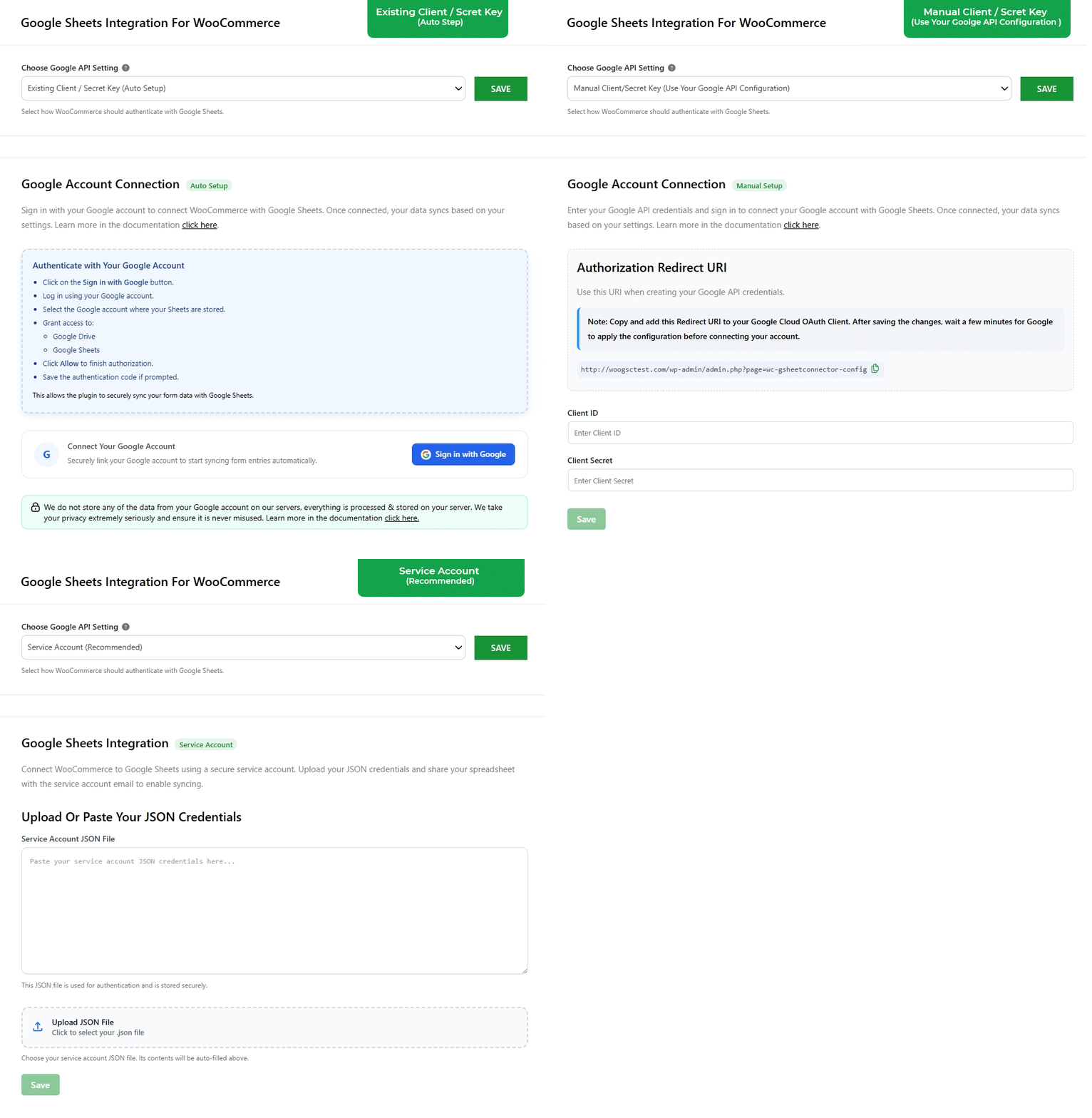
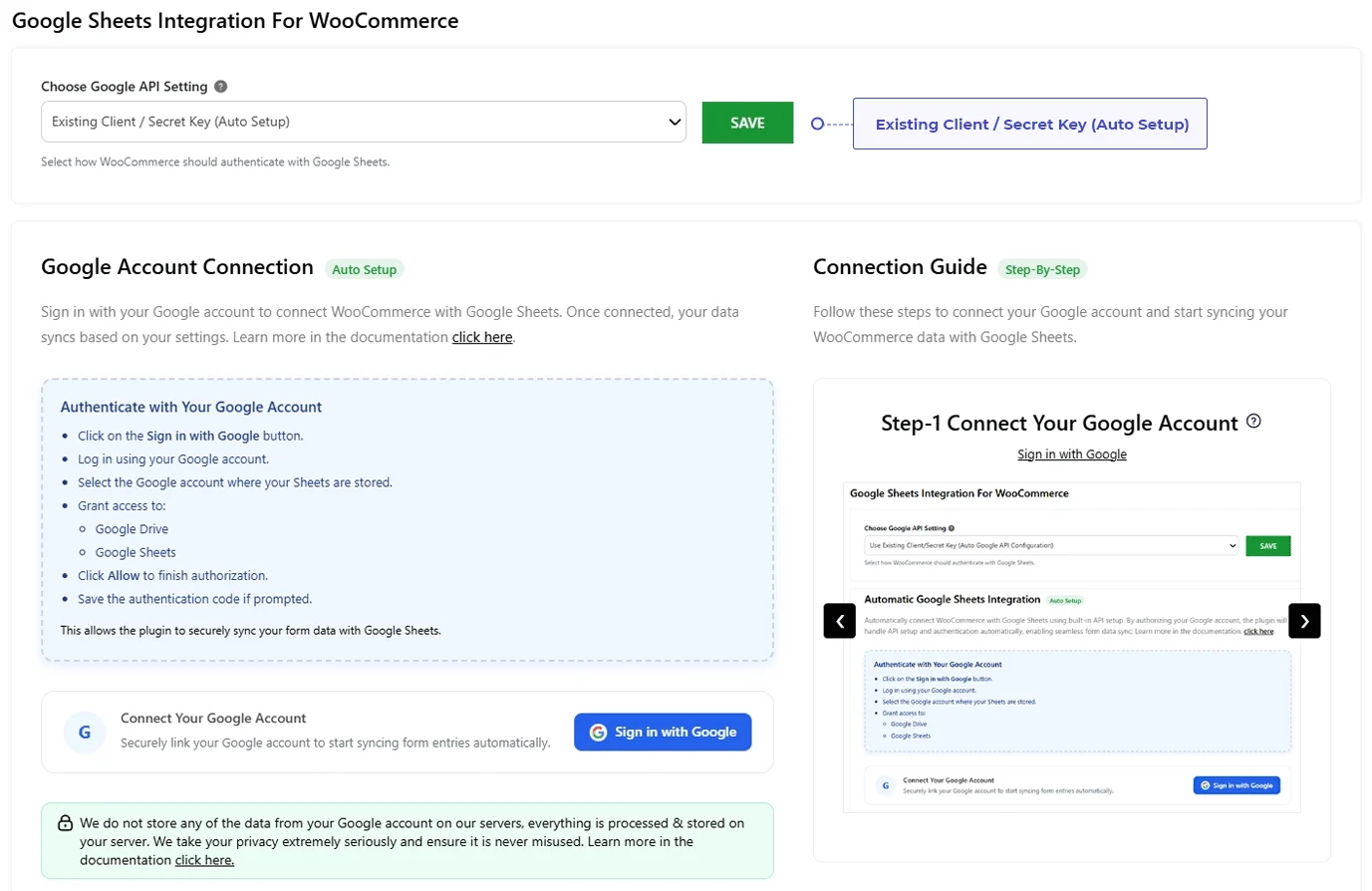
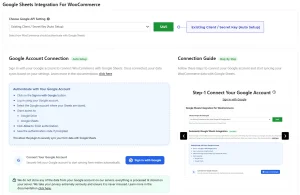
Connect your WooCommerce store with Google Sheets using the setup method that works best for you. Choose an existing Google connection, configure your own Google API credentials, or use a Service Account to send your WooCommerce data to the right spreadsheet.
- Fetch & Connect Existing Authentication, Manual Google API Configuration or Service Account Authentication
- Automatic Language Translation for Sheet Tabs
- Secure Google Drive & Sheets Access
Manage orders by status in Google Spreadsheet
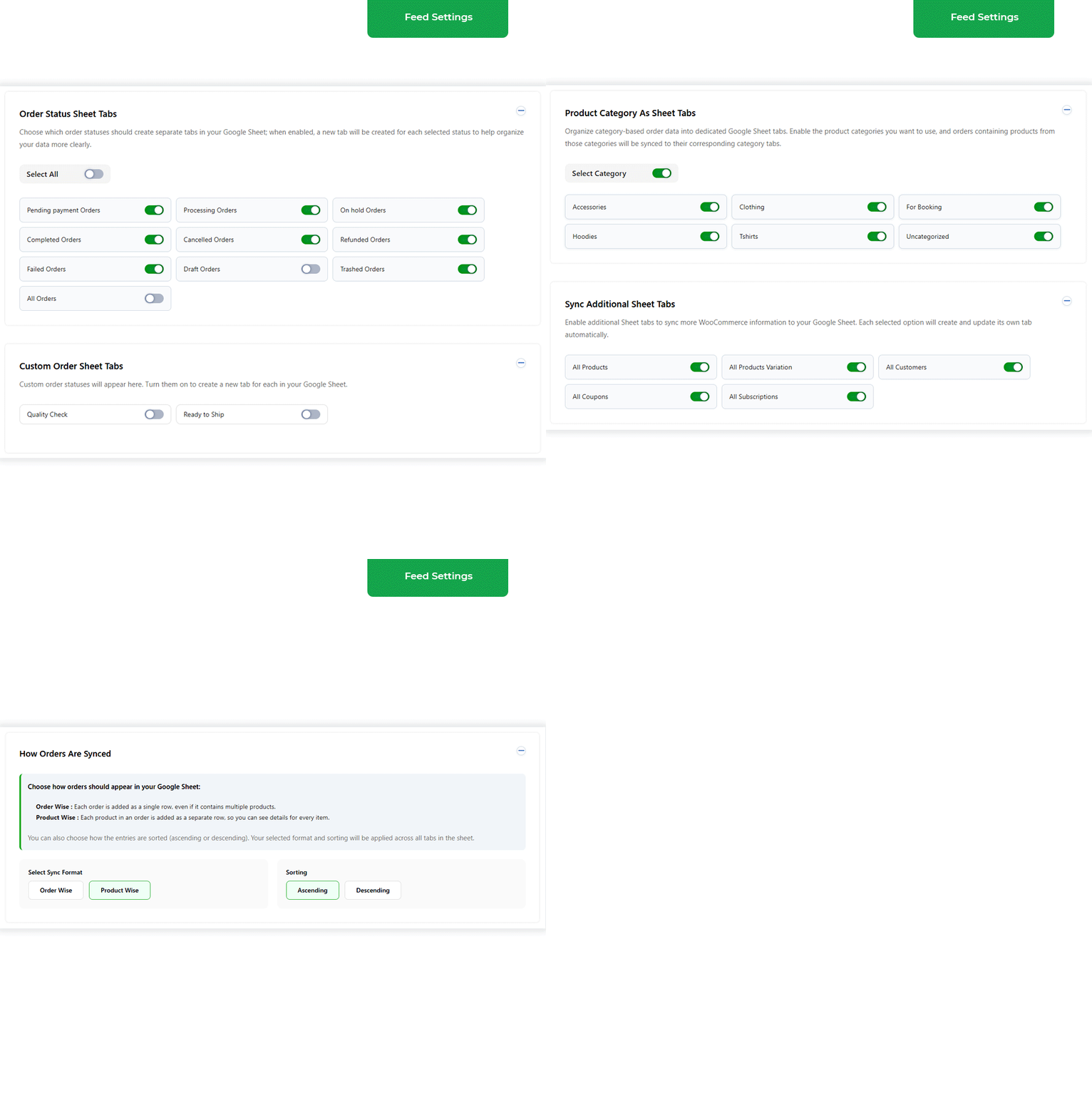
Keep your WooCommerce orders easy to find by sending them to separate Google Sheet tabs based on their order status. Use dedicated tabs for Pending, Processing, On Hold, Completed, Cancelled, Refunded, and other statuses, with support for custom order statuses.
- Order Status Sheet Tabs (Pending, Processing, Completed, and more)
- Custom Order Status Tabs
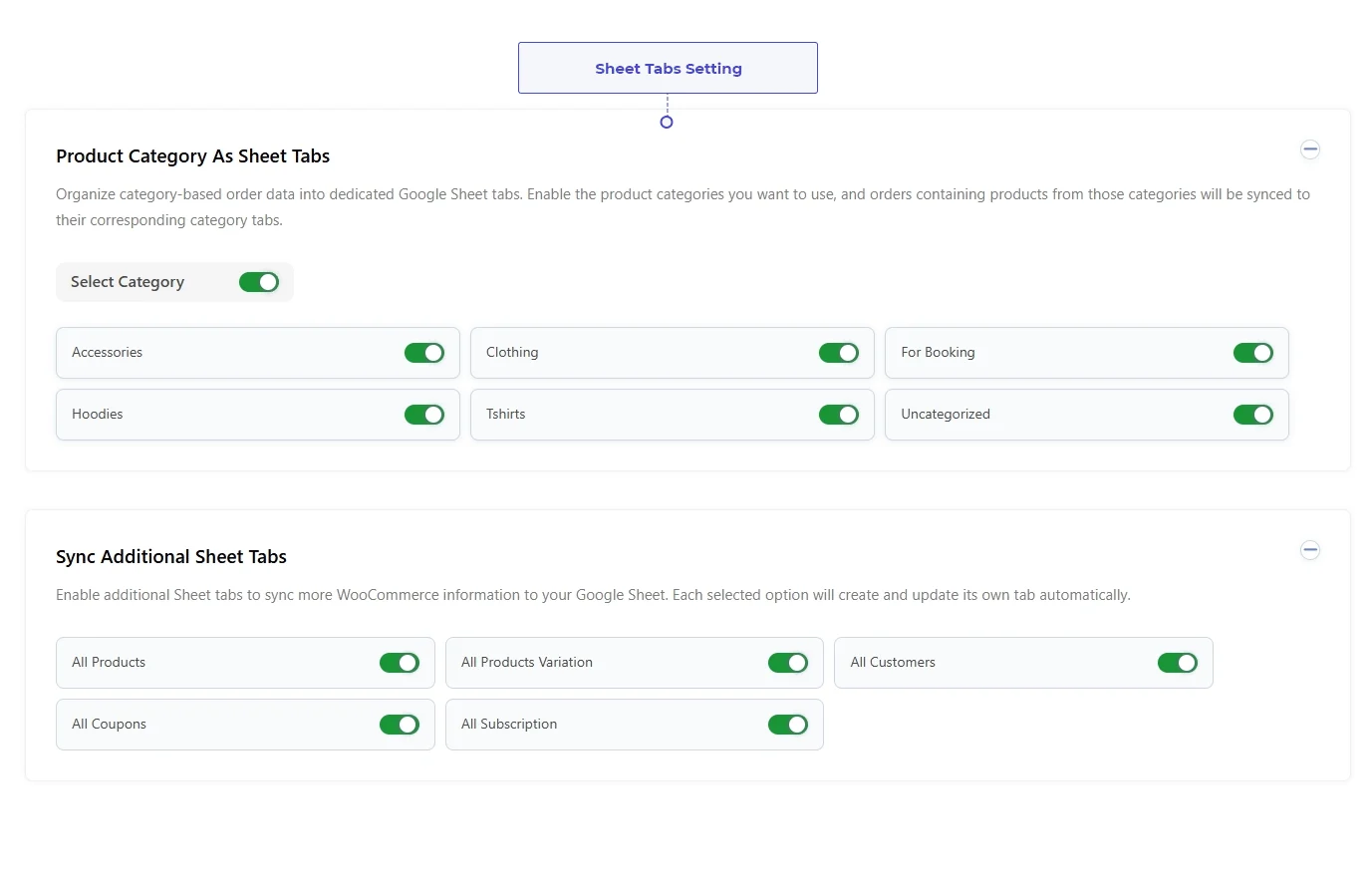
- Sync Additional Tabs for Products, Variations, Customers & Coupons
- Choose Order Wise or Product Wise Sync Format
Filter, Customize & Arrange your Google Sheet
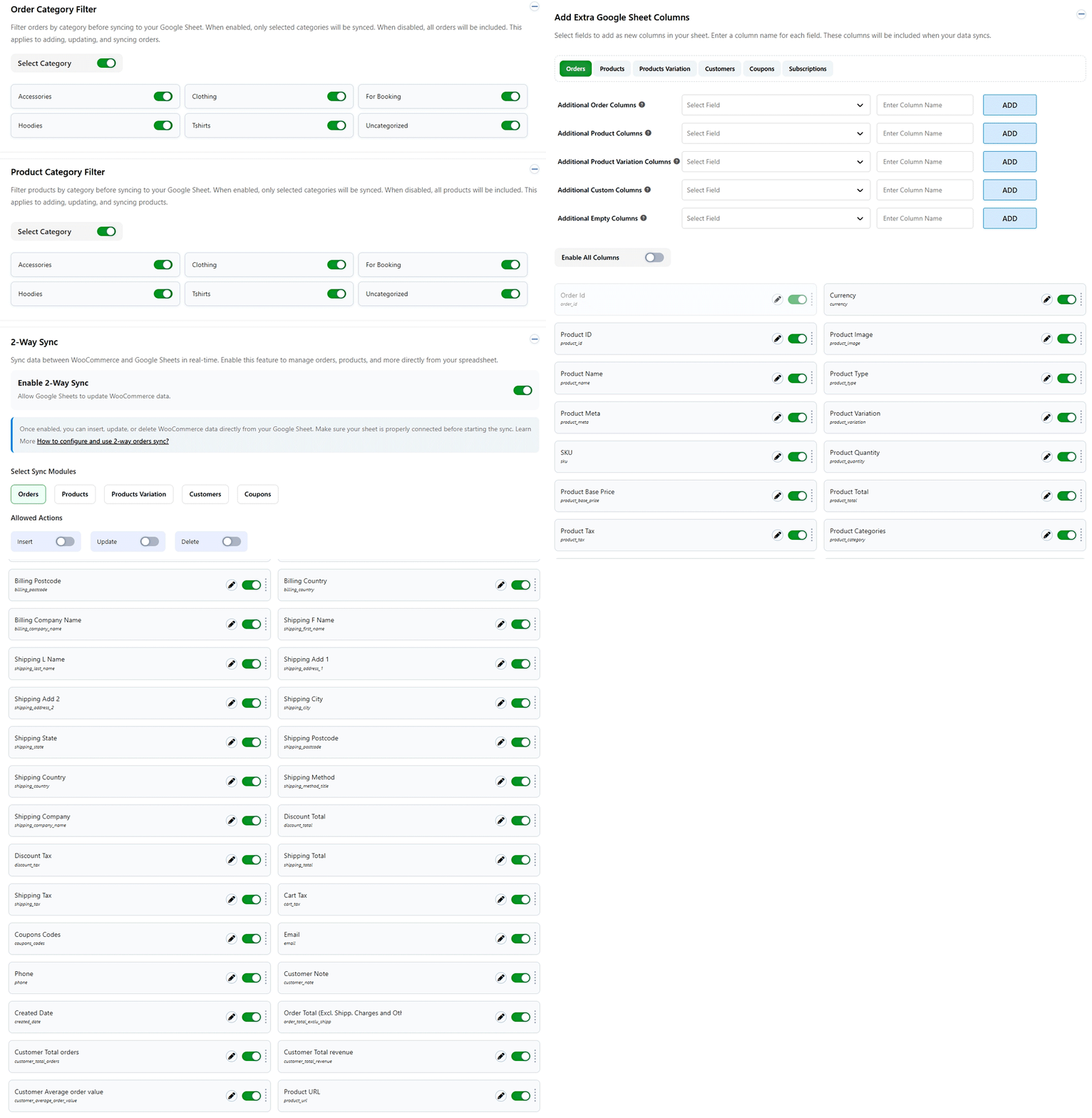
Choose the WooCommerce data you want to send to Google Sheets, add custom columns, and arrange your fields the way you need. Customize column names, order, headers, and row styling to keep your spreadsheet clear and easy to use.
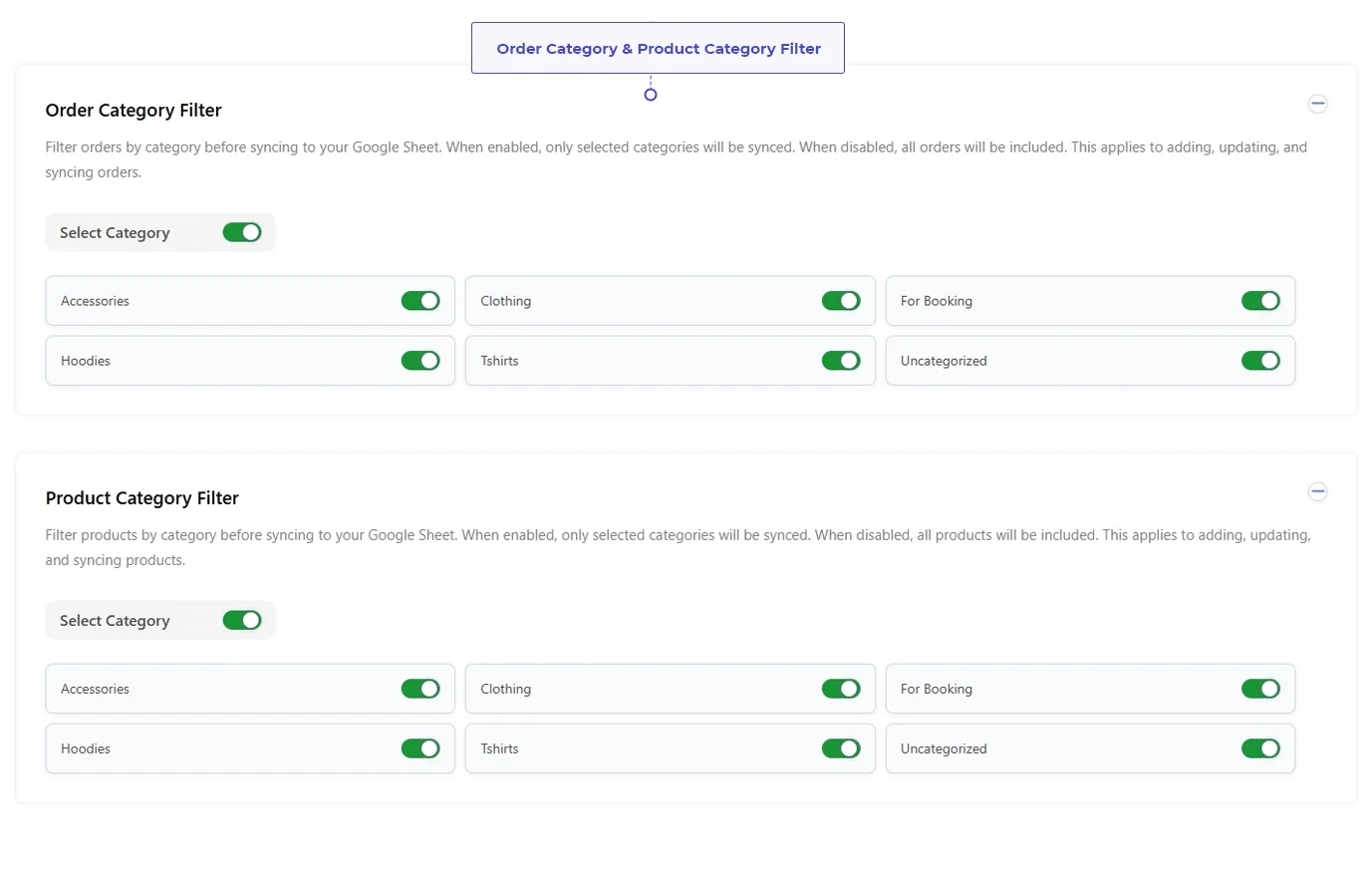
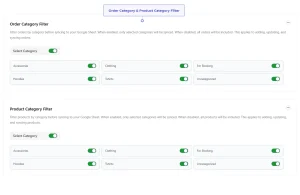
- Order & Product Category Filters
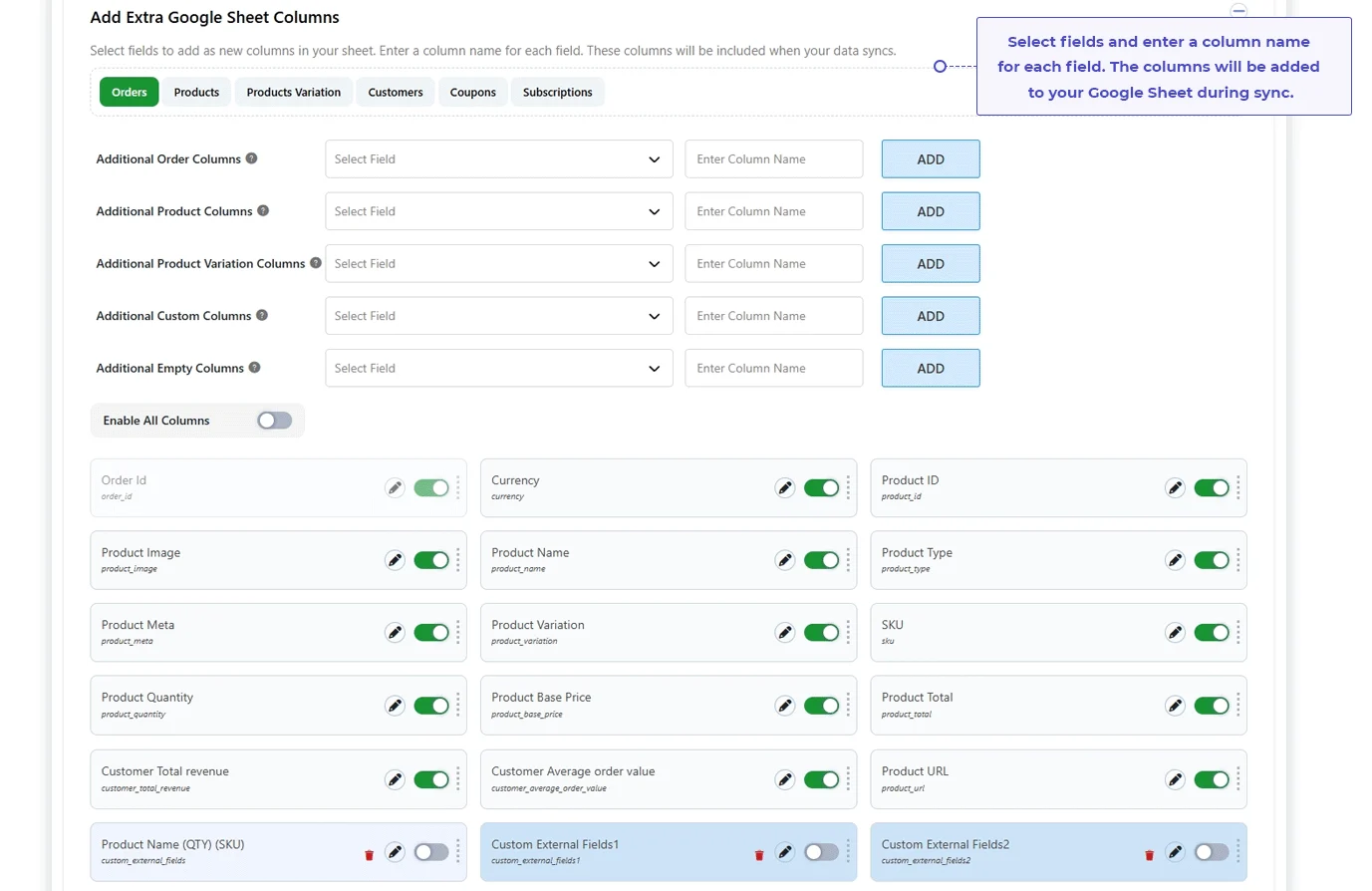
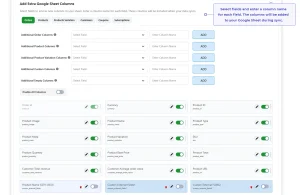
- Add Extra Google Sheet Columns
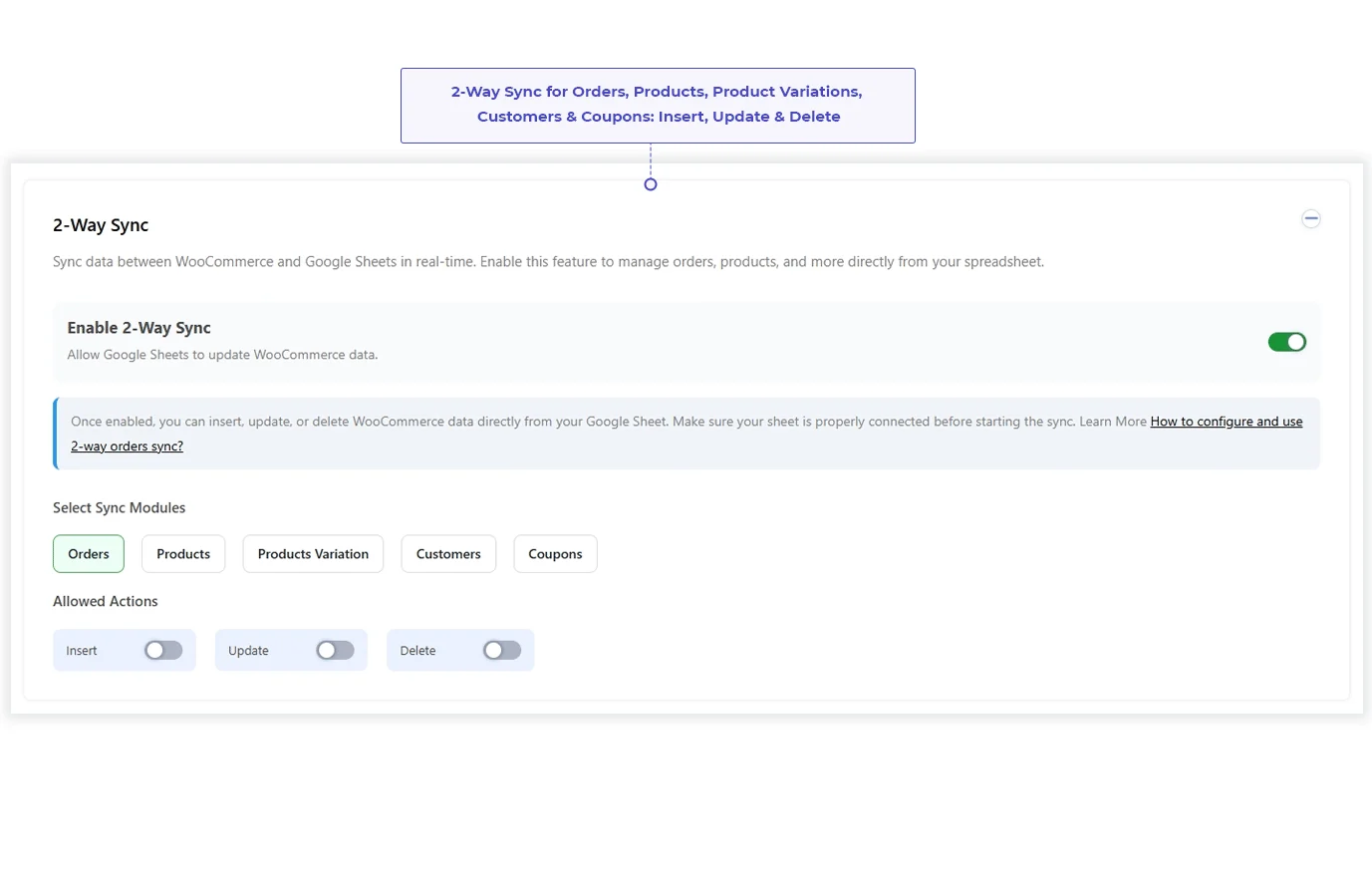
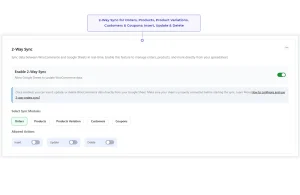
- 2-Way Sync
- Custom Row & Header Styling
Real-Time Data Sync
Every new WooCommerce order is sent to Google Sheets automatically, so your spreadsheet always matches your store.
Multiple Authentication Methods
Connect WooCommerce to Google Sheets using Existing, Manual, or Service Account authentication pick whichever fits your setup and comfort level.
Order Status Sheet Tabs
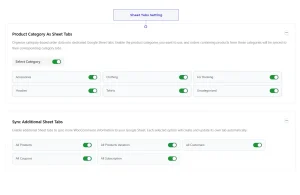
Organize orders by WooCommerce order status with separate Google Sheets tabs. Choose the statuses you want to sync and keep different order types easy to find.
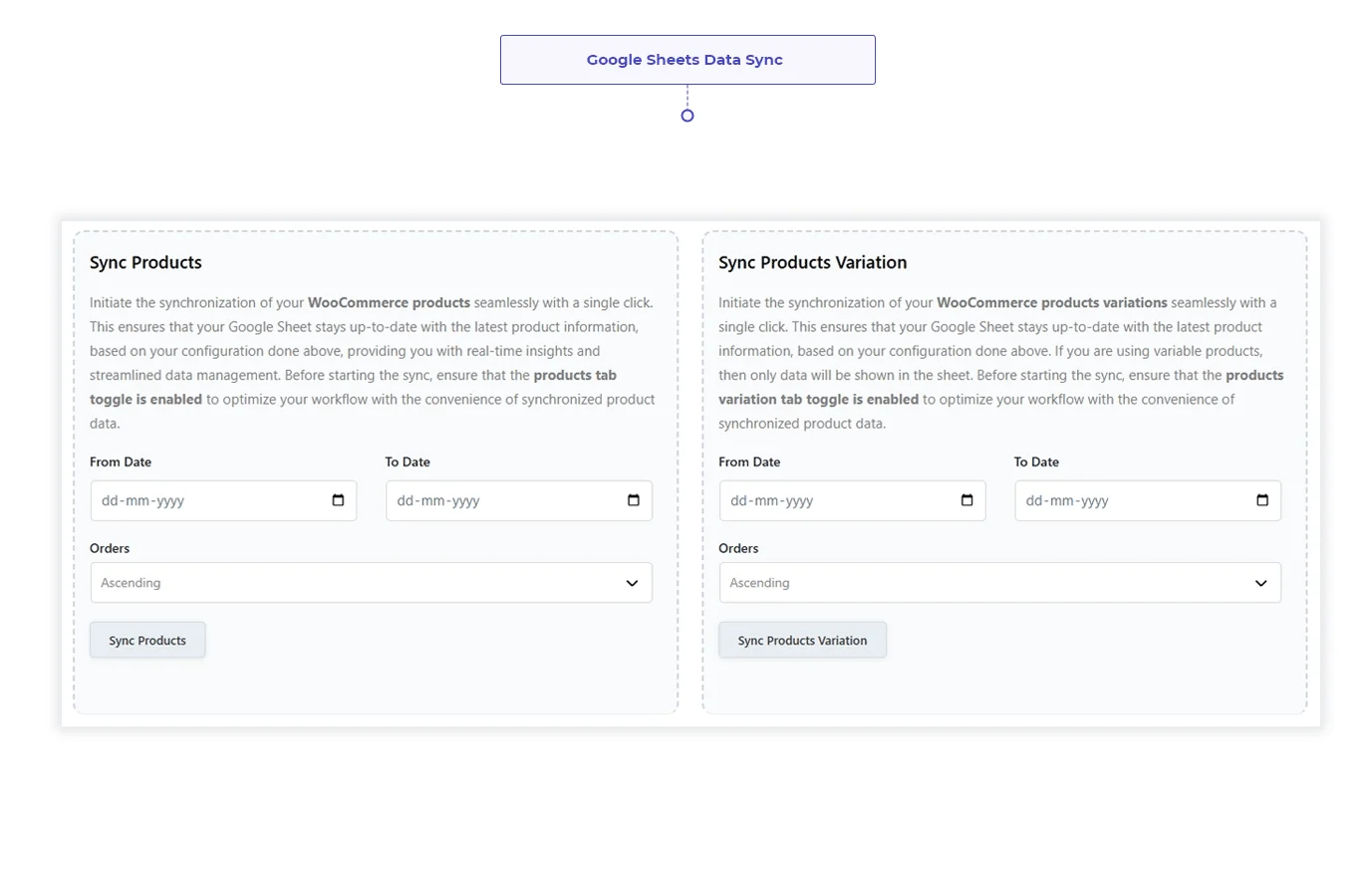
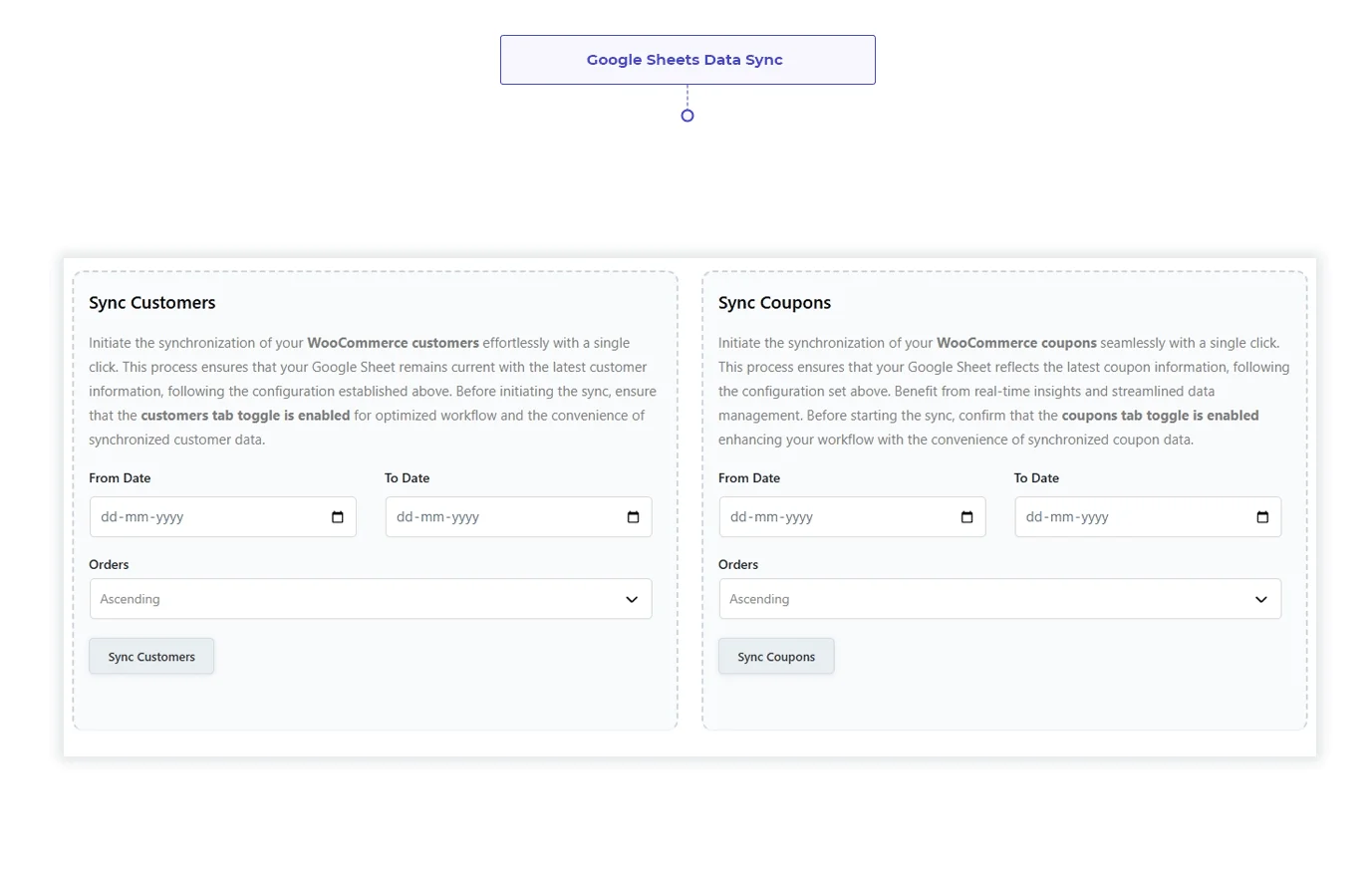
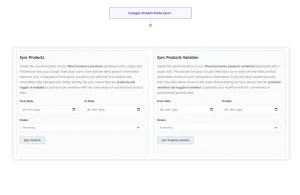
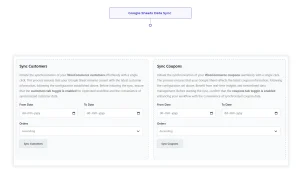
Sync Products, Variations, Customers & Coupons
Keep more than order data in Google Sheets. Sync supported WooCommerce products, product variations, customers, and coupons into dedicated sheets.
Order Wise or Product Wise Sync
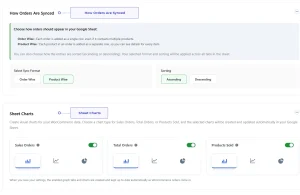
Choose how your WooCommerce data appears in Google Sheets. Use Order Wise rows for order-level data or Product Wise rows when you need individual product details.
2-Way WooCommerce & Google Sheets Sync
Insert, update, or delete supported WooCommerce data directly from Google Sheets and sync those changes with your WooCommerce store.
Add Custom & Third-Party WooCommerce Data
Add custom fields and third-party plugin data to your Google Sheets. Select the data you need for orders, products, variations, customers, and coupons, then organize it in your preferred columns.
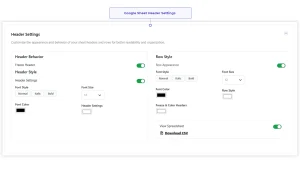
Freeze Header & Row Styling
Freeze your header row and customize font, color, and background so every sheet stays easy to read.
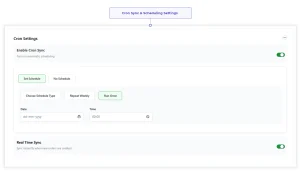
Cron & Real-Time Sync Options
Choose how your WooCommerce data reaches Google Sheets. Sync new data in real time or use scheduled syncing when a specific update schedule works better for your store.
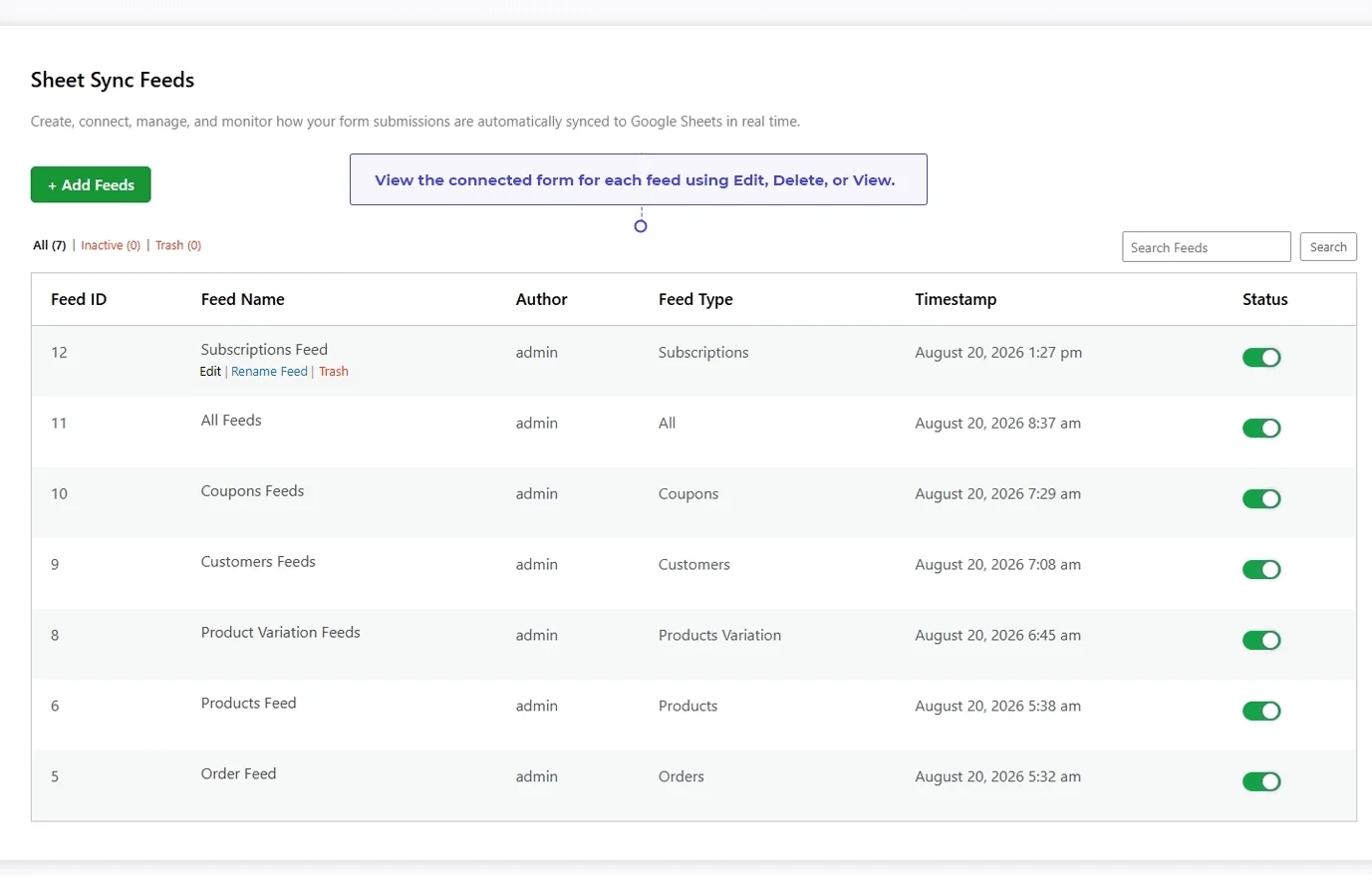
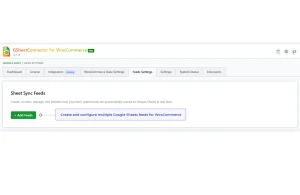
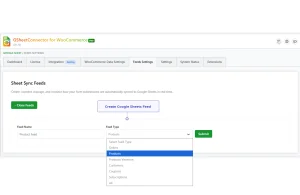
Multiple Feeds for WooCommerce Data
Create separate feeds for orders, products, product variations, customers, and coupons. Give each feed its own Google Sheet and configure the data separately.
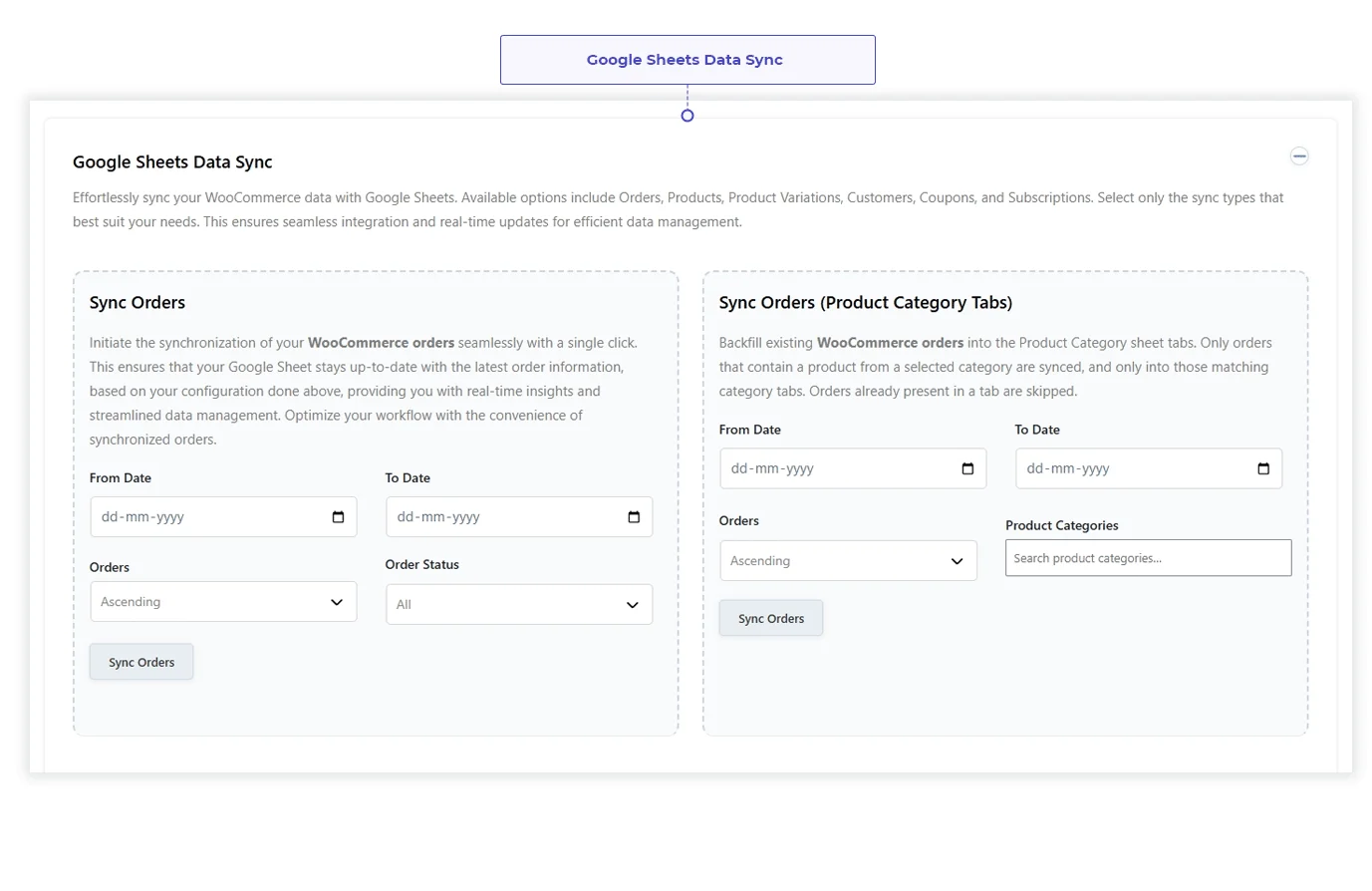
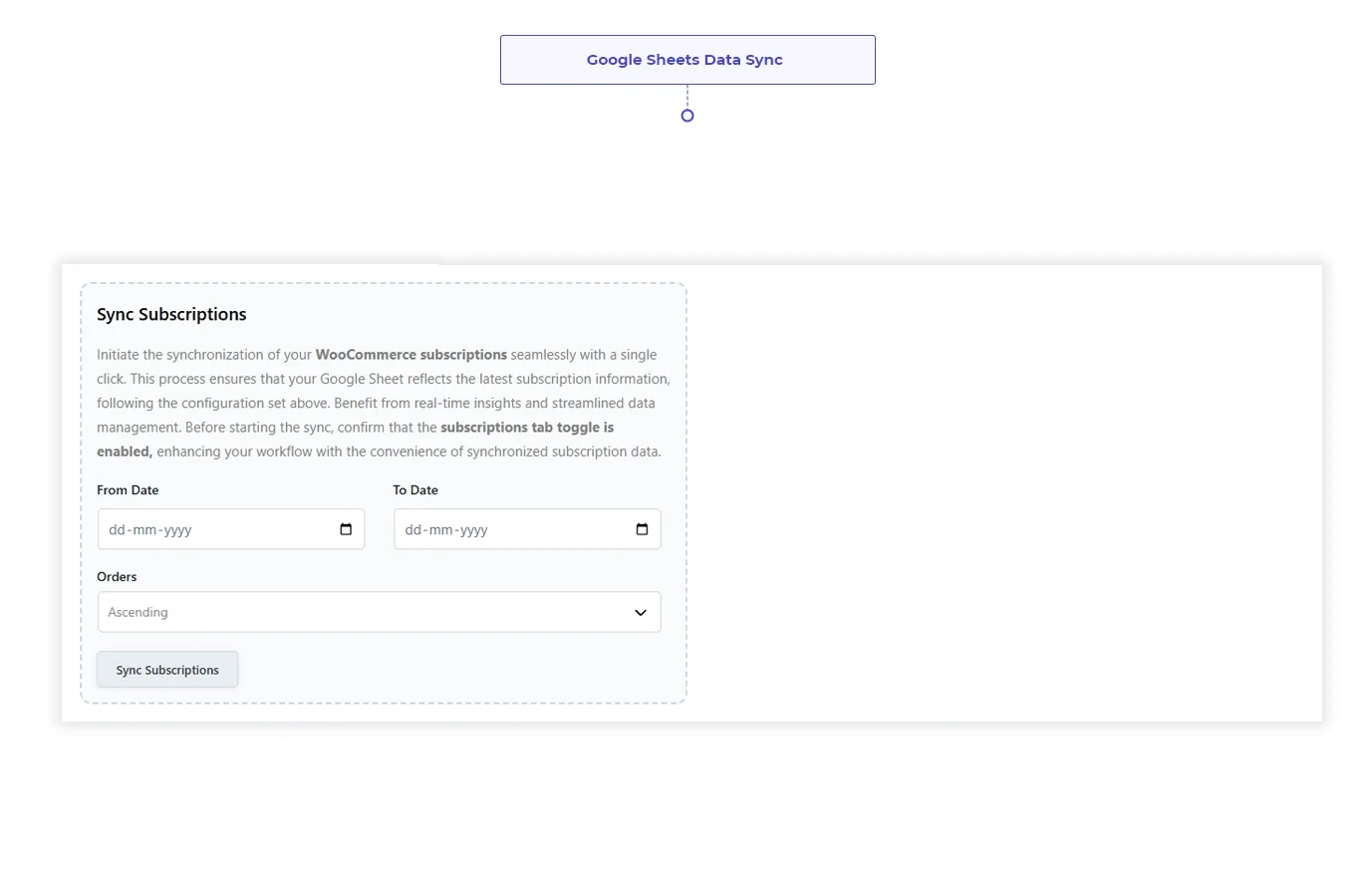
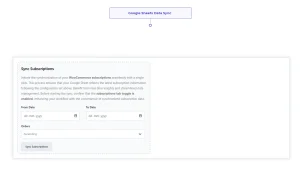
Google Sheets WooCommerce Data Sync
Keep your WooCommerce information available in Google Sheets for easy viewing, filtering, sorting, and reporting. Choose the data and sheet settings that fit your store.
WooCommerce GSheetConnector PRO New 2026









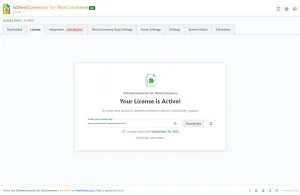






Fully Compatible With WooCommerce
WooCommerce keeps evolving new order storage, new checkout blocks, new extensions. WooCommerce Google Sheet Connector is tested
and built to work cleanly with all of it, so your Google Sheets sync never breaks.
| Feature Comparison | Free | Pro |
|---|---|---|
| Latest Google Sheets API Integration | ✓ | ✓ |
| One-Click Google Account Authentication | ✓ | ✓ |
| Existing Google Account Authentication Method | ✓ | ✓ |
| Order Status Sheet Tabs (limited statuses) | ✓ | ✓ |
| Real-Time Order Sync | ✓ | ✓ |
| Order Wise Sync Format | ✓ | ✓ |
| Manual Google API Configuration Method | — | ✓ |
| Service Account Authentication Method | — | ✓ |
| Automatic Google Sheet Fetching | — | ✓ |
| Automatic Sheet & Tab Name Detection | — | ✓ |
| Create New Google Spreadsheet Option | — | ✓ |
| Order Status Sheet Tabs (all statuses) | — | ✓ |
| Custom Order Status Tabs | — | ✓ |
| Product Category as Sheet Tabs | — | ✓ |
| Translate Google Sheets Tab Names | — | ✓ |
| Sync Additional Sheet Tabs: Products, Products Variation, Customers, Coupons | — | ✓ |
| Order Wise / Product Wise Sync Format | — | ✓ |
| Order & Product Category Filters | — | ✓ |
| Sheet Charts | — | ✓ |
| 2-Way Sync (Insert, Update, Delete) | — | ✓ |
| Add Custom & Third-Party WooCommerce Data | — | ✓ |
| Multiple Feeds (Orders, Products, Products Variations, Customers, Coupons) | — | ✓ |
| Cron Scheduling & Real-Time Sync | — | ✓ |
| Freeze Header & Row Style Customization | — | ✓ |
| Download Spreadsheet as CSV | — | ✓ |
| Google Sheets WooCommerce Data Sync | — | ✓ |
| Priority Customer Support | — | ✓ |
Watch the WooCommerce Google Sheets
Setup Guide
See how to connect WooCommerce to Google Spreadsheets. This video covers Google authentication, order status tabs, product and customer syncing, and 2-way sync setup.
- Step-by-Step Installation
- Google Account Authentication
- Order Status Sheet Tabs Setup
- Product, Customer & Coupon Sync
- 2-Way Sync Configuration
- Cron Settings
- Trusted by 3,000+ Users
- Secure OAuth 2.0
- 4.8/5 Average Rating








Jon


Built for Reliable Google Sheets Integration
Secure authentication, direct Google Sheets access, and dedicated support to help you automate your
WooCommerce store’s order and product data with confidence.
Simple, Honest Pricing
14-day money-back guarantee. $20 off all PRO licences, applied at checkout.
- Unlimited site activations
- Yearly license renewal
- Plugin updates and support during the active license period
- Latest WordPress & PHP Compatibility
- Multi-language and multisite compatible
- 1 site License
- Paid once - no renewal lincense
- Lifetime updates
- Lifetime priority support
- Latest WordPress & PHP Compatibility
- Multi-language and multisite compatible
- Select License: 1, 3, or 10 Sites
- Yearly license renewal
- Annual plugin updates
- Annual support
- Latest WordPress & PHP Compatibility
- Multi-language and multisite compatible
The full feature list is in the Free vs PRO table above the cards only show what differs between plans.

How do I connect WooCommerce to Google Sheets?
Go to your WordPress Dashboard and open WooCommerce → Google Sheet → Integration. Connect your Google account, allow access to Google Sheets and Google Drive, and then select or create a Google Sheet. Once the connection is ready, you can configure which WooCommerce data you want to sync.Popular Documentation Guides
- Introduction to WooCommerce GSheetConnector
- Installation Process – PRO Version
- Google Integration – Existing Method
- Google Integration – Manual Method
- Service Account Setup
Related Resources:
Why aren't my WooCommerce orders showing up in Google Sheets?
If your WooCommerce orders are not appearing in Google Sheets, first check your Google account connection, sheet settings, and sync options. Make sure the selected sheet and tab are correct and that the required order fields are enabled.
Check these settings:
- Confirm that your Google account is connected.
- Make sure Google Sheets and Google Drive permissions are granted.
- Check the selected Google Sheet and tab name.
- Review the order status selected for syncing.
- Check your WooCommerce data and sync settings.
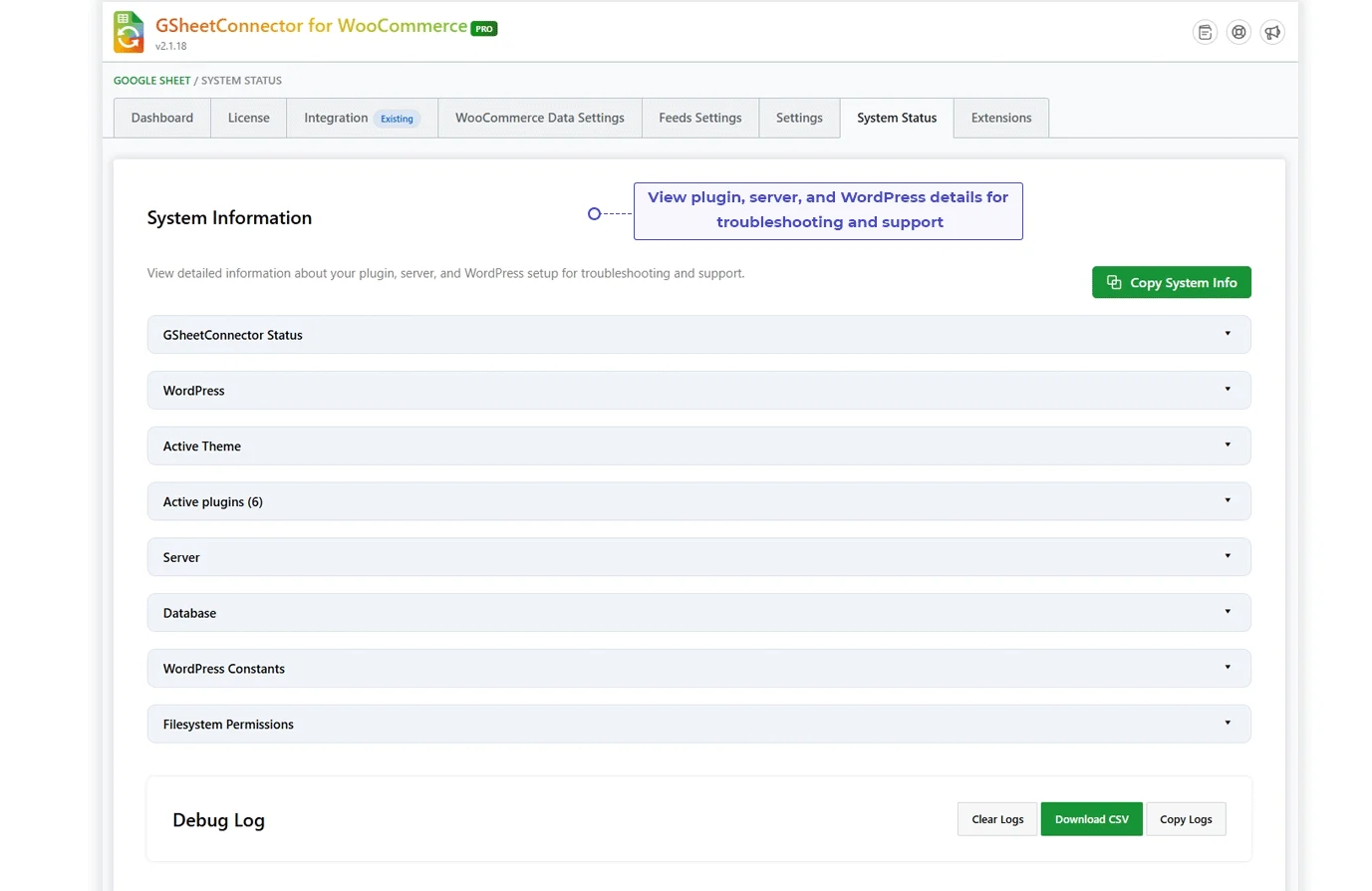
- Review the plugin debug log if the issue continues.
Related Resources:
Can I sync WooCommerce orders by order status?
Yes. WooCommerce GSheetConnector lets you organize order data using separate Google Sheet tabs for different WooCommerce order statuses. You can enable the statuses you need, including Pending, Processing, Completed, Cancelled, Refunded, Failed, and custom order statuses.
This makes it easier to view and manage order data based on its current status.
Related Resources:
Can I sync WooCommerce products, variations, customers, and coupons to Google Sheets?
Yes. With the PRO version, you can create separate Google Sheet tabs for WooCommerce orders, products, product variations, customers, and coupons. You can enable the data types you need and manage them separately in Google Sheets.
Supported WooCommerce data includes:
- Orders
- Products
- Product Variations
- Customers
- Coupons
Related Resources:
Can I sync one WooCommerce order per row or one product per row?
Yes. WooCommerce GSheetConnector provides Order Wise and Product Wise row management.
With Order Wise sync, an order is stored as a single row. With Product Wise sync, products within an order can be stored as separate rows while keeping the same order ID.
This gives you more control over how WooCommerce order data is arranged in Google Sheets.
Related Resource:
Can I filter WooCommerce orders and products before syncing them to Google Sheets?
Yes. The PRO version includes Order Category Filters and Product Category Filters. You can select the categories you want to include in your Google Sheet instead of syncing every available category.
This helps you keep your WooCommerce data focused on the orders or products you need.
Related Resources:
Can I add custom columns to my WooCommerce Google Sheet?
Yes. WooCommerce GSheetConnector lets you add extra columns for orders, products, customers, and other supported WooCommerce data. You can also rename headers, change their order, enable or disable fields, and add custom static or blank columns.
The PRO version also supports dynamic headers for supported WooCommerce and third-party plugin data.
Related Resources:
Does WooCommerce GSheetConnector support third-party WooCommerce plugins?
Yes. WooCommerce GSheetConnector supports data from supported WooCommerce official extensions and third-party plugins. Depending on the plugin and available fields, supported custom data can be included in Google Sheets.
This can be useful when your WooCommerce store uses additional plugins for bookings, delivery details, product add-ons, payment information, or other custom fields.
Related Resource:
Does WooCommerce GSheetConnector support 2-way sync?
Yes. The PRO version supports 2-way sync for supported WooCommerce data. Insert, update, or delete supported WooCommerce data directly from Google Sheets and sync those changes with your WooCommerce store.
Related Resources:
Can I connect an existing Google Sheet or create a new one?
Yes. You can connect an existing Google Sheet or create a new spreadsheet through the available WooCommerce Data Settings.
Related Resources:
Can I customize the Google Sheet headers and row styling?
Yes. You can customize your Google Sheet headers by enabling or disabling fields, renaming headers, changing their order, and freezing the header row. You can also customize header and row colors to make your WooCommerce data easier to read.
Related Resource:
Does WooCommerce GSheetConnector support real-time Google Sheets sync?
Yes. The PRO version supports real-time synchronization for supported WooCommerce data. New WooCommerce orders can be sent to the connected Google Sheet based on your configured sync settings.
You can also use scheduled sync options where supported by the plugin settings.
Related Resources:
How do I fix Google authentication errors in WooCommerce GSheetConnector?
If Google authentication fails, first reconnect your Google account and make sure Google Sheets and Google Drive permissions are approved. If you are using the Manual Google API method, check that your Client ID, Client Secret, Redirect URI, and Google API settings match the values shown in the plugin.
Related Resources:
Where can I find the complete WooCommerce Google Sheets setup guide?
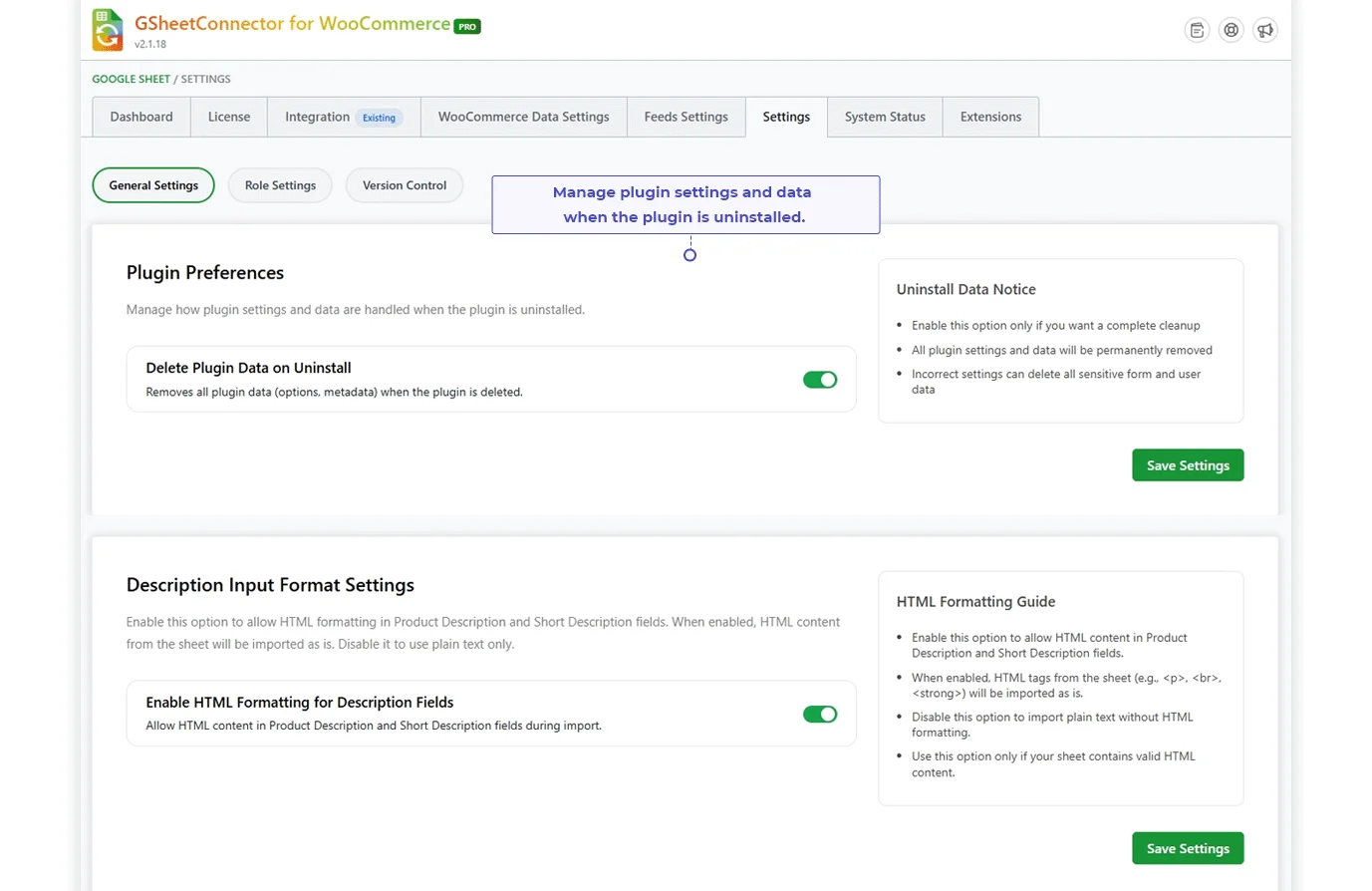
The WooCommerce GSheetConnector documentation includes guides for installation, Google authentication, WooCommerce data settings, feed settings, 2-way sync, third-party plugin compatibility, system status, and troubleshooting.
WooCommerce Documentation:
Can I use the free version of WooCommerce GSheetConnector?
Yes. WooCommerce GSheetConnector has a free version that provides core Google Sheets integration features. The PRO version adds advanced options such as additional WooCommerce data tabs, category filters, custom headers, 2-way sync, advanced sync settings, and other features.
What happens if my WooCommerce GSheetConnector license expires?
Your plugin can continue to work on your website after the license expires. However, an expired license means you will no longer receive new plugin updates, new feature releases, or compatibility updates.
Renewing your license keeps your PRO features and support access active.
Related Resource:
Can I upgrade from the free version to WooCommerce GSheetConnector PRO?
Yes. You can upgrade to the PRO version when you need additional WooCommerce and Google Sheets features. The PRO version adds options such as product and customer tabs, category filters, custom headers, advanced sync settings, and 2-way sync.
Where can I get help if my WooCommerce data is not syncing?
If your WooCommerce data is not syncing correctly, first check the Google authentication, selected spreadsheet, WooCommerce data settings, feed settings, and system status. You can also review the available documentation for your specific sync method.
If you still need help, contact the GSheetConnector support team with your plugin version, WordPress version, WooCommerce version, and relevant debug information.
Helpful Resources:


