How to Connect Contact Form 7 with Google Sheets for Automatic Export


Are you looking for ways to migrate entries from Contact Form 7 to Google Sheets?
Contact Form 7 is one of the oldest and most popular contact form plugins for WordPress websites.
It’s a simple tool for collecting contact details, but with the help of other third-party plugins, the tool can transform into a powerful form management system, capable of handling complex form logic, conditional fields, and file uploads. It can even integrate with popular marketing automation tools, email services, and CRM systems.
When exporting Contact Form 7 data out of your WordPress website, you can use WordPress’s native export tool. However, the data can be exported only in .xml files, not Google Sheets.
To export entries from Contact Form 7 to Google Sheets, you need to rely on a third-party plugin like CF7 Google Sheet Connector.
It’s a powerful plugin that allows you to manage Contact Form 7 data using Google Sheets, instruct which data to export and which ones to skip, track the date and time the form entry was submitted, and insert uploaded files as links, among other things.
In this article, we are going to show you how to use the CF7 Google Sheet Connector plugin to migrate the form data out of your WordPress website.
Let’s get started.
Why Export Contact Form 7 Data to Google Sheets?
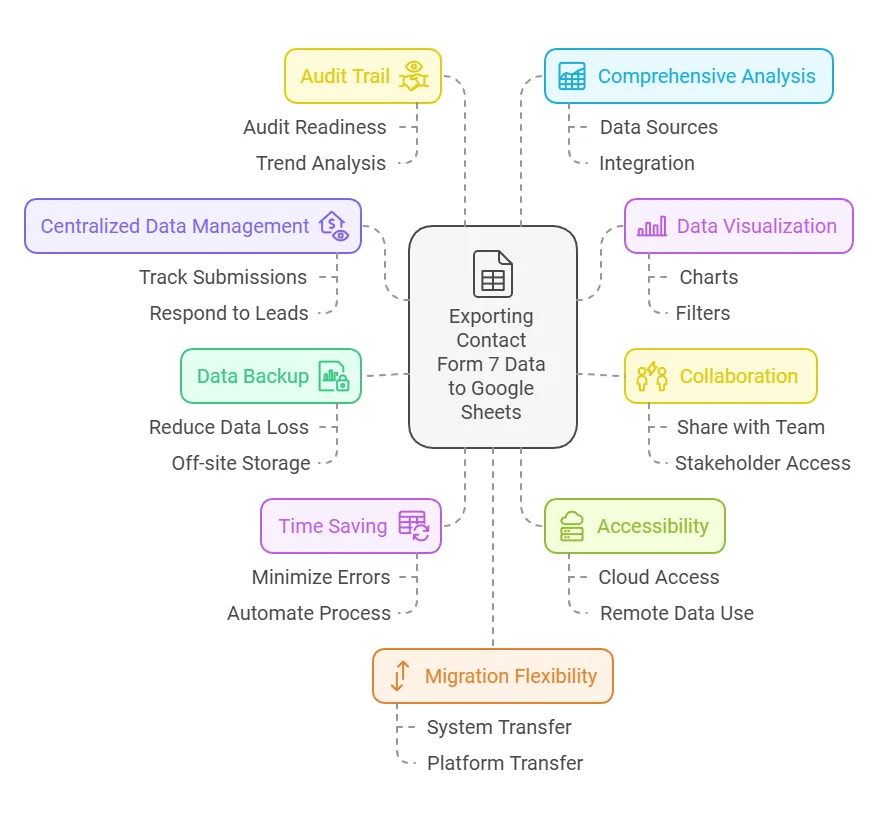
Exporting form data from Contact Form 7 to Google Sheets is essential for streamlining data management and improving efficiency. Here are some common reasons why you should consider this integration:
- Centralized Data Management: Manage all your form submissions in one place, making it easier to track, analyze, and respond to leads.
- Data Visualization: Utilize Google Sheets’ built-in features such as charts, filters, and pivot tables to analyze and visualize your data.
- Collaboration Made Easy: Share data with team members or stakeholders without needing access to your WordPress website.
- Data Backup: Safeguard your submissions by storing them off-site, reducing the risk of data loss due to website issues.
- Save Time: Automate the transfer of form data, reducing manual effort and minimizing errors.
- Accessibility: Access your data from anywhere using Google Sheets’ cloud-based platform.
- Audit Trail: Track changes and maintain a history of your data, useful for auditing or trend analysis.
- Comprehensive Analysis: Combine Contact Form 7 data with other data sources in Google Sheets for deeper insights.
- Migration Flexibility: Use Google Sheets as an intermediary when transferring data between systems or platforms.
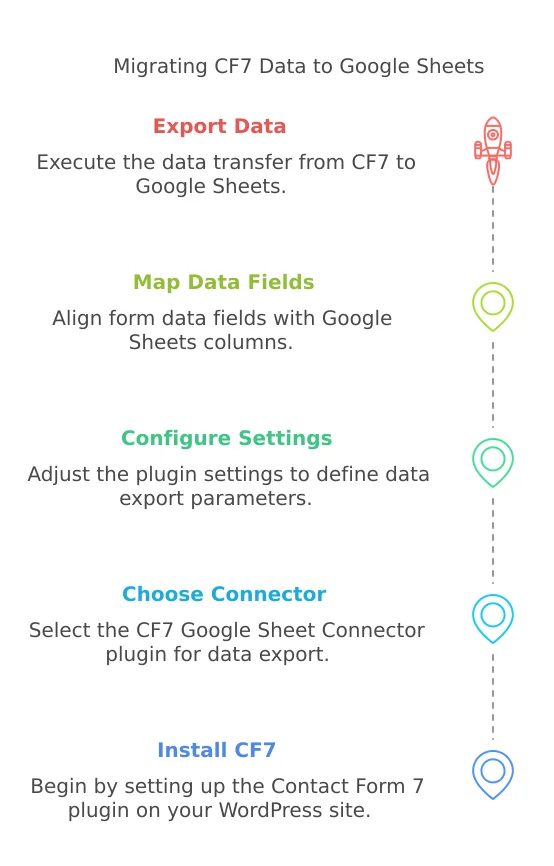
How to Export Entries From Contact Form 7 to Google Sheets
In this guide, we’ll show you how to easily export Contact Form 7 (CF7) submissions to Google Sheets using the CF7 Google Sheet Connector plugin.
The CF7 Google Sheet Connector plugin has both a free version and a premium version. The premium plugin is priced at an annual cost of $39 for a single website.
The free version has some limitations, such as the inability to edit sheet headers and display PayPal or Stripe status, among other features. However, you can still follow this tutorial with the free version, as the steps remain the same.
In the tutorial below, we’ll demonstrate the process using the premium plugin, but CF7 Google Sheet Connector users of both the free and paid versions can follow along with ease.
Let’s dive into the tutorial.
1. Install & Activate CF7 Google Sheet Connector
Start by downloading the CF7 Google Sheet Connector plugin, which offers seamless integration between Contact Form 7 and Google Sheets. This plugin stands out for its features such as real-time data synchronization, customizable headers, and advanced compatibility with Google Sheets functions.
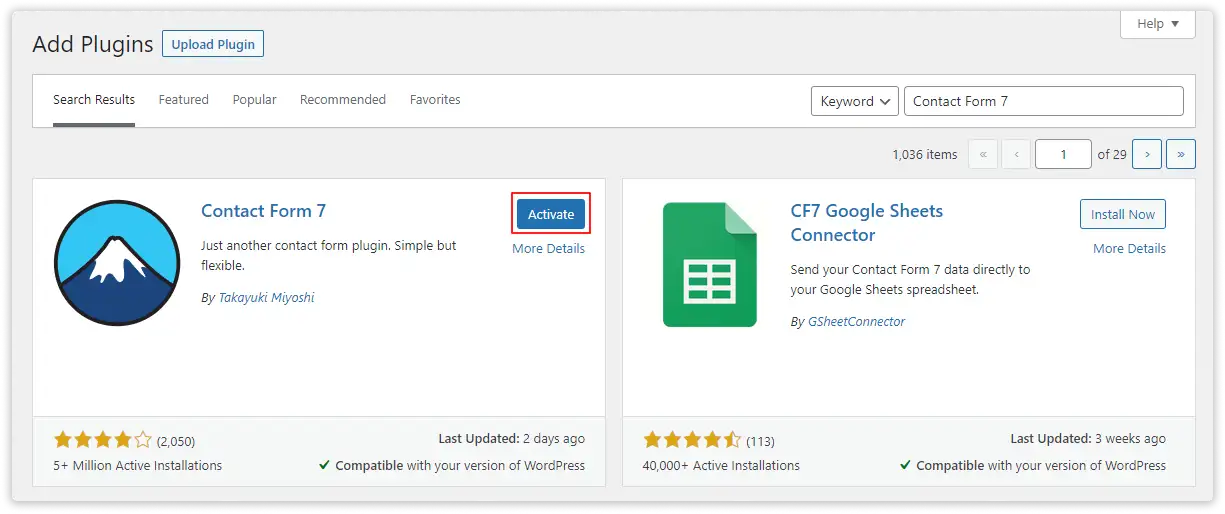
Installing Contact Form 7
Log In to WordPress
- Go to your WordPress admin area.
- Click “Plugins” on the left side. (under Plugins Section)
- Hit “Add New” at the top.
Search for Contact Form 7
- Type “Contact Form 7” in the search bar.
- Click “Install Now” for Contact Form 7.
- Once it’s installed, activate it.
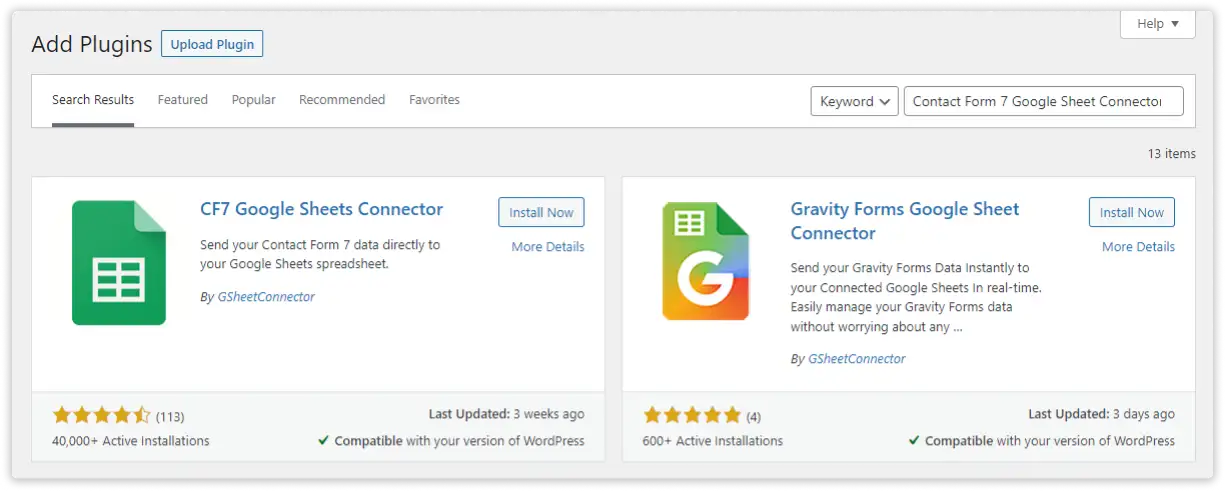
Installing CF7 Google Sheet Connector Plugin
Go Back to Plugins
- Click “Add New” again.
Search for CF7 Google Sheet Connector
- Type “CF7 Google Sheet Connector” in the search bar.
- Click “Install Now” for CF7 Google Sheet Connector.
- After installing, activate it.
A Quick video showing an installing
Installing from WordPress
- Go to the wordpress.org & Download plugins zip file.
- To Add the New Plugin, Select the “ADD NEW” Plugins Menu in the Dashboard.
- Click on the “upload plugin” Button & upload the CF7 Google Sheet Connector plugin zip file.
- Install and activate the CF7 Google Sheets Connector Plugin.
2. Connect Your Website with Google Sheets
To export form submissions, connect your website to Google Sheets using the Google API. The CF7 Google Sheet Connector plugin simplifies this process with step-by-step guidance for API integration. Here’s how:
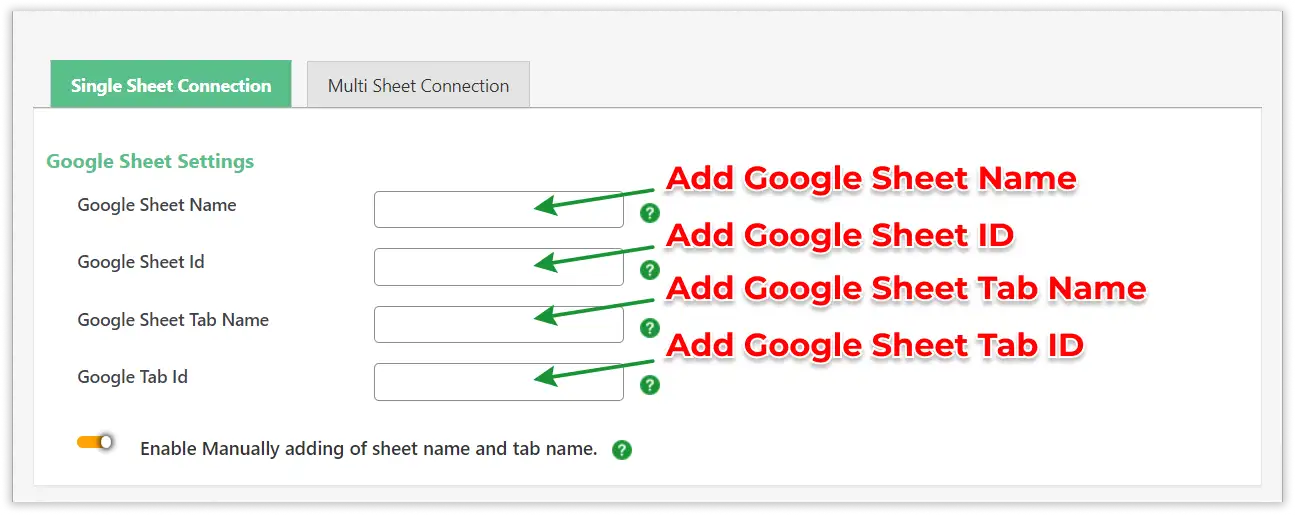
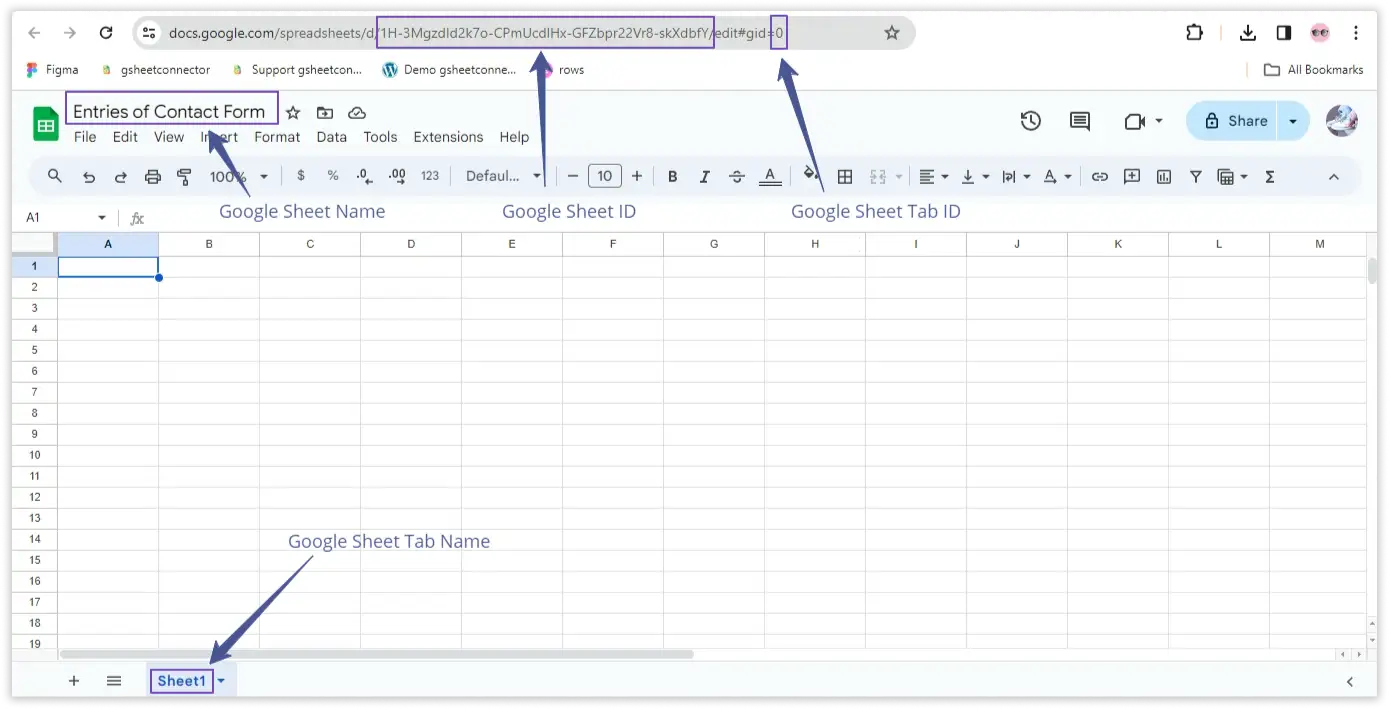
- Navigate to CF7 Google Sheet Connector → API Settings in your WordPress dashboard. Here, you can configure the API settings required to establish a connection with Google Sheets. This includes entering the Client ID, Client Secret, and Refresh Token that are generated via the Google Cloud Platform. Detailed instructions for generating these credentials are available within the plugin’s documentation, ensuring a smooth setup process.
- You’ll need a Client ID, Client Secret, and Refresh Token. Generate these credentials in the Google Cloud Platform. Refer to the detailed guide provided within the plugin for step-by-step instructions.
- Once you have the credentials, enter them into the plugin’s API Settings page and save changes. This will link your website to Google Sheets.
Integration of Contact Form 7 with Google Sheet:
- Ensure that you have successfully integrated (Automatic Integration or Manual Integration) Contact Form 7 with Google Sheet Connector.
Edit Contact Form:
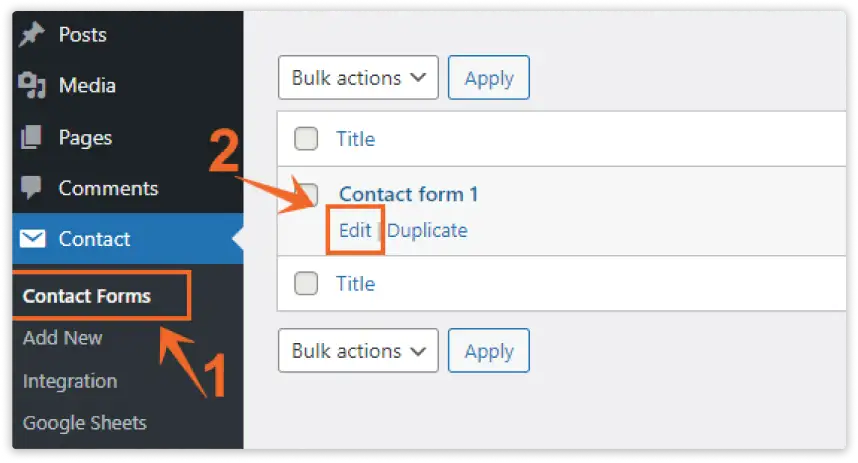
- Go to the Contact Form 7 section in your WordPress dashboard.
- Locate and Edit the specific Contact Form that you want to integrate with Google Sheets.