This guide simplifies the process of installing Formidable Forms along with the Formidable Forms Google Sheet Connector Plugin for seamless integration.
Integration of Formidable Forms with Google Sheet :
- Ensure that you have successfully integrated (Automatic Integration or Manual Integration) Formidable Forms with Google Sheet Connector.
Editing Forms :
- Navigate to the Formidable Forms section within your WordPress dashboard.
- Locate and edit the specific Formidable Forms you wish to integrate with Google Sheets.

Form Setup :
- Now navigate to “Settings” Tab .
- Under “Settings” tab you will see the “Actions & Notifications” on left side.
- After you will able to “FORM ACTIONS” One of the Action will be “GSheetConnector “
- Click on “GSheetConnector“.

Configuring GSheetConnector form :
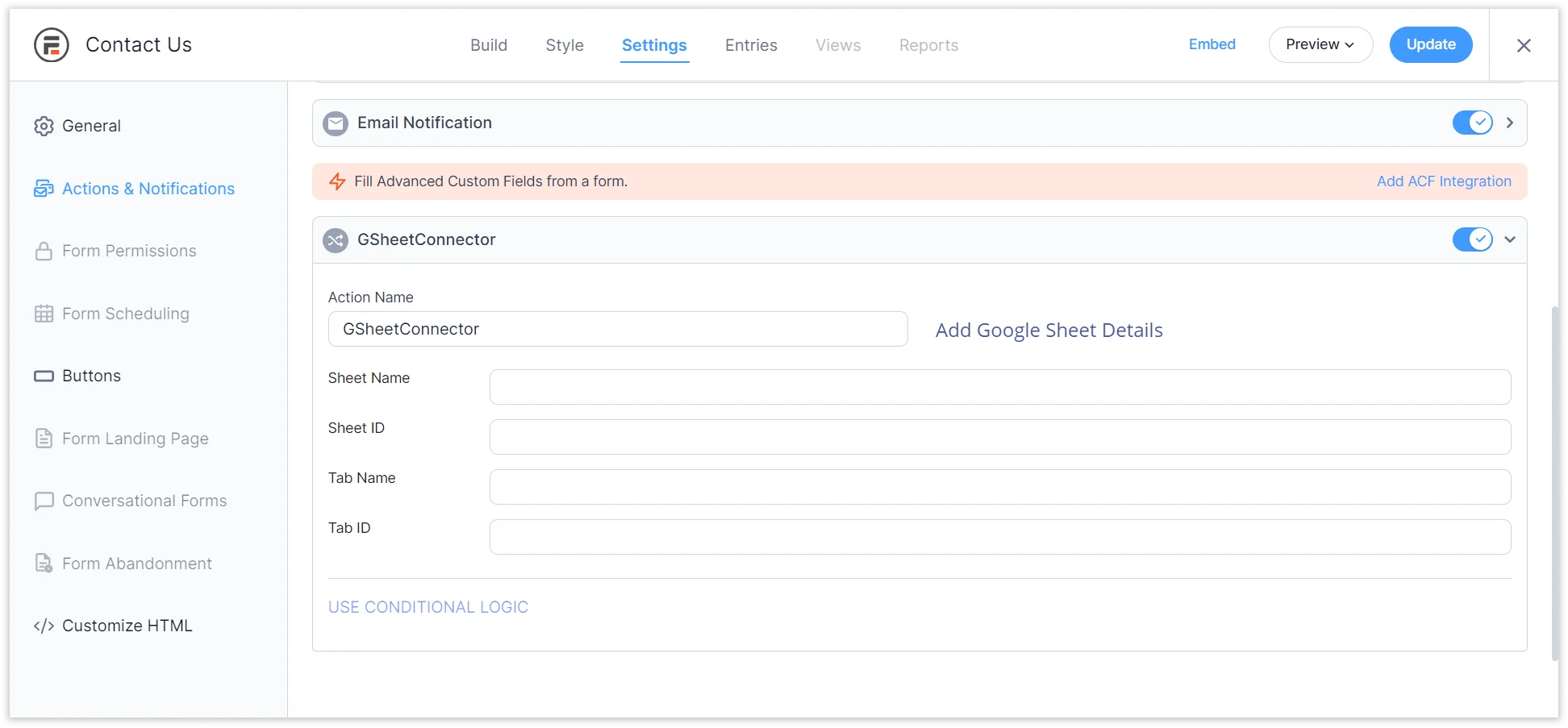
1 . Insert the necessary details for your Google Sheet in the relevant fields :
-
- Google Sheet Name
- Google Sheet ID
- Google Sheet Tab Name
- Google Sheet Tab ID
- Google Sheet Name
- Google Sheet ID
- Google Sheet Tab Name
- Google Sheet Tab ID
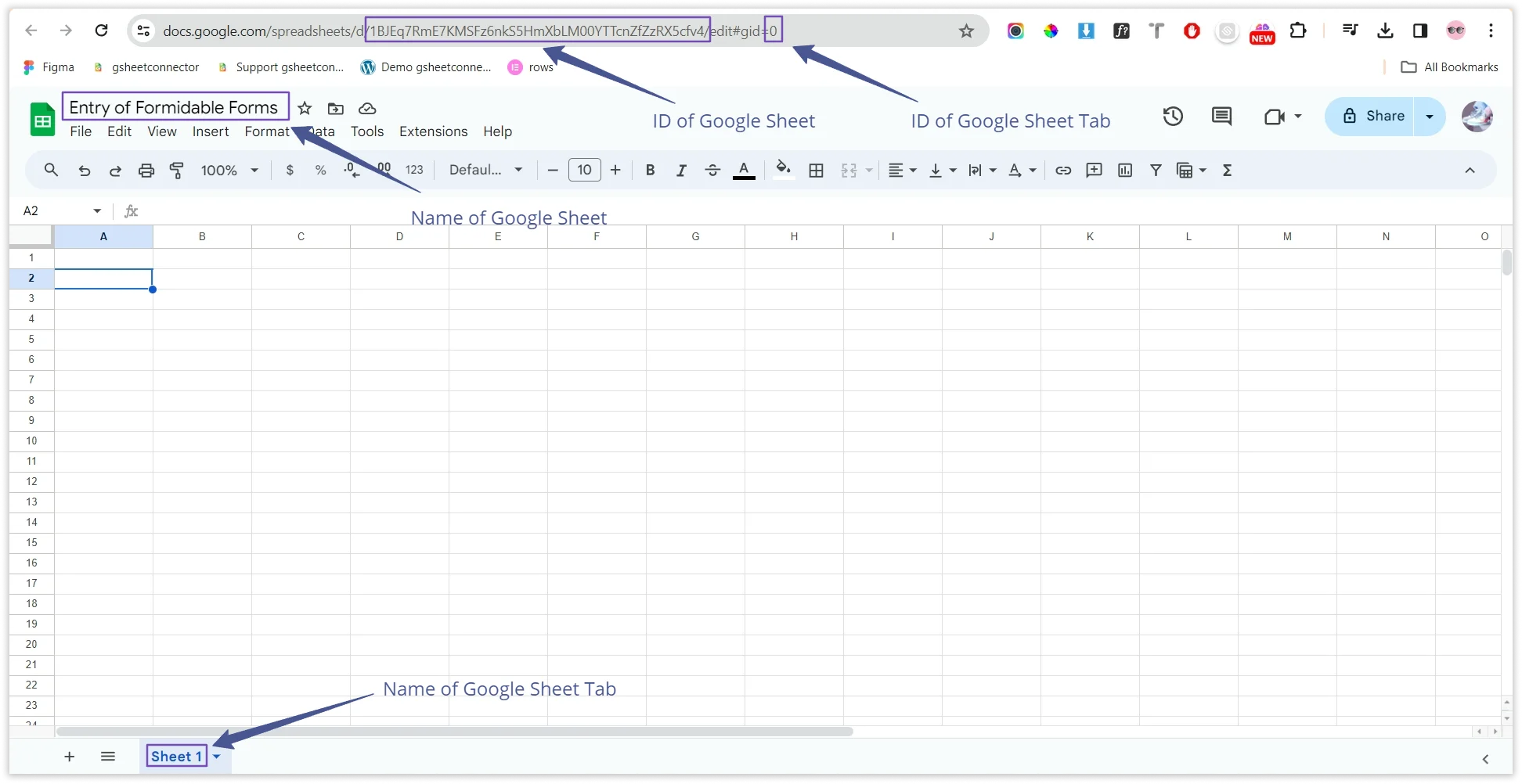
- Check out the screenshot below for an example of a Google Sheet. It includes information like the Google Sheet’s Name, ID, Tab Name, and Tab ID.
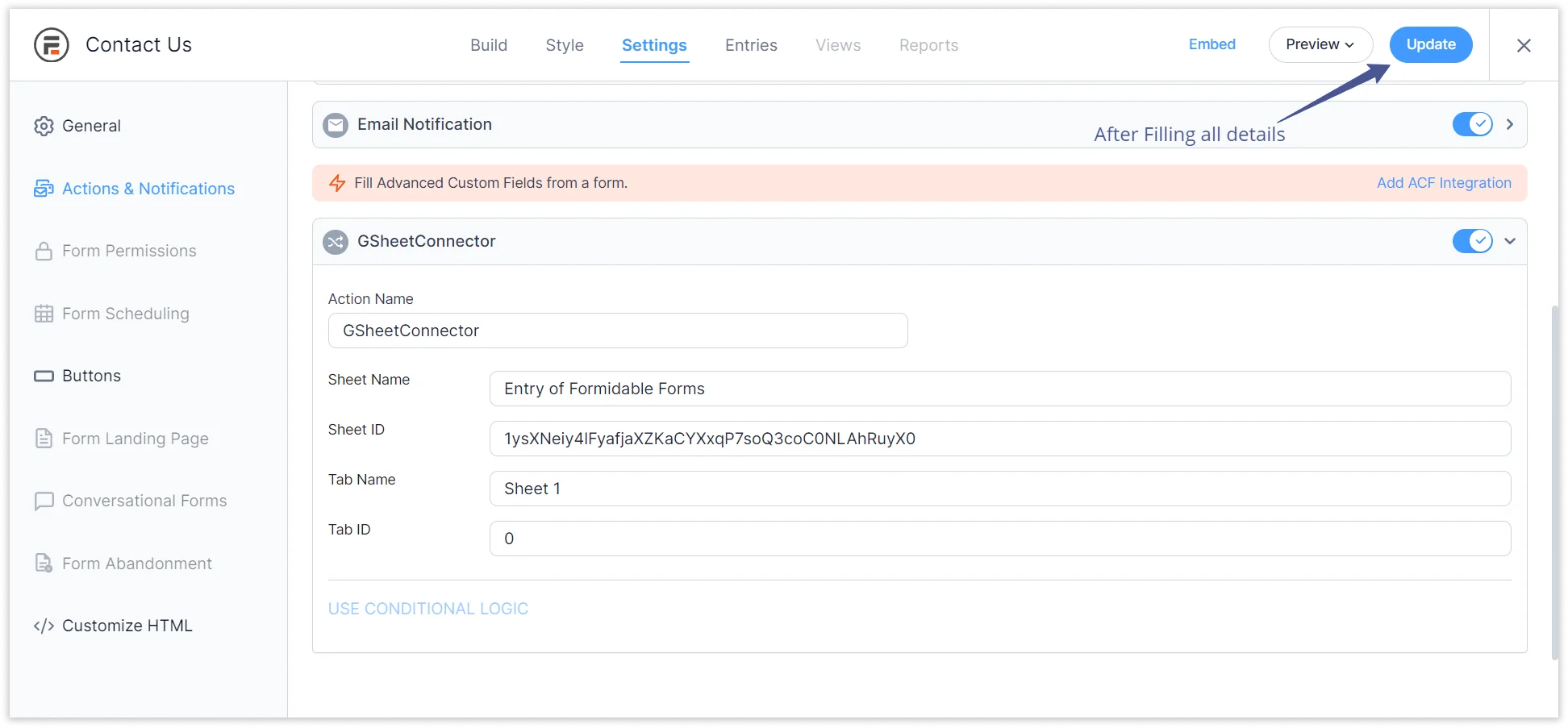
- Update or Save.
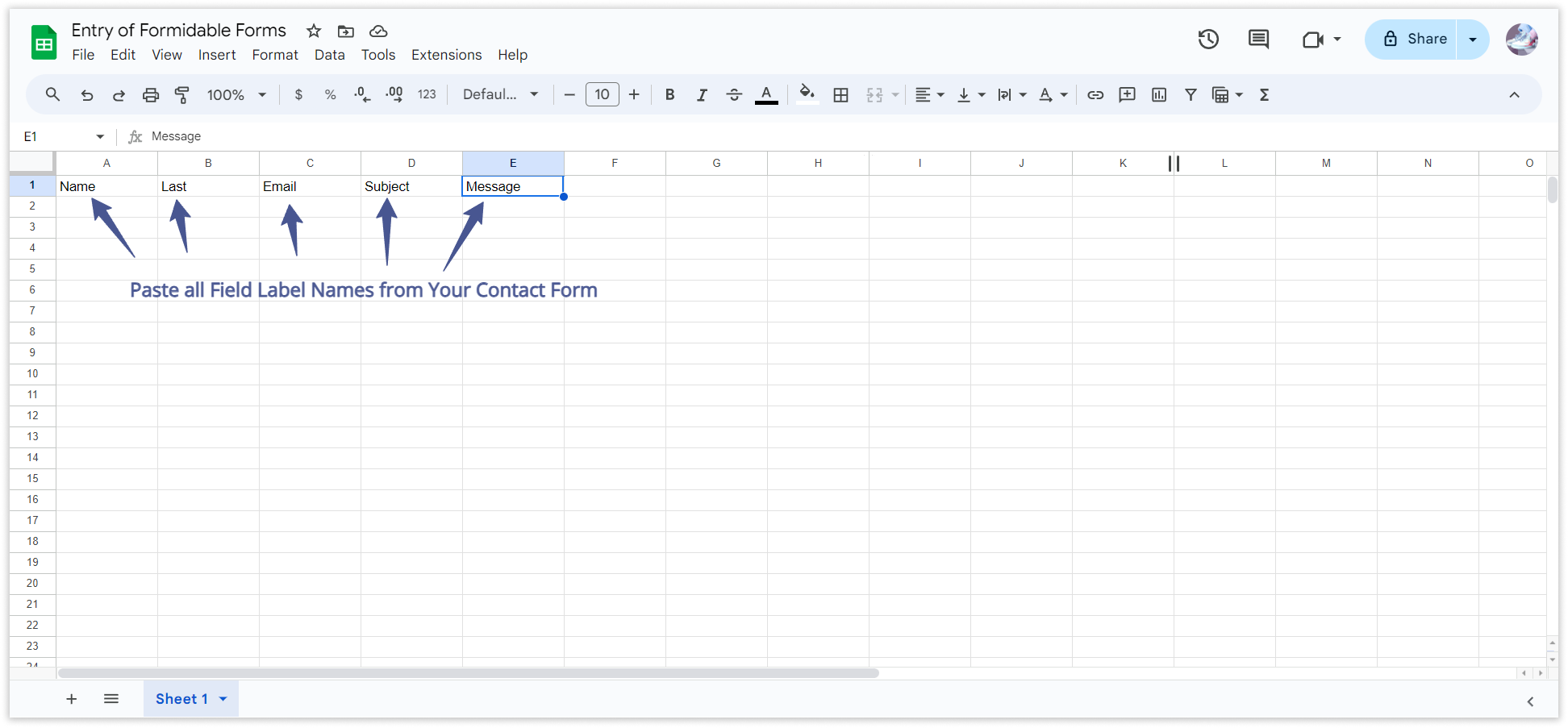
2 . Sheet Header Configuration :
- The labels of the form fields will be used as headers in the Google Sheet.
- For That We had Manually Add the Form fields in Sheet as Headers.
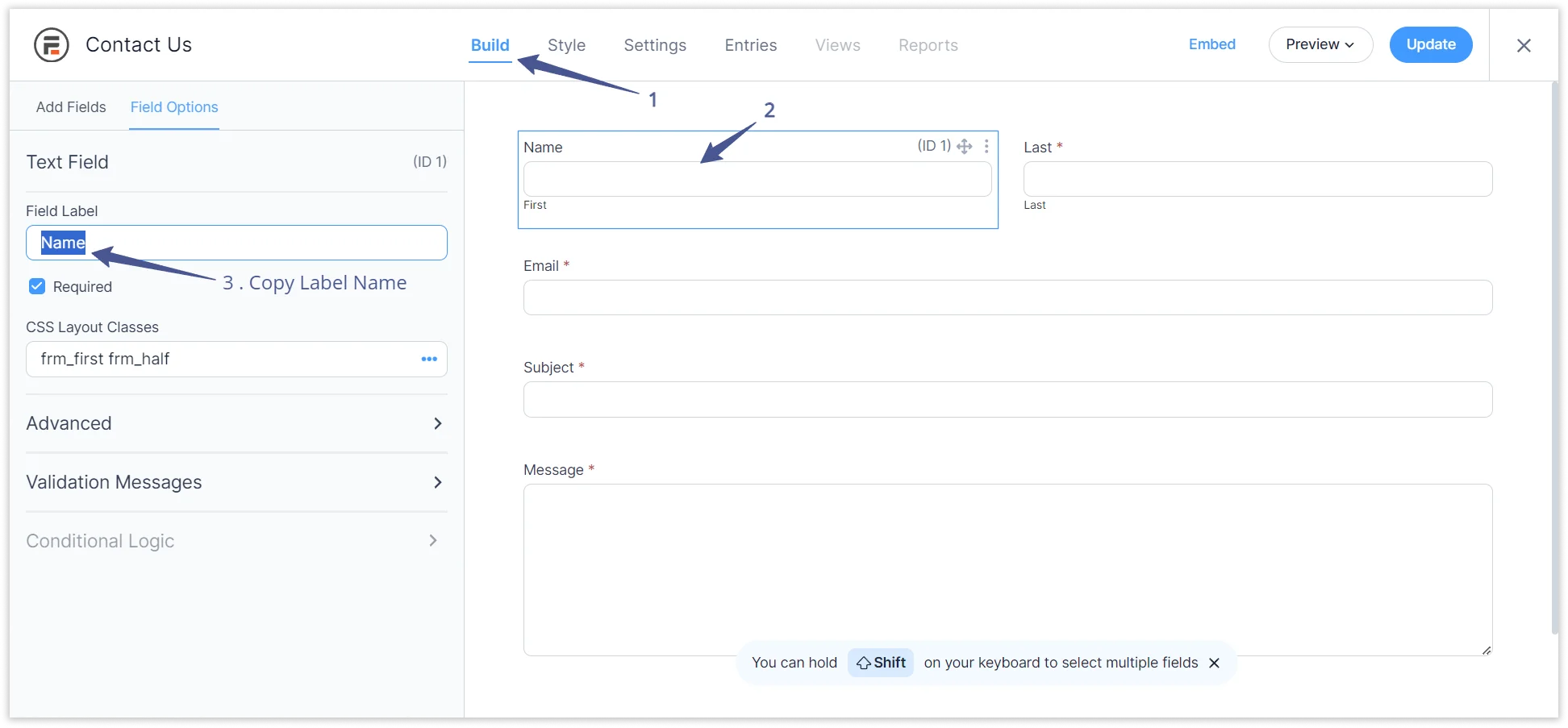
- Copy all Form Fields header and paste into Google Sheet.
3 . Automatic Form Entry Display :
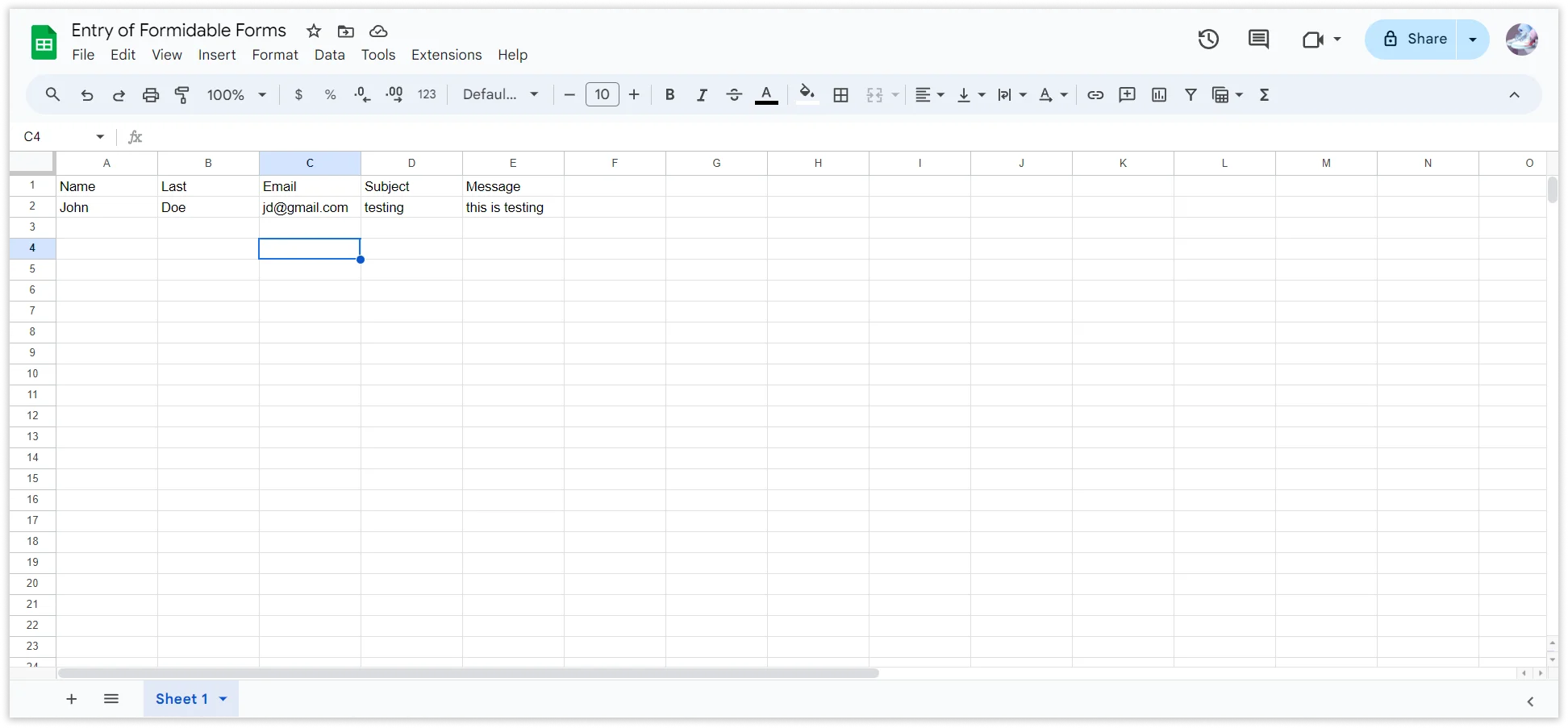
- Upon submission of a form, the entry will be instantly displayed in the Google Sheet.
- Form entries will populate the rows beneath the corresponding headers, ensuring a seamless and organized display of data.
Additional Submission Date Feature :
- If you desire to view the submission date of the form in the Google Sheet, simply add one more column named “date,” and the submission date will be displayed accordingly.

 CF7 Google Sheet Connector
 WPForms Google Sheet Connector
 Ninja Forms Google Sheet Connector
 Gravity Forms Google Sheet Connector
 Formidable Forms Google Sheet Connector
 Forminator Forms Google Sheet Connector
 Fluent Forms Google Sheet Connector
 JetFormBuilder Google Sheet Connector
 Elementor Forms Google Sheet Connector
 Avada Forms Google Sheet Connector
 Divi Forms Google Sheet Connector
 WooCommerce Google Sheet Connector
 Easy Digital Downloads Google Sheet Connector
 WordPress Google Sheet Connector