
Here are the steps to configure the Divi Forms Google Sheet Connector when the contact form is added in a global footer, header template, or any other template:
Step 1: Edit the Contact Form
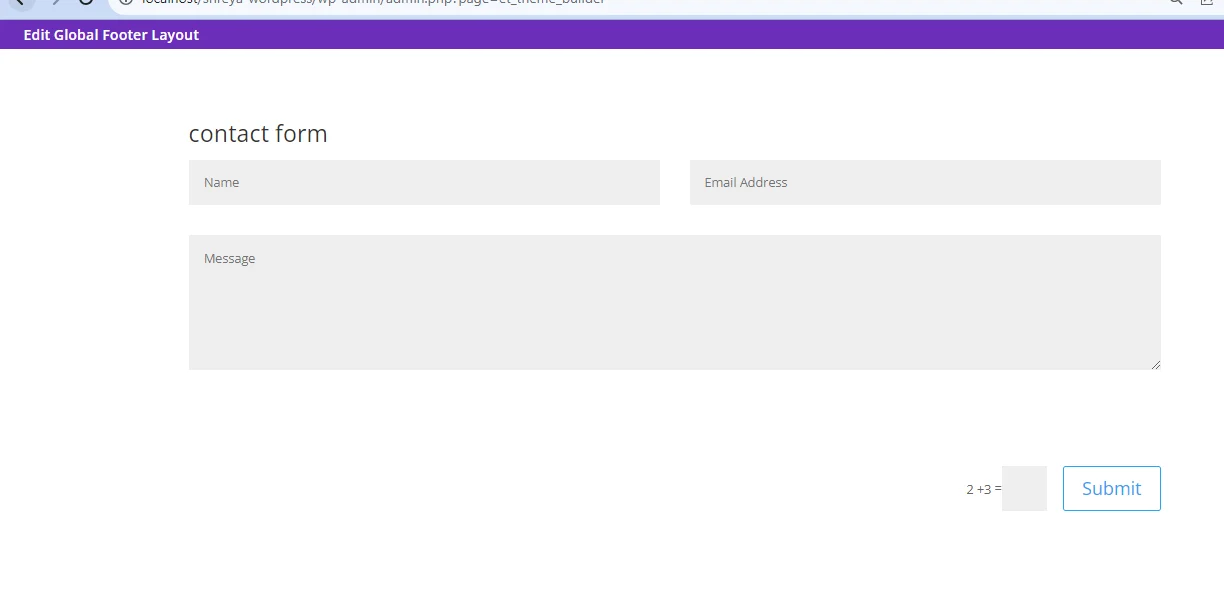
1 . Open the global footer, header template, or any other template where the contact form is added.
2 . In the field settings, add a new field with a radio button.
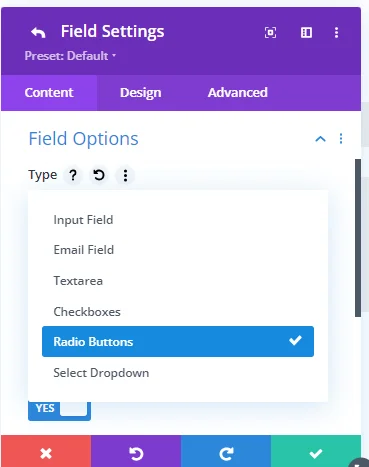
3 . Name this field with the following field name (divi_db_hidden_global_id_value).
Note: Ensure that the field ID is the same as the given field ID (divi_db_hidden_global_id_value).
 .
.
Step 2: Copy Form ID and Add to Radio Button Value
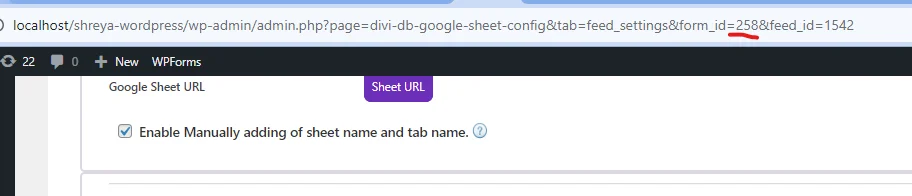
1 . Copy the Form ID from the feed settings. (like above screenshot)
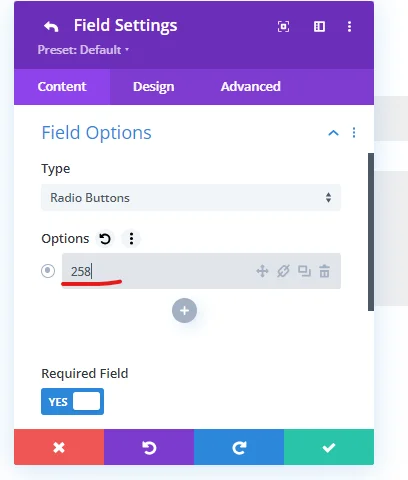
2 . Paste the Form ID into the radio button value as shown in the screenshot.
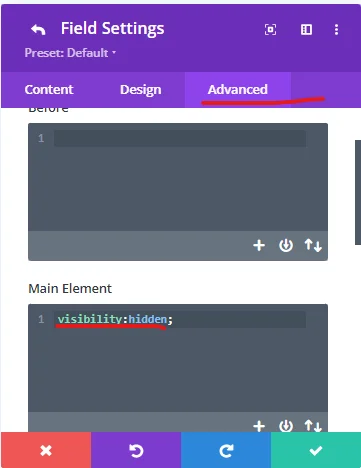
Step 3: Add Custom CSS
1 . Add custom CSS as shown in the provided screenshot.
visibility:hidden;
2 . Save the changes and then save the global template to apply the changes.


