
This guide makes it easy to Configuration of WooCommerce and the WooCommerce Google Sheet Connector Plugin.
Integration of Divi Forms with Google Sheet:
- Ensure that you have successfully integrated (Automatic Integration or Manual Integration) Divi with Google Sheet Connector.
Divi Forms Feeds Setting :
In Google Sheet – Feeds Setting :-
In WordPress Dashboard :
- Navigate to Divi > Google Sheet > Feeds Setting.
Fetch Sheets :
- If you haven’t fetched sheets from the integration tab, click on “Fetch sheets.”
Add Feed :
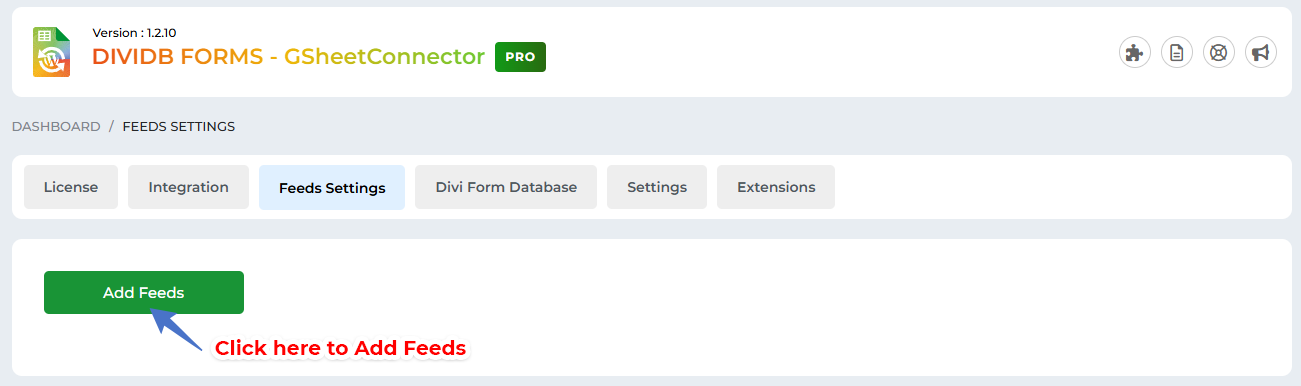
- In the Google Sheet – Feeds tab, click on “Add Feed.”
Name The Feed:
- Provide a name for the feed.
- Select the page.
- Click “Submit.”

Edit the Feed:
- Once the feed is successfully added, edit the feed.

Fetch Fields & Save Form Fields:
- Click on “Fetch Fields” to retrieve form fields.

- Save the form fields.

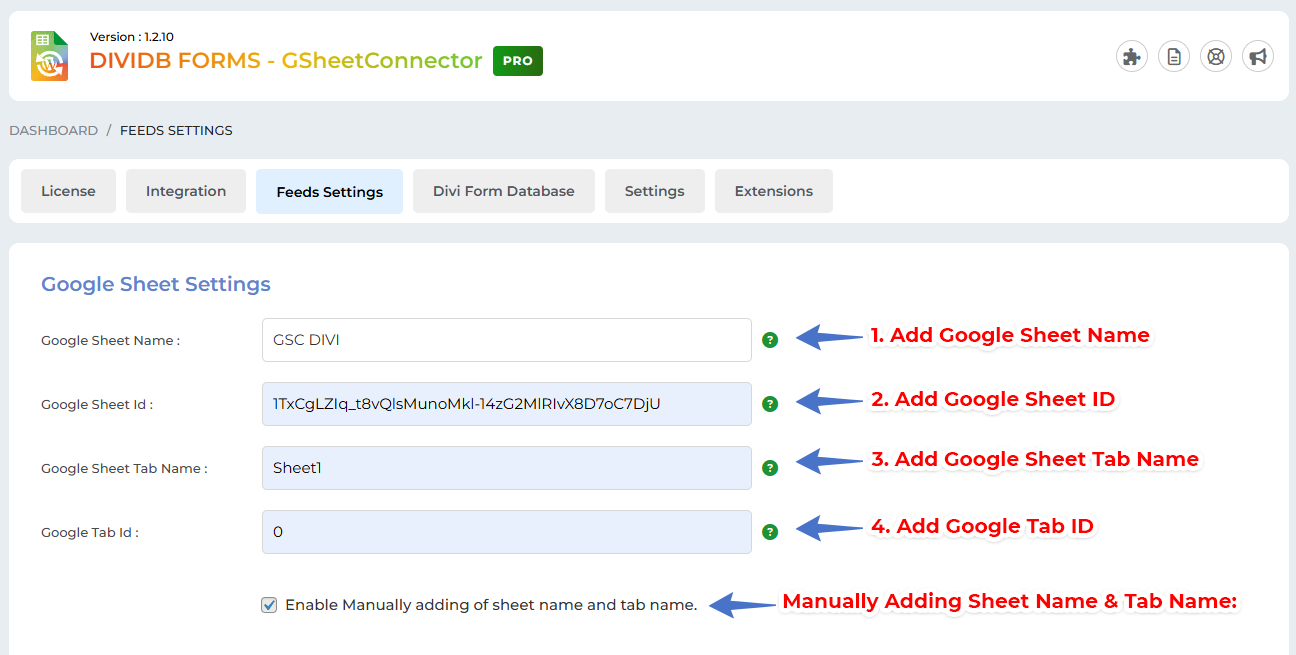
Google Sheet Setting:
Integration:
- Ensure the integration is complete as per the instructions.
Fetch Sheets:
- Click on “Click here” to fetch sheets.
Select Google Spreadsheet:
- Choose the existing Google Spreadsheet or create a new sheet.
Save or Submit Data:
- Select Google Sheet and Tab Name.
- Save or submit data.
Enable Manually Adding of Sheet Name and Tab Name:
- Optionally enable this checkbox to manually add the sheet name and tab name.
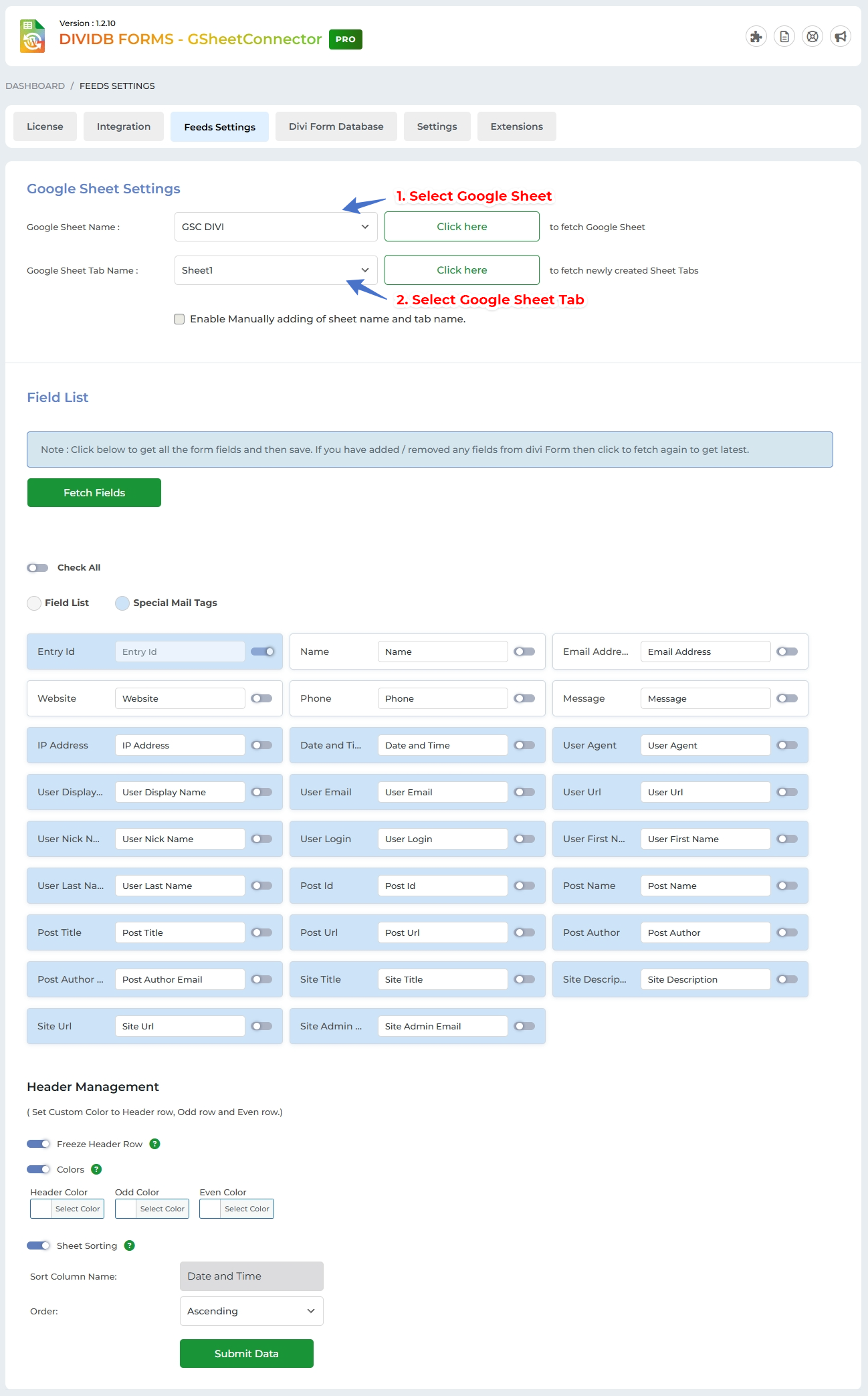
Manually Adding Sheet Name & Tab Name: #
-
Manual Method:
- Manually add Google Sheet Name, Google Sheet ID, Google Sheet Tab Name, and Google Sheet Tab ID.
- Save and submit data.
Field List Setting:
Fetch Fields:
- Click on “Fetch Fields.”
Enable Fields:
- Enable the fields you wish to view in your Google Sheet.
Sort Fields & Rename:
- Optionally, sort and rename fields.

Header Management:
- Freeze Header: Enable to stick the header to the top.
- Header Color: Set the background color for the header.
- Odd Color: Set the background color for odd rows.
- Even Color: Set the background color for even rows.
Submit Data for Save:
- Save the configuration.

Sync to Google Sheet :
Click on Sync button to sync entries.
 CF7 Google Sheet Connector
 WPForms Google Sheet Connector
 Ninja Forms Google Sheet Connector
 Gravity Forms Google Sheet Connector
 Formidable Forms Google Sheet Connector
 Forminator Forms Google Sheet Connector
 Fluent Forms Google Sheet Connector
 JetFormBuilder Google Sheet Connector
 Elementor Forms Google Sheet Connector
 Avada Forms Google Sheet Connector
 Divi Forms Google Sheet Connector
 WooCommerce Google Sheet Connector
 Easy Digital Downloads Google Sheet Connector
 WordPress Core Google Sheet Connector


