This guide simplifies the process of installing Forminator Forms along with the Forminator Forms Google Sheet Connector Plugin for seamless integration.
Integration of Forminator Forms with Google Sheet
- Ensure that you have successfully integrated (Automatic Integration or Manual Integration) Forminator Forms with Google Sheet Connector.
Form Feed Setup
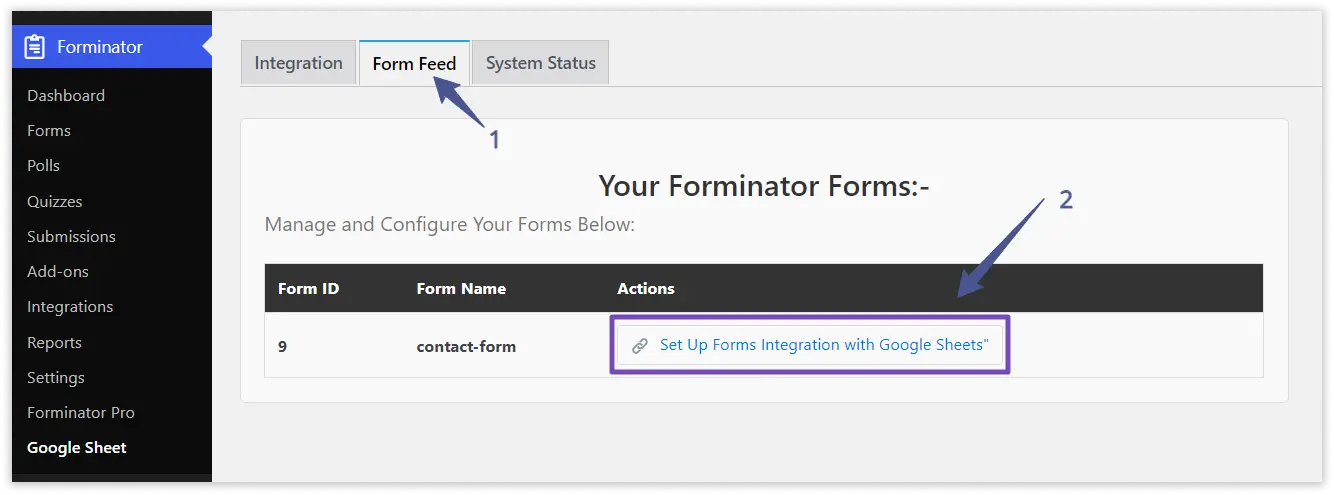
- Navigate to the “Form Feed” tab in Google Sheets.
- Locate your Forminator forms in the list and click on the “Set up forms integration with Google Sheets“.
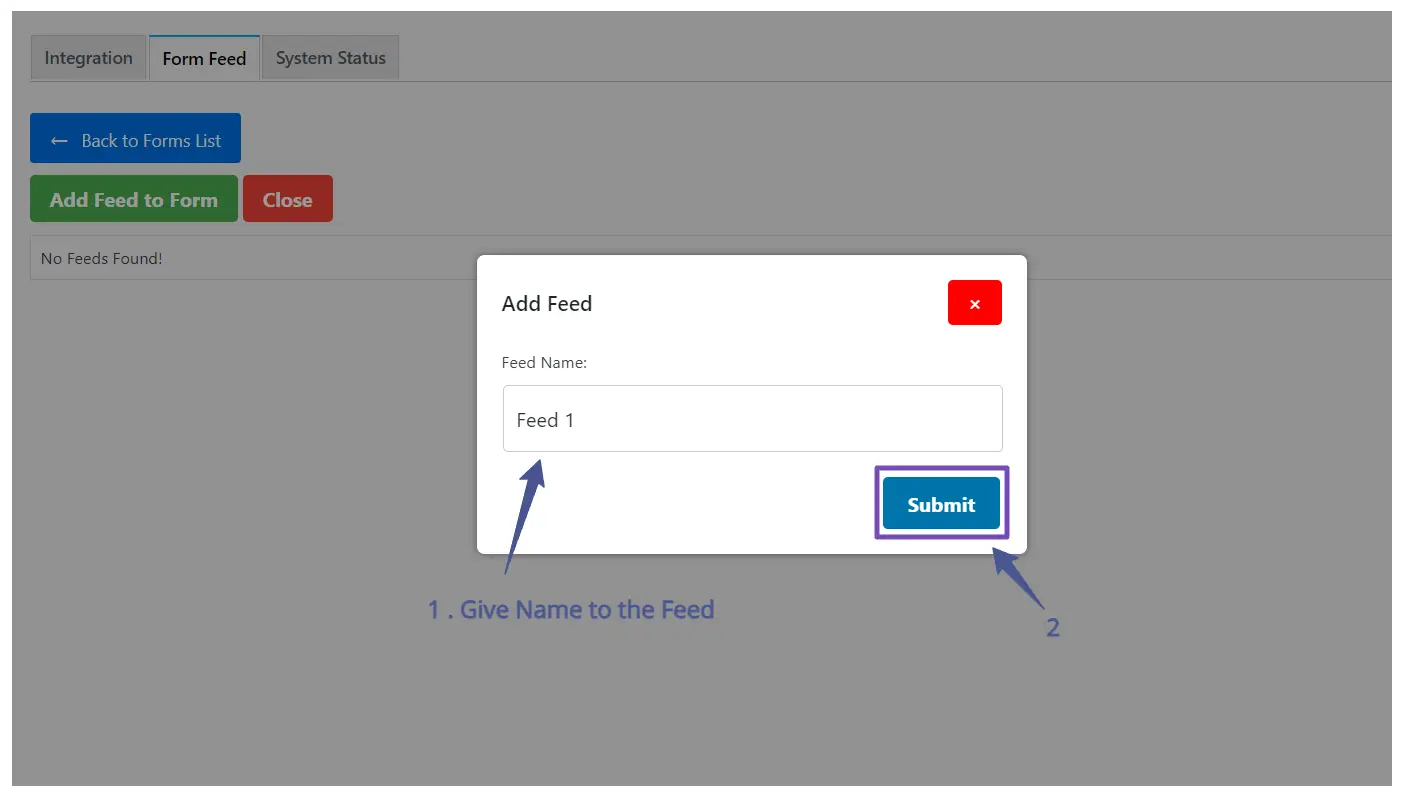
- Add a New Feed for your form. (We provide feed features for managing one form multiple times.)

- Name the Feed and Save the Feed.
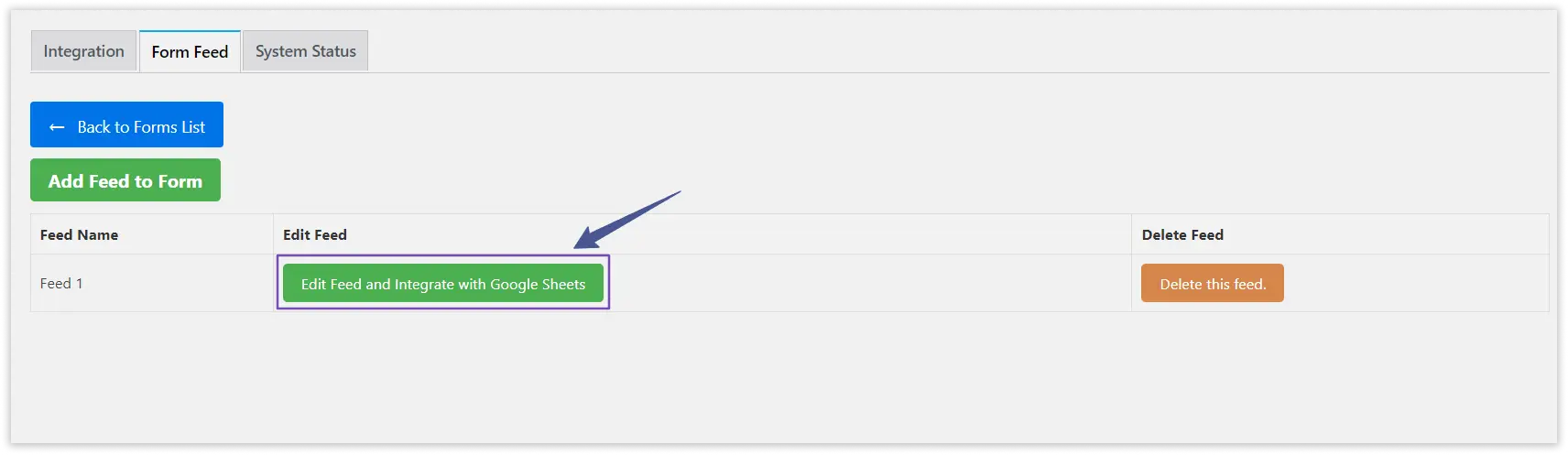
- After adding the feed, click on “Edit Feed and Integrate With Google Sheets.”
Configuration with Google Sheet :
- To connect your Google Sheet with our Contact Form, you will need the following Google Sheet details.
- Google Sheet Name
- Google Sheet ID
- Google Sheet Tab Name
- Google Sheet Tab Id
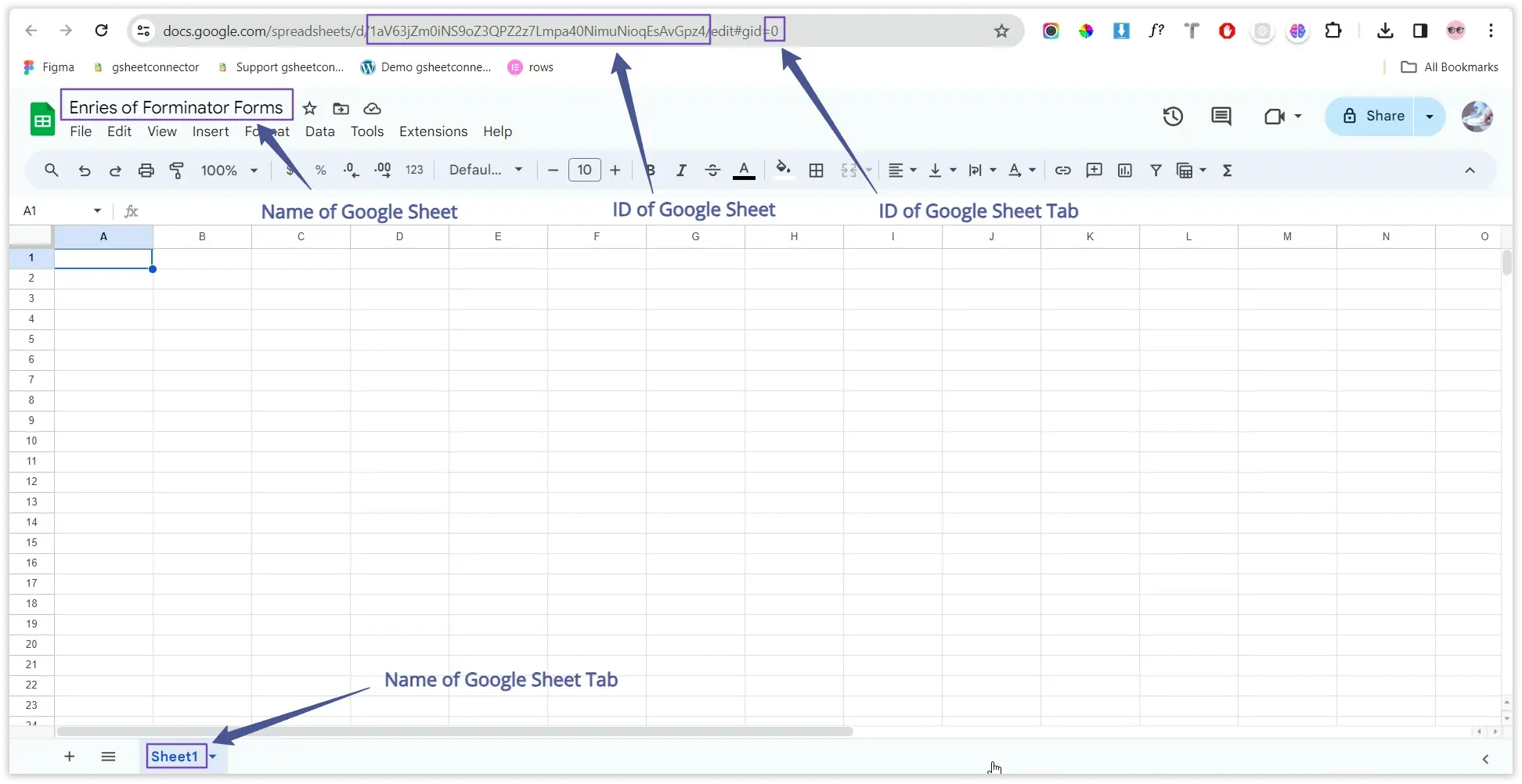
- Fill Details in Feed tab and Save Google Sheet Details.

Copy Label Names :
- Navigate to the “Forminator Form Field” in your Elementor Form editor.
- Copy the Label Names associated with each form field. These label names will serve as identifiers for your form data.


Additional Submission Date Feature:
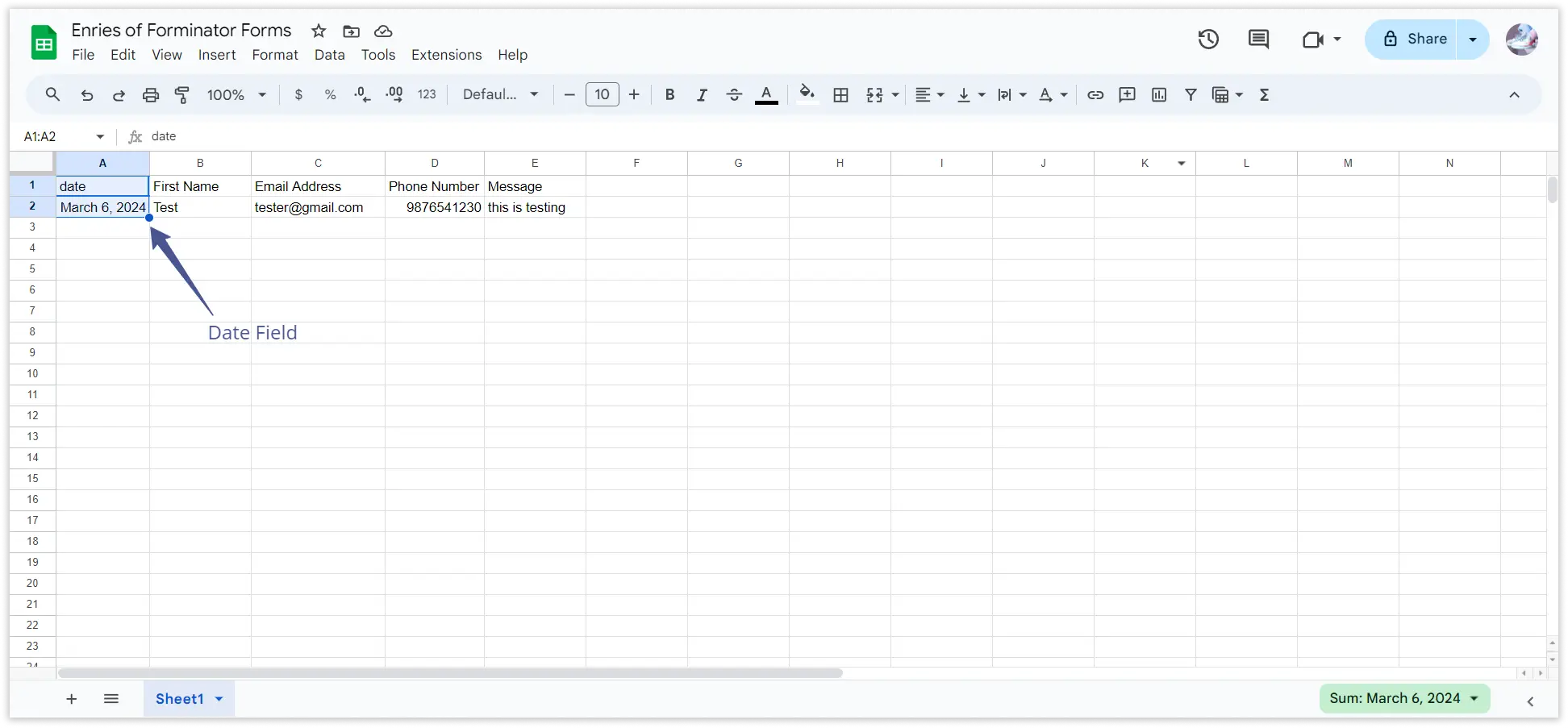
- If you desire to view the submission date of the form in the Google Sheet, simply add one more column named “date,” and the submission date will be displayed accordingly.