
Update Plugin
Keeping your Gravity Forms GSheetConnector plugin updated ensures you get the latest features, bug fixes, and security improvements. This guide explains how to update the plugin directly from your WordPress dashboard, and how to manually update it if the automatic update fails.
Automatic Update (Recommended)
To update the plugin directly from your WordPress dashboard, follow these steps:
- Log in to your WordPress dashboard.
- In the left-hand menu, click Plugins → Installed Plugins.
- If an update is available, you will see a notification below the plugin name.
- Click the Update Now button.
- WordPress will download and install the update. Once complete, you will see a success message.

Bulk Update
If you have multiple plugins with updates available, you can update them all at once:
- Click the Update Available link at the top of the Plugins page.
- Select the checkbox next to the plugins you want to update.
- Choose Update from the Bulk Actions dropdown menu and click Apply.
Manual Update
If the automatic update fails, you can manually download and install the latest plugin version.
Step 1: Download the Latest Plugin File
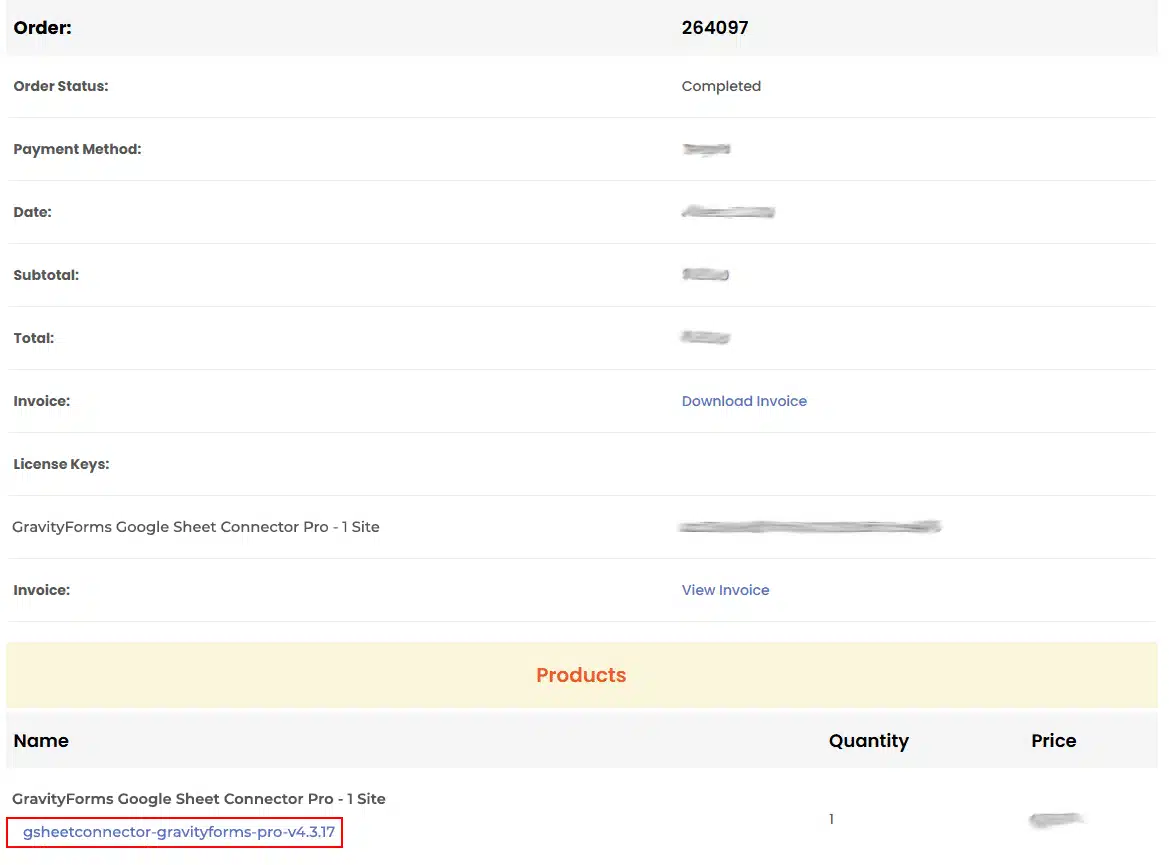
- Log in to the website where you purchased the plugin using the credentials provided at the time of purchase.
- Navigate to the “My Account” section and click on Purchase History.
- Under the Purchase History tab, click View Details and Downloads to access the plugin download page.
- Select the appropriate version — either the Single Site License or the Multi-Site License — based on your purchase.
- Download the Gravity Forms GSheetConnector PRO version file to your computer.
- Note down your license key on this page — it will be needed for activation later in the process.

Step 2: Upload the Plugin in WordPress
- Log in to your WordPress dashboard.
- In the left-hand menu, navigate to Plugins → Installed Plugins.
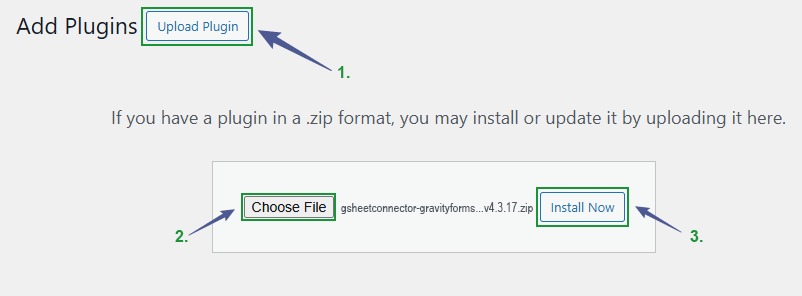
- Click on Add New and then select Upload Plugin.
- Click the Choose File button and select the
gsheetconnector-gravityforms-pro-v4.3.17.zipfile from your computer. - Click Install Now to begin the installation process.
Step 3: Replace the Existing Plugin
WordPress will detect that a version of the plugin is already installed and prompt you to replace it.
- Click the Replace Current with Uploaded button.
- WordPress will install the new version and automatically deactivate the old one.
Your plugin will then be successfully updated.

Verify the Update
- Go to Plugins → Installed Plugins.
- Check that the version number next to Gravity Forms GSheetConnector matches the latest version.
- Open a Feed and confirm your existing settings and Google Sheet connections are still intact.
If you have any questions or concerns about updating the plugin, please consult with our Support team.
Frequently Asked Questions
Why should I update the Gravity Forms GSheetConnector plugin?
Updating the plugin ensures you get the latest features, performance improvements, bug fixes, and important security patches. Using an outdated version may cause compatibility issues with WordPress or Gravity Forms.
Should I back up my website before updating the plugin?
Yes. We always recommend creating a complete website backup before updating any plugin. This way, if something goes wrong during the update, you can easily restore your site from the backup.
How do I update the plugin from the WordPress dashboard?
Go to Plugins → Installed Plugins, and if an update is available, you will see a notification below the plugin name. Click Update Now to install the latest version automatically.
Can I update multiple plugins at the same time?
Yes. Click the Update Available link at the top of the Plugins page, select the plugins you want to update, choose Update from the Bulk Actions dropdown, and click Apply.
What should I do if the plugin update fails with a 'Download failed' error?
If you see an error like “Update failed: Download failed”, you can manually update the plugin by downloading the latest ZIP file from your account and uploading it directly through the WordPress dashboard.
Where can I download the latest version of the plugin?
Log in to the website where you purchased the plugin, go to My Account → Purchase History, and click View Details and Downloads to access the plugin file and your license key.
Do I need my license key to manually update the plugin?
Yes. Your license key is required for activating the plugin after installation. You can find it on the same download page in your Purchase History.
Will I lose my existing Feed settings after updating the plugin?
No. Updating the plugin — whether automatically or manually — does not remove your existing Feed configurations or Google Sheet connections. It’s still a good practice to verify your settings after the update is complete.
What does 'Replace Current with Uploaded' mean during a manual update?
This option tells WordPress to install the newly uploaded plugin version in place of the currently active one, automatically deactivating the old version and activating the new one.
How do I confirm the plugin update was successful?
Go to Plugins → Installed Plugins and check that the version number next to Gravity Forms GSheetConnector matches the latest release. You can also open a Feed to confirm your settings are intact.
What should I do if I face issues after updating the plugin?
If you experience any issues after updating, please contact our Support team for assistance.


