
Introduction
JetFormBuilder Google Sheet Connector PRO lets you send every JetFormBuilder form submission straight into a Google Sheet, in real time and without any manual export. To make that connection secure, the plugin offers a Manual OAuth Authentication option that uses your own Google Cloud project instead of a shared, pre-configured one.
The Manual OAuth method is built for site owners who prefer full control over their Google API credentials. Because the Client ID and Client Secret belong to your own Google Cloud project, you decide exactly which permissions are granted and how the connection is managed.
In this guide, you’ll learn how to:
– Set up a new Google Cloud project
– Turn on the Google Sheets API
– Configure the OAuth consent screen
– Generate your own Client ID and Client Secret
– Link your Google account inside JetFormBuilder Google Sheet Connector PRO
– Grant the permissions the plugin needs
– Start pushing JetFormBuilder submissions into Google Sheets automatically
Once this is set up, every new submission from your JetFormBuilder forms will land in the Google Sheet you choose — ready to sort, filter, and report on without touching a spreadsheet export ever again.
Once your Google account is connected, you can continue with the Feed Settings Guide to connect your JetFormBuilder forms with Google Sheets.
Prerequisites
Before you start, make sure you have:
– A Google account you plan to use for the connection
– Admin access to your WordPress dashboard
– JetFormBuilder installed and active
– JetFormBuilder Google Sheet Connector PRO installed and activated. If you haven’t installed it yet, follow the PRO Installation Guide.
– Permission to create and manage projects in Google Cloud Console

Step 1: Create a Google Cloud Project
Everything starts with a dedicated Google Cloud project — this is where your OAuth credentials and API access will live.
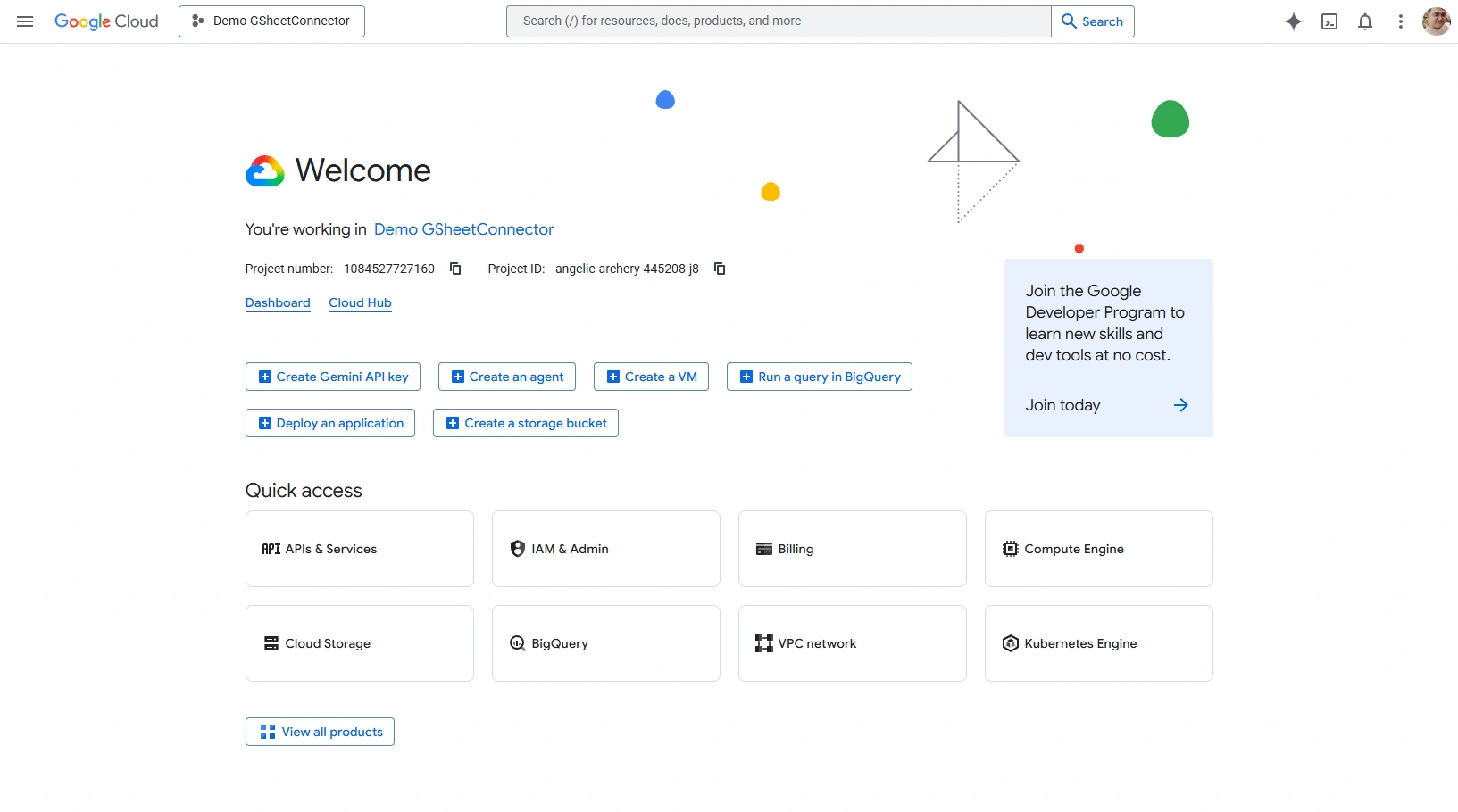
1. Sign in to your Google account and open Google Cloud Console.
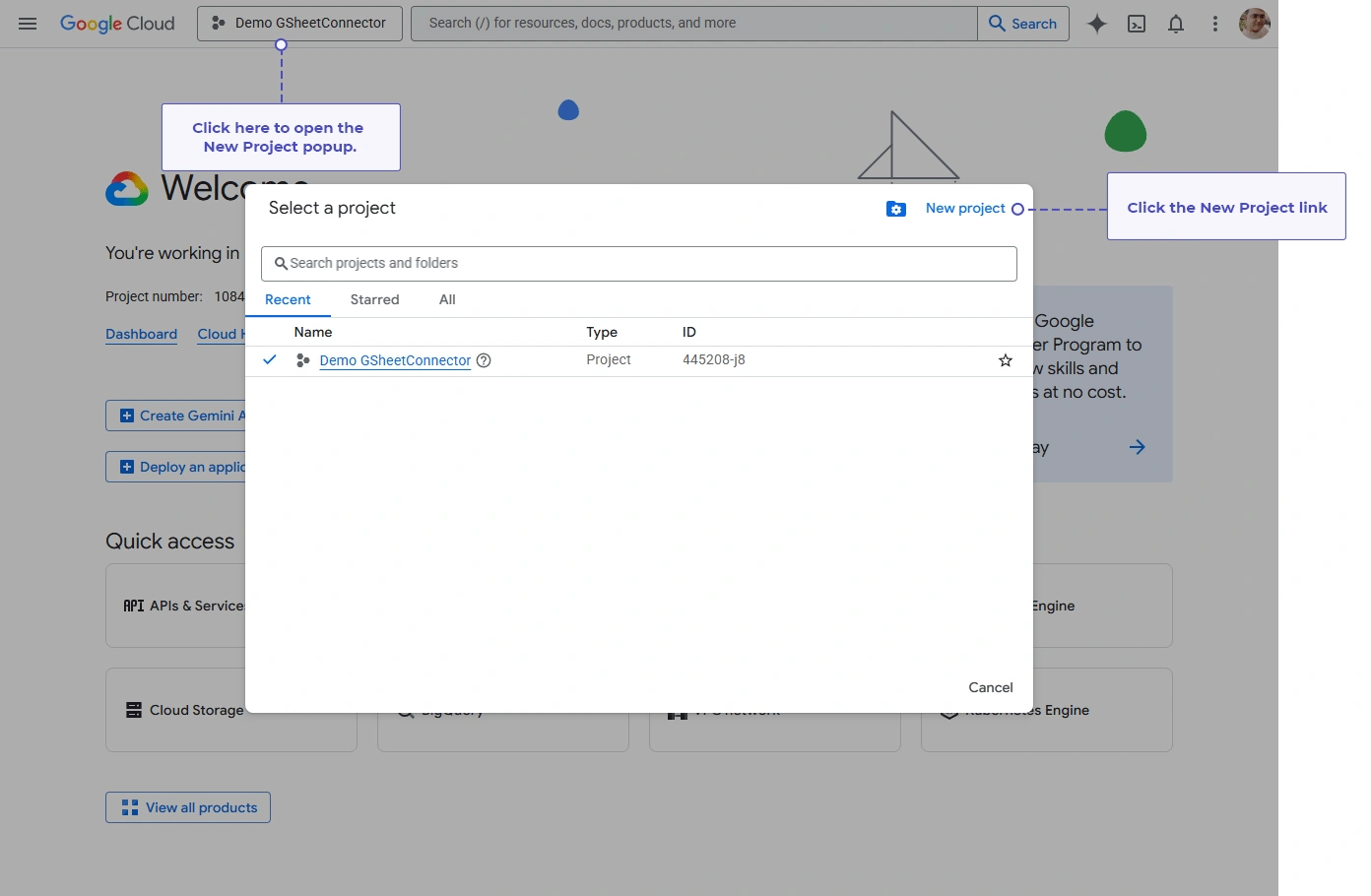
2. Click the Project Selector at the top of the page.
3. Select New Project.
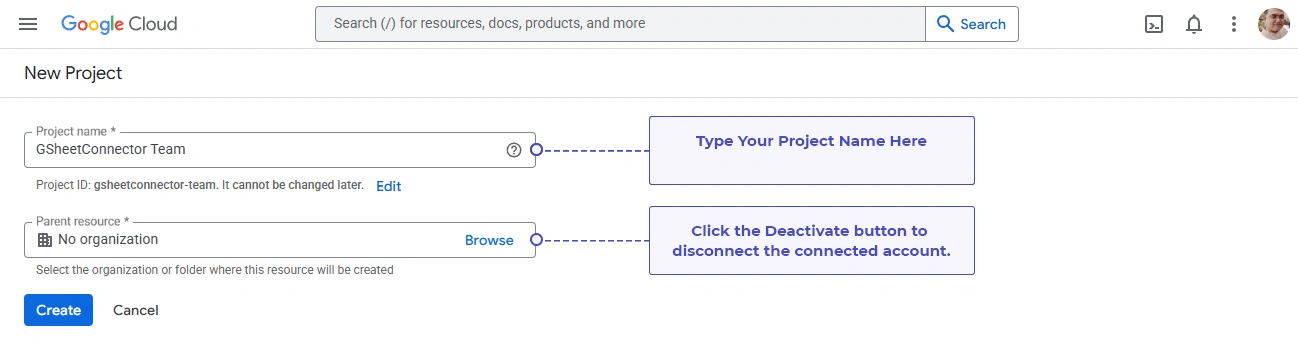
4. Give the project a name you’ll recognize later.
5. Click Create and wait for Google Cloud to finish setting it up.
Step 2: Select the Project You Just Created
Google Cloud Console can hold multiple projects, so it’s worth double-checking that you’re working inside the right one before continuing.
1. Open the Project Selector again.
2. Find the project you just created.
3. Click it to select it.
4. Confirm its name now shows in the top header.
Step 3: Open the OAuth Consent Screen
The OAuth consent screen is what your users (or you) will see when authorizing the plugin to access Google Sheets.
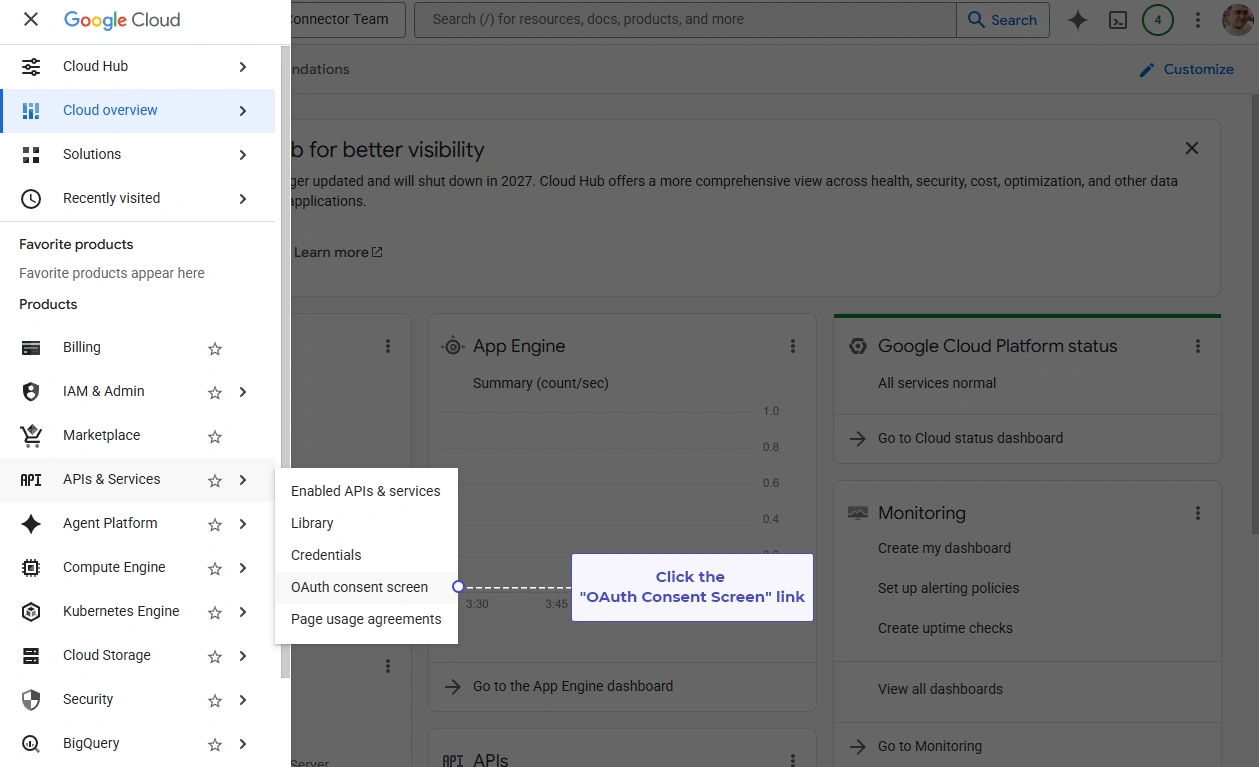
1. In Google Cloud Console, go to APIs & Services → OAuth Consent Screen.
2. You’ll land on the OAuth Overview page.
3. Click Get Started to begin configuring it.
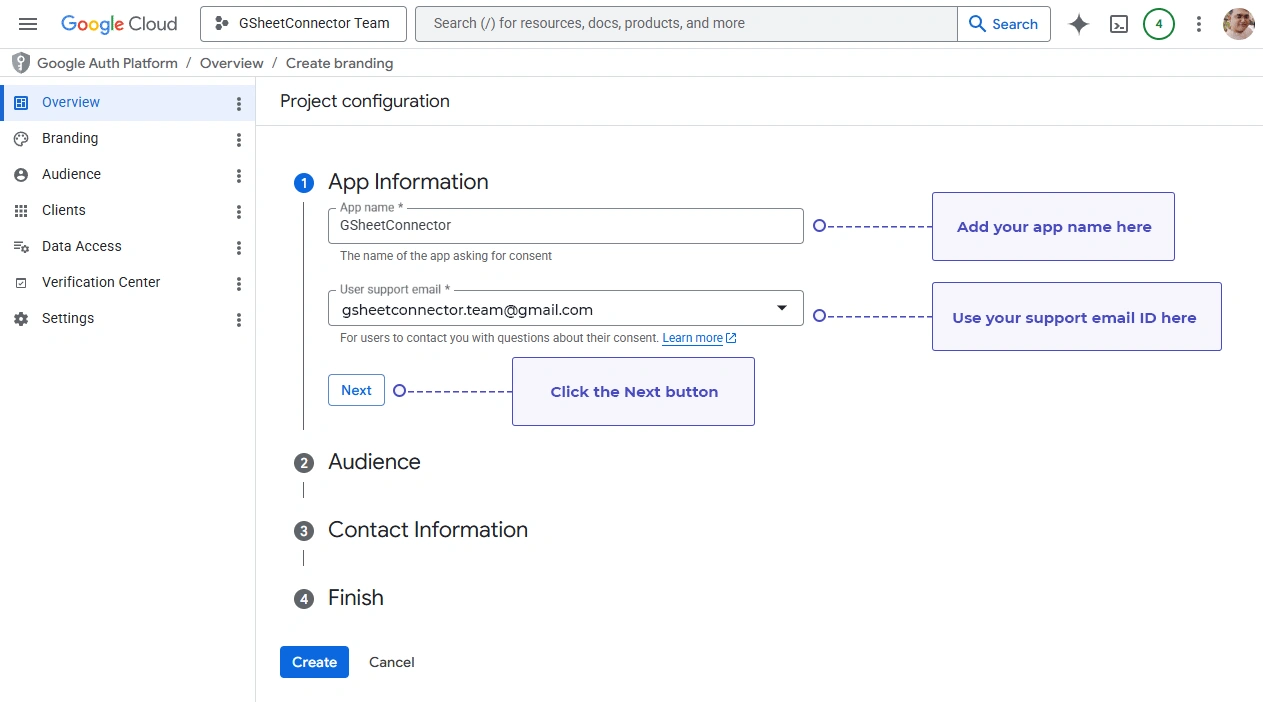
Step 4: Fill In Your App Details
Google needs a few basic details about your application before it will issue OAuth credentials.
App name – a name your users will see on the Google authorization screen.
Example: ‘JetFormBuilder Sheet Sync’
User support email – the address people can reach if they run into trouble authorizing the app.
App logo (optional) – you can skip this if you don’t have one ready.
Click Next once you’ve filled these in.

Step 5: Choose Internal or External
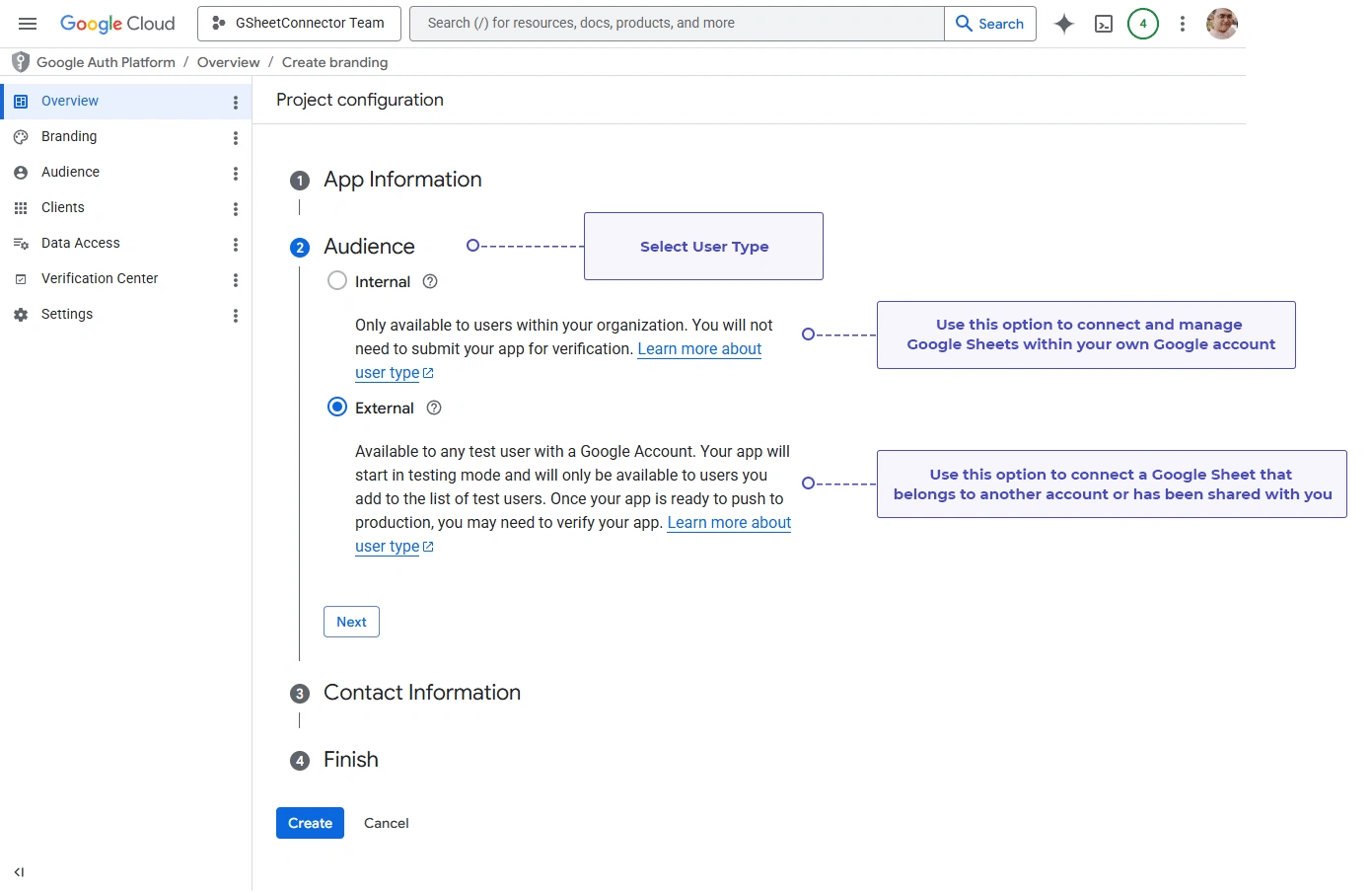
Google will ask who’s allowed to authorize your app.
Internal – only visible if you’re on Google Workspace. Restricted to accounts inside your organization; personal Gmail accounts can’t use it.
External – open to any Google account. This is the right choice for almost every WordPress site running JetFormBuilder.
Which one should you pick? Unless you’re specifically running this on a Google Workspace domain and want to lock access to your organization, select External. It works with a regular Gmail account and covers the vast majority of JetFormBuilder Google Sheet Connector PRO setups.
Step 6: Add a Contact Email
Google uses this address for security alerts, verification updates, and any policy notices tied to your OAuth app.
1. Enter an email address you check regularly.
2. Make sure it’s active.
3. Ideally, use the same account you’ll connect to JetFormBuilder Google Sheet Connector PRO.


Step 7: Finish the Consent Screen
1. Double-check the app details.
2. Confirm the user type is set correctly.
3. Review the contact email.
4. Click Finish.

Step 8: Set Up Branding
Branding is what tells Google — and your users — which website this OAuth app belongs to. Go to Google Auth Platform → Branding.
App logo (optional) – upload it under Branding if you want your logo on the consent screen.
Application home page – your site’s URL, e.g. ‘https://yourwebsite.com’
App domain fill in:
Home page : ‘https://yourwebsite.com’
Privacy policy URL : ‘https://yourwebsite.com/privacy-policy’
Terms of service URL (optional): ‘https://yourwebsite.com/terms-and-conditions’
Authorized domains – add your root domain, e.g. ‘yourwebsite.com’. Add more rows if you’re running on multiple domains.
Developer contact email — an address you actively monitor, e.g. ‘support@yourwebsite.com’.
Step 9: Save Your Branding Details
1. Review everything once more.
2. Confirm the URLs and domain are accurate.
3. Click Save.
With branding saved, you’re ready to generate the OAuth client credentials.

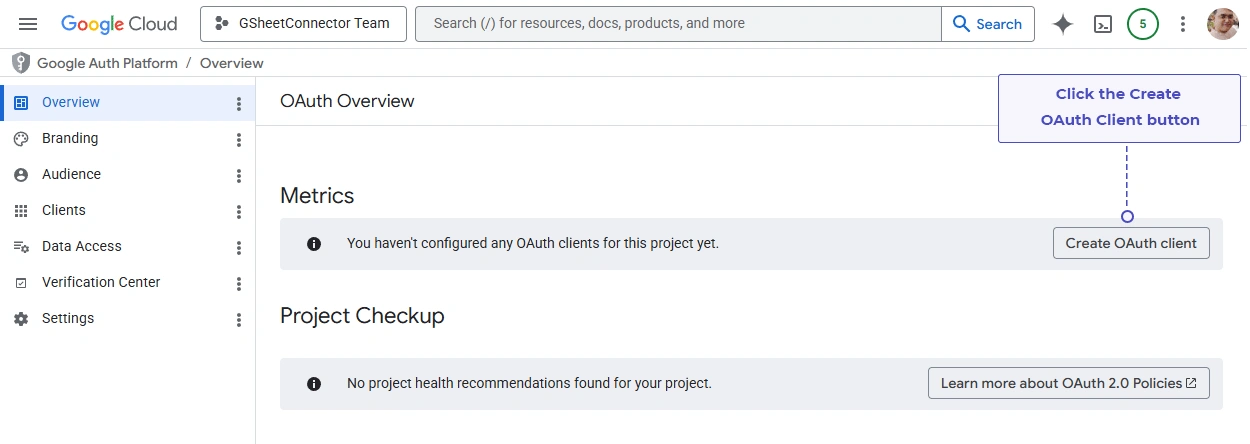
Step 10: Create Your OAuth Client
1. Go to Google Auth Platform → Overview.
2. Click Create OAuth Client.
Step 11: Set the Application Type
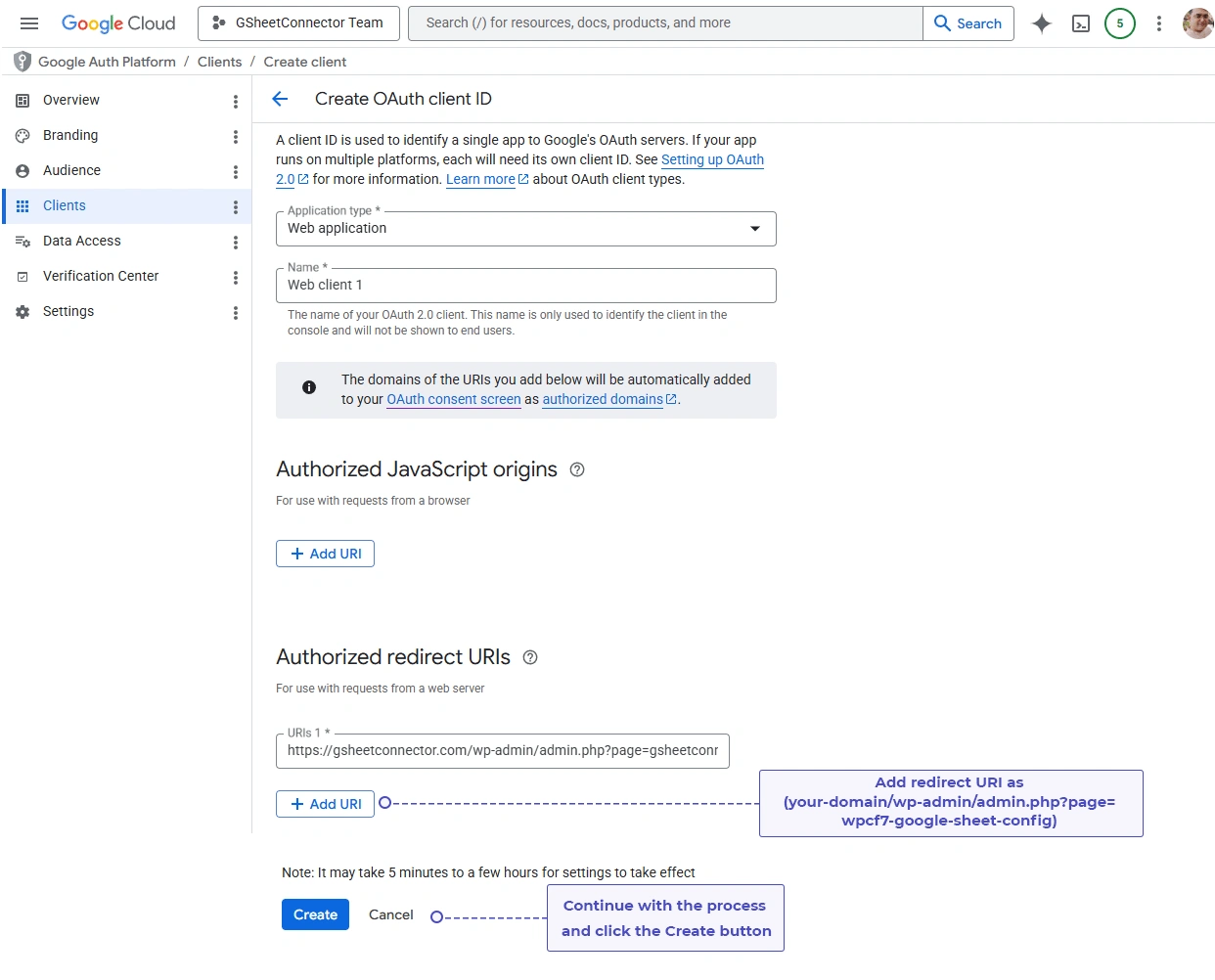
Application type : select ‘Web application’
Name : give it something recognizable — this label is only visible to you inside Google Cloud Console, not to end users.
Example: ‘JetFormBuilder Sheet Sync OAuth’
Step 12: Add the Authorized Redirect URI
This URI tells Google exactly where to send users back after they authorize the app — get it wrong and the connection will fail.
1. Scroll to Authorized Redirect URIs.
2. Click Add URI.
3. Copy the redirect URI shown inside JetFormBuilder Google Sheet Connector PRO’s settings.
4. Paste it in exactly as shown.
Example: ‘https://yourwebsite.com/wp-admin/admin.php?page=jetformbuilder-gsheet-connector’
Even one extra character or stray space will trigger a ‘Redirect URI Mismatch’ error, so paste carefully and check for trailing spaces.
Step 13: Save the OAuth Client
1. Confirm the application type is correct.
2. Confirm the redirect URI matches exactly.
3. Click Create.
Google will now generate your Client ID and Client Secret – you’ll need both inside the plugin.
Step 14: Copy Your Client ID
1. Find your newly created OAuth client on the credentials page.
2. Open its details.
3. Copy the Client ID using the copy icon next to it.
Step 15: Copy Your Client Secret
1. Find the Client Secret field just below the Client ID.
2. Copy it.
3. Store it somewhere secure — this is a sensitive credential.
Keep both the Client ID and Client Secret saved somewhere safe — you’ll want them handy if you ever need to reconnect the plugin.
In the next step, you’ll enter these credentials into the plugin. If you prefer a simpler setup without creating your own Google Cloud project, you can use the Existing Google Authentication method instead.

Step 16: Add the Required API Scopes
Scopes define exactly what JetFormBuilder Google Sheet Connector PRO is allowed to do with your Google account — nothing more.
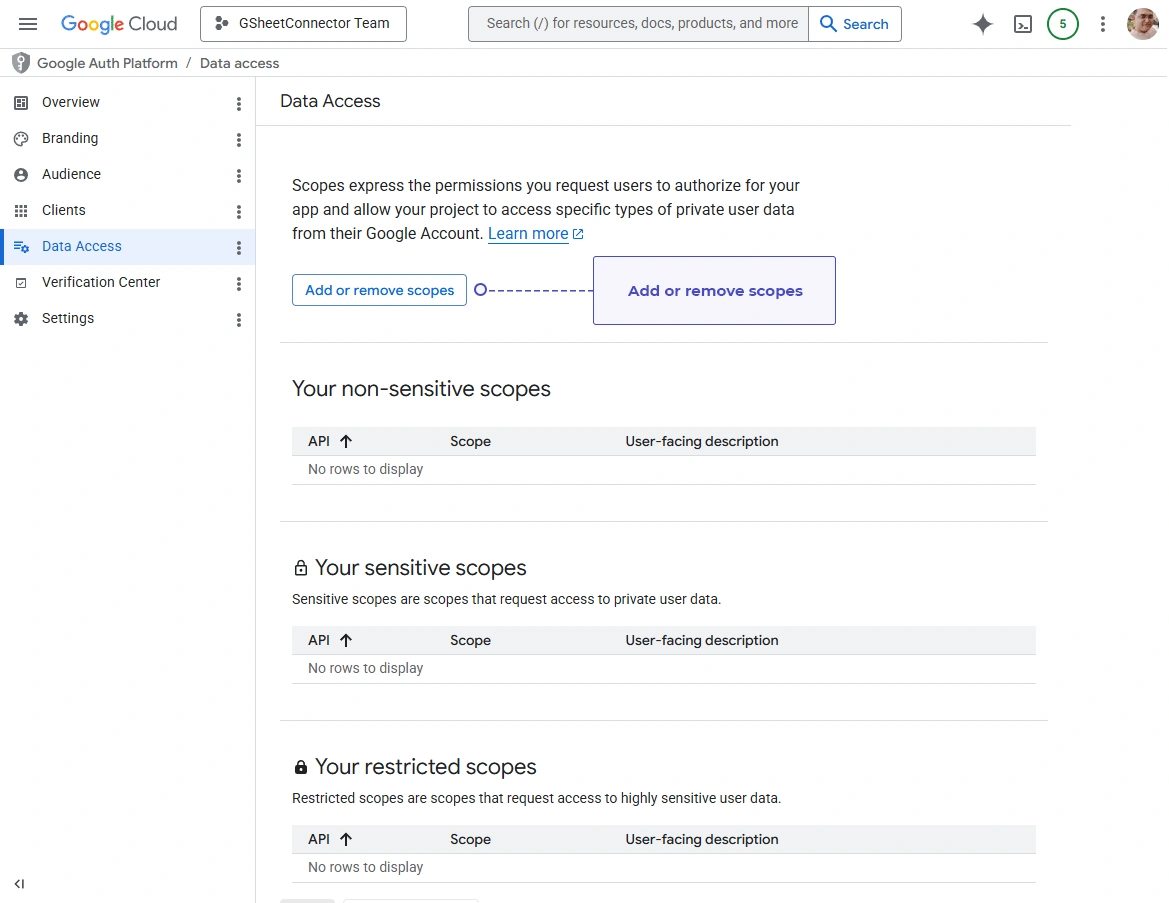
1. Go to Google Auth Platform → Data Access.
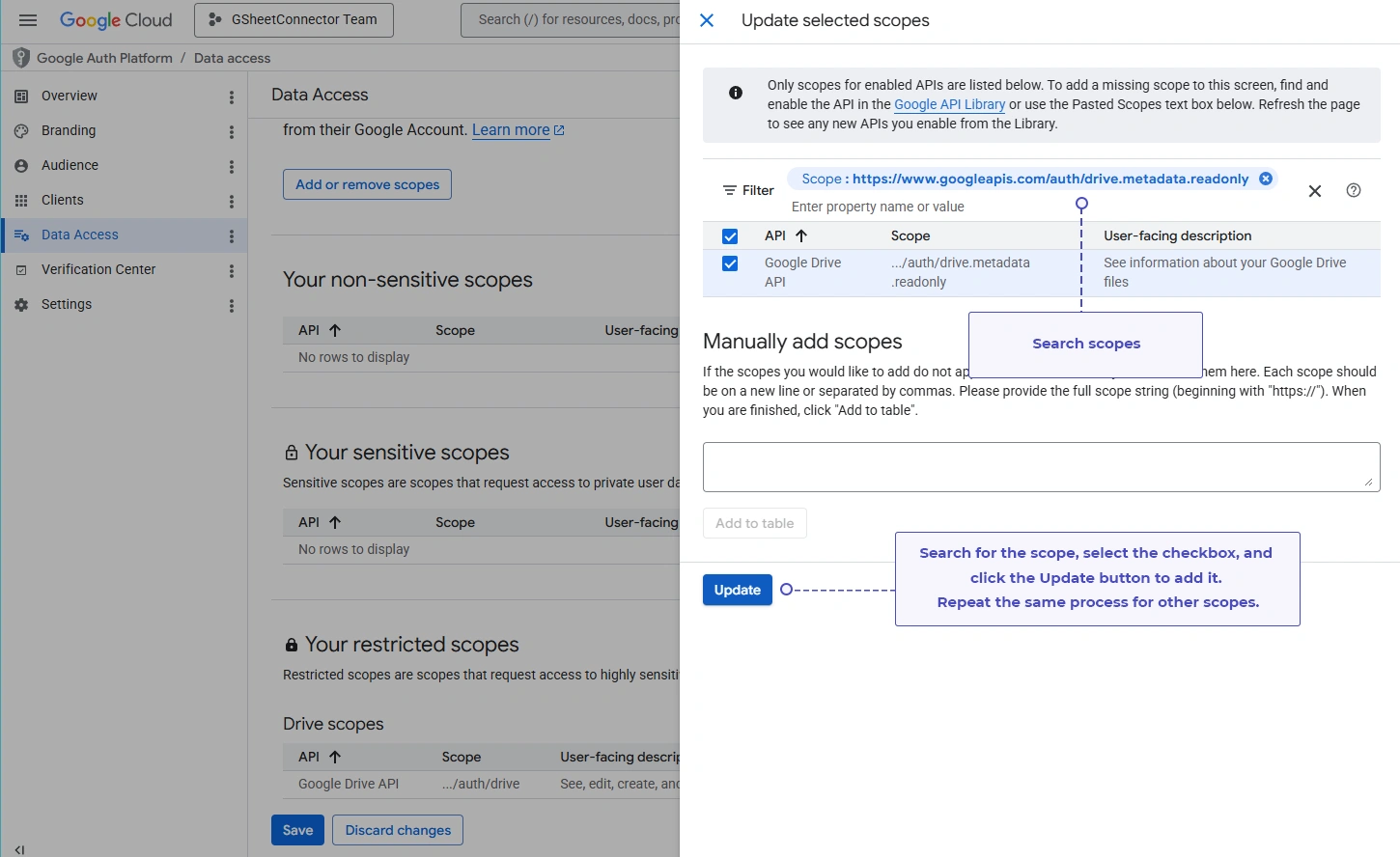
2. Click Add or Remove Scopes.
3. Search for and select each scope listed below.
4. Click Update, then Save.
Why scopes matter: without the right scopes, the plugin can’t create sheets, read existing ones, or write your JetFormBuilder submissions to them. The plugin only ever asks for what’s needed for the Sheets integration — it does not touch your emails, contacts, or photos.
Required Scopes
| API Service | Scope |
|---|---|
| Google Drive API | ../auth/drive |
| Google Drive API | ../auth/drive.metadata.readonly |
| Google Drive API | ../auth/drive.file |
| Google Sheets API | ../auth/spreadsheets |
| Google User Info API | ../auth/userinfo.email |
What each scope does :
| Scope | Info |
|---|---|
| ../auth/drive | manages the Drive files needed for spreadsheet operations |
| ../auth/drive.metadata.readonly | lets the plugin list the Sheets already in your Drive |
| ../auth/drive.file | limits file access to what the plugin itself creates or uses |
| ../auth/spreadsheets | lets the plugin create, read, and update rows in your Sheets |
| ../auth/userinfo.email | shows which Google account is connected inside the plugin |
Save the Scopes
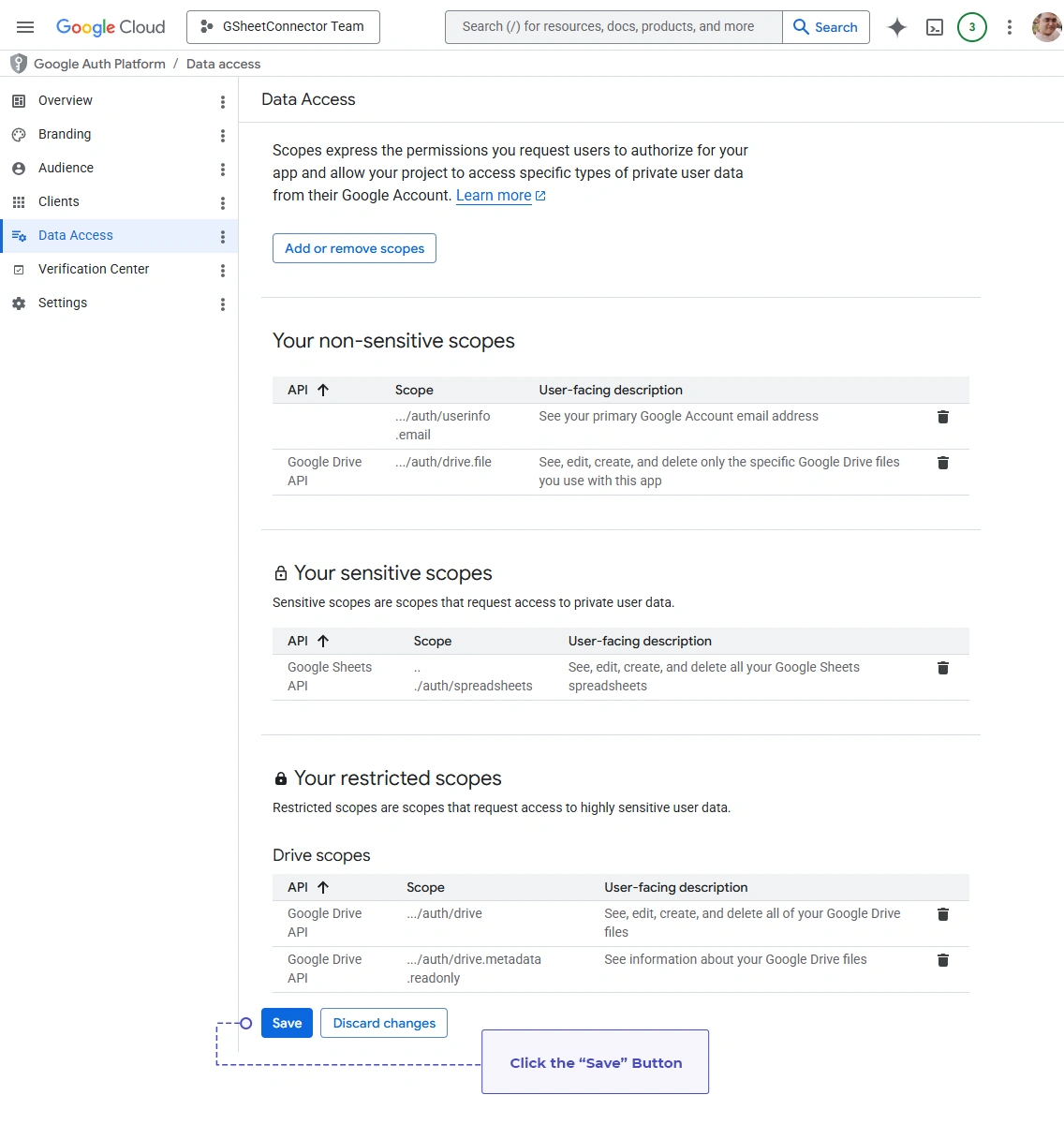
1. Review the scopes you’ve added.
2. Confirm nothing is missing.
3. Click Save.
Your OAuth app now has exactly the permissions it needs to sync JetFormBuilder submissions to Google Sheets.
Step 17: Submit for Google Verification
If your site will be used by the public – not just you or a handful of testers – Google will eventually want to verify the app.
1. Go to Google Auth Platform → Audience.
2. Review every section for completeness.
3. Click Submit for Verification.
Before submitting, double-check:
– OAuth consent screen is complete
– Branding details are filled in
– Authorized domains are added
– Required scopes are selected
– Developer contact email is set
– OAuth client has been created
If anything’s missing, Google will block the submission until it’s fixed.
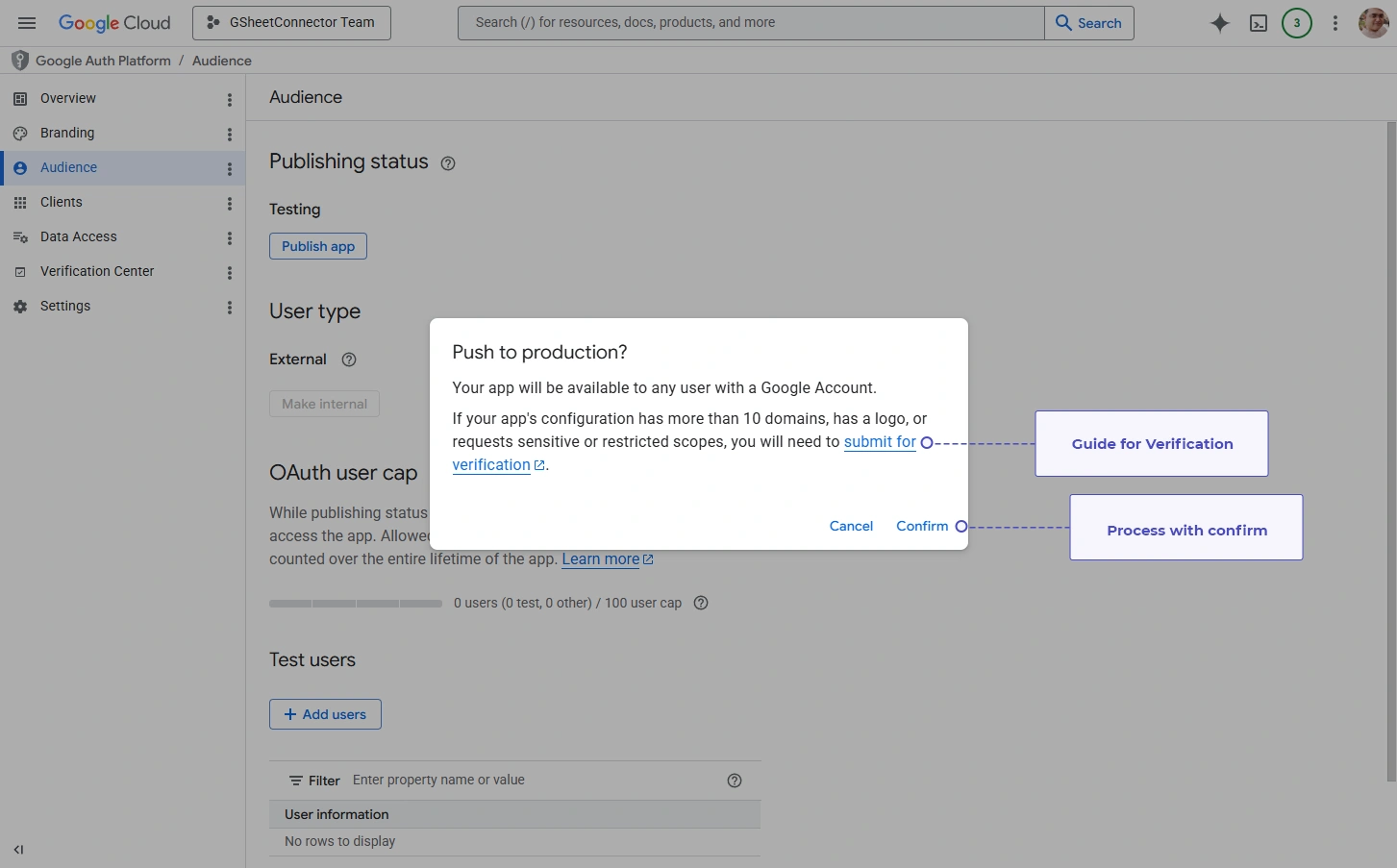
Step 18: Confirm the Submission
1. Review the summary Google shows you.
2. Confirm you want to proceed.
3. Click Confirm.
Your verification request is now with Google’s review team.
Step 19: Track Verification Status
1. Click Go to Verification Center.
2. Monitor your app’s status from there.
Status can show as: Draft, Submitted, In Review, Approved, or Additional Information Required.
What Google Checks During Review
Because JetFormBuilder Google Sheet Connector PRO requests Drive and Sheets access, Google reviews:
– App details and branding
– Authorized domains
– Privacy policy URL
– Consent screen configuration
– Requested scopes
– Domain ownership
How Long Does It Take?
| Verification Type | Estimated Time |
|---|---|
| Basic Review | 3 to 5 Business Days |
| Standard Verification | 1 to 2 Weeks |
| Complex Reviews | 2 to 6 Weeks |
While You’re Waiting
– Test users you’ve added can keep using the connection.
– OAuth still works for those approved test accounts.
– Anyone not listed as a test user can’t authorize the app until it’s out of testing mode.
Once Verification Is Approved
– Status changes to Verified.
– Any OAuth warning screens go away.
– Any Google account can authorize the app — no test-user list required.
– Your Sheets integration is ready for production traffic.
Your Google account is now connected successfully. The next step is to create a Feed and map your JetFormBuilder form fields to a Google Sheet.

Internal (Google Workspace) OAuth Setup
If your organization runs on Google Workspace and you want the connection restricted to your own team, use the Internal user type instead of External. Everything else about JetFormBuilder Google Sheet Connector PRO works the same — this just limits who can authorize it.
Step 1: Create the Google Cloud Project
1. Sign in to Google Cloud Console with your Workspace account.
2. Open the ‘Project Selector’.
3. Click ‘New Project’.
4. Name it anything you’ll recognize.
5. Click ‘Create’, then select the new project once it’s ready.
All subsequent configuration – APIs, OAuth, credentials – happens inside this same project.
Step 2: Configure the App Information
Go to ‘Google Auth Platform → OAuth Consent Screen’ and click ‘Get Started’.
Fill in:
– App name
– User support email
– App logo (optional)
This name appears on the authorization screen your team sees. Click Next.
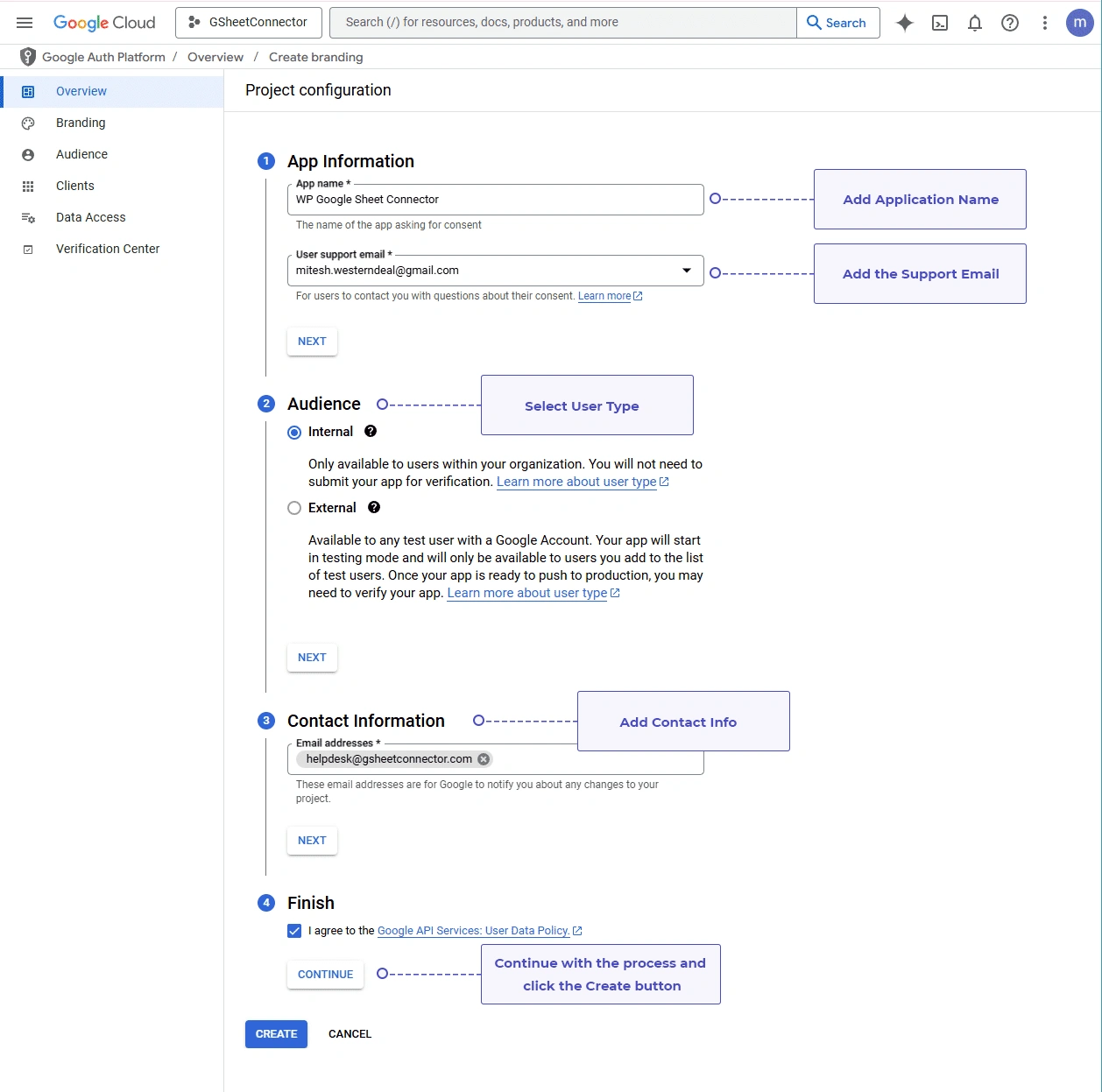
Step 3: Set the Audience to Internal
Select ‘Internal’ under User Type.
With Internal selected:
– Only accounts inside your Workspace organization can authorize the app.
– Outside Gmail accounts are blocked automatically.
– No test-user list is needed — everyone in your org is already covered.
– It’s the natural fit for internal, company-only tooling.
Click Next once selected.
Step 4: Add a Contact Email
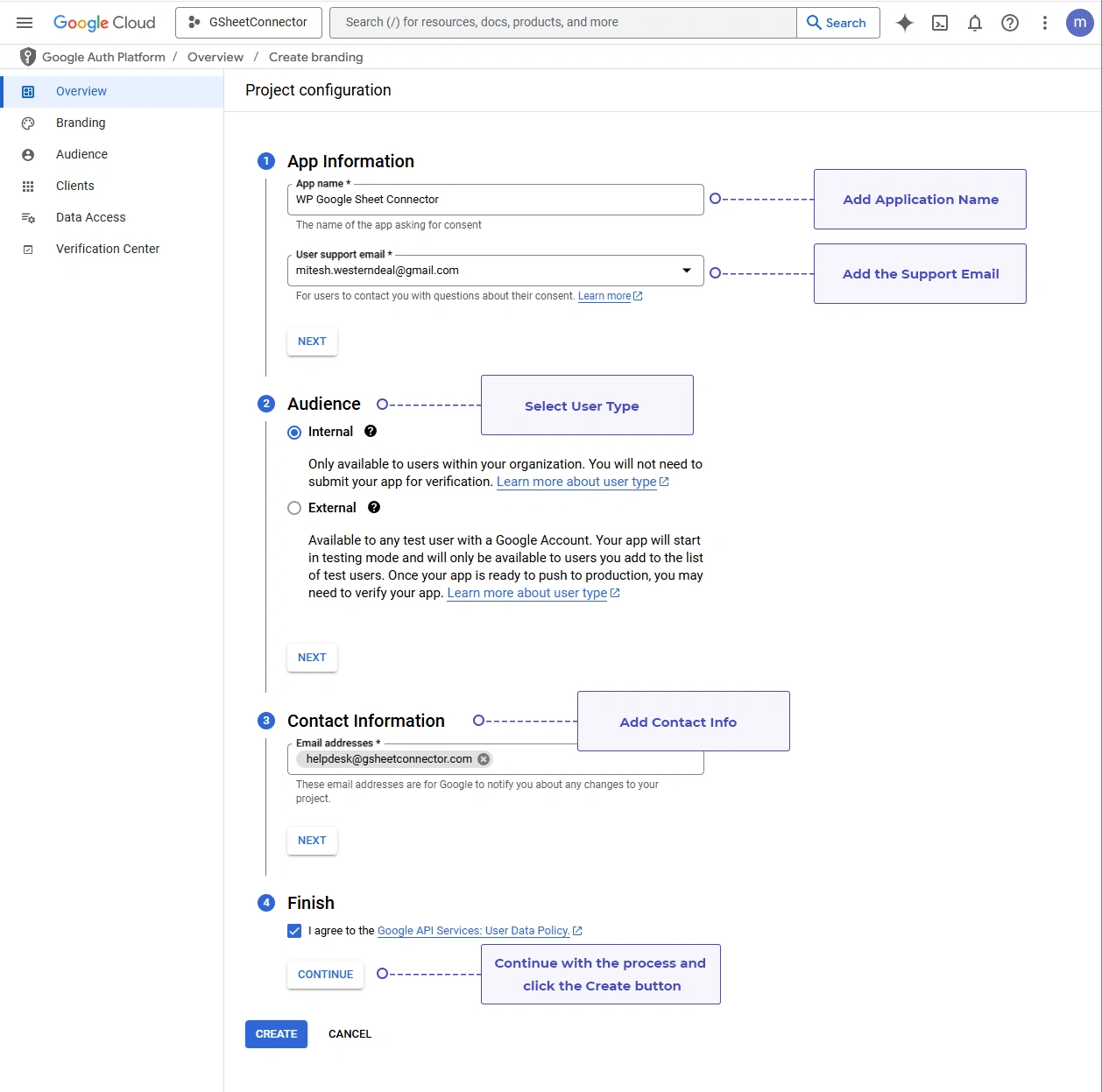
Enter an email address for security notices, OAuth updates, policy notifications, and verification messages. Click Finish.
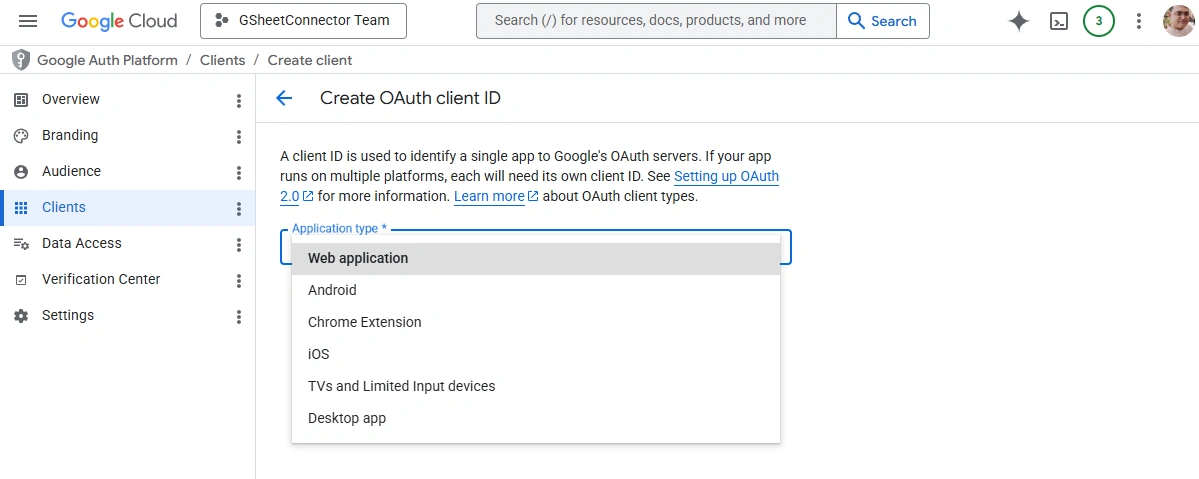
Step 5: Create the OAuth Client
Go to Google Auth Platform → Overview and click Create OAuth Client.
Application type: ‘Web application’
Name : something recognizable, e.g. ‘JetFormBuilder Internal OAuth’
Step 6: Add the Redirect URI
1. Click Add URI.
2. Copy the redirect URI from JetFormBuilder Google Sheet Connector PRO’s integration settings.
3. Paste it in exactly as shown.
Example: ‘https://yourwebsite.com/wp-admin/admin.php?page=jetformbuilder-gsheet-connector’
Step 7: Generate the Credentials
1. Double-check everything above.
2. Click Create.
Google generates your Client ID and Client Secret.
Step 8: Copy the Client ID and Secret
Copy each value using the icon beside it.
Step 9: Add the Required Scopes
Go to Google Auth Platform → Data Access → Add or Remove Scopes and add:
| API Service | Scope |
|---|---|
| Google Drive API | ../auth/drive |
| Google Drive API | ../auth/drive.metadata.readonly |
| Google Drive API | ../auth/drive.file |
| Google Sheets API | ../auth/spreadsheets |
| Google User Info API | ../auth/userinfo.email |
These give JetFormBuilder Google Sheet Connector PRO the ability to create and access Sheets, read spreadsheet data, write JetFormBuilder submissions, and identify your connected account. Save once added.
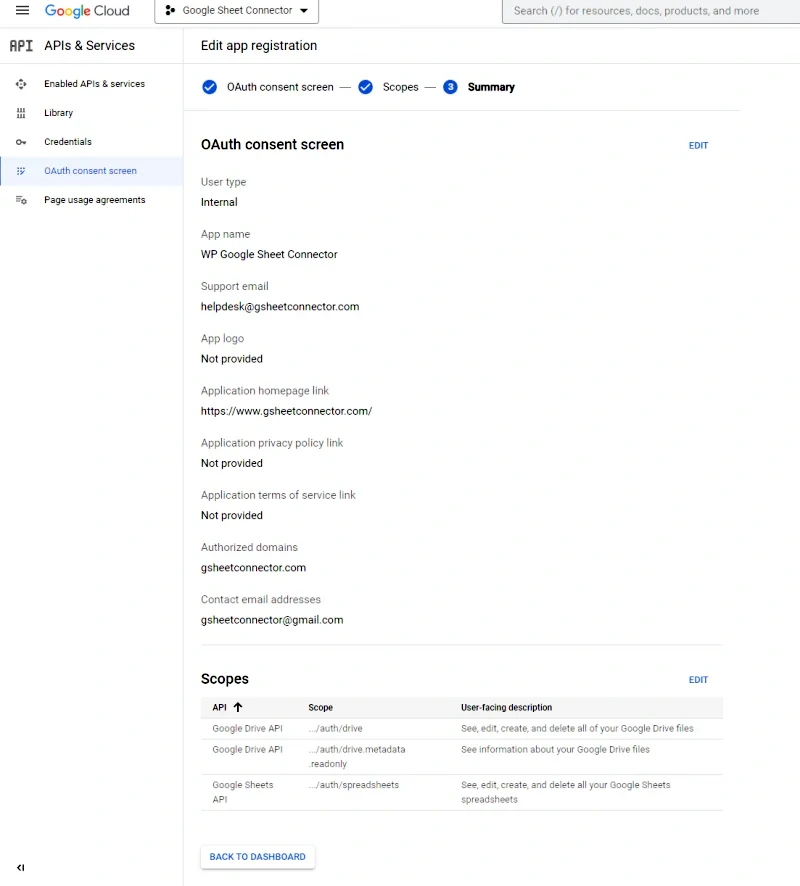
Consent Screen Checklist
Before moving to the plugin, confirm:
– App information is correct
– User type is set to Internal
– Contact email is configured
– All required scopes are added
– OAuth client was created successfully
Connecting the Credentials to JetFormBuilder Google Sheet Connector PRO
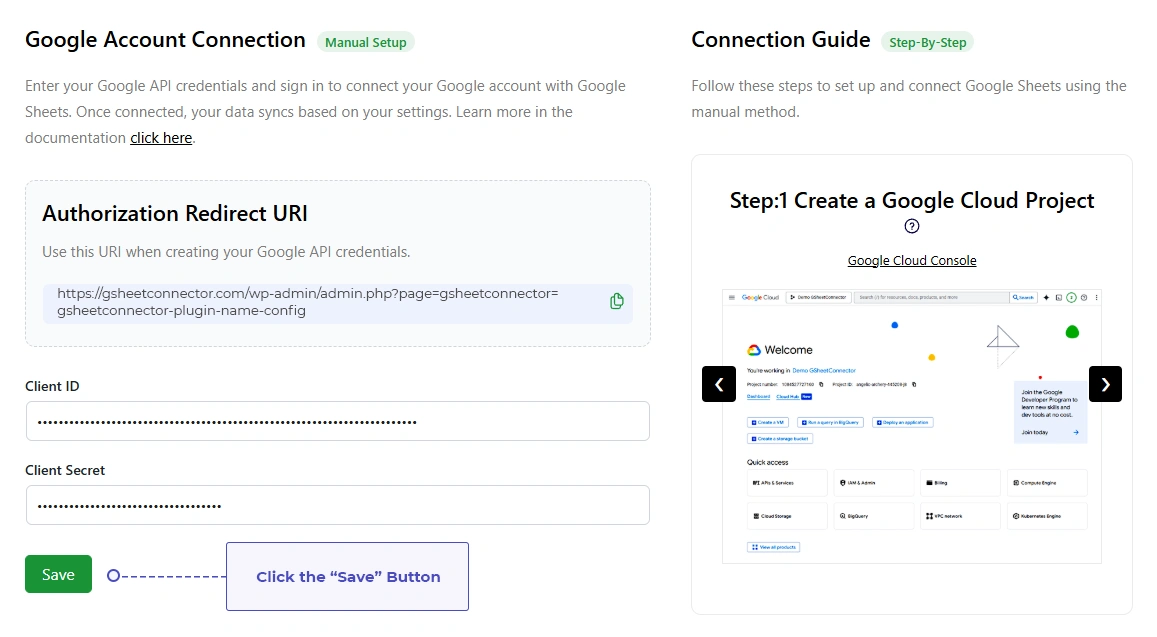
With your Google Cloud project ready, head back to WordPress and go to JetFormBuilder → Google Sheet Connector.
Step 10: Enter the Client ID
Paste your copied Client ID into the Client ID field.
Step 11: Enter the Client Secret
Paste your copied Client Secret into the Client Secret field.
Step 12: Save
Click Save to store both credentials.
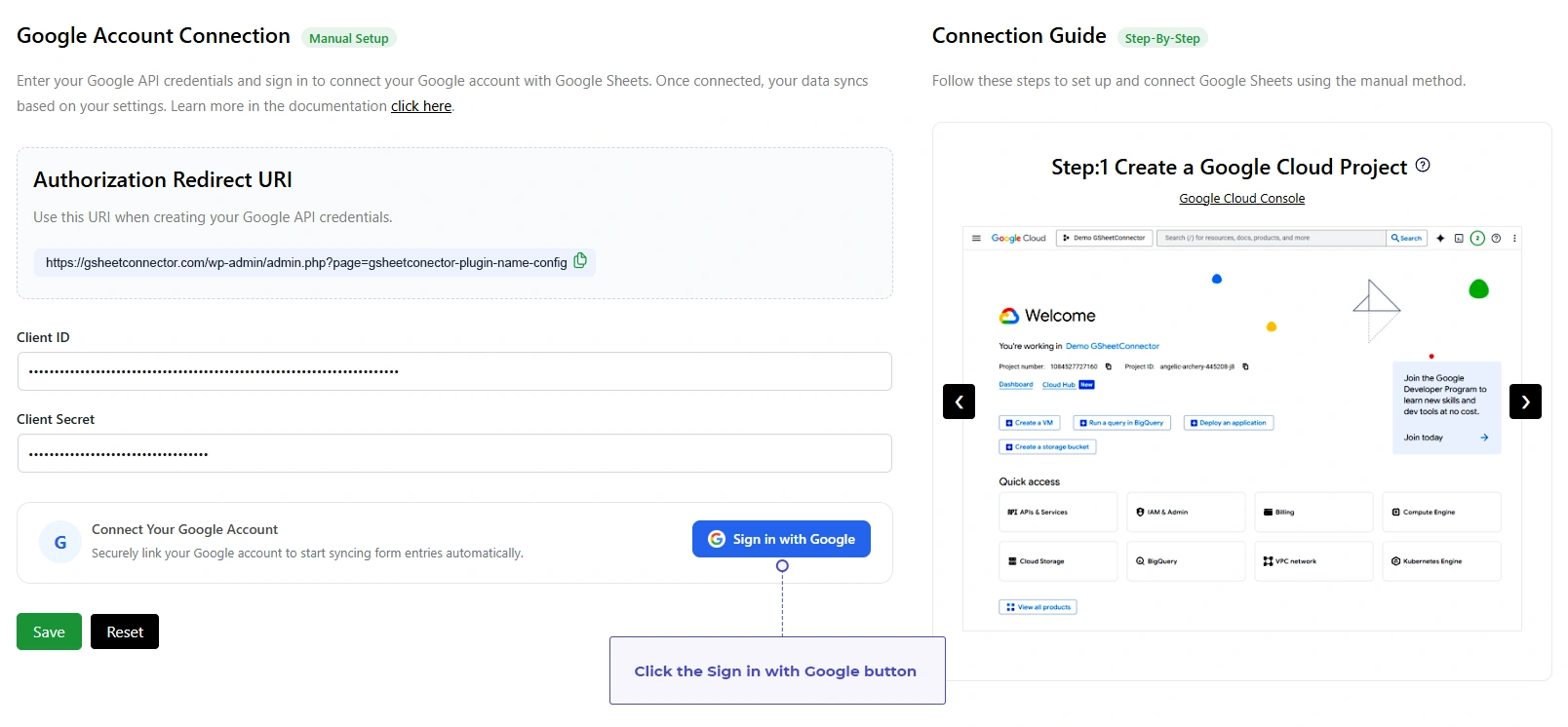
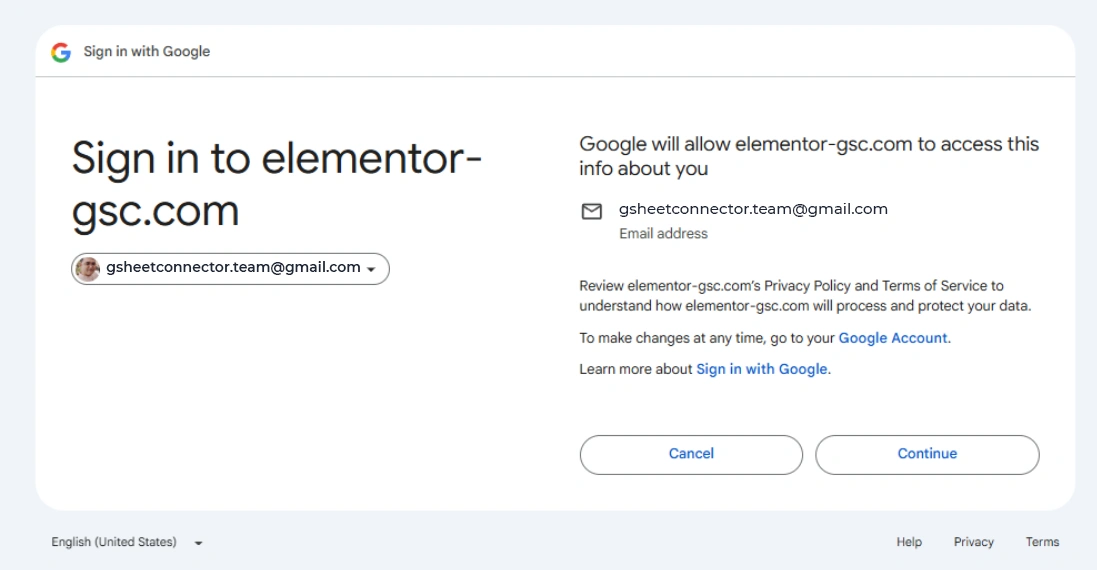
Step 13: Sign In With Google
1. Click Sign In with Google.
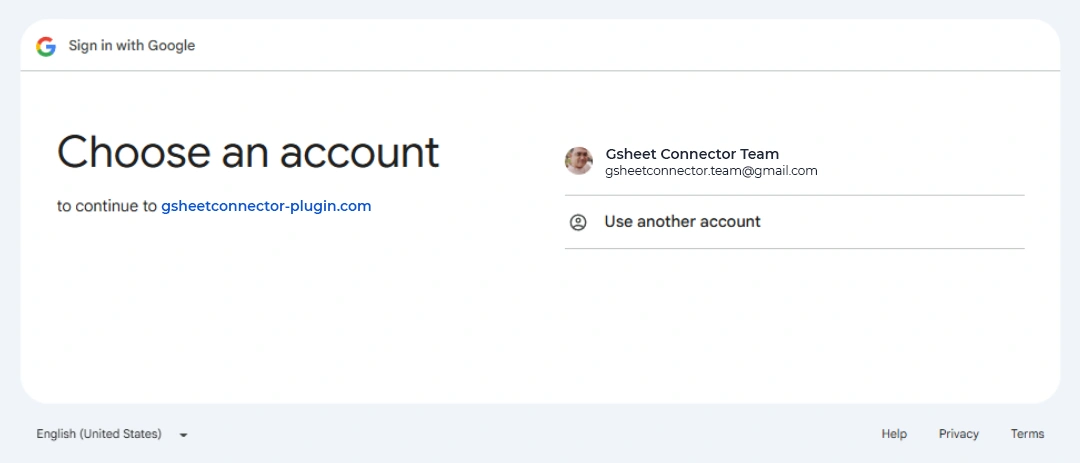
2. Choose your Workspace (or Gmail) account.
3. Continue through the authorization prompts.
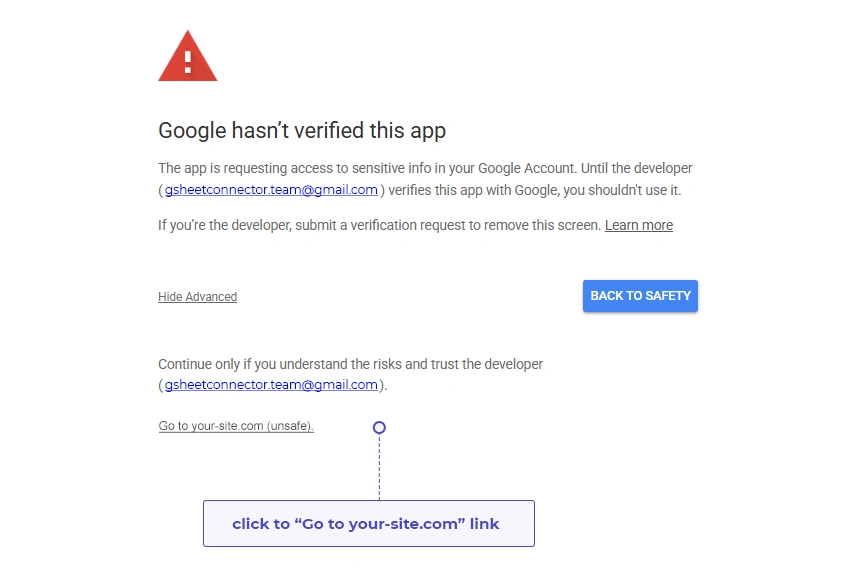
Step 14: Review and Grant Permissions
Google will show exactly what JetFormBuilder Google Sheet Connector PRO is asking for. Review the list and click Continue.
The plugin requests permission to:
– View your Google Sheets
– Create new Sheets
– Edit spreadsheet data
– Access the Drive files it uses
– Identify the connected Google account
These are what make the JetFormBuilder-to-Sheets sync work.

Step 15: Save the Client Token
1. Google redirects you back to the plugin settings.
2. An authentication token is generated automatically.
3. Click Save to store it.
This token is what keeps the connection between your site and Google alive without asking you to sign in again each time.

Step 16: You’re Connected
Once authentication finishes:
– Your connected Google email address appears in the settings.
– The status shows Connected.
– JetFormBuilder Google Sheet Connector PRO is ready to sync form data.

Frequently Asked Questions
What is the Manual OAuth Authentication method?
It lets you connect JetFormBuilder Google Sheet Connector PRO to Google Sheets using your own Google Cloud project, Client ID, and Client Secret – giving you full control over the credentials and permissions involved.
Do I need a Google Cloud project for the Manual method?
Yes. You’ll need to create your own project and OAuth credentials in Google Cloud Console before connecting your Google account. If you don’t want to manage your own Google Cloud project, you can use the Existing Google Authentication method instead.
Should I choose Internal or External?
Choose External for a personal Gmail account or if anyone outside your organization needs access. Choose Internal only if you’re on Google Workspace and want the connection limited to your team.
Can I use Internal with a personal Gmail account?
No – Internal is exclusive to Google Workspace accounts. Personal Gmail accounts must use External.
Where do I find my Client ID and Client Secret?
In Google Cloud Console, go to Google Auth Platform → Clients, open your OAuth client, and copy both values from there.
What's the Authorized Redirect URI for?
It’s the URL Google sends users back to after they authorize the app. Always copy it directly from the JetFormBuilder Google Sheet Connector PRO settings and paste it into your OAuth client — don’t type it manually.
Why do I get a Redirect URI Mismatch error?
Usually because the URI in Google Cloud Console doesn’t exactly match the one the plugin generated. Check for typos, extra spaces, a mismatched domain, or a missing HTTPS.
Why does the plugin need OAuth scopes?
Scopes control what the plugin is allowed to do in your Google account. Without them, it can’t create Sheets, read existing ones, or write your JetFormBuilder submissions.
Does JetFormBuilder Google Sheet Connector PRO access my personal Google data?
No. It only requests what’s needed for the Sheets integration — creating sheets, reading spreadsheet data, and writing submissions. It never touches your emails, contacts, or photos.
Do I need to submit my app for Google verification?
Not right away if you’re only using it yourself or testing. If the connection will be used publicly by multiple people, verification is recommended.
How long does Google's OAuth verification take?
Basic reviews usually take 3–5 business days, standard reviews 1–2 weeks, and more complex cases can take up to 6 weeks.
Can I use the plugin while verification is still pending?
Yes – while your app is in testing mode, any account you’ve added as a test user can keep using the connection normally.
Why don't I see my Google Sheets after connecting?
This usually means a required scope is missing, authorization didn’t fully complete, the account lacks access to that spreadsheet, or the connection has expired. Try disconnecting and reconnecting your Google account.
The Google Sign-In button isn't working — what should I check?
Verify your Client ID, Client Secret, and redirect URI are correct, that the OAuth client is active, and that the required APIs and scopes are enabled.
Can I connect multiple JetFormBuilder forms to Google Sheets?
Yes. You can connect multiple JetFormBuilder forms, each with its own Google Sheet. Follow the Feed Settings Guide to create and manage multiple feeds.
Can I sync data into an existing spreadsheet?
Yes. You can either create a fresh spreadsheet from the plugin or point it at an existing one already in your Google Drive.
What permissions will Google ask me to approve?
Depending on your setup, JetFormBuilder Google Sheet Connector PRO may request permission to view, create, and edit Google Sheets, access related Drive files, and see your connected account’s email address.
How do I reconnect my Google account?
Disconnect the existing connection from the integration settings, save your changes, and then click Sign In with Google again to authorize a new connection. If you continue experiencing authentication issues, review the Service Account Authentication Guide as an alternative connection method.
How can I confirm my Google account is connected?
Once authentication succeeds, your connected email address appears in the settings, the status shows Connected, and a client token is saved automatically.
What should I check if authentication keeps failing?
Confirm the Google Sheets API is enabled, your Client ID and Secret are correct, the redirect URI matches exactly, the required scopes are added, and you’re signing in with the right Google account.


