
How to Install & Activate GSheetConnector for WP Core (Free Version)
GSheetConnector for WP Core allows you to automatically sync your WordPress Posts, Pages, Users, and Comments directly to Google Sheets. Follow this step-by-step installation guide to set up the plugin successfully on your WordPress website.
Step 1: Install GSheetConnector for WP Core
Unlike other GSheetConnector addons, GSheetConnector for WP Core doesn’t require any other plugin to be installed first — it works directly with your WordPress site’s built-in content.
- Login to your WordPress Dashboard.
- Navigate to Plugins → Add New Plugin.
- Search for GSheetConnector for WP Core.
- Click Install Now.
- Activate the plugin.
Step 2: Manual Installation (Alternative Method)
If you’d rather install the plugin manually instead of searching from your dashboard, follow these steps instead.
- Download the plugin ZIP file from the official WordPress.org plugin page.
- In your WordPress Dashboard, go to Plugins → Add New → Upload Plugin.
- Click Choose File, select the ZIP file, and click Install Now.
- Activate the plugin.
You are now ready to connect your WordPress website with Google Sheets.
Verify Plugin Installation
After installation, verify that the plugin is working correctly.
- Go to GSheetConnector in your WordPress admin sidebar.
- Confirm the Sign In With Google option is visible.
- Open the Google Sheets / Tab Name section.
- Confirm that the Posts, Pages, Users, and Comments toggles are available.
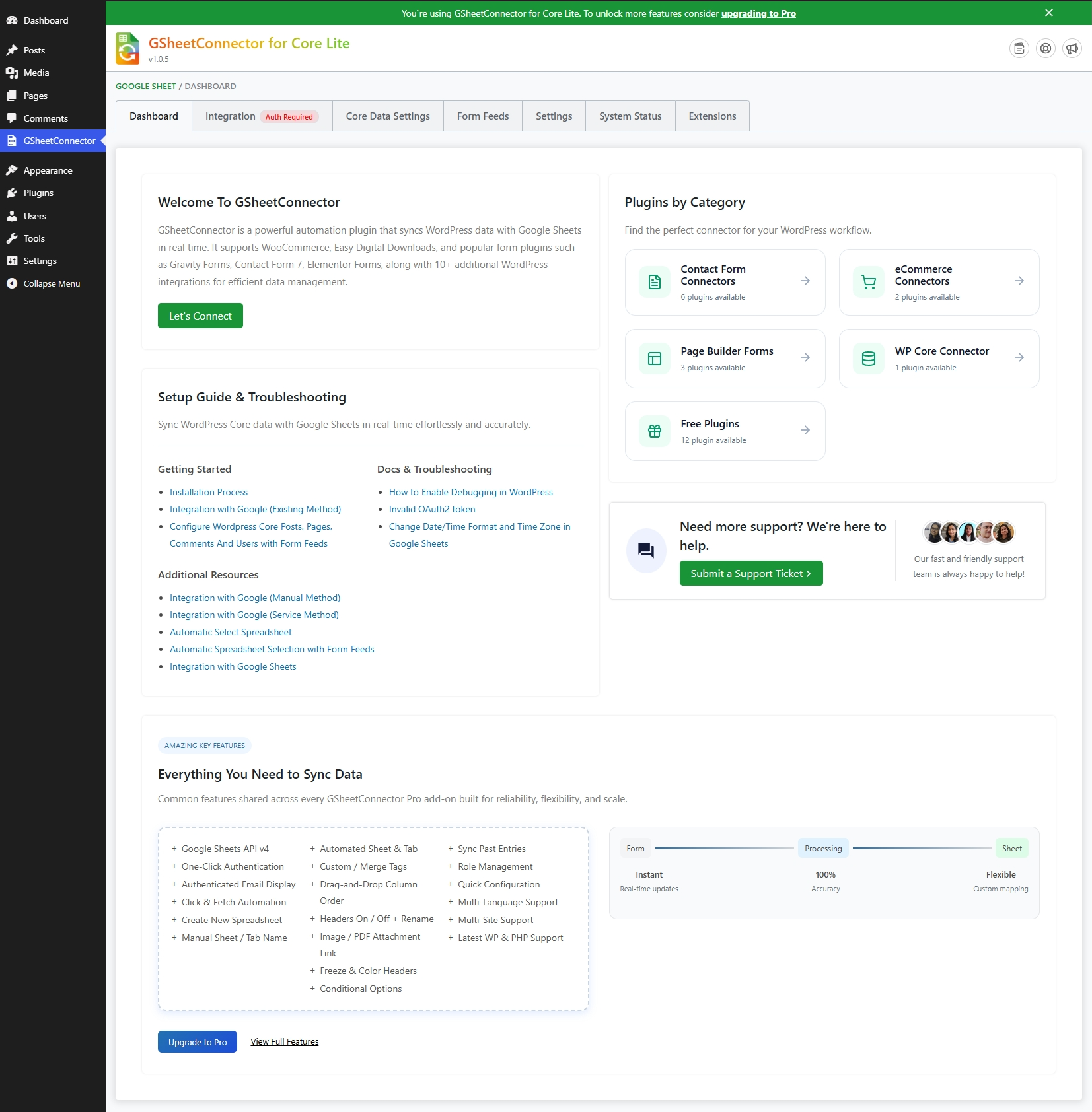
Now that GSheetConnector for WP Core has been installed successfully, continue with the following guides to complete your setup.
Frequently Asked Questions
Do I need any other plugin installed before this one?
No. GSheetConnector for WP Core works directly with your WordPress site’s built-in content — there’s no other plugin required before installing it.
Can I install the plugin manually?
Yes. Upload the ZIP file through Plugins → Add New → Upload Plugin, as shown in Step 2 above.
Why isn't my WordPress data appearing in Google Sheets?
Verify that your Google account is connected, the correct spreadsheet is selected, and that your Sync and Header settings have been saved.
Is coding knowledge required?
No. The plugin is designed for beginners and requires no coding.
Which WordPress data types can I sync with the Free Version?
The Free Version supports Posts, Pages, Users, and Comments, each syncing into its own tab inside your connected Google Sheet.


