
Introduction
JetFormBuilder Google Sheet Connector allows you to automatically send your JetFormBuilder form submissions directly to Google Sheets. By creating a Feed, you can connect your JetFormBuilder form with a specific Google Sheet and choose which form fields should be synced.
The Feed Setting manages the connection between your JetFormBuilder form and your Google Sheet. Once a Feed is configured correctly, every new form submission is automatically added as a new row in the connected Google Sheet.
Before creating a Feed, make sure your Google account is connected successfully. If you haven’t completed the authentication yet, follow the Existing Google Authentication Guide. Once connected, build your JetFormBuilder form and continue with the Feed setup process.
Create a JetFormBuilder Form
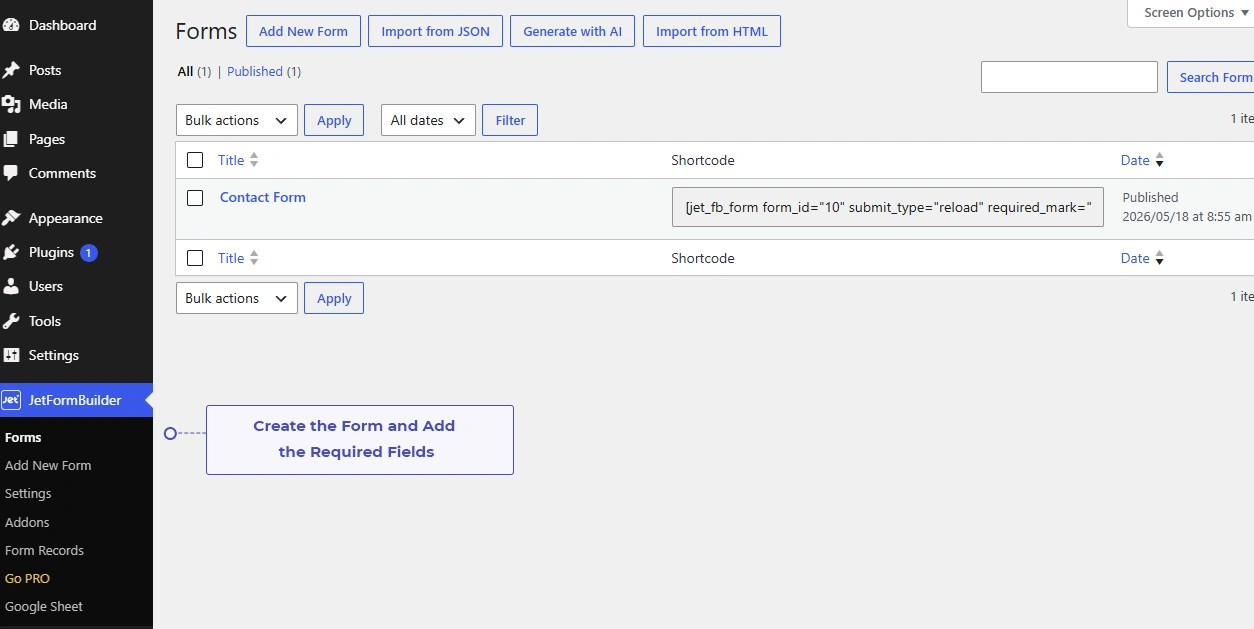
First, go to your WordPress Dashboard to build your form.
- Navigate to JetFormBuilder, then Add New Form.
- Enter a title for your form.
- Use the form builder to add the fields you need.
- Configure each field according to your requirements.
- Save or publish the form, then place it on your page.
After your JetFormBuilder form is ready, you can move on to creating a Feed in the Google Sheet Connector settings.
- JetFormBuilder Google Sheet Connector works with forms built directly in JetFormBuilder, so no separate form builder plugin is needed.
- Make sure your form fields are properly configured before creating the Feed.
- The field names used in your JetFormBuilder form will be mapped with the Google Sheet header columns during Feed configuration.
Important Things to Keep in Mind
- Make sure the JetFormBuilder form is published and working correctly before creating the Feed.
- Ensure the JetFormBuilder Google Sheet Connector plugin is installed and activated on your WordPress website.
- Your Google Sheet connection should be completed before syncing form submissions. If needed, follow the Google Authentication Guide to connect your Google account.
- Use unique and clear field names in your form to make field mapping easier.
- After saving the Feed Settings, test a form submission to confirm the data is added to your Google Sheet successfully.
Create a New Feed
After creating your JetFormBuilder form, you need to create a Feed in Google Sheet Connector to link the form with Google Sheets.
Follow the steps below to create a new Feed.
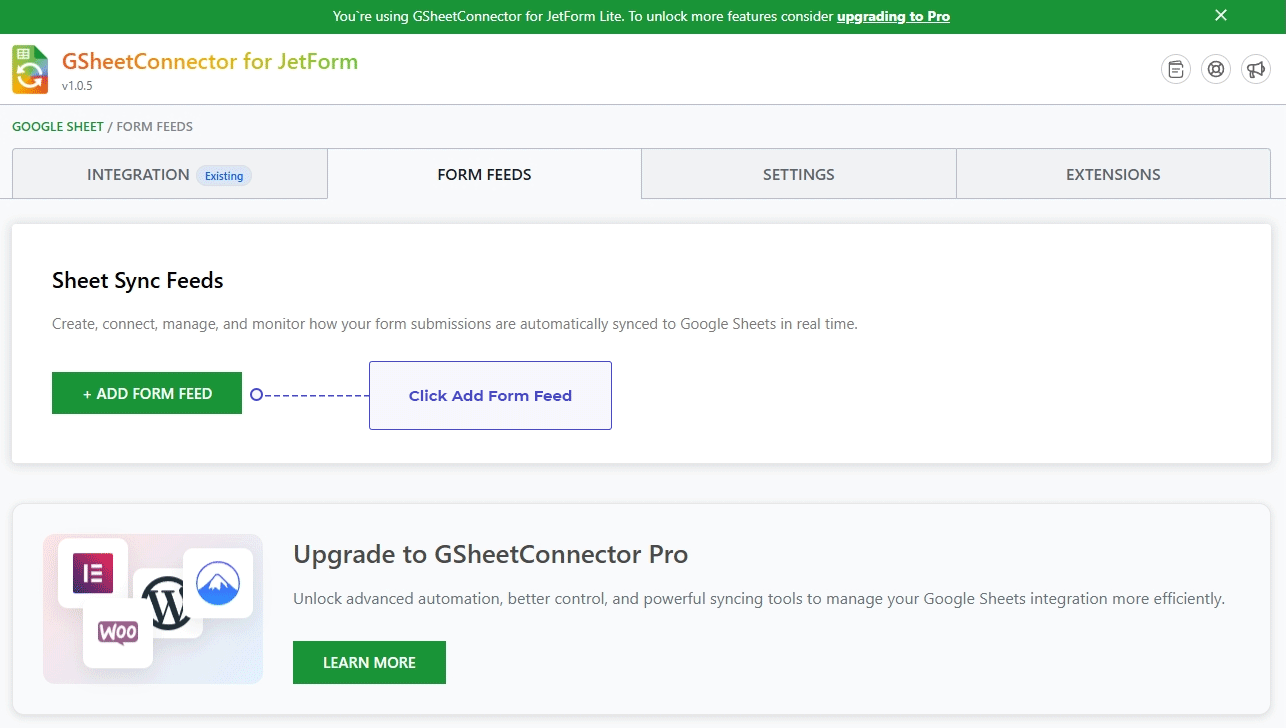
- Go to WordPress Dashboard, then Google Sheet Connector, then Form Feed.
- Click the Add Form Feed button.
- The Create Feed section opens.
- Enter a Feed Name of your choice.
- Select the JetFormBuilder form you created from the dropdown menu.
- Click the Submit button.
Your newly created Feed will now appear in the Feed Table.

Feed Table Overview
The Feed Table shows all your created Feeds along with the following details.
- Feed Name, which shows the name you gave the Feed.
- Page Name, which shows the page where your JetFormBuilder form is placed.
- Time, which shows when the Feed was created.
- Feed Status, which shows whether the Feed is enabled or disabled.
Feed Actions
The Feed Table offers a few action options.
The Edit icon opens the Feed Settings so you can configure it further.
The Delete icon removes the Feed.
Feed Status
Feed Status controls whether your Feed actually runs.
- When Feed Status is Enabled, your configuration is active and form submissions sync with Google Sheets.
- When Feed Status is Disabled, the Feed will not run, even if the rest of the configuration is complete.

Feed Detail Settings
Opening a Feed shows you several configuration sections.
Feed Information
At the top of the Feed Detail page, you will see basic Feed information along with the connected form details.
Manual Google Sheets Configuration
The Enable Manual Google Sheets Configuration option lets you enter your Google Sheet details by hand.
Turning this on reveals the following fields.
- Sheet Name
- Sheet ID
- Tab Name
- Tab ID
To find this information:
- Open your Google Sheet.
- Copy the required details.
- Enter each value in its matching field, as shown in the screenshot.
If you prefer connecting through your own Google Cloud project, you can also use the Manual Google Authentication method or the Service Account method available in the PRO version.

Select Field to Sync
The Select Field to Sync option lets you choose which JetFormBuilder fields get sent to Google Sheets.
Select All Fields (Pro Version)
- Turn on Select All to select every form field automatically.
Select Individual Fields (Pro Version)
- Enable or disable individual fields using the toggle next to each one.
Change Field Order (Pro Version)
- Drag and drop fields to reorder them.
- The order you set decides the column order in your Google Sheet.
Field Column Preview (Pro Version)
- Each selected field shows a preview of the Google Sheet column it will be stored in.
Edit Field Name (Pro Version)
- Every field has an Edit icon.
- Click it to change the field name before it syncs to Google Sheets.
Header Setting (Pro Version)
The Header Setting option lets you customize how your Google Sheet looks.
You can customize:
Freeze Header
- Turn on Freeze Header to keep the header row fixed while scrolling.
Header Style
Customize the header appearance, including:
- Font Size
- Font Color
- Font Style
Row Style
Customize the row appearance, including:
- Font Style
- Font Size
- Font Color
- Odd Row Color
- Even Row Color
Once you are done, click the Save Settings button to store your Feed configuration.
Google Sheet Data Sync (Pro Version)
The Google Sheet Data Sync option lets you sync existing form submissions into Google Sheets.
This is useful when:
- You want to import older form entries.
- You need a one-time, data-wise synchronization.
- You want to sync submissions that came in before the Feed was created.
This option transfers your existing form data into the connected Google Sheet.
Save Feed Settings and Test a Form Submission
Once every Feed Setting is configured, click the Save Settings button.
After saving, the plugin automatically creates the header row in your connected Google Sheet using your JetFormBuilder field labels.
All the fields you selected will appear as column headers in the connected sheet.

Test Your Form Submission
After saving the Feed Settings, it is worth testing the integration.
- Open the page where your JetFormBuilder form is published.
- Fill out the form with sample information.
- Click the Submit button.
You will see the submitted data added automatically as a new row, under the matching column headers.
This confirms your JetFormBuilder form and Google Sheet integration is working correctly.
If your submissions are not appearing in Google Sheets, refer to the Troubleshooting Guide for common solutions.


Frequently Asked Questions
Why is my JetFormBuilder form not appearing in the Feed dropdown?
Ensure that your JetFormBuilder form has been created and saved. Only saved JetFormBuilder forms will appear in the Feed dropdown. If you recently created the form, refresh the page and try again.
Can I use JetFormBuilder Free with Google Sheet Connector?
Yes. The Google Sheet Connector works with the free version of JetFormBuilder. You do not need JetFormBuilder Pro to send form submissions to Google Sheets.
Can I use Manual Google Sheets Configuration in the Free Version?
Yes. The Free Version supports Manual Google Sheets Configuration. Simply enter the Google Sheet Name, Sheet ID, Tab Name, and Tab ID, then save the Feed to connect your spreadsheet. If you need advanced authentication options, refer to the Manual Google Authentication Guide or the Service Account Guide available in the PRO version.
Where can I find the Google Sheet ID?
Open your Google Sheet in your browser. The Sheet ID is the unique value located between /d/ and /edit in the Google Sheet URL.
Where can I find the Google Sheet Tab ID?
Open the required worksheet tab in Google Sheets. The Tab ID is the number shown after gid= in the Google Sheet URL.
What information is required for Manual Google Sheets Configuration?
You need to enter the Google Sheet Name, Sheet ID, Tab Name, and Tab ID before saving the Feed.
Why are my form submissions not being added to Google Sheets?
Please check the following:
- The Feed has been saved successfully.
- The Sheet Name, Sheet ID, Tab Name, and Tab ID are correct.
- Your Google account is connected successfully.
- The Google Sheet still exists and is accessible.
- You have submitted the connected JetFormBuilder form.
If your Google account is not connected, follow the Google Authentication Guide.
Why is my Feed not working even though the setup is complete?
Verify that all Google Sheet details are correct and that the Feed has been saved successfully. Incorrect Sheet or Tab information will prevent data from syncing.
Do I need to create column headers manually?
Yes. Before submitting the form, create the required column headers in your Google Sheet. The header names should match your JetFormBuilder field labels so the data can be inserted correctly.
Can I edit an existing Feed?
Yes. You can open an existing Feed, update the Google Sheet details if needed, and save your changes.
Can I create multiple Feeds?
Yes. You can create multiple Feeds and connect different JetFormBuilder forms to different Google Sheets.
Will existing form submissions be added to Google Sheets?
No. The Free Version only syncs new form submissions received after the Feed has been configured and saved. Previously submitted entries are not synced automatically.
Can I connect multiple Google Sheets to different forms?
Yes. Each Feed can be connected to a different Google Sheet, allowing you to manage separate spreadsheets for different JetFormBuilder forms.
Can I change the connected Google Sheet later?
Yes. Edit the Feed, update the Sheet Name, Sheet ID, Tab Name, or Tab ID, and save the changes to connect a different Google Sheet.
What happens after I save the Feed?
Once the Feed is saved successfully, new submissions from the selected JetFormBuilder form will be sent to the configured Google Sheet.


