
Getting Contact Form 7 and CF7 Google Sheet Connector up and running on your website takes just a few minutes. This guide walks you through installing both plugins from your WordPress dashboard, plus an alternative method if you prefer uploading the plugin manually.
Step 1: Install Contact Form 7
Since CF7 Google Sheet Connector works as an addon, you’ll need Contact Form 7 installed first.
Log In to WordPress
- Log in to your WordPress admin area.
- Click on Plugins from the left-side menu.
- Click on Add New at the top of the page.
Search and Install Contact Form 7
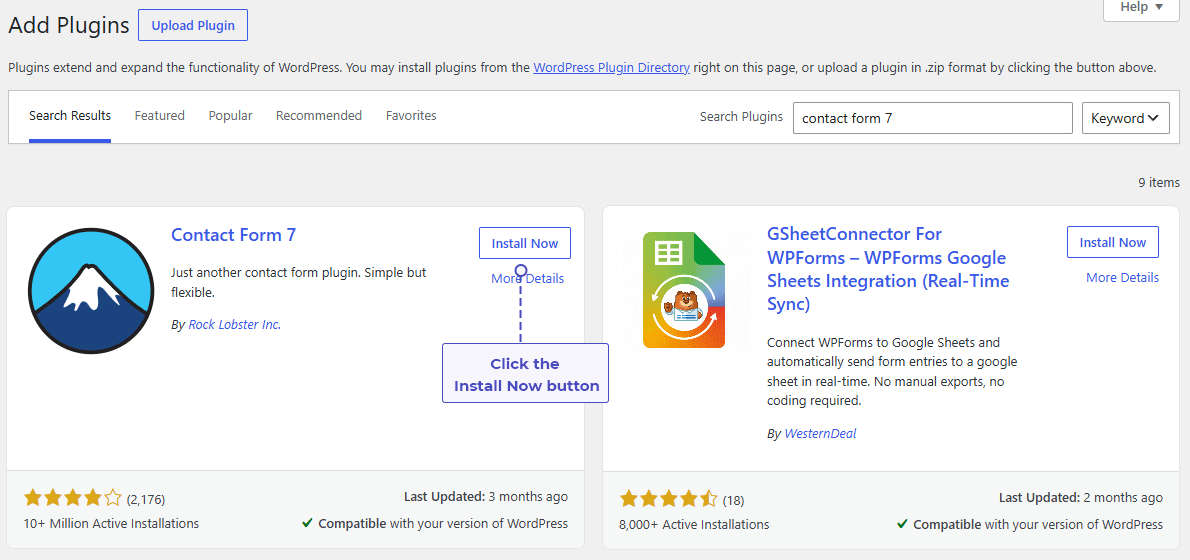
- Type Contact Form 7 in the search bar.
- Click Install Now next to the Contact Form 7 plugin.
- Once installed, click Activate.
Step 2: Install CF7 Google Sheet Connector
With Contact Form 7 active, you can now install the CF7 Google Sheet Connector plugin the same way.
Go Back to Plugins
- Click Add New again from the Plugins menu.
Search and Install CF7 Google Sheet Connector
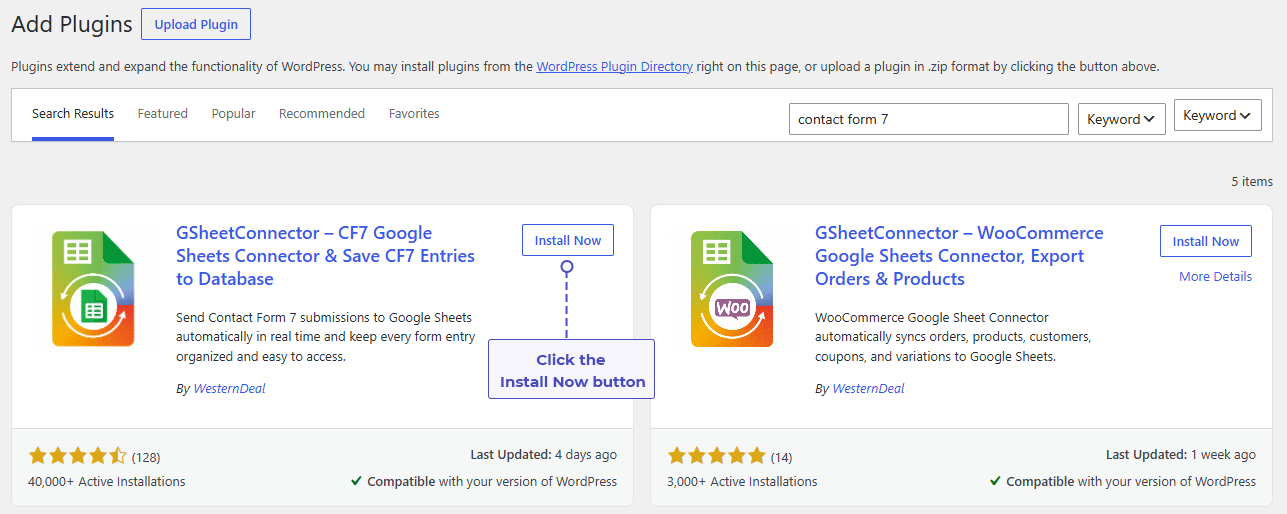
- Type CF7 Google Sheet Connector in the search bar.
- Click Install Now next to the plugin.
- Once installed, click Activate.
Alternative: Install by Uploading the Plugin Manually
If your hosting environment restricts the plugin search feature, or you simply prefer downloading the plugin file yourself, you can install it manually.
- Visit the plugin page on WordPress.org and download the plugin’s ZIP file.

- In your WordPress dashboard, go to Plugins → Add New.
- Click the Upload Plugin button at the top of the page.
- Choose the downloaded ZIP file and click Install Now.
- Once installed, click Activate Plugin.
A Quick Video Showing the Installation
Prefer to see the whole process in action? Watch this quick walkthrough:
What’s Next?
Now that both plugins are installed and activated, the next step is connecting your Google account. Depending on your preferred setup, you can choose from the following methods:
- Integration with Google (Existing Method) — the quickest way, using our pre-configured Google API credentials.
- Integration with Google (Manual Method) — connect using your own Client ID and Secret Key.
- Service Account Setting (PRO Version) — a more secure, server-to-server authentication method available with the PRO version, ideal for agencies and multisite setups.
Looking for more automation and advanced features? Check out the Installation Process – PRO Version guide.
Frequently Asked Questions
Do I need to install Contact Form 7 before CF7 Google Sheet Connector?
Yes. CF7 Google Sheet Connector is an addon plugin, so Contact Form 7 must be installed and activated first for the connector to detect and work with your forms.
Can I install the plugin without using the WordPress plugin search?
Yes. If plugin search is disabled on your host, you can download the ZIP file from WordPress.org and install it manually using the Upload Plugin option.
Is the CF7 Google Sheet Connector Free version enough to get started?
Yes, the Free version lets you connect a Contact Form 7 form to Google Sheets and sync submissions. For advanced automation such as file attachments, role management, and unlimited integrations, you can upgrade to the PRO version.
What should I do after installing and activating both plugins?
Once both plugins are active, the next step is connecting your Google account. Follow the Integration with Google (Existing Method) guide to complete the connection.
Why can't I find CF7 Google Sheet Connector in the plugin search results?
Make sure you’re searching with the exact name “CF7 Google Sheet Connector.” If it still doesn’t appear, your server might have a search restriction — in that case, use the manual ZIP upload method instead.
Do I need to activate both plugins separately?
Yes. After installing Contact Form 7 and CF7 Google Sheet Connector, each plugin needs to be activated individually from the Plugins page for them to work together.


