
General Settings
The General Settings section lets you manage plugin behavior, data retention preferences, user permissions, version control options, and system information. These settings help administrators keep the site secure, control who has access, and manage plugin data properly.
Plugin Preferences
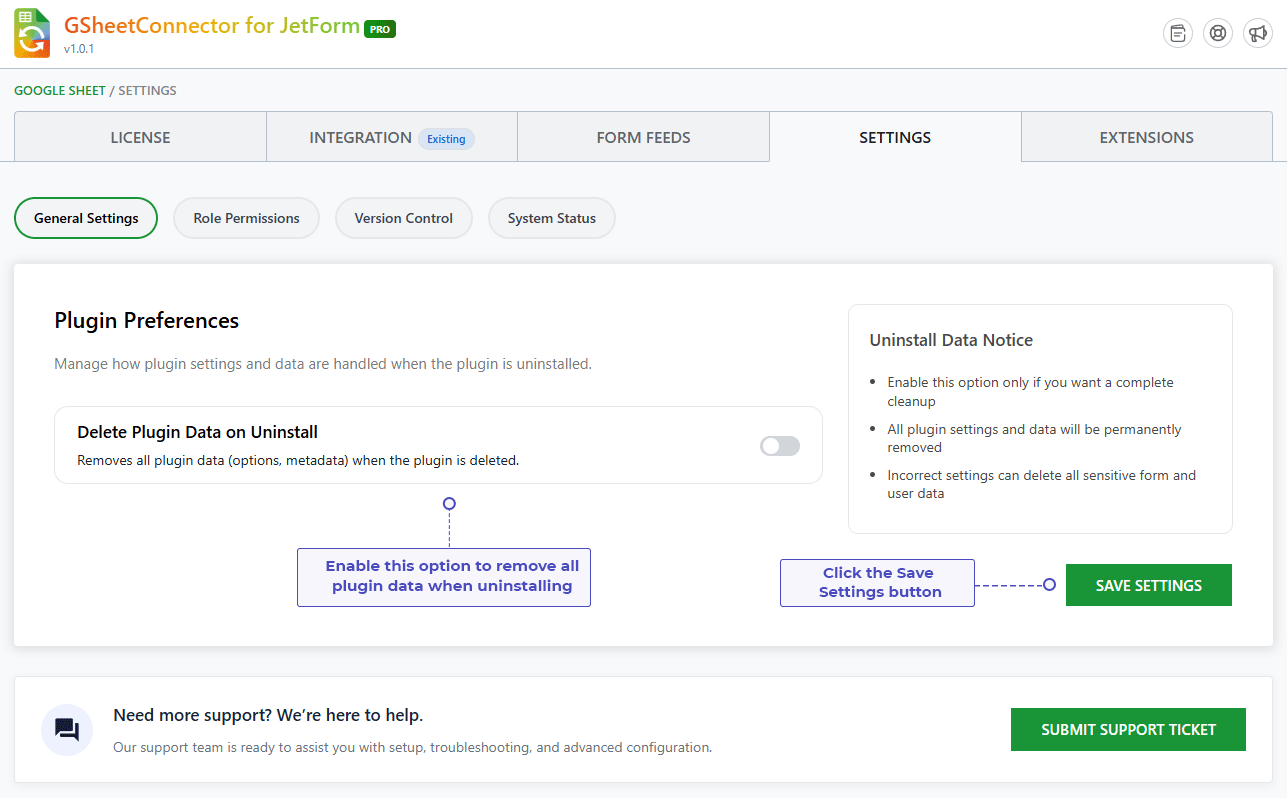
Plugin Preferences controls what happens to the plugin’s stored data when JetFormBuilder Google Sheet Connector is removed from your WordPress website.
By default, WordPress only deletes the plugin files when a plugin is removed. Its settings and stored data can still remain in the database afterward.
JetFormBuilder Google Sheet Connector gives you the option to clean up all plugin-related data completely during uninstallation.
Delete Plugin Data on Uninstall
When this option is turned on, everything related to the plugin is permanently removed once it is deleted.
This includes:
- Plugin settings
- Feed configurations
- Plugin options
- Stored metadata
- Integration settings
How to Enable It
- Go to JetFormBuilder Google Sheet Connector, then General Settings.
- Find the Delete Plugin Data on Uninstall option.
- Turn on the toggle.
- Save your settings.
Once enabled, the plugin performs a full cleanup automatically when it is uninstalled.
Things to Keep in Mind
- All plugin settings will be permanently deleted.
- Feed configurations cannot be recovered afterward.
- Connected Google Sheet settings will be removed.
- This action cannot be undone.
- Always take a website backup before uninstalling the plugin.
Role Permissions
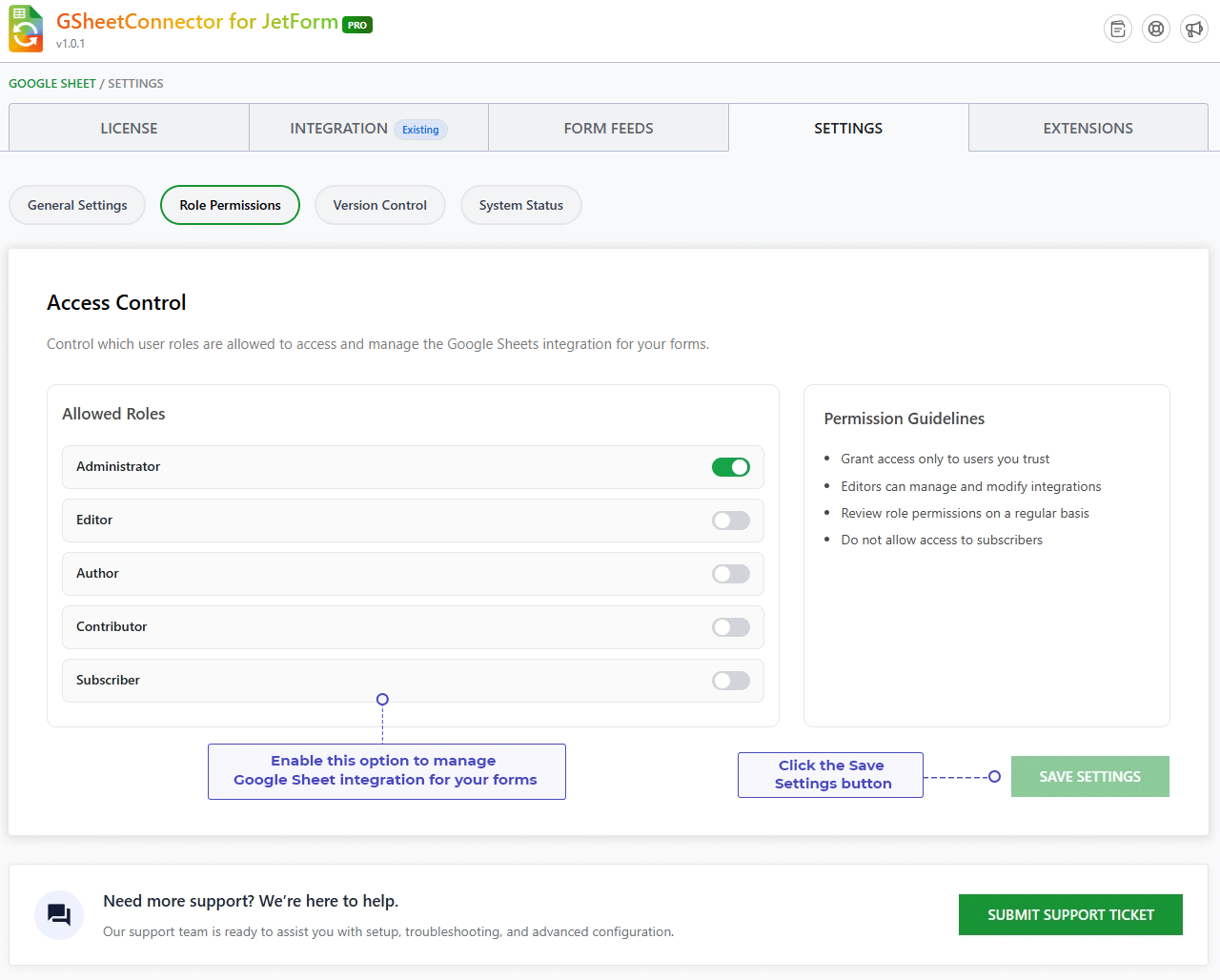
Role Permissions lets administrators control which WordPress user roles can access and manage JetFormBuilder Google Sheet Connector settings.
This is especially useful on websites with multiple users, teams, or administrators.
Access Management
Access Management lets you decide which WordPress roles are allowed to:
- Access the plugin
- Create and manage feeds
- Configure Google Sheets integrations
- View plugin settings
- Manage plugin configurations
Only the roles you select will be able to see the plugin menu inside the WordPress admin dashboard.
How to Configure Role Permissions
- Go to JetFormBuilder Google Sheet Connector, then General Settings.
- Open the Role Permissions section.
- Select the user roles you want to grant access to.
- Save your settings.
The roles you select gain access to the plugin features right away.
Permission Guidelines
Keep the following in mind before assigning permissions.
Roles You Can Safely Allow
- Site Administrators
- Trusted Editors
- Authorized Team Members
Roles You Should Restrict
- Subscribers
- Customers
- Untrusted user accounts
- Users who do not manage form integrations
Important Notes
- Only the roles you enable can access the plugin.
- Users without permission will not see the plugin menu at all.
- Limiting access improves your website’s security.
- Sensitive settings stay protected from unwanted changes.
Recommended Setup
For most websites, it is best to allow access only to:
- Administrators
- Trusted Editors
This keeps your setup secure while still allowing your team to collaborate where needed.
Version Control
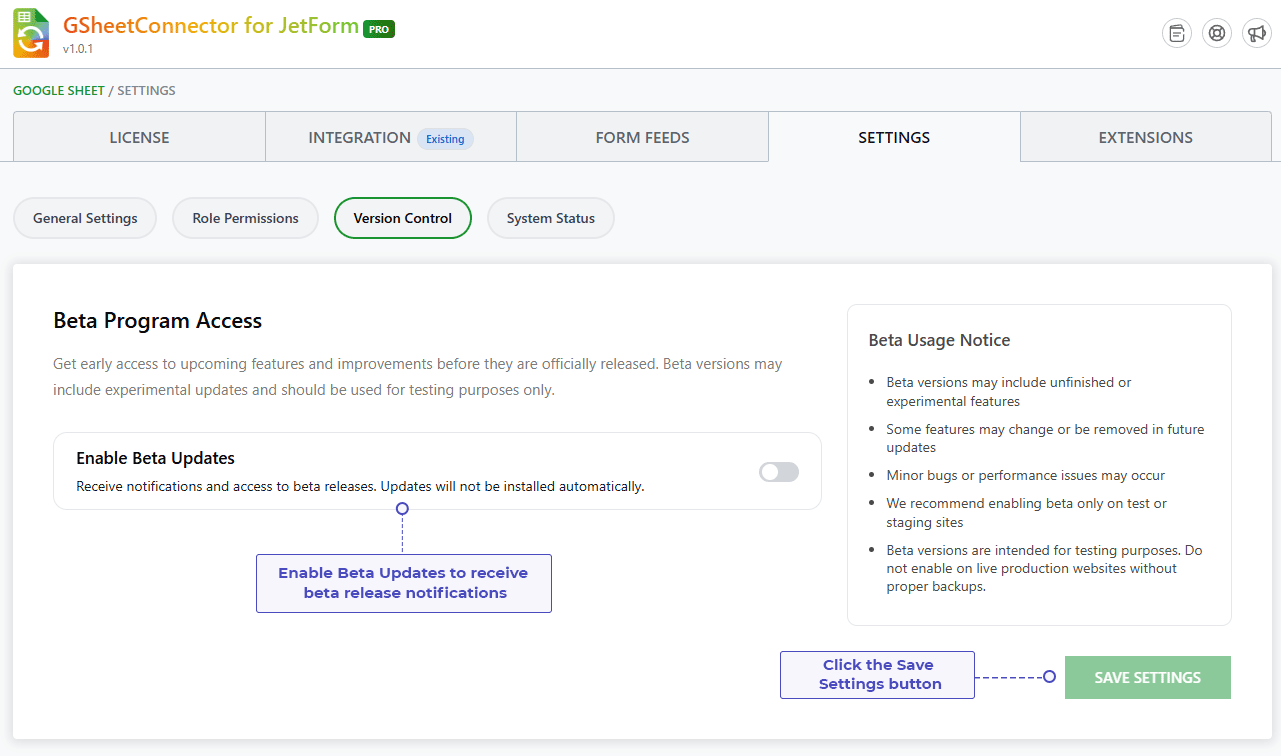
Version Control gives you access to beta releases of the plugin, so you can try upcoming features before they go public.
Beta Program Access
Joining the beta program gives you access to:
- New features before release
- Upcoming improvements
- Experimental functionality
- Early bug fixes
- Future enhancements
This is useful for developers, testers, and advanced users who want an early look at upcoming updates.
Enable Beta Updates
Once enabled:
- Beta release notifications start showing up.
- New beta versions can be installed manually.
- You can test upcoming features ahead of the official release.
How to Enable Beta Updates
- Go to JetFormBuilder Google Sheet Connector, then General Settings.
- Open the Version Control section.
- Turn on the Beta Updates option.
- Save your settings.
After this, you will get a notification whenever a new beta version becomes available.
Before You Enable Beta Updates
Keep the following in mind:
- Beta features may still be under active development.
- Some features could change before the final release.
- Experimental functionality may be modified or removed later.
- Minor bugs or performance issues can show up.
- Compatibility testing may still be ongoing.
Where to Use Beta Versions
We strongly recommend using beta versions only on:
- Staging websites
- Development environments
- Test servers
A Word of Caution for Live Websites
Avoid enabling beta versions on a live production website unless you have a full backup and understand the risks involved.
System Status
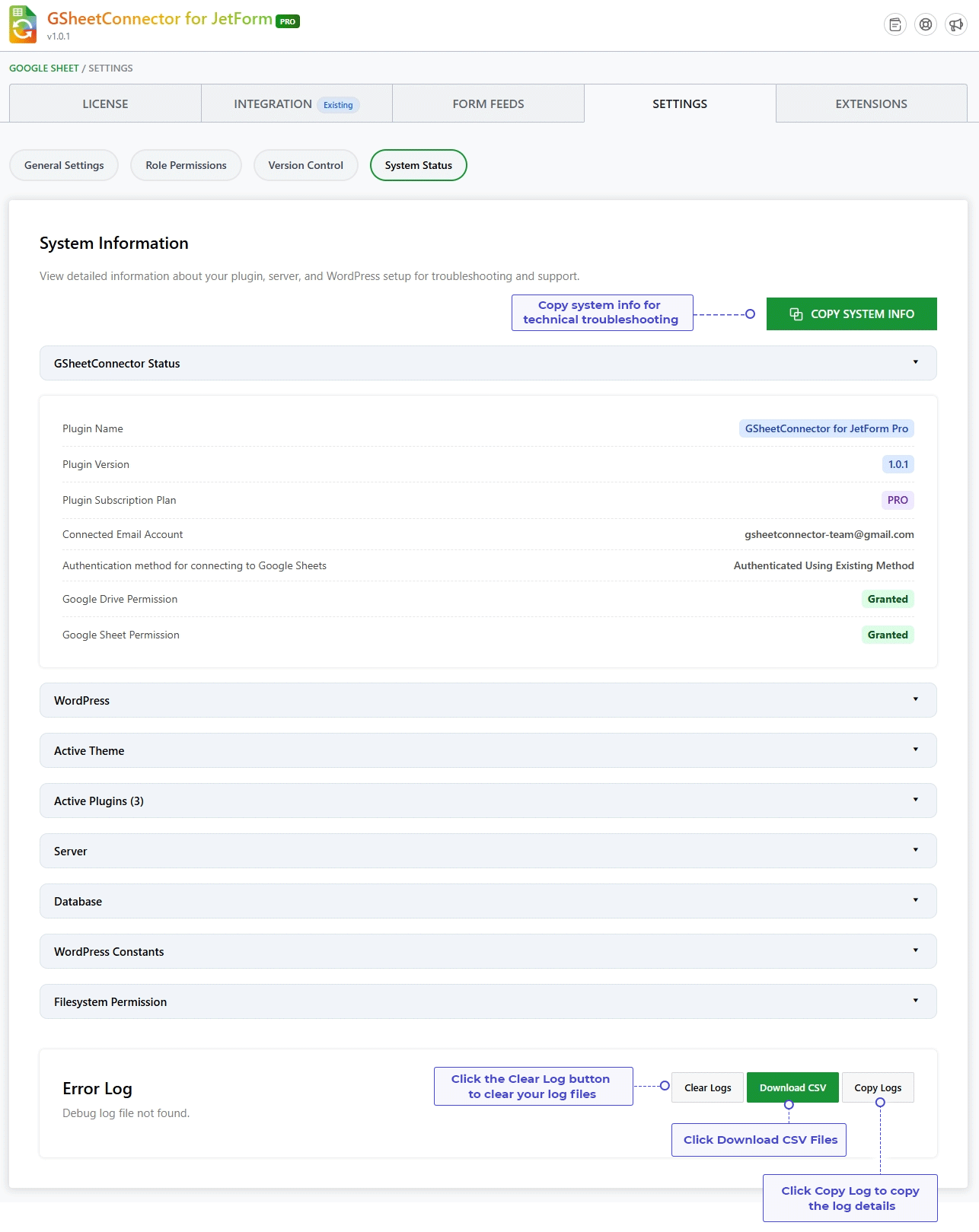
System Status gives you detailed technical information about your website environment.
This information is often requested by support teams when troubleshooting plugin issues.
System Information
System Information helps spot compatibility issues and gives useful diagnostics when reaching out for support.
It typically includes the following.
WordPress Information
- WordPress version
- Site URL
- Home URL
- Multisite status
- Language settings
Server Information
- PHP version
- Server software
- Memory limit
- Maximum execution time
- Upload size limits
Database Information
- Database version
- Database prefix
- Database connectivity status
Plugin Information
- JetFormBuilder Google Sheet Connector version
- Active integrations
- Connected features
- Plugin configuration details
Why System Information Matters
System Information can help you:
- Troubleshoot plugin issues
- Identify server limitations
- Verify compatibility requirements
- Diagnose Google Sheets connection problems
- Help our support team resolve issues faster
A Tip for Support Requests
If you reach out to our support team about a technical issue, share your System Information details whenever you can. It helps us identify and fix problems more efficiently.
Frequently Asked Questions
What happens when I enable Delete Plugin Data on Uninstall?
When this option is enabled, all data related to JetFormBuilder Google Sheet Connector is permanently removed once the plugin is deleted.
This includes:
- Plugin settings
- Feed configurations
- Integration settings
- Stored plugin metadata
This action cannot be undone, so we recommend taking a full website backup before uninstalling the plugin.
Should I enable Delete Plugin Data on Uninstall?
Only enable this if you want to completely remove all plugin data from your website after uninstalling it.
If you plan to reinstall the plugin later and want to keep your existing settings, leave this option off.
Can I recover plugin settings after enabling Delete Plugin Data on Uninstall?
No. Once the plugin is deleted with this option enabled, all stored settings and configurations are permanently gone and cannot be restored.
Always back up your website before uninstalling the plugin.
Who can access JetFormBuilder Google Sheet Connector settings from the WordPress dashboard?
Only the WordPress user roles selected under Role Permissions can access and manage these settings.
Users without permission will not see the plugin menu in the WordPress admin panel.
Which user roles should I allow access to?
It is best to allow access only to trusted users who actually manage form integrations and Google Sheets settings.
Recommended roles:
- Administrators
- Trusted Editors
- Authorized Team Members
Avoid giving access to users who do not need to manage form data or integrations.
Why can't a user see the plugin menu in WordPress Admin?
If a user cannot see the plugin menu, check the Role Permissions settings.
Make sure their WordPress role is enabled under Access Management. Only the roles you select get access to the plugin features.
Can I allow multiple users to manage Google Sheets integration settings?
Yes. You can enable multiple WordPress user roles from the Role Permissions section.
Every selected role will be able to access and manage the plugin’s features based on their WordPress permissions.
What are Beta Updates?
Beta Updates give you early access to upcoming features and improvements before they are officially released.
They are mainly meant for developers, testers, and advanced users who want to try upcoming functionality early.
Are Beta Updates installed automatically once enabled?
No. Enabling Beta Updates only lets you receive notifications and access beta releases.
Beta versions are not installed automatically. You install them manually whenever you choose.
Should I enable Beta Updates on my live website?
We do not recommend enabling Beta Updates directly on a production website.
Beta versions may include:
- Experimental features
- Changes in functionality
- Minor bugs or compatibility issues
Try beta versions on a staging or development site first.
What should I do before installing a beta version?
Take a full backup of your website before installing any beta release.
A backup lets you restore your site quickly if a compatibility or performance issue shows up after updating to a beta version.
What information is shown in System Information?
System Information displays details about your WordPress website, server environment, database, and the plugin’s setup.
It may include:
- WordPress version
- PHP version
- Server details
- Database information
- Plugin version and configuration details
Why does support ask for System Information details?
System Information helps our support team understand your website environment and spot possible compatibility issues.
Sharing these details helps us troubleshoot faster and give you an accurate solution.
Can I edit the System Information details?
No. System Information is a read-only section.
It simply displays technical details about your WordPress website and plugin environment for troubleshooting purposes.
Is System Information shared with anyone automatically?
No. System Information is only displayed inside your WordPress dashboard.
It is never shared automatically. You can copy and share these details yourself when contacting support.
Why is my Google Sheets integration not working after changing user permissions?
After changing Role Permissions, make sure the user account still has the required WordPress role access.
If the issue continues, double-check that the Google Sheet connection, Feed Status, and integration settings are all configured correctly.
What is the recommended General Settings setup for a production website?
For a production website, we recommend:
- Allowing access only to trusted administrators and editors.
- Enabling Delete Plugin Data on Uninstall only when you actually need it.
- Avoiding Beta Updates on live websites.
- Keeping regular website backups.
This keeps your setup secure and your plugin running smoothly.


