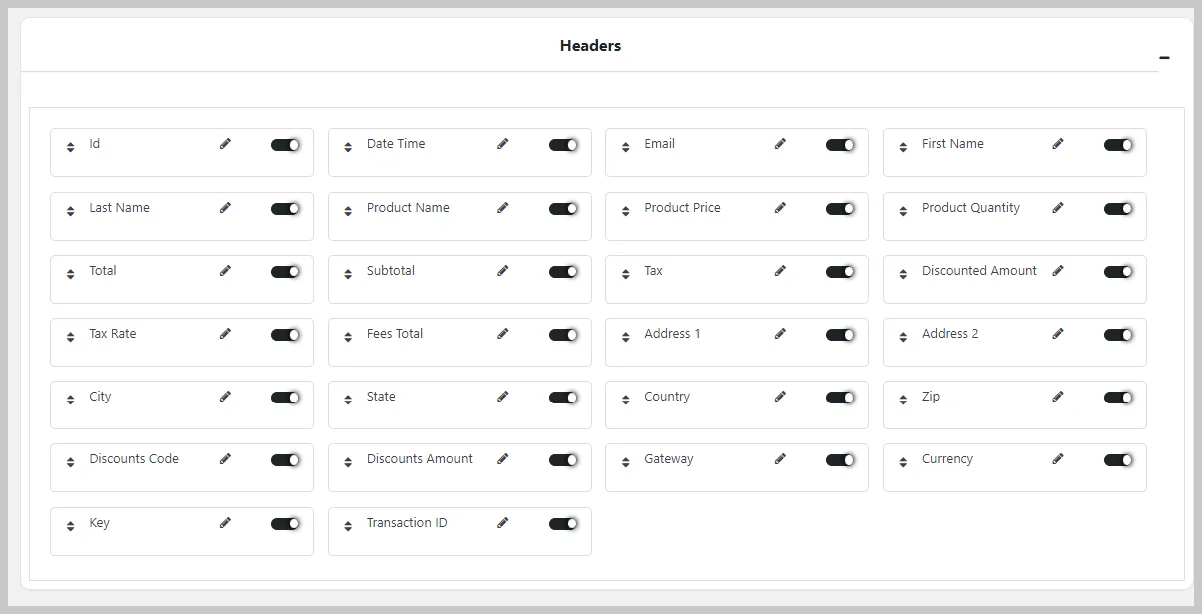
This guide makes it easy to Configuration of Easy Digital Downloads and Easy Digital Downloads Google Sheet Connector Plugin.
Integration of EDD with Google Sheet :
- Ensure that you have successfully integrated (Automatic Integration or Manual Integration) WooCommerce with Google Sheet Connector.
EDD Data Settings :
- Go to Downloads dashboard – EDD Data Setting.
EDD (Easy Digital Downloads) Google Sheet Setting :
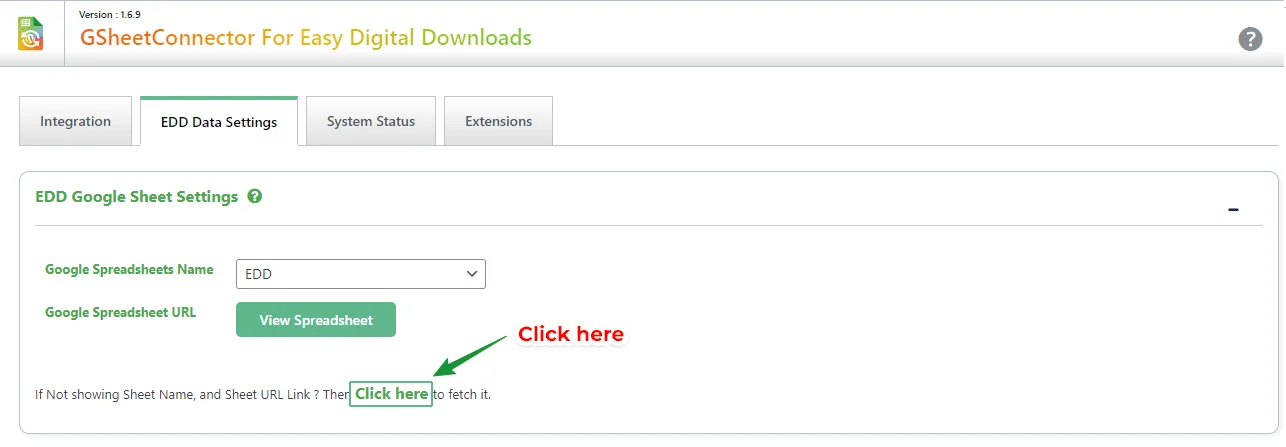
- First Click On “If Not showing Sheet Name ? Then Click here to fetch it” , then select your Google Spreadsheet Name or you can Create a New Sheet.
EDD (Easy Digital Downloads) Google Tabs Setting :
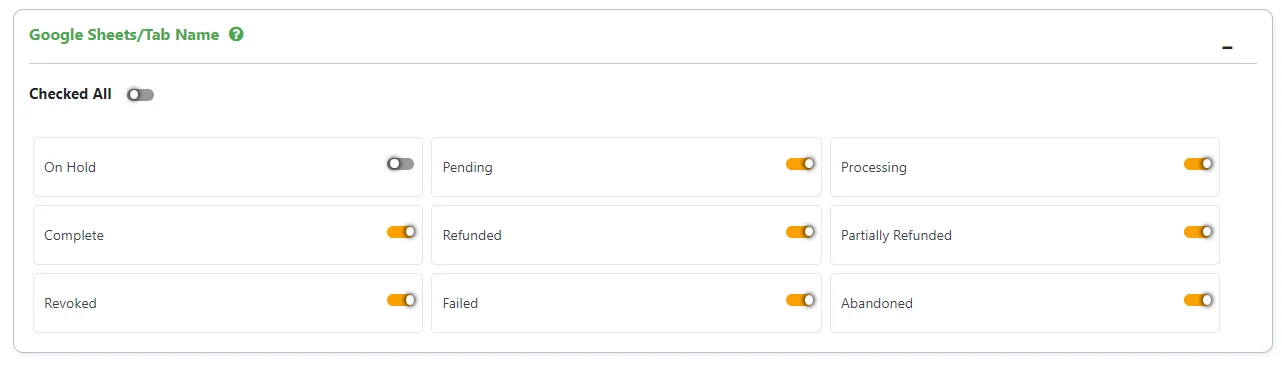
Now in Google Sheets/Tab Name,Enable Tabs that you want to insert into Google SpreadSheet.Enabling Check All will put all tabs into your Google Sheet.
EDD (Easy Digital Downloads) Headers (Column Name) :
Some default fields given in WooCommerce Google Sheet Connector ( free version ) will be automatically in your google sheet.(like below screenshot)