
How to Update WPForms Google Sheet Connector
Keeping WPForms Google Sheet Connector updated ensures you have the latest features, bug fixes and security improvements. This guide covers two methods: the standard one-click update from your WordPress dashboard, and the manual update using a ZIP file, which you can use when the direct update fails.
Method 1: Standard Update (From Your Dashboard)
This is the easiest way to update the plugin. Follow these steps:
- Log in to your WordPress dashboard.
- In the left-hand menu, go to Plugins → Installed Plugins.
- If an update is available, you will see a notification below the plugin name.
- Click the Update Now button.
- WordPress will download and install the update. When it finishes, you will see a success message.

If several plugins have updates, you can update them together. Click the Update Available link at the top of the Plugins page, select the plugins, then choose Update from the Bulk Actions dropdown.
If you see an error such as “Update failed: Download failed”, use Method 2 below to update the plugin manually.
Method 2: Manual Update (Using the ZIP File)
With the manual method, you download the latest plugin file from your account and upload it to WordPress. It has three parts: download the file, upload it, and replace the old version.
Part 1: Download the Latest Plugin File
- Log in to the website where you purchased the plugin, using the credentials you received at the time of purchase.
- Go to the My Account section and click Purchase History.
- Click the option to view details and downloads to open the plugin download page.
- Select the correct version for your purchase, either the Single Site License or the Multi-Site License.
- Download the WPForms GSheetConnector PRO ZIP file to your computer.
- On the same page, you will also find your license key. Keep it handy in case you need it for activation later.


Part 2: Upload the Plugin in WordPress
- Log in to your WordPress dashboard.
- Go to Plugins → Installed Plugins.
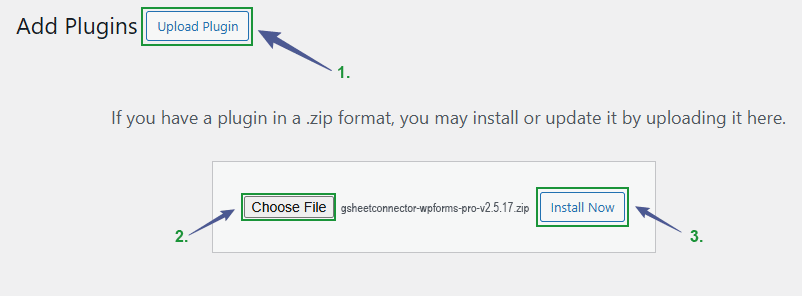
- Click Add New, then click Upload Plugin.
- Click Choose File and select the plugin ZIP file you downloaded (for example,
gsheetconnector-wpforms-pro-vX.X.X.zip, where X.X.X is the latest version number). - Click Install Now.
Part 3: Replace the Current Version
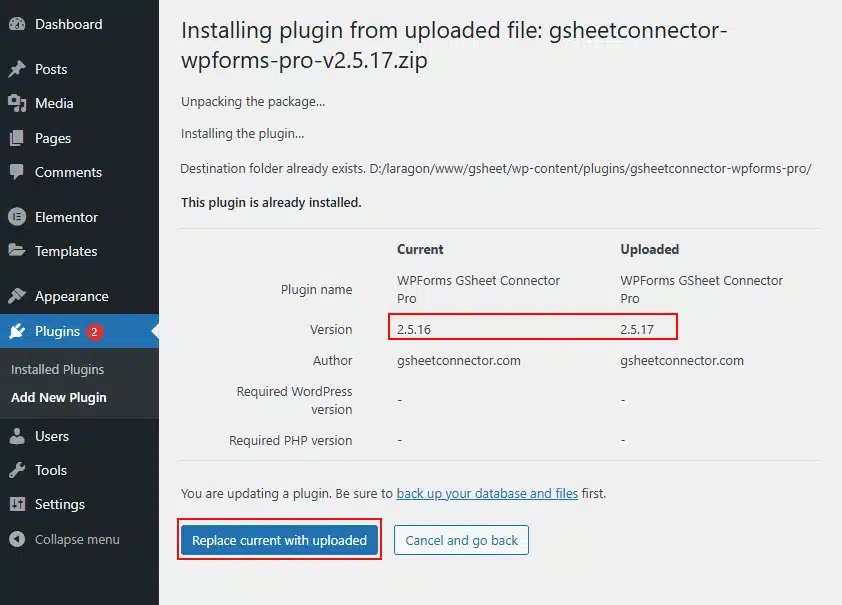
WordPress will tell you that the plugin is already installed. Click the Replace Current with Uploaded button. WordPress will replace your old plugin files with the newer version, and your plugin will be updated.
Confirm the Update Was Successful
After updating with either method, check that the new version is active:
- Go to Plugins → Installed Plugins and check the version number shown under the plugin name.
- You can also open Google Sheets → System Status in your WordPress dashboard and check the Plugin Version field.
For more details about this page, see the System Status guide.
Related Guides
New to the plugin? Start with the Introduction and Requirements pages. If you are setting up your license for the first time, see our PRO Version Download, Install & License Activation guide.
If you have any questions or concerns about updating the plugin, please contact our Support team.
Frequently Asked Questions
How do I know if an update is available?
You will see a notification below the plugin name on the Plugins → Installed Plugins page whenever a new version is available.
Should I back up my site before updating?
Yes. Always back up your WordPress site before updating any plugin, so you can restore it quickly if anything unexpected happens.
What should I do if I get an 'Update failed: Download failed' error?
This usually means the one-click update could not complete. Follow the Manual Update steps in this guide: download the latest version from your account and install it using Upload Plugin.
Where do I download the latest PRO version manually?
Log in to your account on our website, go to My Account → Purchase History → View Details and Downloads, and download the latest version file from there.
Will I lose my settings if I update manually?
No. As long as you click Replace Current with Uploaded during the manual update, your existing feed settings, license activation and configuration are kept.
How can I check which version of the plugin I have?
Go to Plugins → Installed Plugins and look under the plugin name, or open Google Sheets → System Status and check the Plugin Version field.
Can I update multiple plugins at once?
Yes. On the Installed Plugins page, click the Update Available link at the top, then select Update from the Bulk Actions dropdown to update several plugins together.
Do I need my license key to update the plugin?
Not for the update itself. But you will find your license key on the same download page during a manual update, which is useful to have in case you ever need to reactivate it.