
How to Use General Settings in WPForms Google Sheet Connector PRO
The General Settings tab in WPForms Google Sheet Connector PRO lets you manage how the plugin’s settings and data are handled on your WordPress site. Right now, it contains the Plugin Preferences section with one important option: Delete Plugin Data on Uninstall. This guide explains where to find it, what it does, and when you should turn it on or off.
Where to Find General Settings
- In your WordPress dashboard, go to Google Sheets → Settings.
- Click the General Settings button. You will see it next to Role Permissions and Version Control.
- The Plugin Preferences screen opens.
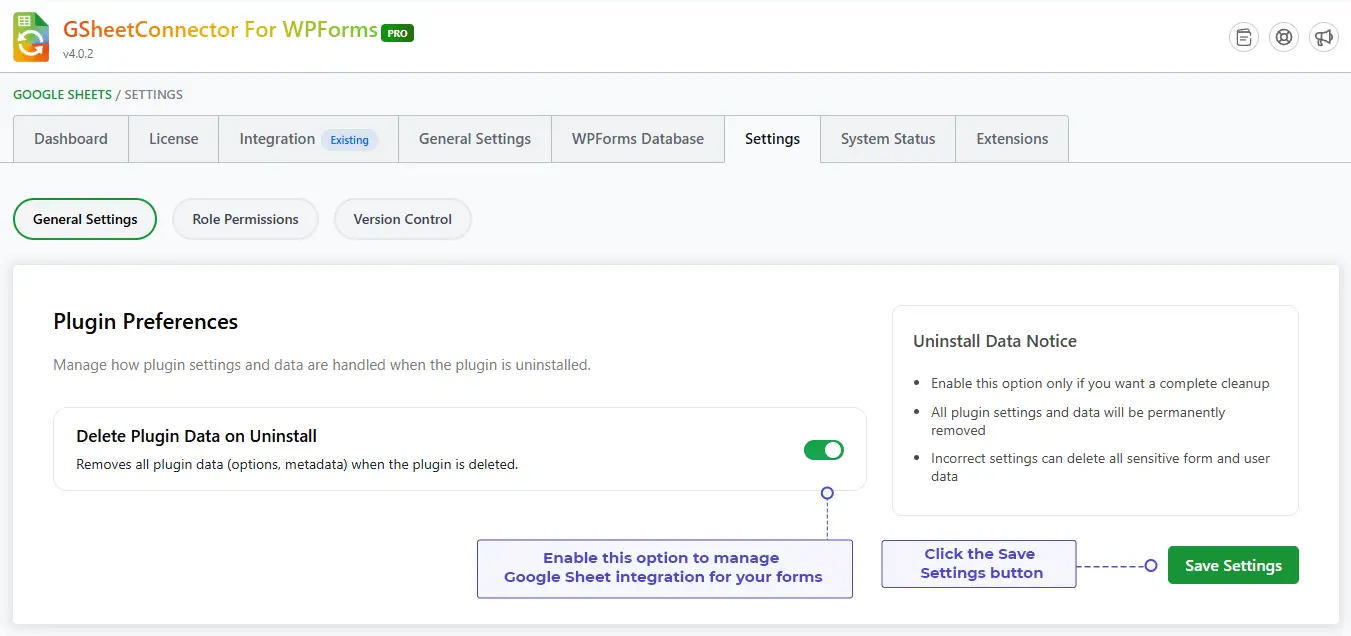
Plugin Preferences
The Plugin Preferences section lets you choose what happens to the plugin’s settings and data when the plugin is uninstalled from your site.
Delete Plugin Data on Uninstall
This option removes all plugin data (options and metadata) when the plugin is deleted from your WordPress site.
- Turned On – when you delete the plugin, all of its saved settings and data are permanently removed from your site. This gives you a complete cleanup.
- Turned Off – when you delete the plugin, its settings and data are kept in your database. If you install the plugin again later, your previous configuration can still be there.
This setting only takes effect when the plugin is deleted. Deactivating the plugin does not remove your data.
Uninstall Data Notice
On the right side of the screen, the Uninstall Data Notice box reminds you to be careful with this option:
- Enable this option only if you want a complete cleanup.
- All plugin settings and data will be permanently removed.
- Incorrect settings can delete all sensitive form and user data.
How to Turn On or Off Delete Plugin Data on Uninstall
- Go to Google Sheets → Settings → General Settings.
- Find the Delete Plugin Data on Uninstall option under Plugin Preferences.
- Click the toggle to turn it on (green) or off (gray).
- Click the green Save Settings button to apply your choice.
When Should You Enable This Option?
| Situation | Recommended setting |
|---|---|
| You are updating the plugin to a new version | Off |
| You are temporarily deactivating the plugin to test a plugin conflict | Off |
| You may reinstall the plugin later and want to keep your settings | Off |
| You are permanently removing the plugin and want a complete cleanup of its data | On |
Before You Delete the Plugin
If you plan to delete the plugin with Delete Plugin Data on Uninstall turned on, we suggest the following:
- Take a full backup of your WordPress site.
- Note down anything you may need later, such as your license key and your Google Sheet details.
- Confirm that the option is set the way you want, and click Save Settings.
- Go to Plugins → Installed Plugins, deactivate the plugin, and then click Delete.
If you install the plugin again after a complete cleanup, you may need to set it up from the start, including your license activation, Google account connection and form feeds.
Related Guides
Looking for other settings? See Role Permissions to control which user roles can access the plugin, the Plugin Feed Settings – PRO Version guide to configure your form feeds, and the System Status guide for troubleshooting. If you need help, please contact our Support team.
Frequently Asked Questions
Where do I find General Settings in WPForms Google Sheet Connector PRO?
Go to Google Sheets → Settings in your WordPress dashboard, then click the General Settings button next to Role Permissions and Version Control.
What does Delete Plugin Data on Uninstall do?
When this option is turned on, all plugin data, including options and metadata, is removed from your site when you delete the plugin. When it is off, the data is kept.
Does deactivating the plugin delete my data?
No. The option works only when the plugin is deleted from your site. Deactivating the plugin does not remove your plugin settings or data.
Should I turn on Delete Plugin Data on Uninstall?
Turn it on only if you want a complete cleanup and do not plan to use the plugin again. If you are updating, testing or may reinstall the plugin later, keep it off.
Can I recover my data after it has been deleted?
No. The data is permanently removed when the plugin is deleted with this option on. We recommend taking a full backup of your site before you delete the plugin.
Will updating the plugin remove my settings if this option is on?
No. This option applies only when the plugin is deleted. A normal update, or a manual update using Replace Current with Uploaded, does not remove your settings. If you delete the plugin and install it again, however, the data will be gone.
Do I need to click Save Settings after changing this option?
Yes. Click the green Save Settings button, or your change will not be applied.
What should I do before deleting the plugin?
Back up your site, note down your license key and Google Sheet details, check the option and click Save Settings, then deactivate and delete the plugin from the Installed Plugins page.


