This guide makes it easy to Configuration of Avada Forms and the Avada Forms Google Sheet Connector Plugin.
Integration of Avada Forms with Google Sheet:
- Ensure that you have successfully integrated (Automatic Integration or Manual Integration) WooCommerce with Google Sheet Connector.
Avada Forms Feeds Setting :
In Google Sheet – Feeds Tab :-
In WordPress Dashboard :
- Navigate to Avada > Google Sheet > Google Sheet – Feeds.
Fetch Sheets :
- If you haven’t fetched sheets from the integration tab, click on “Fetch sheets.”
Add Feed :
- In the Google Sheet – Feeds tab, click on “Add Feed.“

Name The Feed:
- Provide a name for the feed.
- Select the page.
- Click “Submit.”

Edit the Feed:
- Once the feed is successfully added, edit the feed.

Fetch Fields & Save Form Fields:
- Click on “Fetch Fields” to retrieve form fields.

- Save the form fields.

Google Sheet Setting:
Integration:
- Ensure the integration is complete as per the instructions.
Fetch Sheets:
- Click on “Click here” to fetch sheets.
Select Google Spreadsheet:
- Choose the existing Google Spreadsheet or create a new sheet.
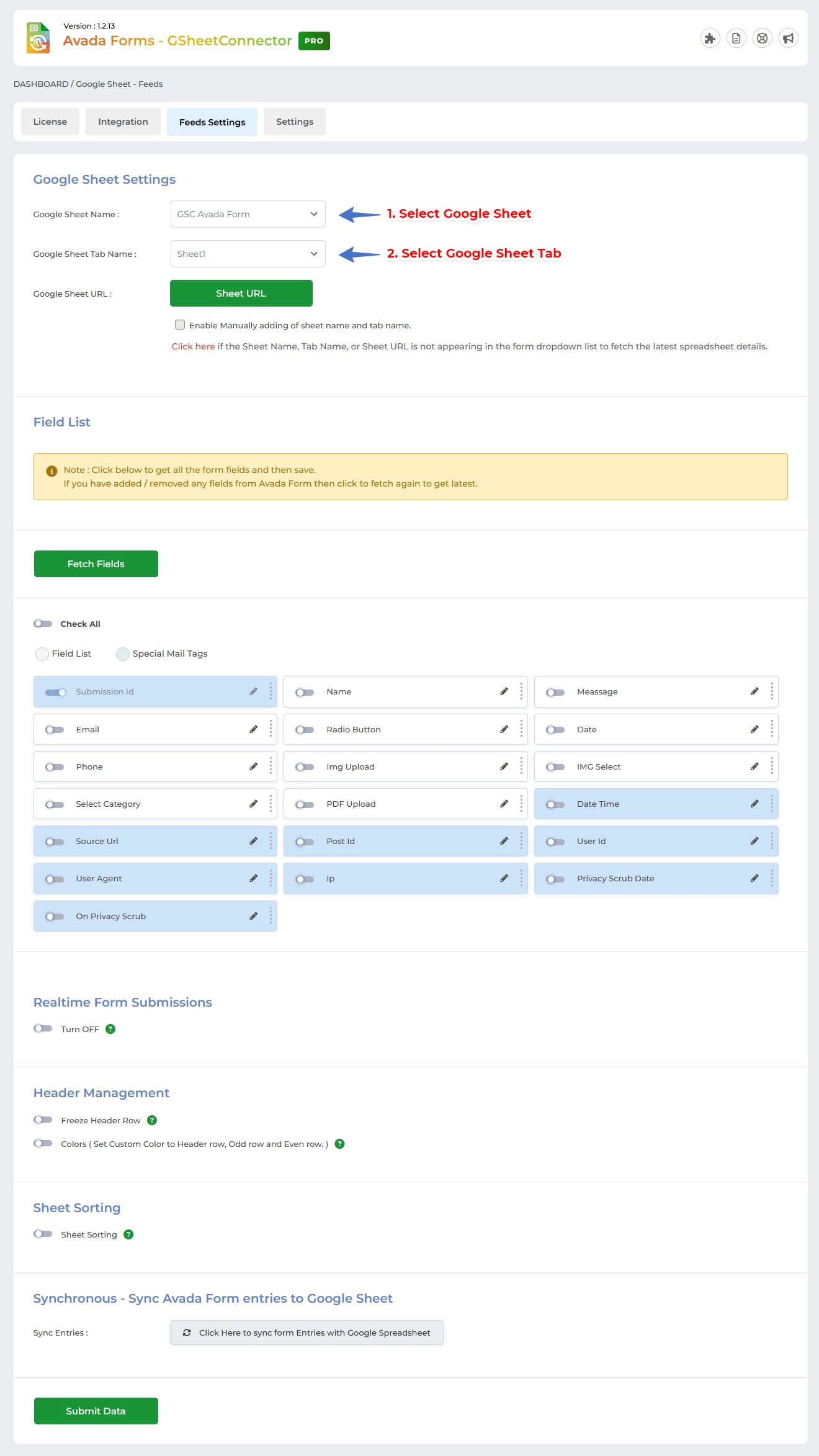
Save or Submit Data:
- Select Google Sheet and Tab Name.
- Save or submit data.
Enable Manually Adding of Sheet Name and Tab Name:
- Optionally enable this checkbox to manually add the sheet name and tab name.
Manually Adding Sheet Name & Tab Name:
-
Manual Method:
- Manually add Google Sheet Name, Google Sheet ID, Google Sheet Tab Name, and Google Sheet Tab ID.
- Save and submit data.

Field List Setting:
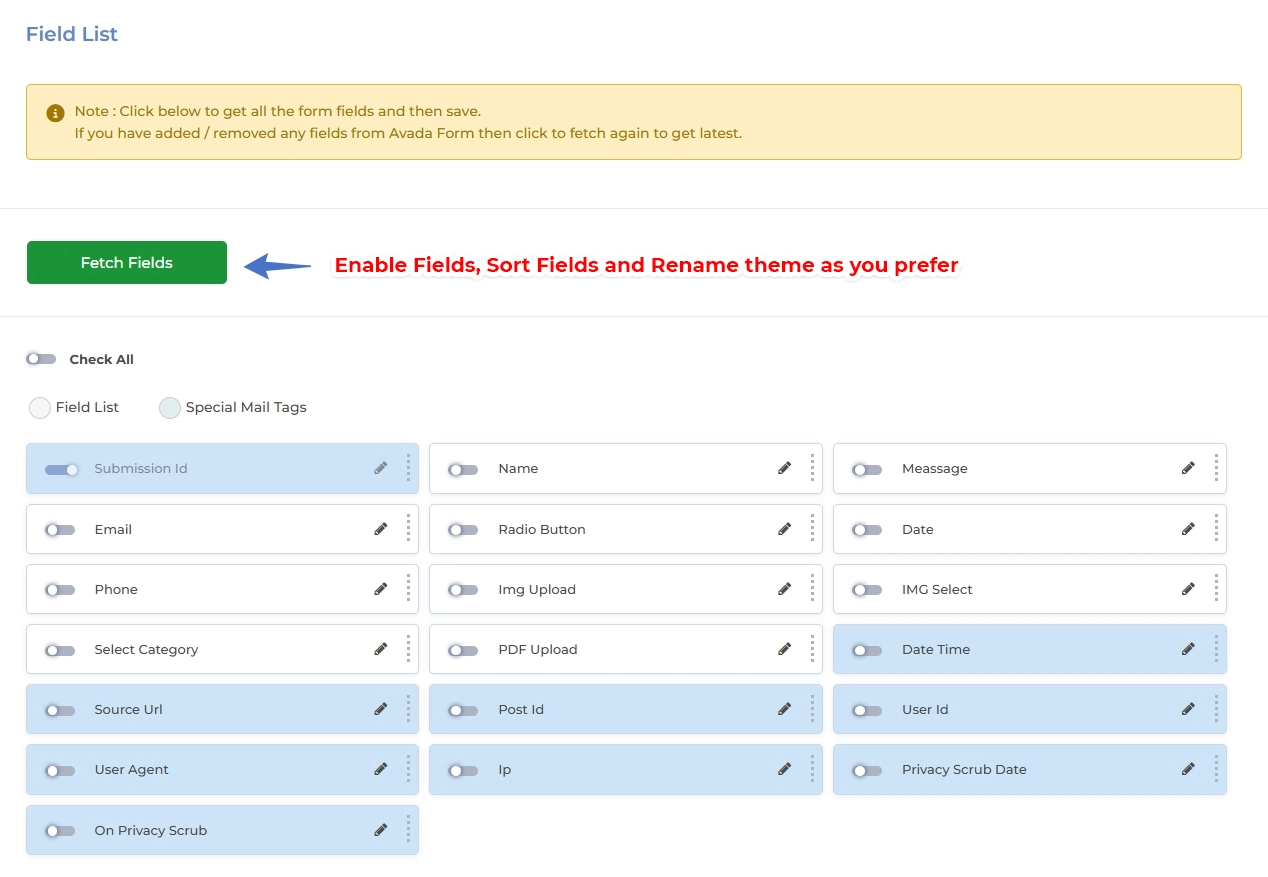
Fetch Fields:
- Click on “Fetch Fields” if you have added fields in Form.
Enable Fields:
- Enable the fields you wish to view in your Google Sheet.
Sort Fields & Rename:
- Optionally, sort and rename fields.
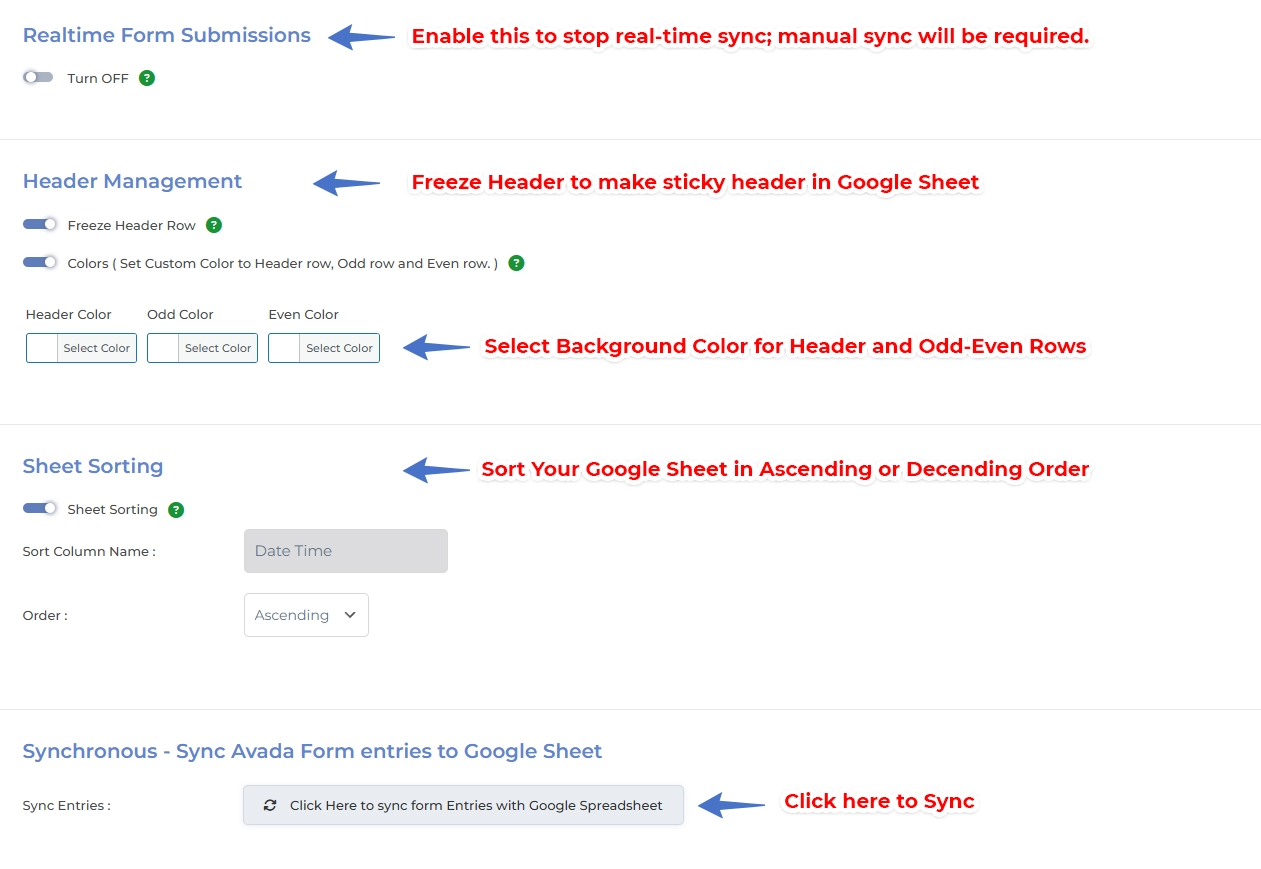
Header Management & Synchronization:
Header Management:
- Freeze Header: Enable to stick the header to the top.
- Header Color: Set the background color for the header.
- Odd Color: Set the background color for odd rows.
- Even Color: Set the background color for even rows.
Submit Data for Save:
- Save the configuration.
Synchronization:
Note: If you have a large volume of data exceeding 1,000 rows, you must manually add more rows to the sheet, as shown in the image.

- Click on the image to sync Avada form entries to Google Sheets.