
This guide makes it easy to install WooCommerce and the WooCommerce Google Sheet Connector Plugin.
Installing WooCommerce
1 . Log In to WordPress
- Go to your WordPress admin area.
2 . Find the Plugins Section
- Click “Plugins” on the left side.
3 . Add New Plugin
- Hit “Add New” at the top.
4 . Search for WooCommerce
- Type “WooCommerce” in the search bar.
- Click “Plugins” on the left side.
3 . Add New Plugin
- Hit “Add New” at the top.
4 . Search for WooCommerce
- Type “WooCommerce” in the search bar.
- Type “WooCommerce” in the search bar.

5 . Install WooCommerce
- Click “Install Now” for WooCommerce.
6 . Activate WooCommerce
- Once it’s installed, activate it.
Installing WooCommerce Google Sheet Connector Plugin
7 . Go Back to Plugins
- If needed, go back to the Plugins section.
8 . Add New Plugin
- Click “Add New” again.
9 . Search for WooCommerce Google Sheet Connector
- Type “WooCommerce Google Sheet Connector” in the search bar.
- Once it’s installed, activate it.
Installing WooCommerce Google Sheet Connector Plugin
7 . Go Back to Plugins
- If needed, go back to the Plugins section.
8 . Add New Plugin
- Click “Add New” again.
9 . Search for WooCommerce Google Sheet Connector
- Type “WooCommerce Google Sheet Connector” in the search bar.
- Click “Add New” again.
9 . Search for WooCommerce Google Sheet Connector
- Type “WooCommerce Google Sheet Connector” in the search bar.
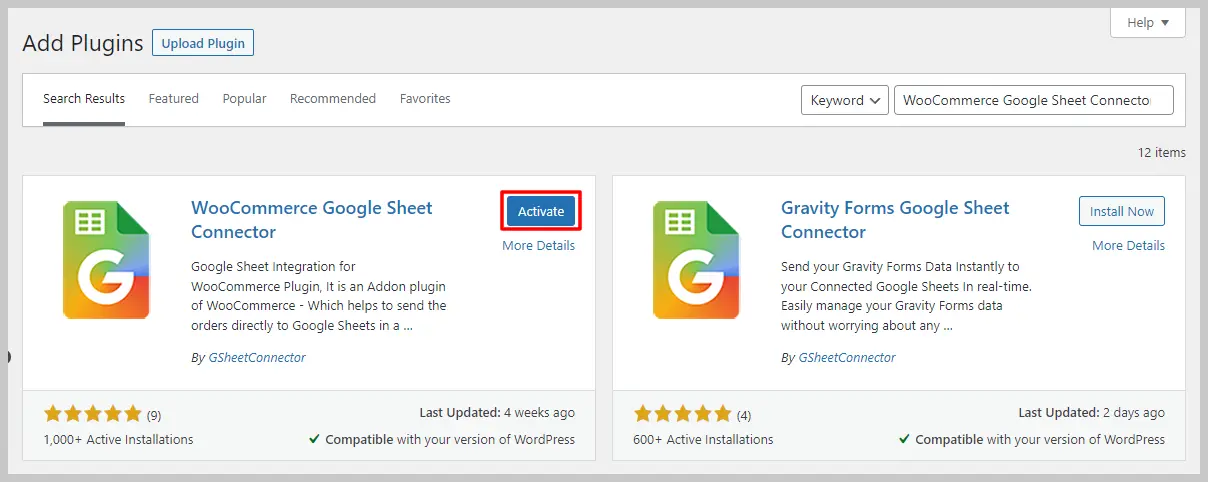
10 . Install WooCommerce Google Sheet Connector
- Click “Install Now” for WooCommerce Google Sheet Connector.
11 . Activate WooCommerce Google Sheet Connector
- After installing, activate it.
A Quick video showing an installing
- After installing, activate it.
A Quick video showing an installing
Installing from WordPress
- Go to the wordpress.org & Download plugins zip file.
- To Add the New Plugin, Select the “ADD NEW” Plugins Menu in the Dashboard.
- Click on the “upload plugin” Button & upload the WooCommerce Google Sheet Connector plugin zip file.
- Install and activate the WooCommerce Google Sheets Connector Plugin.
 CF7 Google Sheet Connector
 WPForms Google Sheet Connector
 Ninja Forms Google Sheet Connector
 Gravity Forms Google Sheet Connector
 Formidable Forms Google Sheet Connector
 Forminator Forms Google Sheet Connector
 Fluent Forms Google Sheet Connector
 JetFormBuilder Google Sheet Connector
 Elementor Forms Google Sheet Connector
 Avada Forms Google Sheet Connector
 Divi Forms Google Sheet Connector
 WooCommerce Google Sheet Connector
 Easy Digital Downloads Google Sheet Connector
 WordPress Google Sheet Connector


