
This guide makes it easy to Configuration of WooCommerce and the WooCommerce Google Sheet Connector Plugin.
Integration of WooCommerce with Google Sheet:
- Ensure that you have successfully integrated (Automatic Integration or Manual Integration) WooCommerce with Google Sheet Connector.
WooCommerce Data Setting :
-
Go to WooCommerce dashboard – WooCommerce Data Setting.
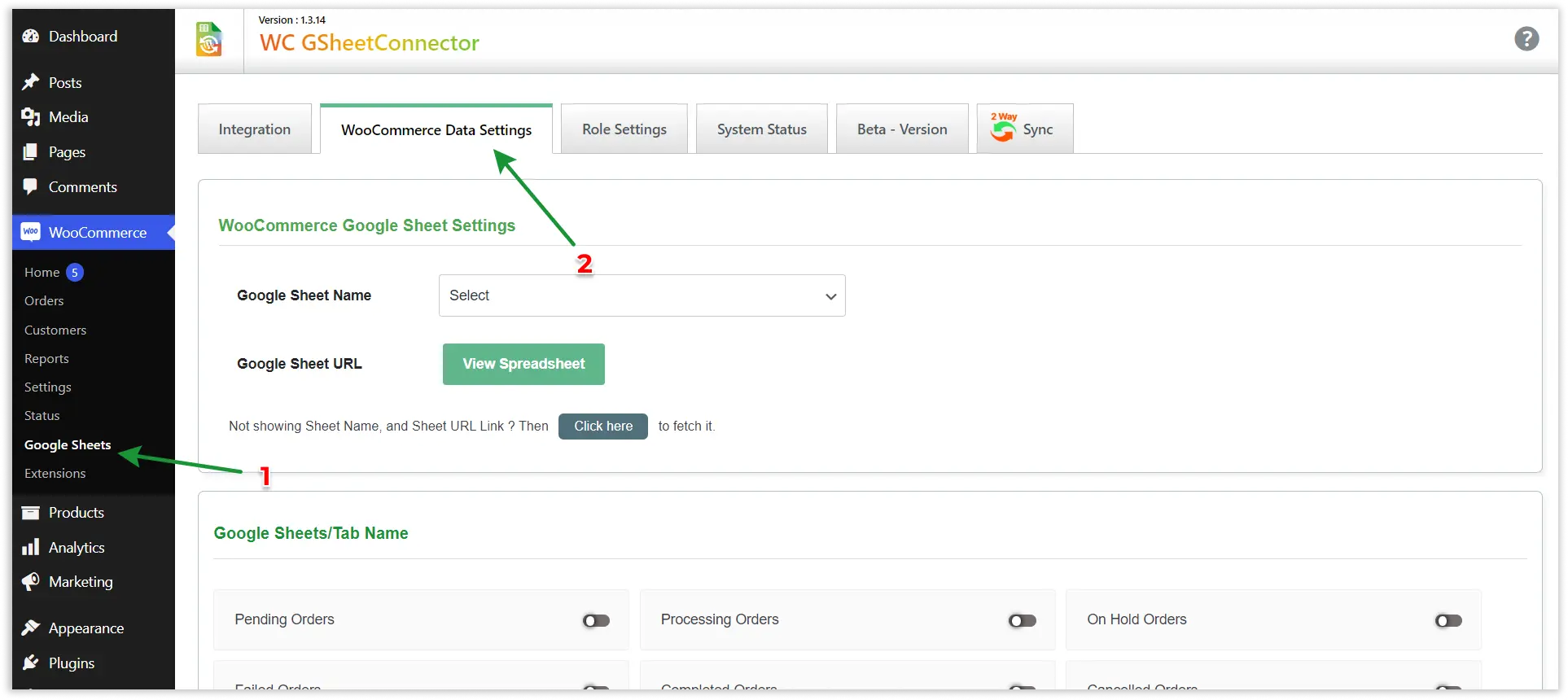
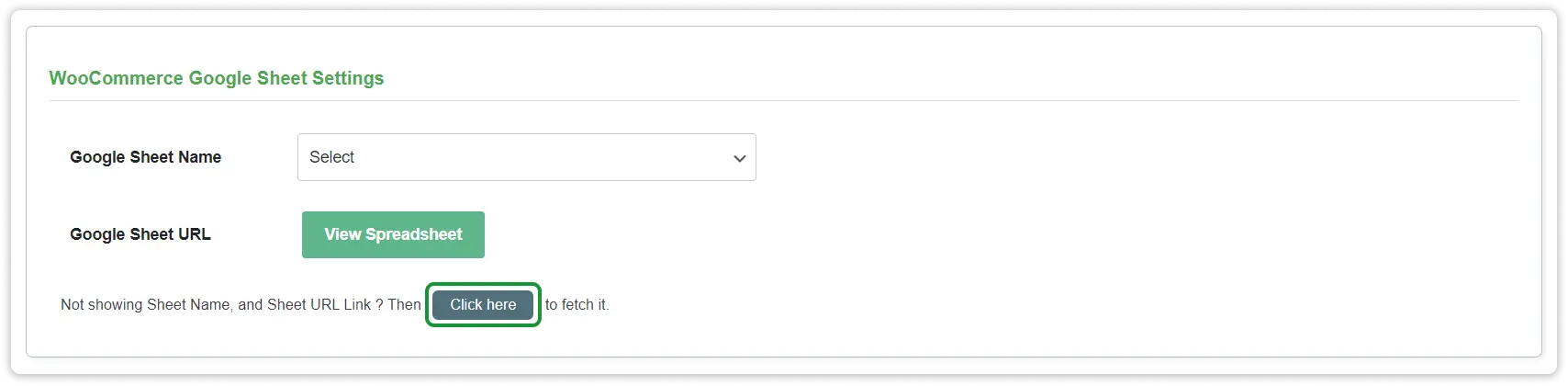
WooCommerce Google Sheet Setting :
- First Click On “If Not showing Sheet Name ? Then Click here to fetch it” , then select your Google Spreadsheet Name or you can Create a New Sheet.
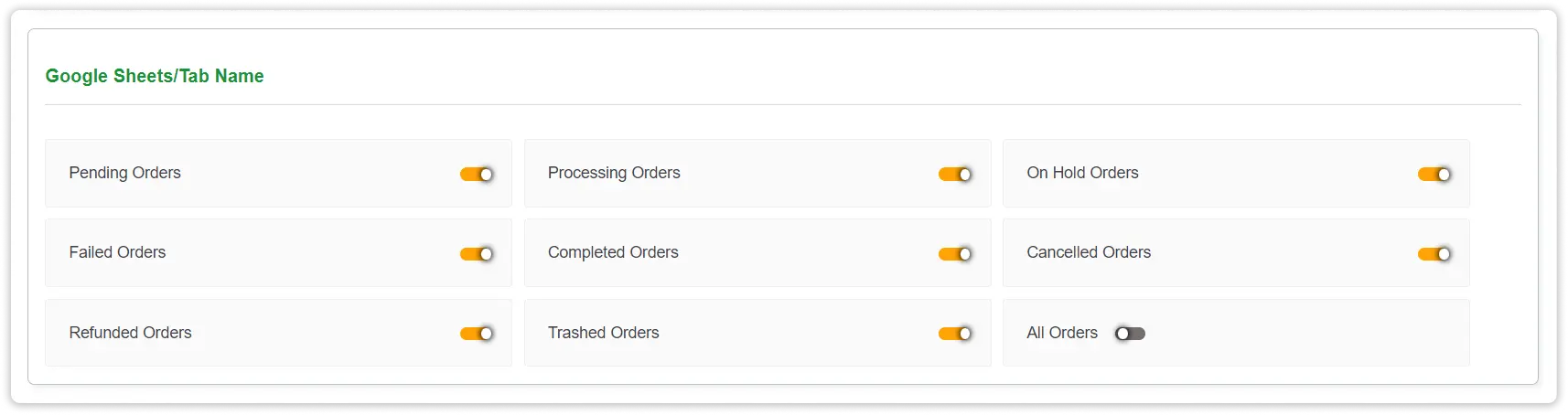
WooCommerce Google Tabs Setting :
- Now in Google Sheets/Tab Name,Enable Tabs that you want to insert into Google SpreadSheet.Enabling Check All will put all tabs into your Google Sheet.
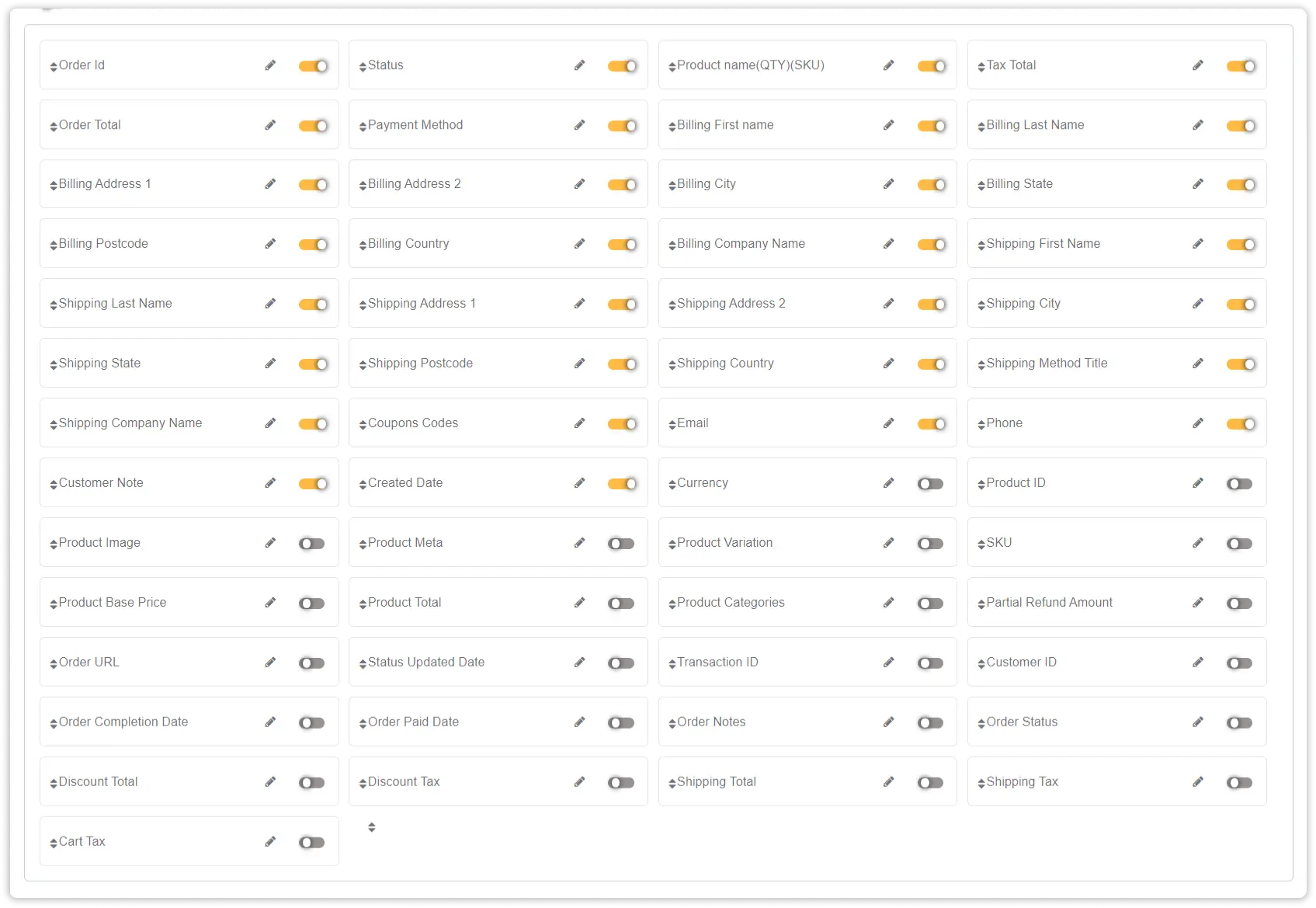
WooCommerce Google Sheet Headers (Column Name) :
- Some default fields given in WooCommerce Google Sheet Connector ( free version ) will be automatically in your google sheet.(like below screenshot)
Now Submit Data.
 CF7 Google Sheet Connector
 WPForms Google Sheet Connector
 Ninja Forms Google Sheet Connector
 Gravity Forms Google Sheet Connector
 Formidable Forms Google Sheet Connector
 Forminator Forms Google Sheet Connector
 Fluent Forms Google Sheet Connector
 JetFormBuilder Google Sheet Connector
 Elementor Forms Google Sheet Connector
 Avada Forms Google Sheet Connector
 Divi Forms Google Sheet Connector
 WooCommerce Google Sheet Connector
 Easy Digital Downloads Google Sheet Connector
 WordPress Core Google Sheet Connector


