
What Does get_external_headers Do?
-
This filter allows you (or a plugin) to modify or add extra headers (columns) to the data being exported to Google Sheets.
-
It’s commonly used in order-level export, not product-line-level.
-
These headers become the column titles in your Google Sheet (like “ExtraFieldWoo”, “Custom External Fields1”, etc.).
Step 1 – Hook into the get_external_headers Filter
This defines the extra columns that will appear in your Google Sheet export.
Where to Place This Code :
- Recommended: In a custom plugin or site-specific plugin for better management.
- Alternative: Inside the functions.php file of your child theme. (child theme recommended)
- Avoid: Modifying WooCommerce or GSheetConnector core files.
$new_headers = array(

    'custom_external_fields'=>'ExtraFieldWoo',
    'custom_external_fields1'=>'Custom External Fields1',
    'custom_external_fields2'=>'Custom External Fields2',
    'custom_external_fields3'=>'Custom External Fields3',
    'custom_external_fields4'=>'Custom External Fields4'
);
apply_filters( "get_external_headers",  $new_headers);
Step 2 – After adding the final code, click “Submit Data” to save it.
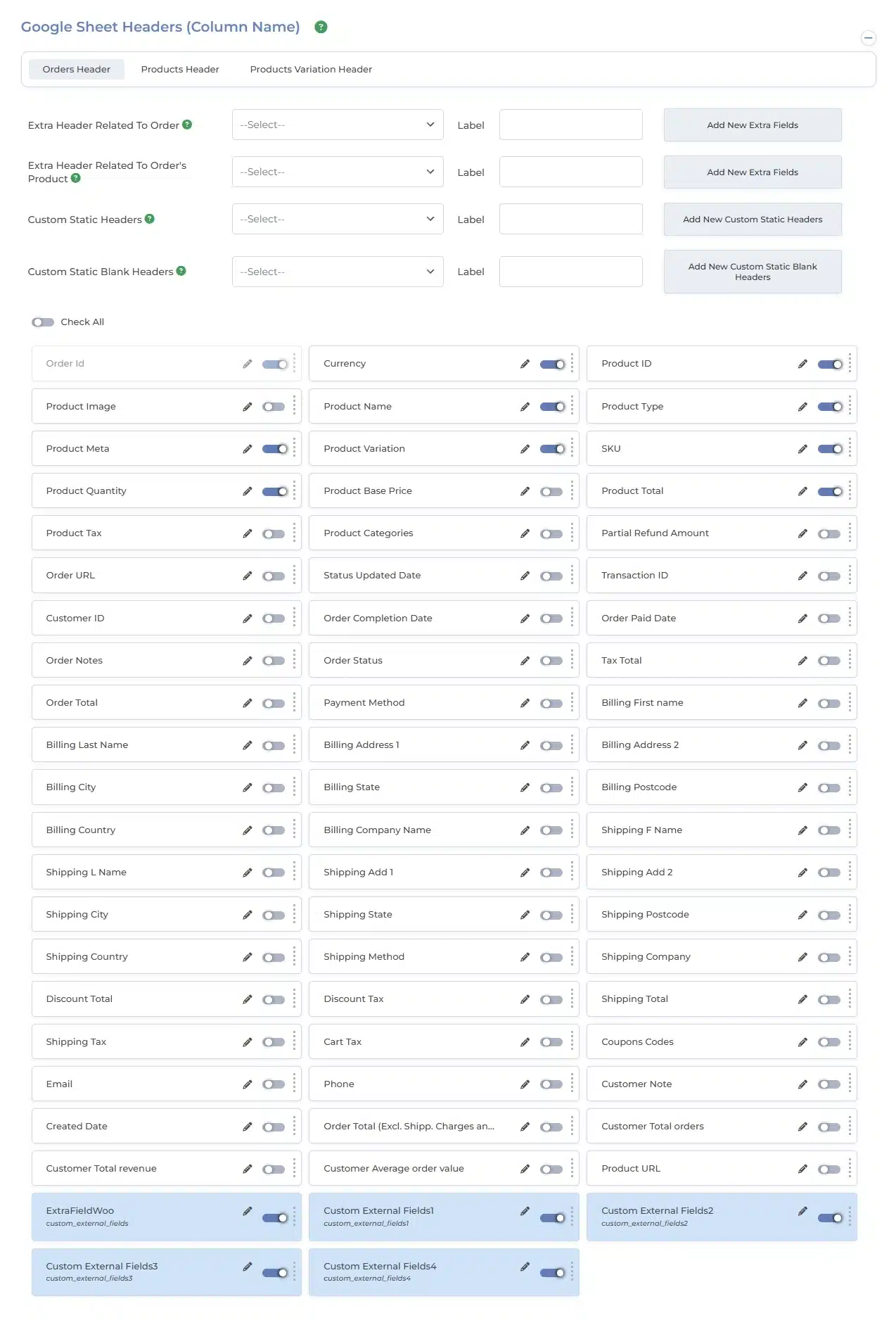
Step 3 – Test with a product order
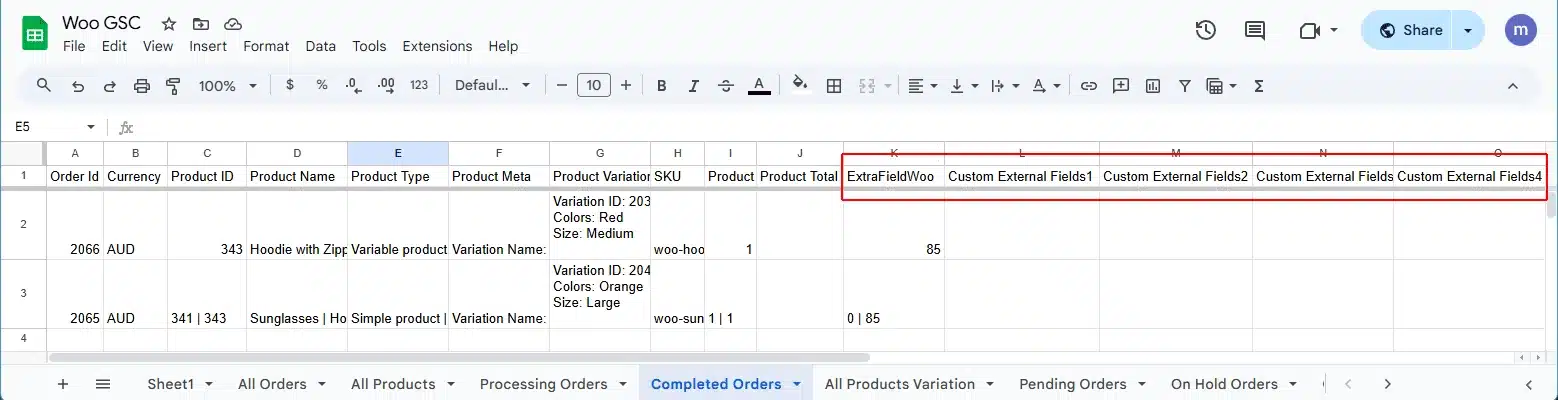
The custom field columns will then be added to the Google Sheet, and you can proceed to test with a product order.
This makes sure these fields appear as columns in your Google Sheet.
Want to add a custom column to your Google Sheet with the GSheetConnector WooCommerce plugin?
This code is used with the GSheetConnector WooCommerce plugin to add a custom column in your Google Sheet export that displays:
Product Name (QTY) (SKU) – for each line item in the WooCommerce order.
It works in two steps:
-
Adds a custom column header called
"Product Name (QTY) (SKU)" -
Fills in that column with combined product information for each order row.
Add a Custom Header
// Add custom headers for the combined Product Name (QTY) (SKU) field
$new_headers = array(
'custom_external_fields' => 'Product Name (QTY) (SKU)',
);
apply_filters("get_ext_product_order_headers", $new_headers);

// Return value for the custom header added
function get_product_quantity_sku( $header_value, $header_col_name, $order, $custom_status ) {
if( $header_col_name === "Product Name (QTY) (SKU)" ) {
//your code here
return $values;
} else {
return $header_value;
}
}
add_filter("gscwoo_row_values", "get_product_quantity_sku", 10, 4);
What this does:
-
Checks if the current column being processed is
"Product Name (QTY) (SKU)". -
If yes, you can write logic inside this condition to fetch:
-
The product name
-
The quantity ordered
-
The SKU (stock keeping unit)
-
-
Then it returns the formatted string, such as:
T-Shirt (2) (TS-001)
You need to replace // your code here with actual logic to fetch product details.
Where to Place This Code?
You should place this code in:
-
Your theme’s
functions.phpfile (child theme recommended) OR -
A custom plugin or code snippets manager like Code Snippets plugin.
What Happens After Adding the Code?
-
A new column titled “Product Name (QTY) (SKU)” will be added to your connected Google Sheet.
-
When you click “Submit Data” or the order is automatically exported:
-
That column will contain combined info like
T-Shirt (2) (TS-001)
-
-
You can now easily view detailed product info in one column, which is helpful for reporting and analysis.
==============================================================================
Create custom hooks for below plugins
- Custom Order Numbers for WooCommerce
(https://wordpress.org/plugins/custom-order-numbers-for-woocommerce/)
 CF7 Google Sheet Connector
 WPForms Google Sheet Connector
 Ninja Forms Google Sheet Connector
 Gravity Forms Google Sheet Connector
 Formidable Forms Google Sheet Connector
 Forminator Forms Google Sheet Connector
 Fluent Forms Google Sheet Connector
 JetFormBuilder Google Sheet Connector
 Elementor Forms Google Sheet Connector
 Avada Forms Google Sheet Connector
 Divi Forms Google Sheet Connector
 WooCommerce Google Sheet Connector
 Easy Digital Downloads Google Sheet Connector
 WordPress Core Google Sheet Connector


